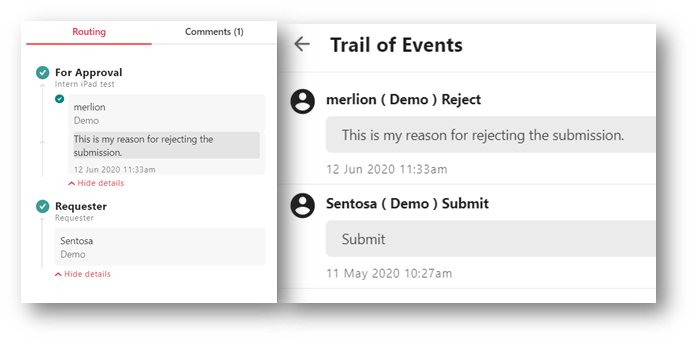
Rejecting a Submission
- Open the submission from the email notification that have received.
- Alternatively, you can find such submission under the E-Submission Dashboard Widget or My Tasks section in E-Submission module.
- Click on the Reject button in the Submission page.
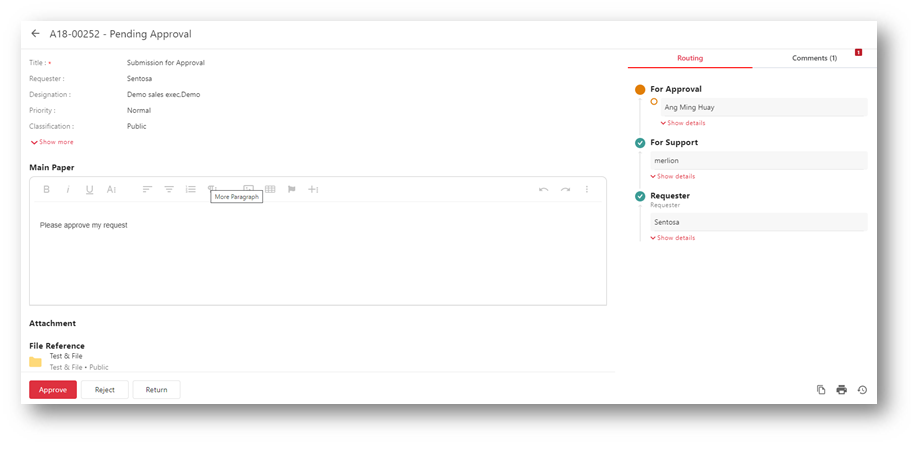
- Enter your comments if any and click on the Reject button to continue
- It is mandatory if you are approving the submission.
- Click the Close icon to view current submission or the Process Next Submissions link to continue with the next submission.
After you have rejected the submission, the submission will come to an end the Final Status changed to Rejected. No PDF copy of this submission will be saved into selected folder in KRIS Record Manager module. An email notification will be sent to every participants in this submission.