How to edit an open Work Order?
Jump to
How to edit an open Work Order on the web browser?
Note: The edit of the Work Order is usually done by the Supervisor.
To edit an open Work Order on the web browser
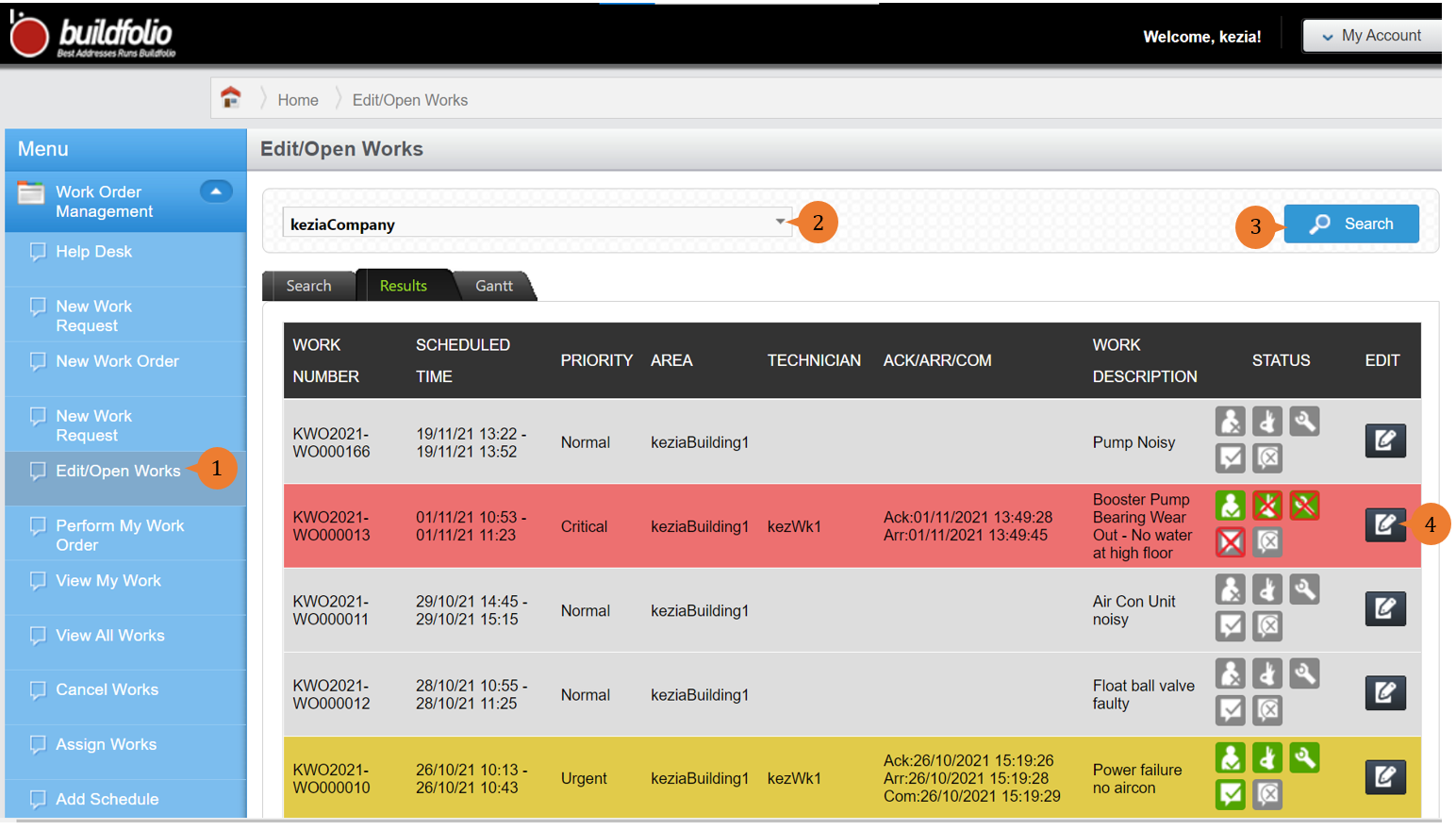
- Select Edit/Open Works under the Work Order Management module from the menu.
- Select the Location of concern from the location tree.
- Click on Search.
- To edit the Work Order, select the EDIT icon
 .
.
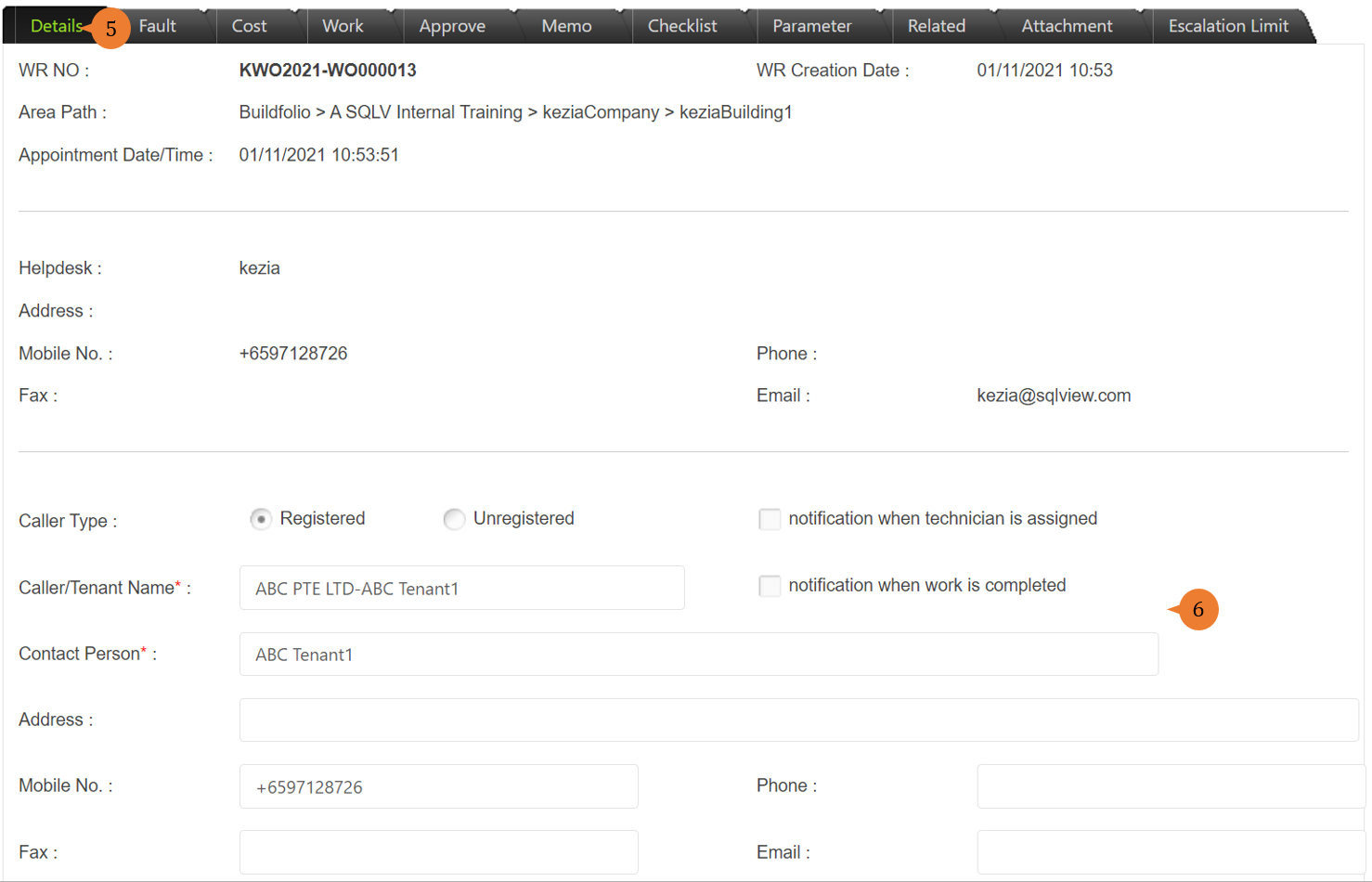
- Click on the Details tab of Work Order.
- Update the caller’s /tenant’s contact information if necessary or if he/she wants to be notified of the work status.
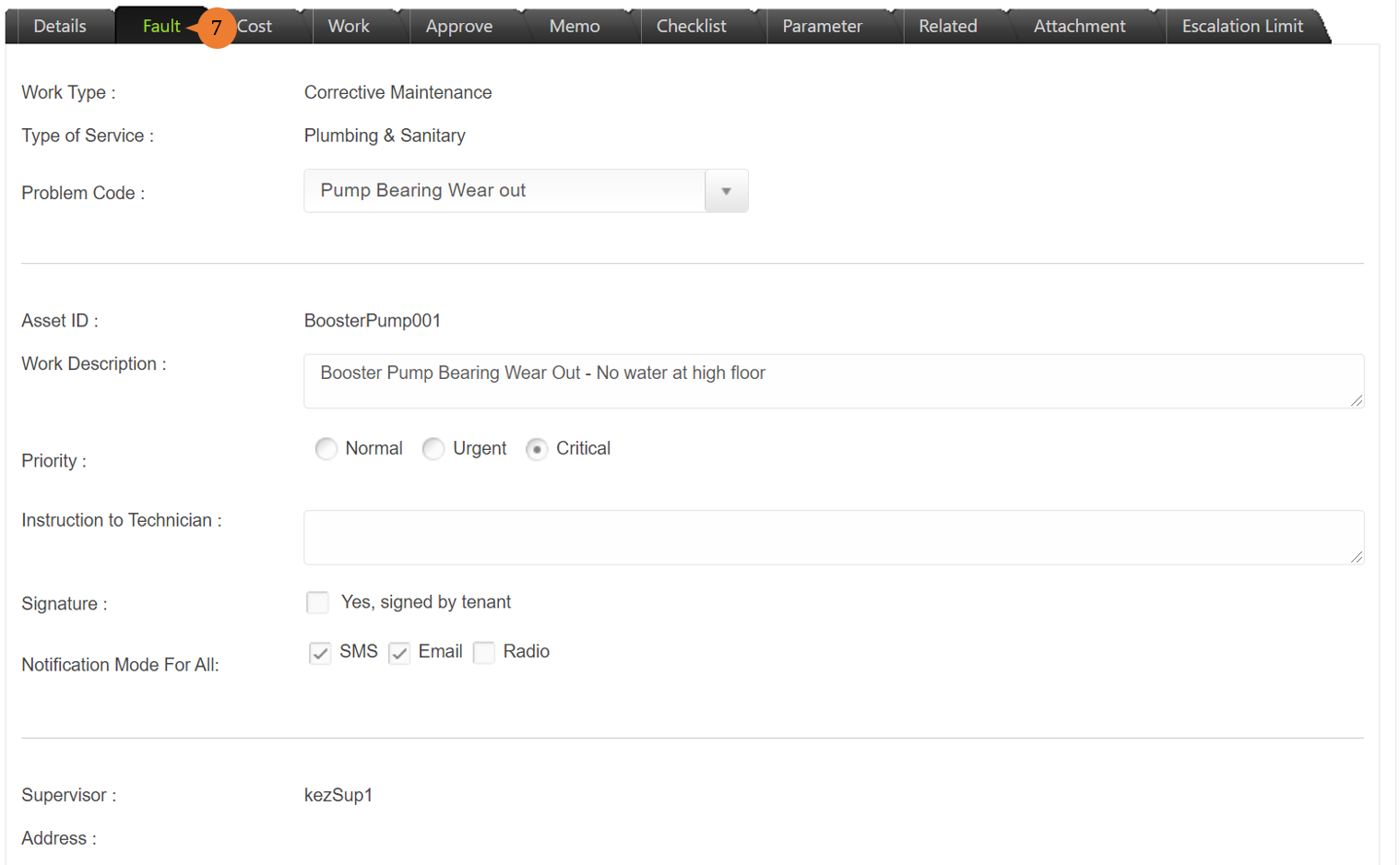
- Click on the Fault tab to amend the problem code and work description if necessary.
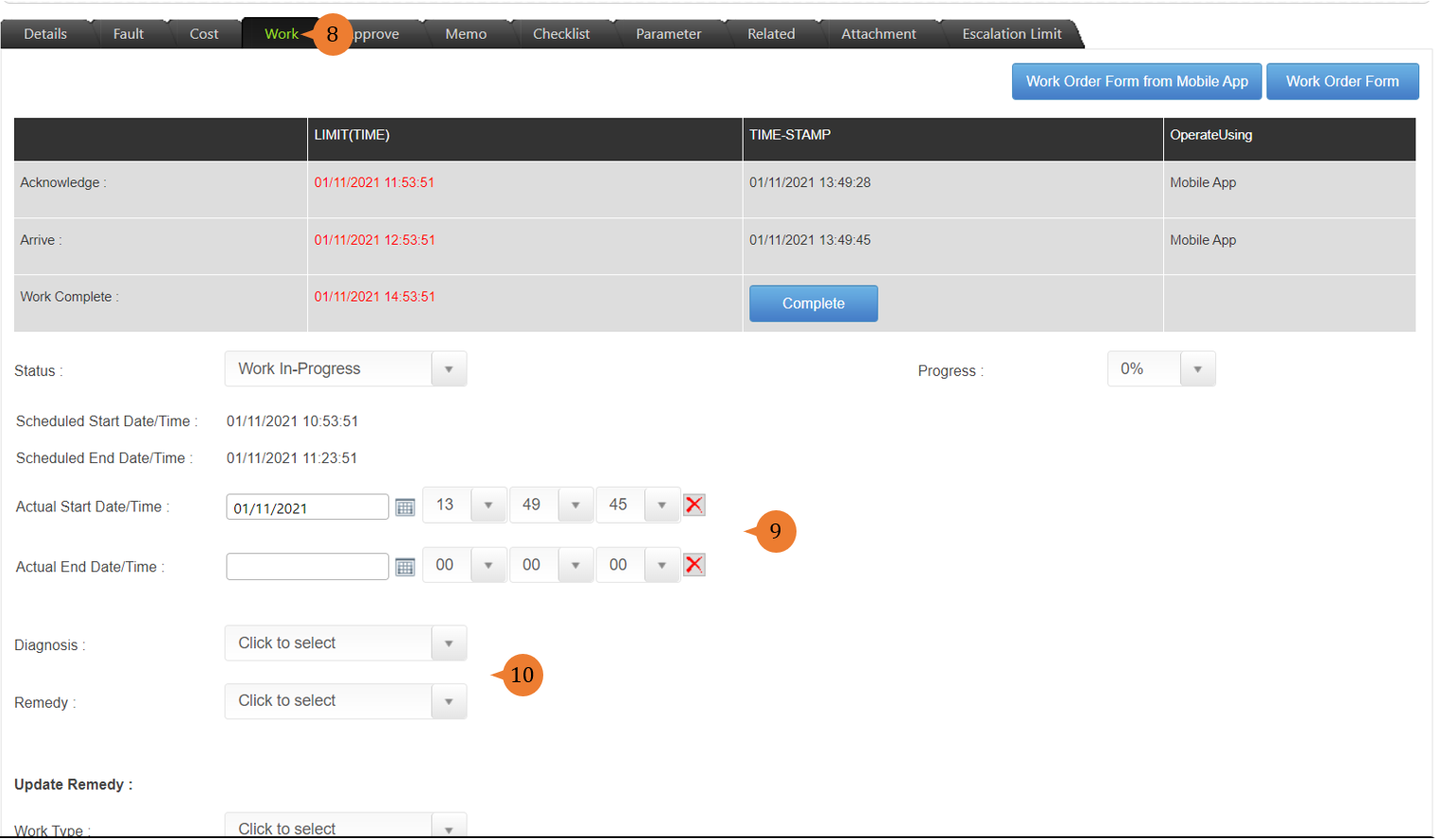
- Click on the Work tab.
- If you are Supervisor or Work Manager, you are able to edit the Actual Start Date/Time and Actual End Date/Time if necessary.
- Input the diagnosis and remedy for the work order.
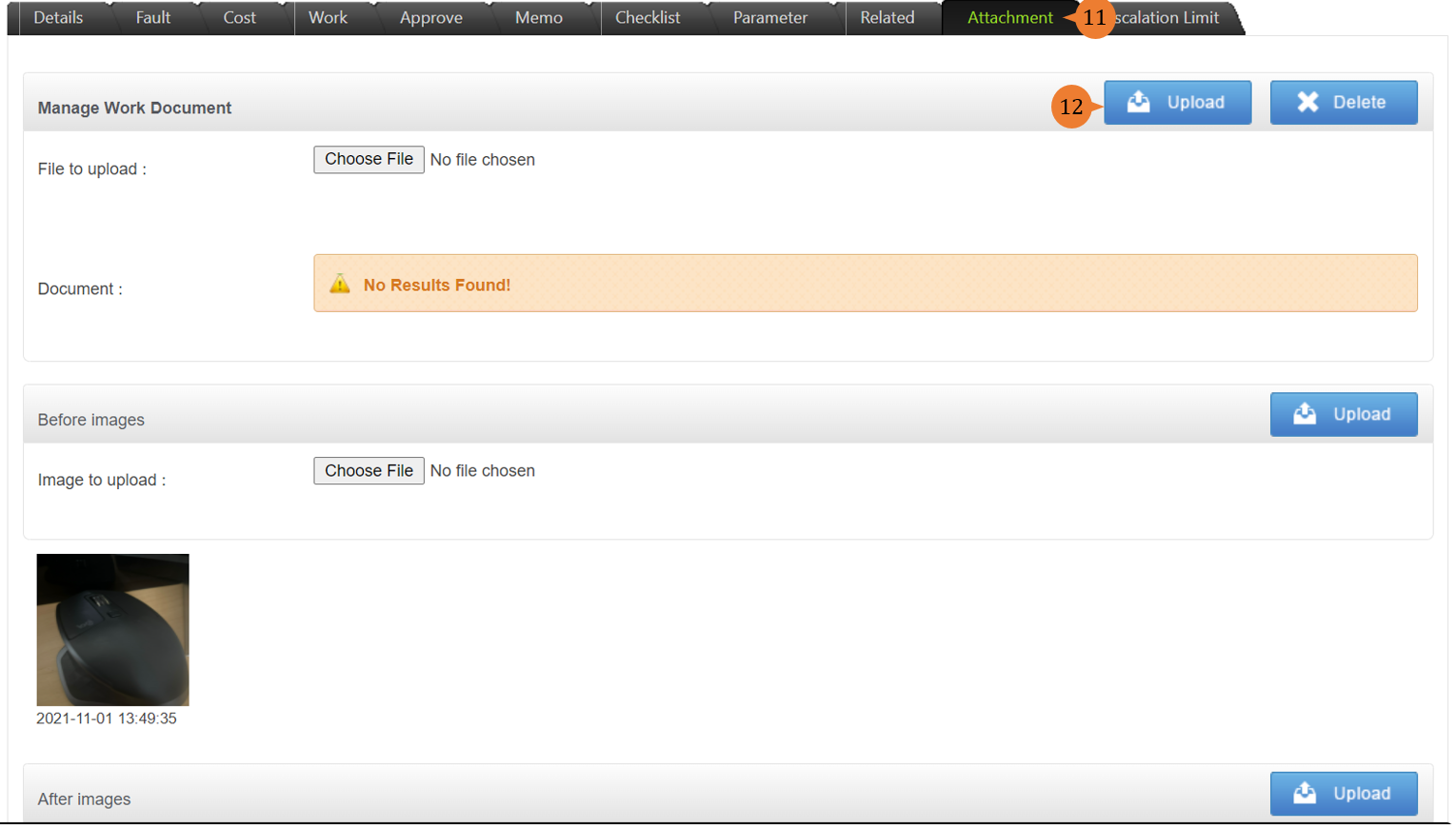
- Click on the Attachment tab. You are able to view the photos attached by the technician.
- You may also upload relevant work documents such as supporting documentation related to the Work Order by clicking Upload.
- To save the edits that you have made, select Save.
- When the edit of Work Order is successful, a success message will appear below the page title.

How to update this Work Order if it is chargeable? 
Work Order can be chargeable or otherwise depending on whether the work carried out is within or outside the contract scope. These details of the cost component of the Work Order is usually updated by the Supervisor.
To update the Work Order to be chargeable,
- Select Edit/Open Works under the Work Order Management module from the menu.
- Select the Location of concern from the location tree.
- Click on Search.
- To edit the Work Order, select the EDIT icon.
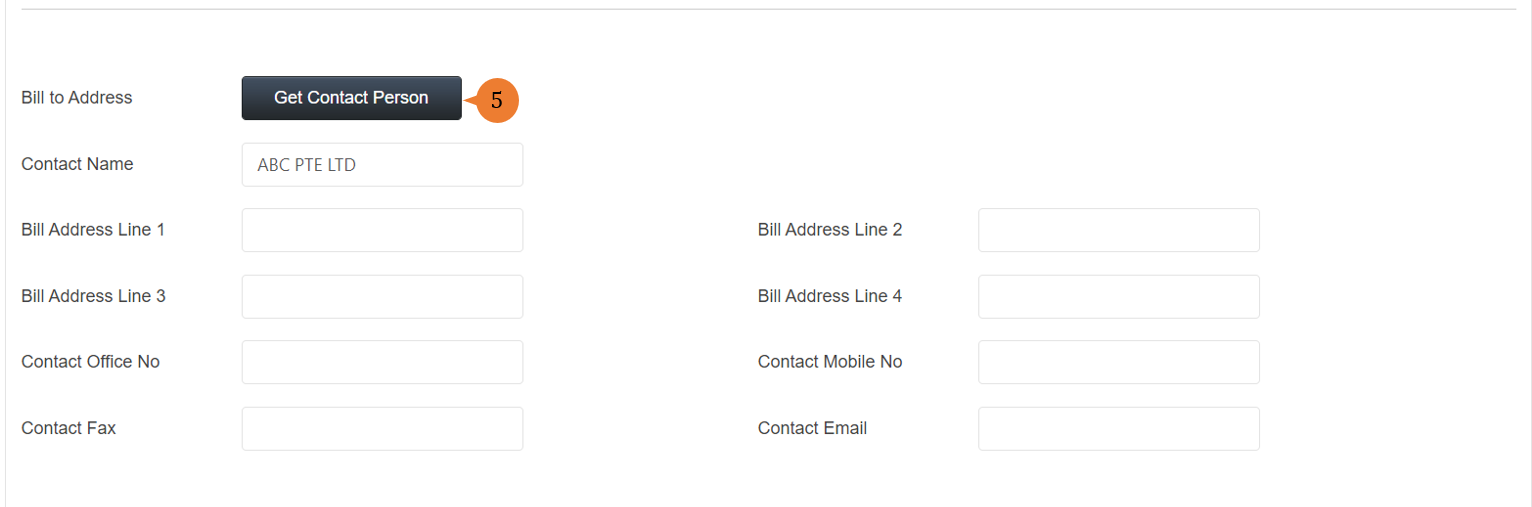
- For Chargeable Work Order, it is mandatory to input the bill to address. Click on Get Contact Person to select the party to bill to in the Detail tab.
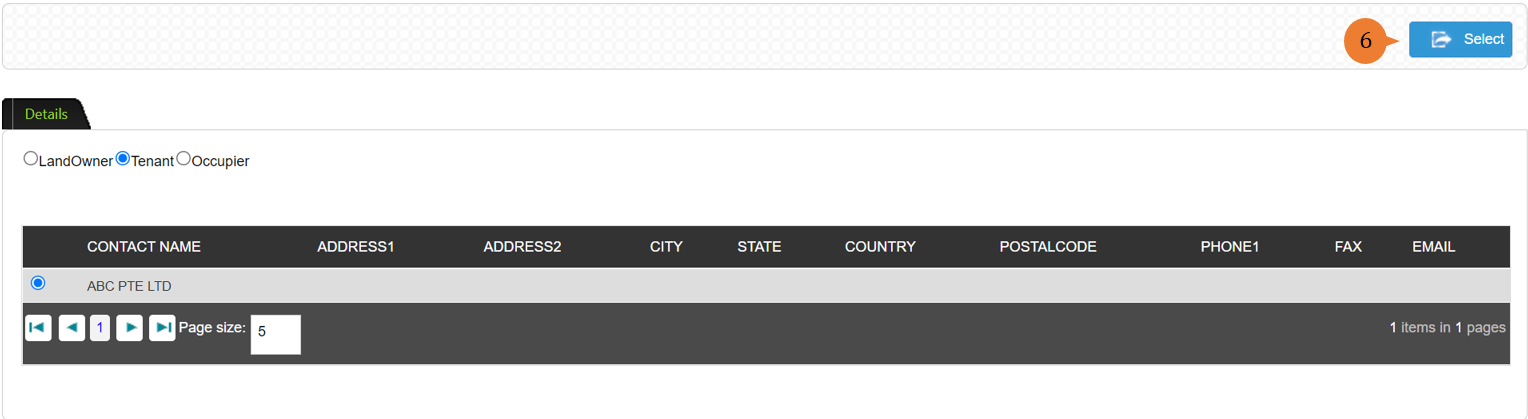
- Select the party from Land Owner, Tenant, or Occupier that is responsible to pay for this work. Upon selecting who to bill the work order to, click on Select for the information to be populated.
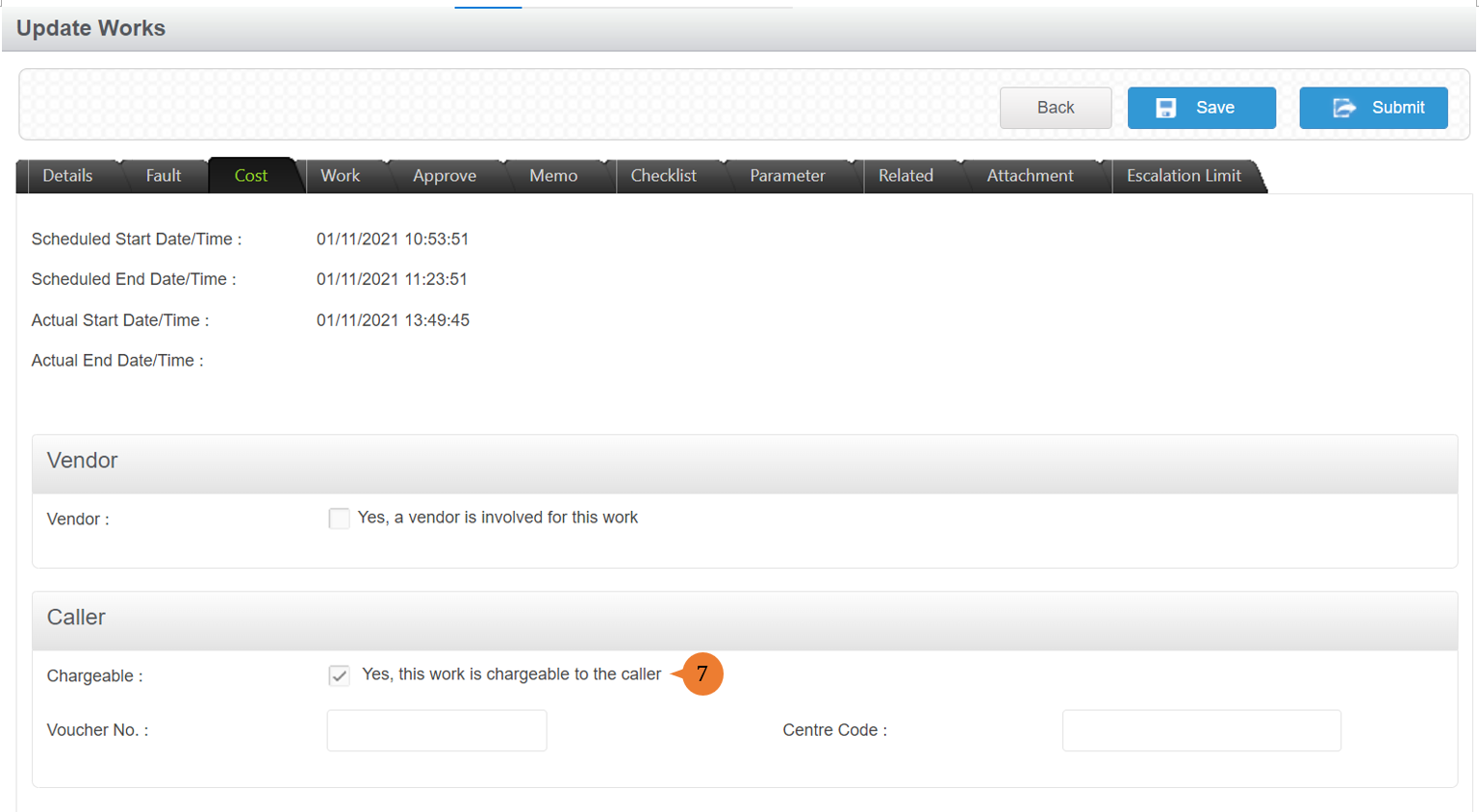
- In the Cost tab, to make this Work Order to be chargeable, tick on Yes, this work is chargeable to the caller.
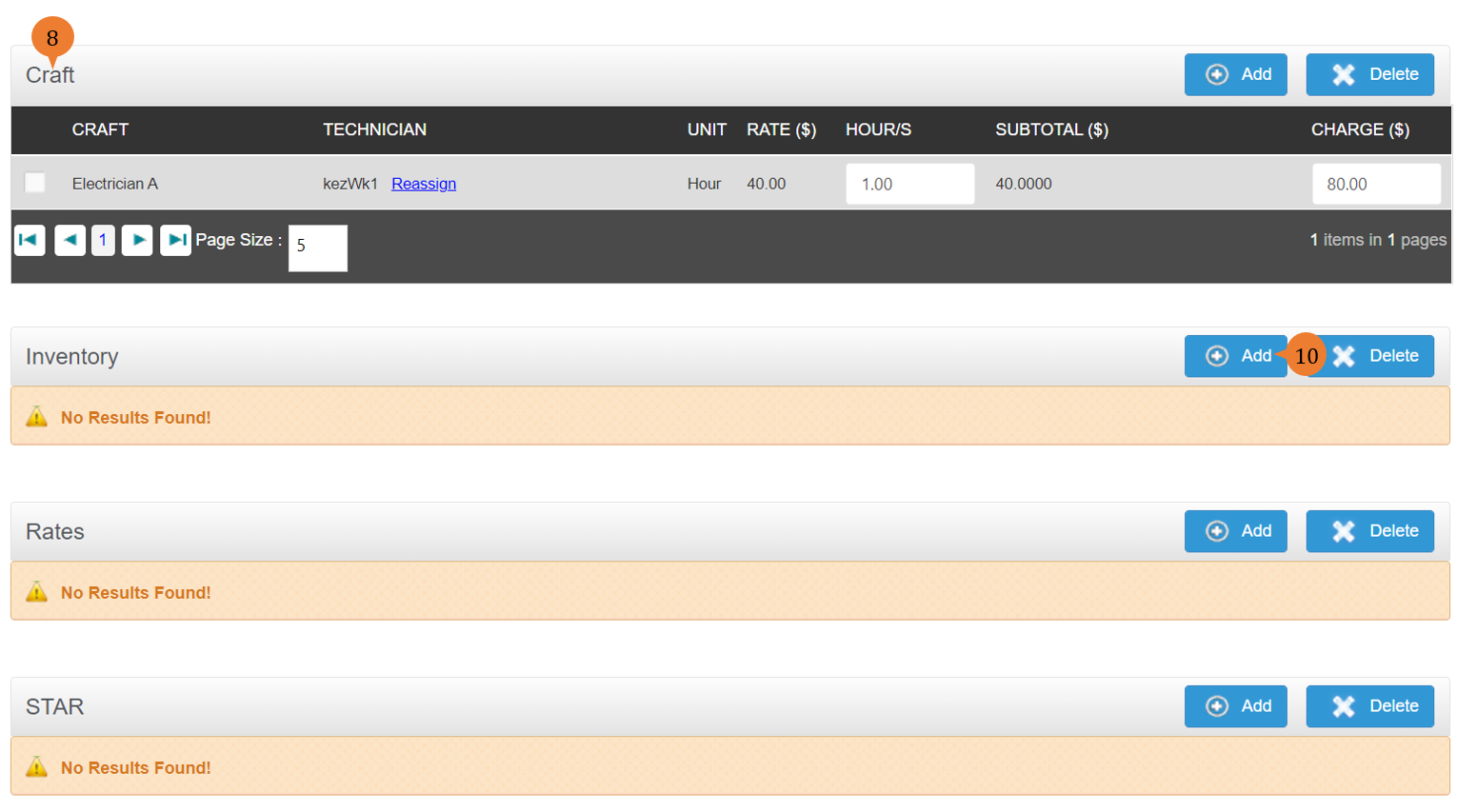
- There are a total of four categories of cost to be added to the work order, namely Craft, Inventory, Rates, and STAR.
- Craft refers to manpower items. Inventory refers to any products that the work order consumed. Rates refer to any other service items. STAR is for miscellaneous items.
- To add the relevant costs for any of the categories, go to the relevant category header and click on Add button. To illustrate this, will attempt to add an Inventory item for this work order.
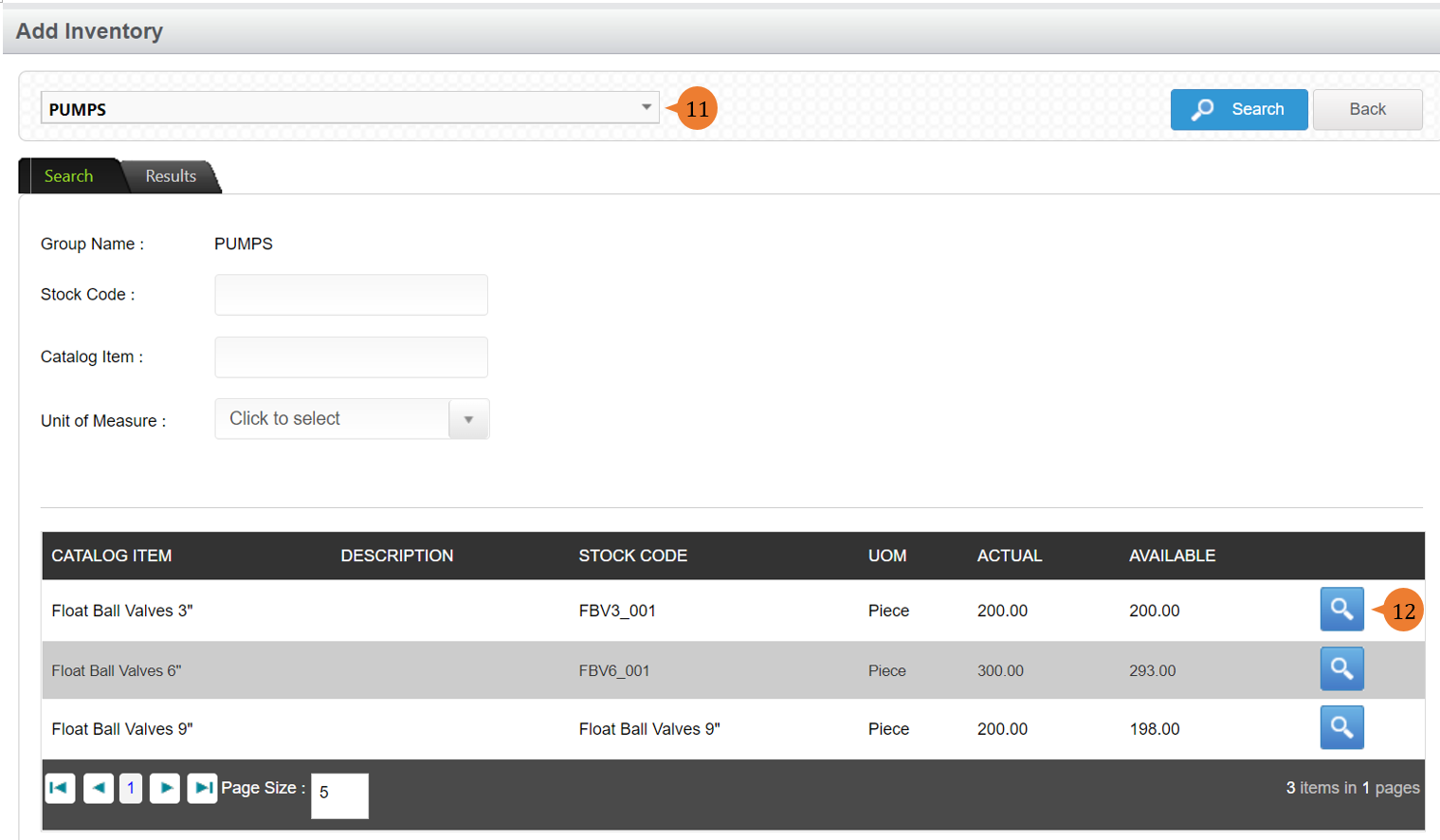
- Select the type of items to limit the search result then click on Search.
- Click on the magnifying glass to choose the item to be added for the Work Order.
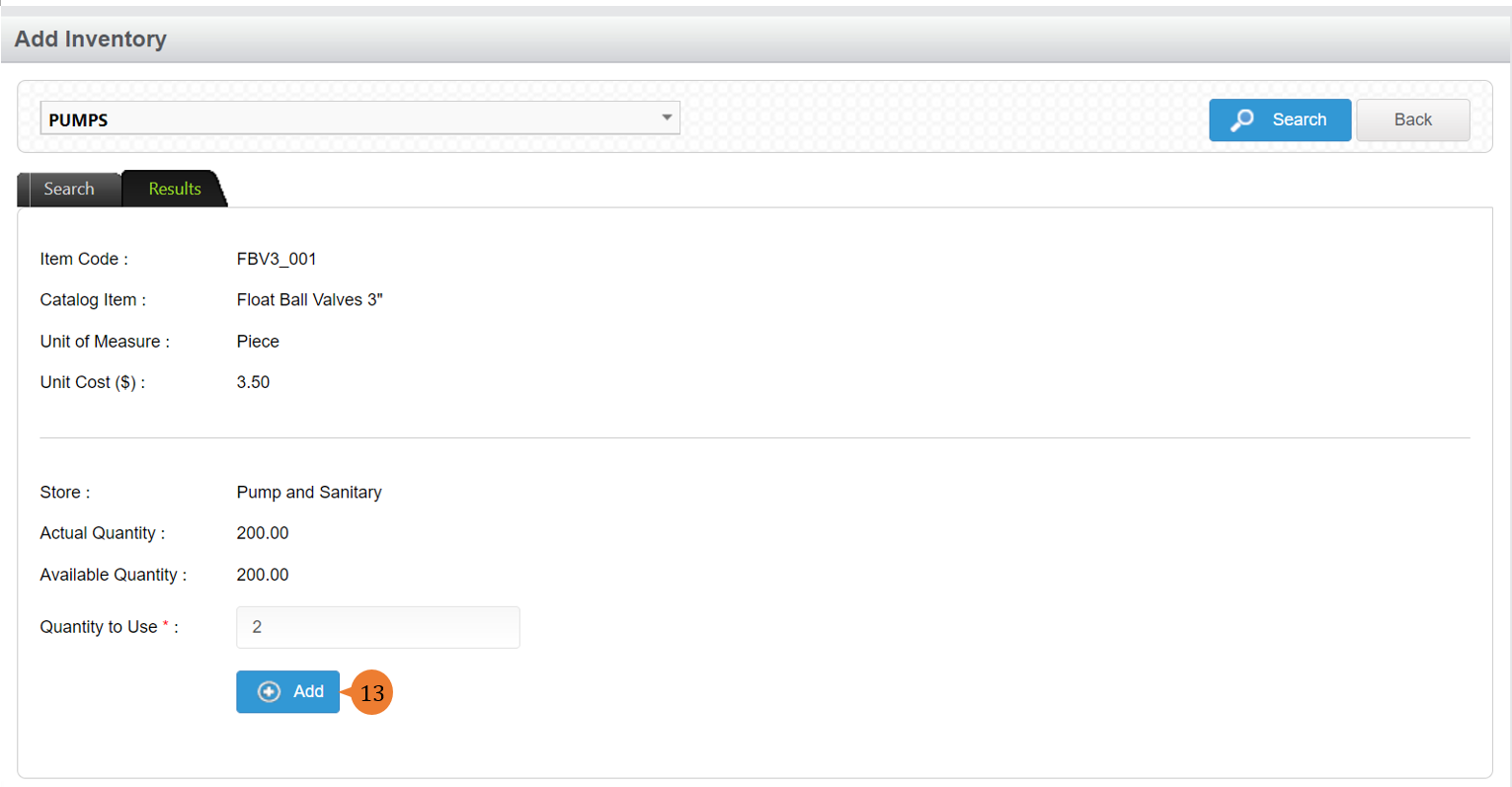
- To include the item chosen to Work Order, input the Quantity to Use and click on Add.
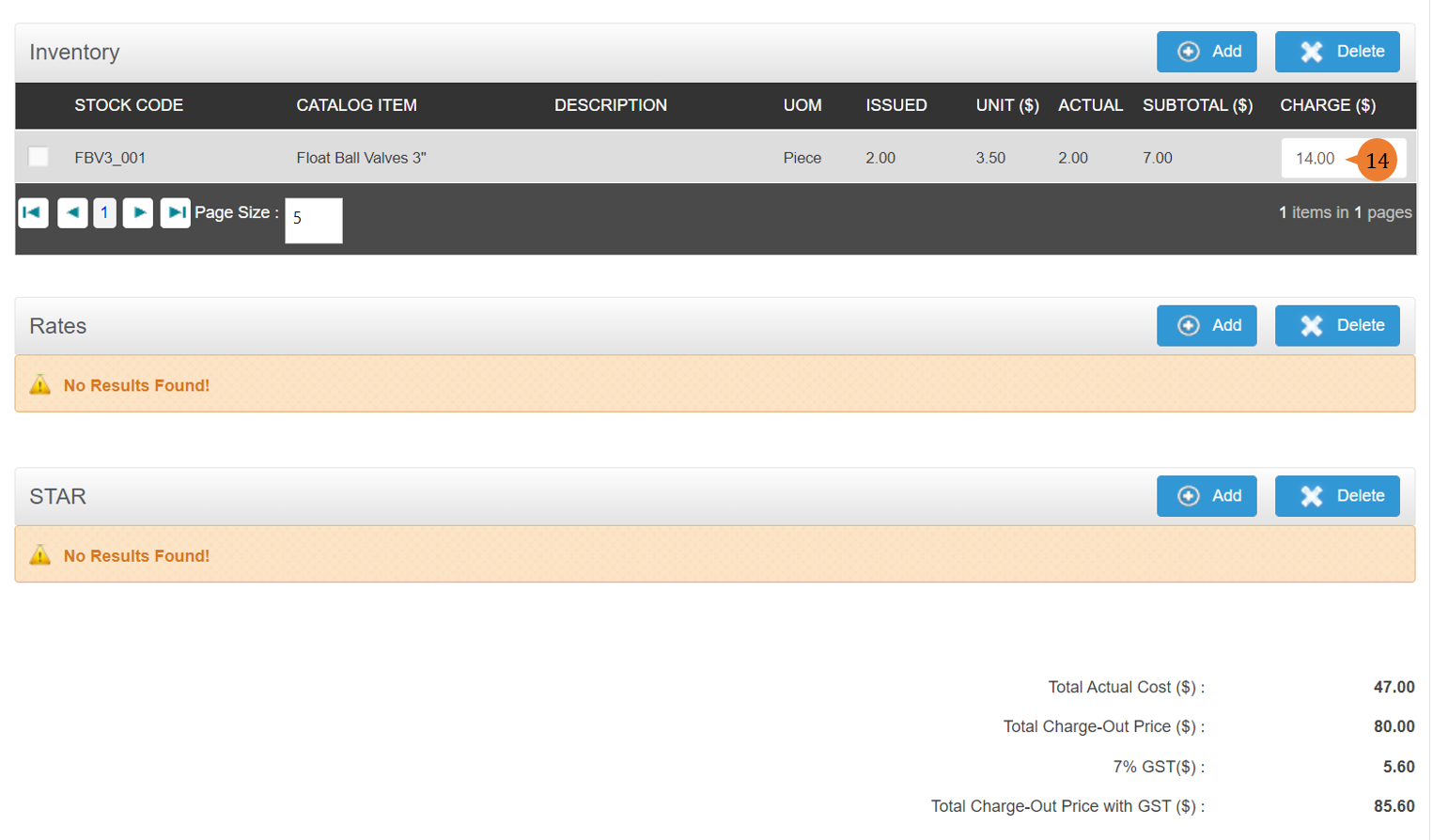
- If the item is to be charged, indicate the Charge amount accordingly.
- Proceed to add all the items to be charged into the work order in the respective category.
- Update all the information regarding the work order and to save the edits that you have made, select Save.
- When the edit of Work Order is successful, a success message will appear below the page title.

How to view the escalation alerts designed for the Work Order to ensure it fulfills the SLA?
Certain types of service and depending on their priority will have certain Service-Level Agreement (SLA) to be met. Work Order comes with an in-built capability if this type of service is to be performed to keep track of whether it fulfills the SLA criteria.
To view the escalation hierarchy of this particular Work Order,
-
-
- Select Edit/Open Works under the Work Order Management module from the menu.
- Select the Location of concern from the location tree.
- Click on Search.
- To edit the Work Order, select the EDIT icon.
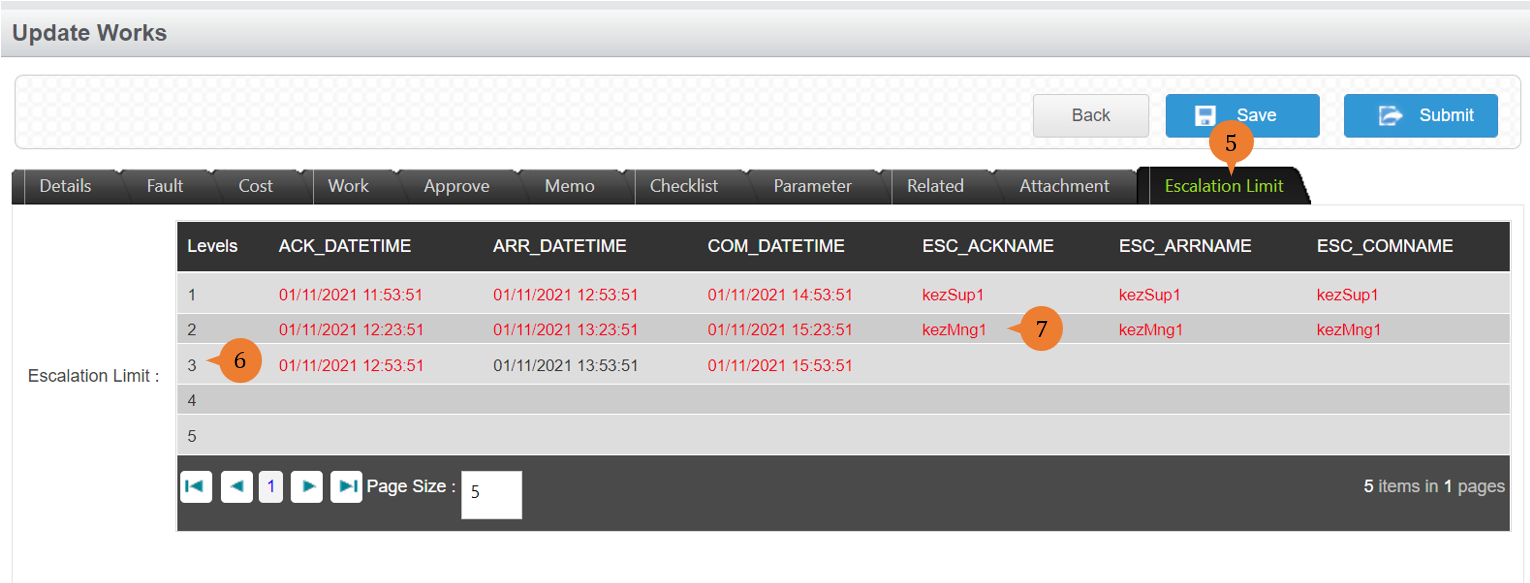
- Click on the Escalation Limit tab of Work Order.
- If this Work Order type of service does have an SLA (Service Level Agreement) setup, it will reflect the escalation hierarchy with a maximum of 5 levels accordingly.
- If it is highlighted in red, it will refer to that it did not fulfil the SLA and the respective personnel is being notified.
More on this topic
-
- For a step-by-step guide to editing an open Work Order on BUILDFOLIO II mobile app, see How to edit an open Work Order on BUILDFOLIO II mobile app.
- For step-by-step guide to updating a Work Order, see How to update a Work Order.
- For more step-by-step guides to using Work Order Management module, see Work Order Management Module.
-