How to create PR?
Jump to
How to create PR? 
Purchase Requisition can be created by anyone who is given the right when they would like to make any purchase of items/services. It usually requires going through an approval process that can be configured. The procurement manager will be the one overseeing the purchase process.
To create PR
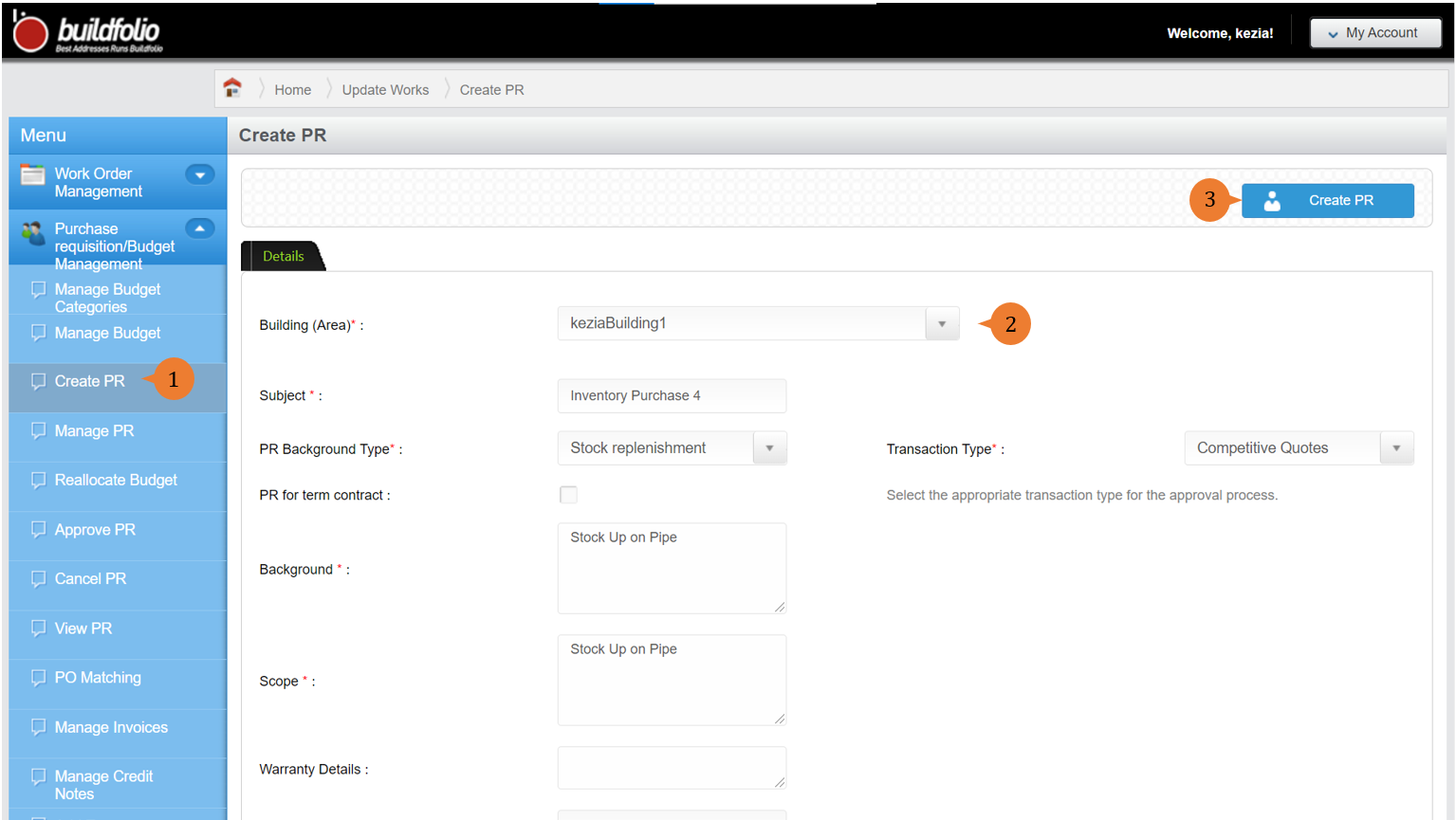
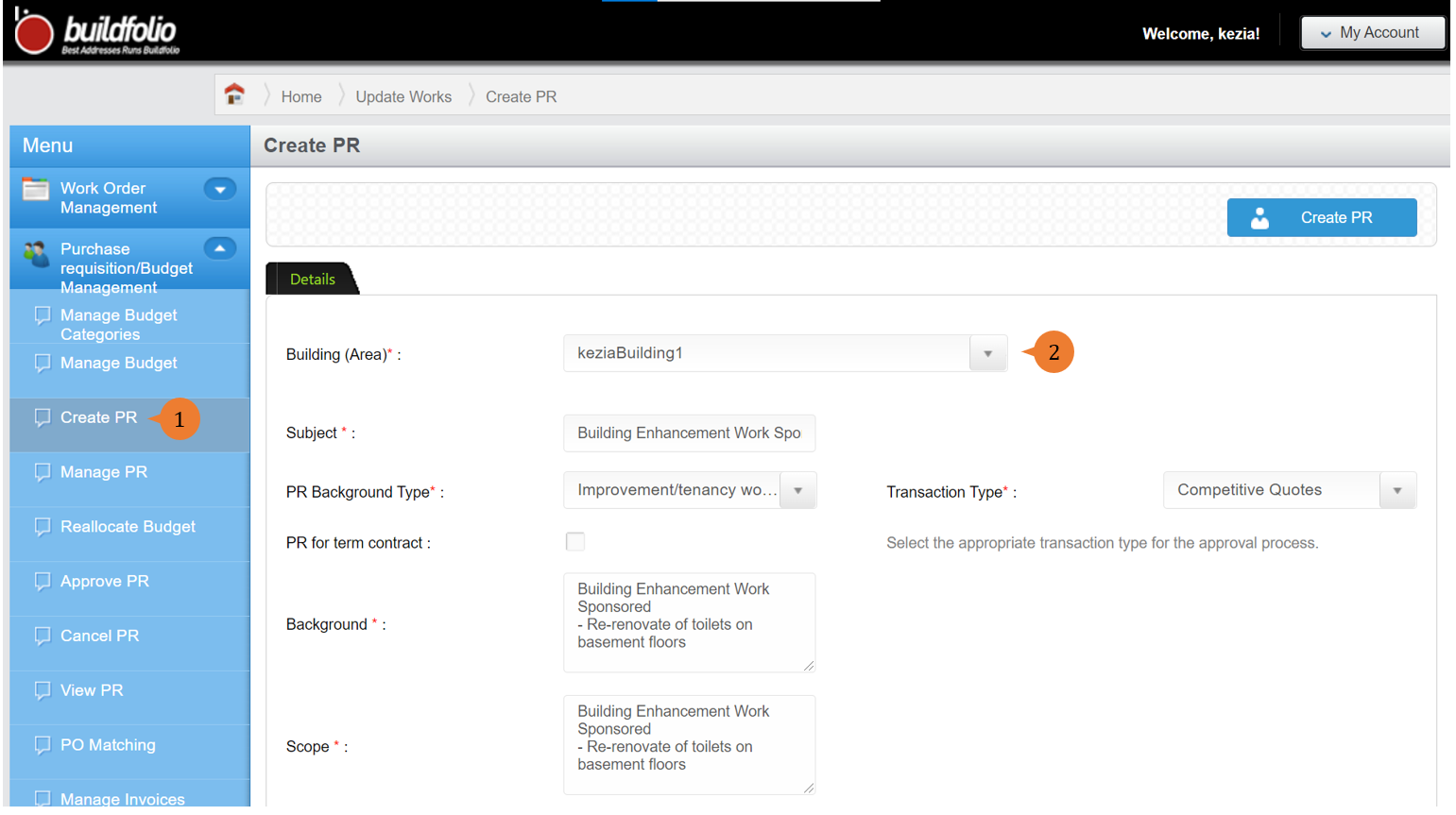
- Select Create PR under Purchase requisition/Budget Management from the Menu.
- Input all the * fields and select the relevant transaction types to this purchase requisition. Each transaction type will go through different PR approval processes defined in the system.
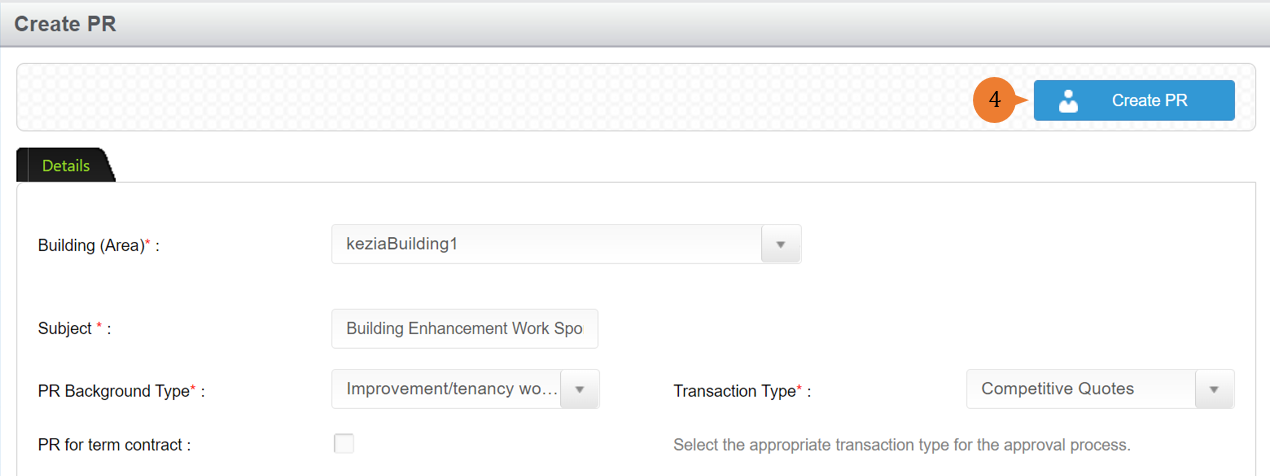
- To create PR, click on the Create PR button.
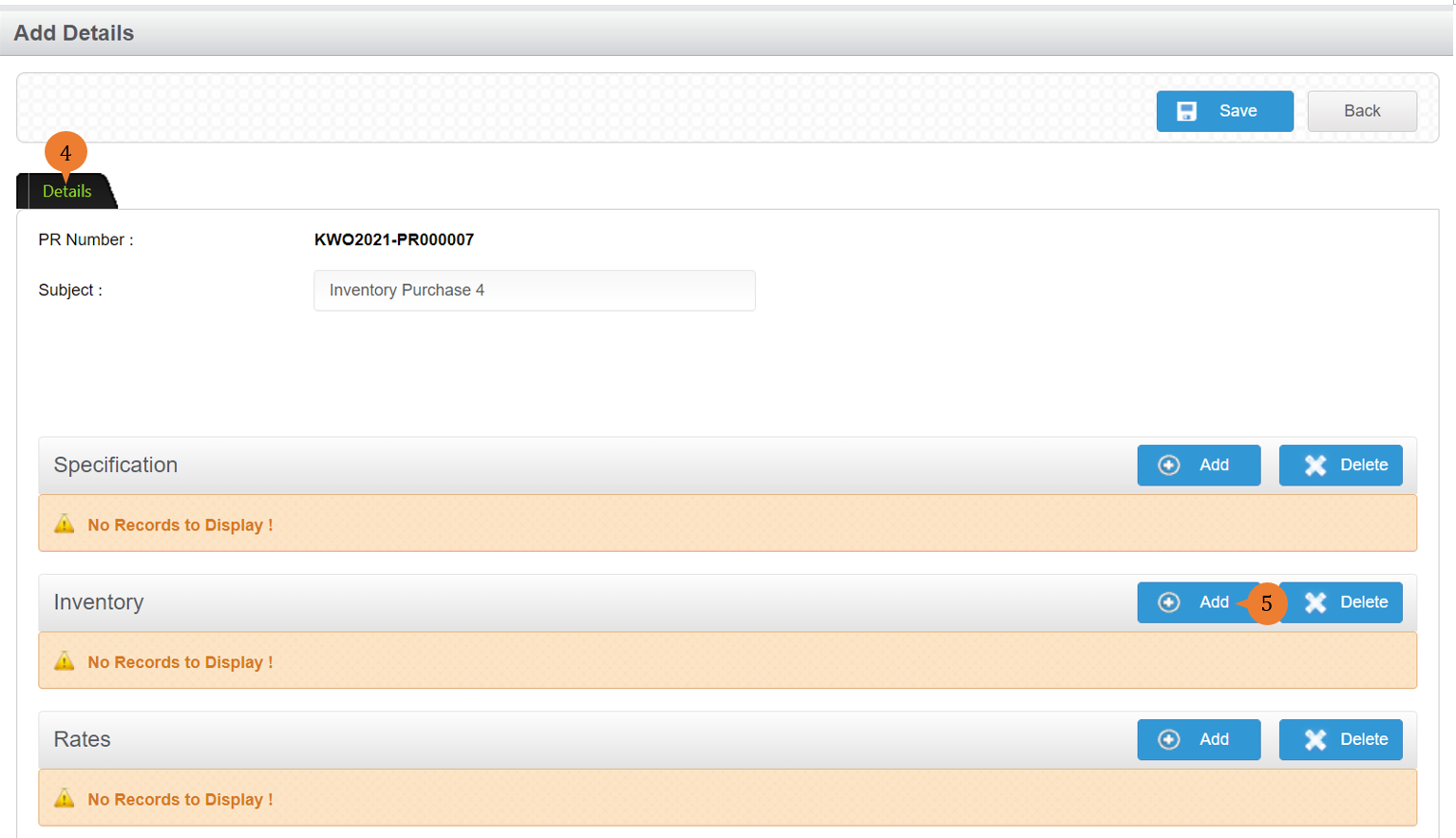
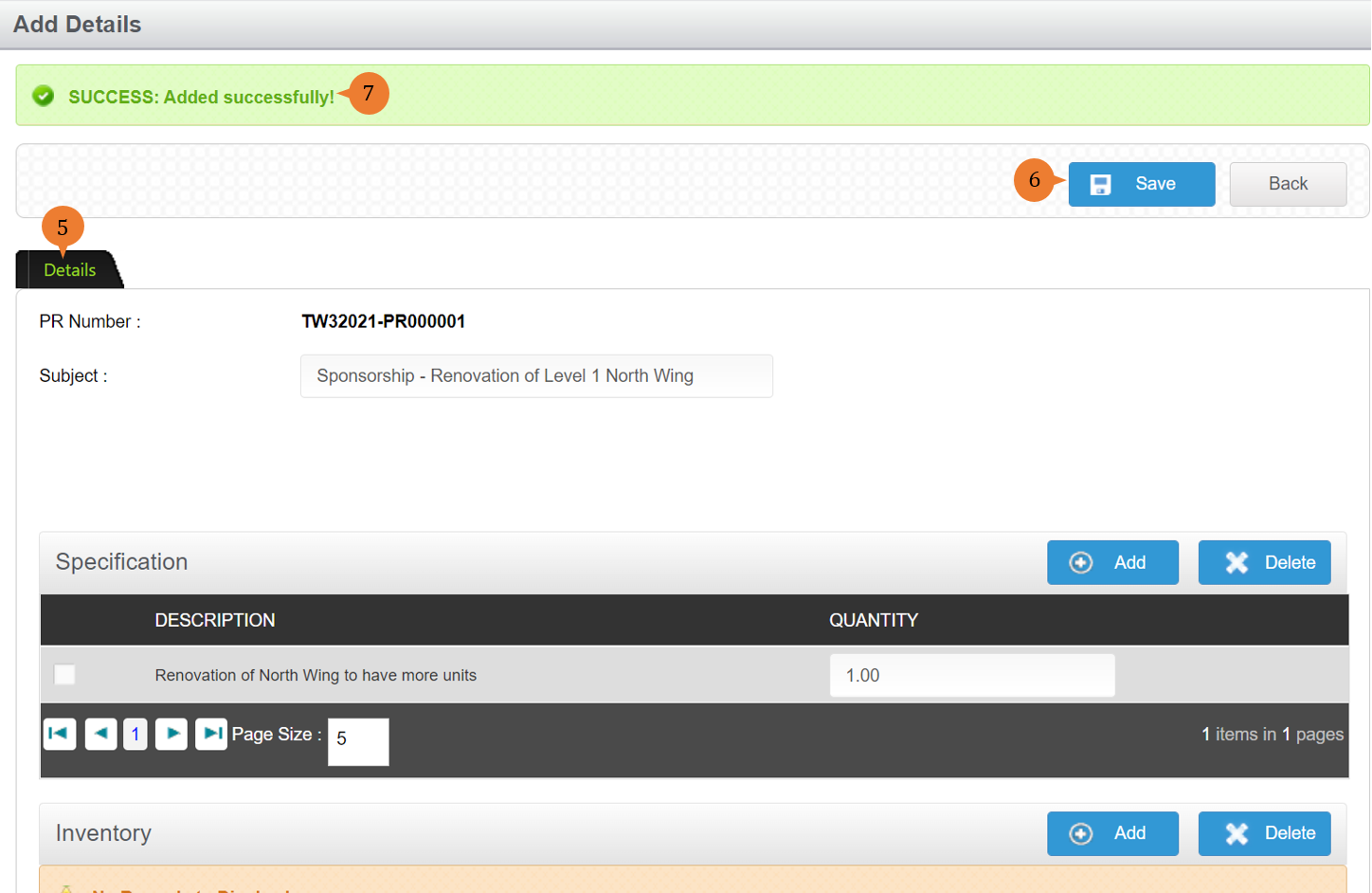
- On the details page, you can add the services/items that you wish to make a purchase for.
- In this PR example, it will be inventory purchase. To add inventory items, click on the Add button.
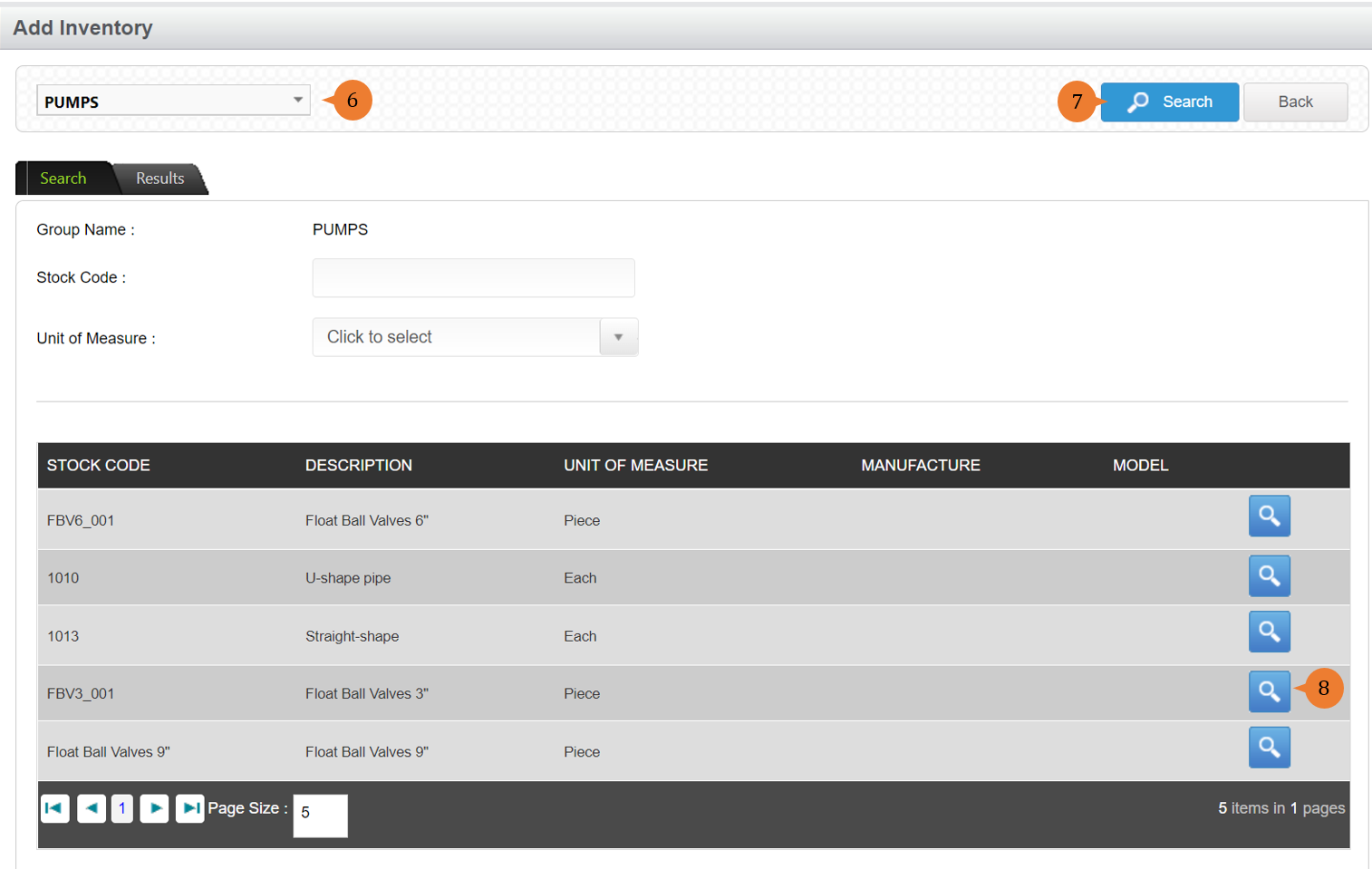
- Select the inventory category items that you wish to purchase.
- Click on the Search button.
- Select the inventory items that you wish to purchase.
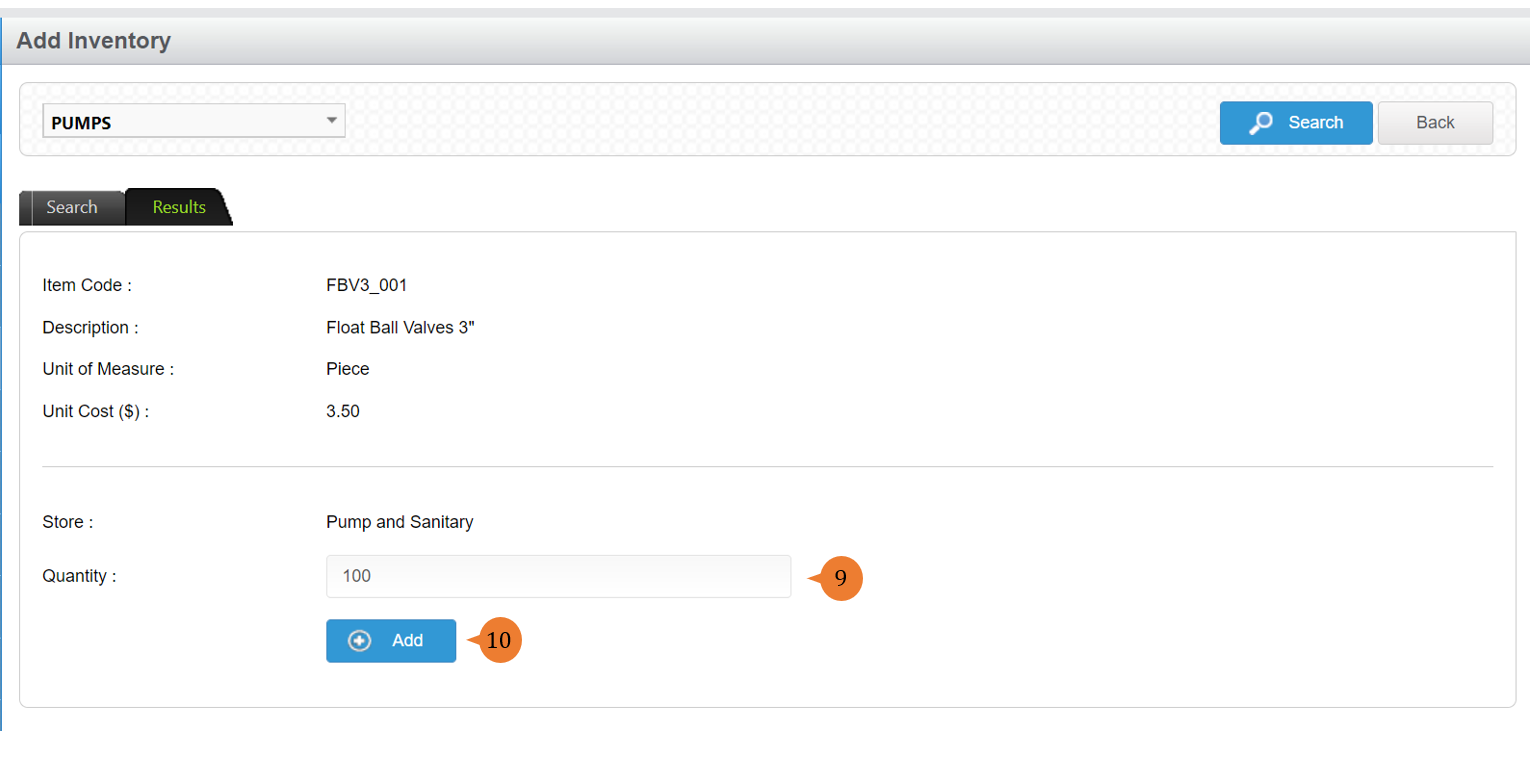
- Input the quantity that you wish to purchase.
- Click on Add button to add the inventory item.
- Once all the items/services are added to the PR, click on the Save button.
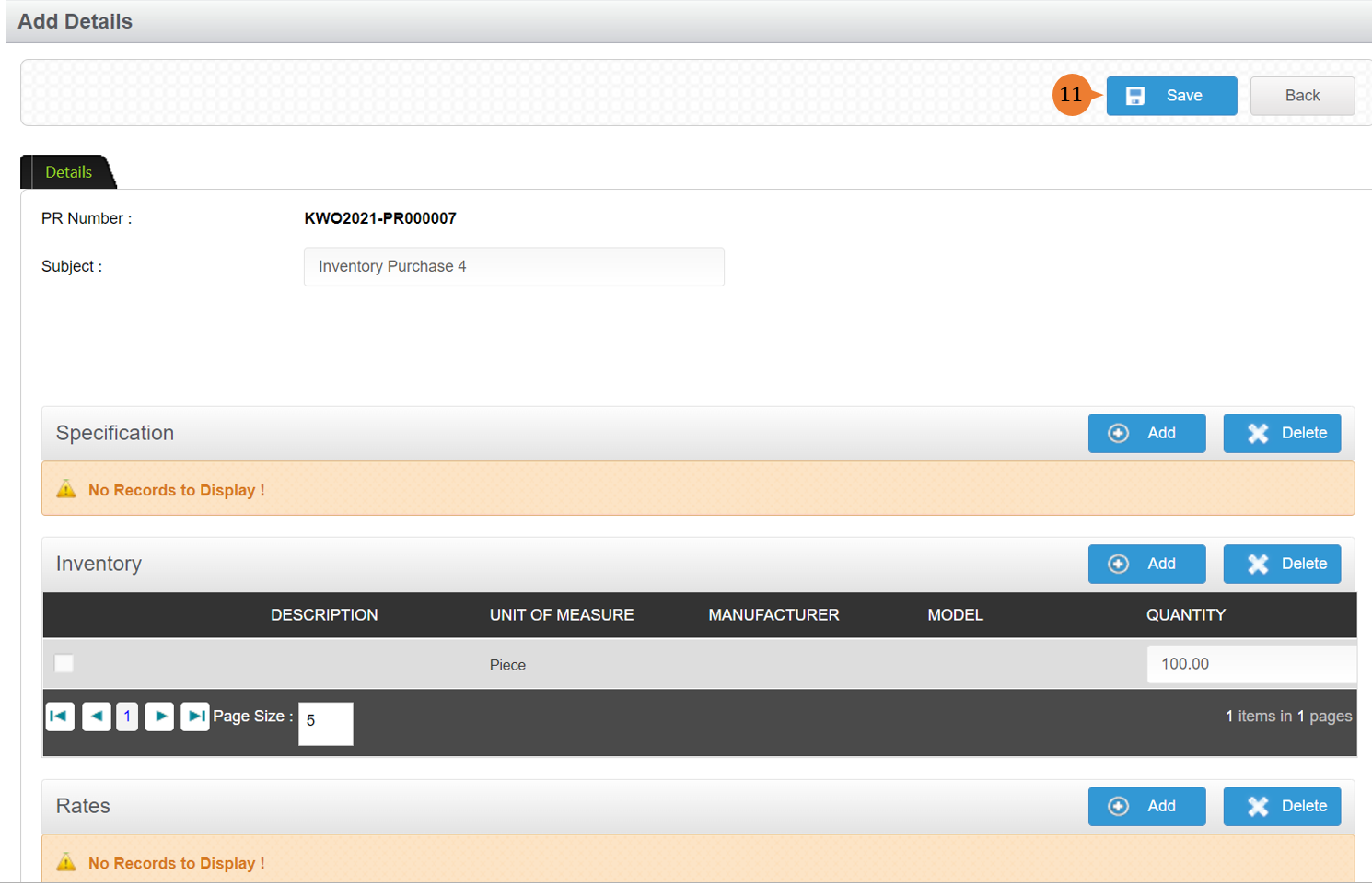
- When the Expenses is successfully amended, a success message will appear below the page title

How to create Term Contract PR?
A term contract is a vendor contract that lasts for a specific period of time (term), and Buildfolio is able to distribute the total sum of the contract evenly for each month over the term. As a result, the user knows what is the monthly budget to spend.
To create Term Contract PR
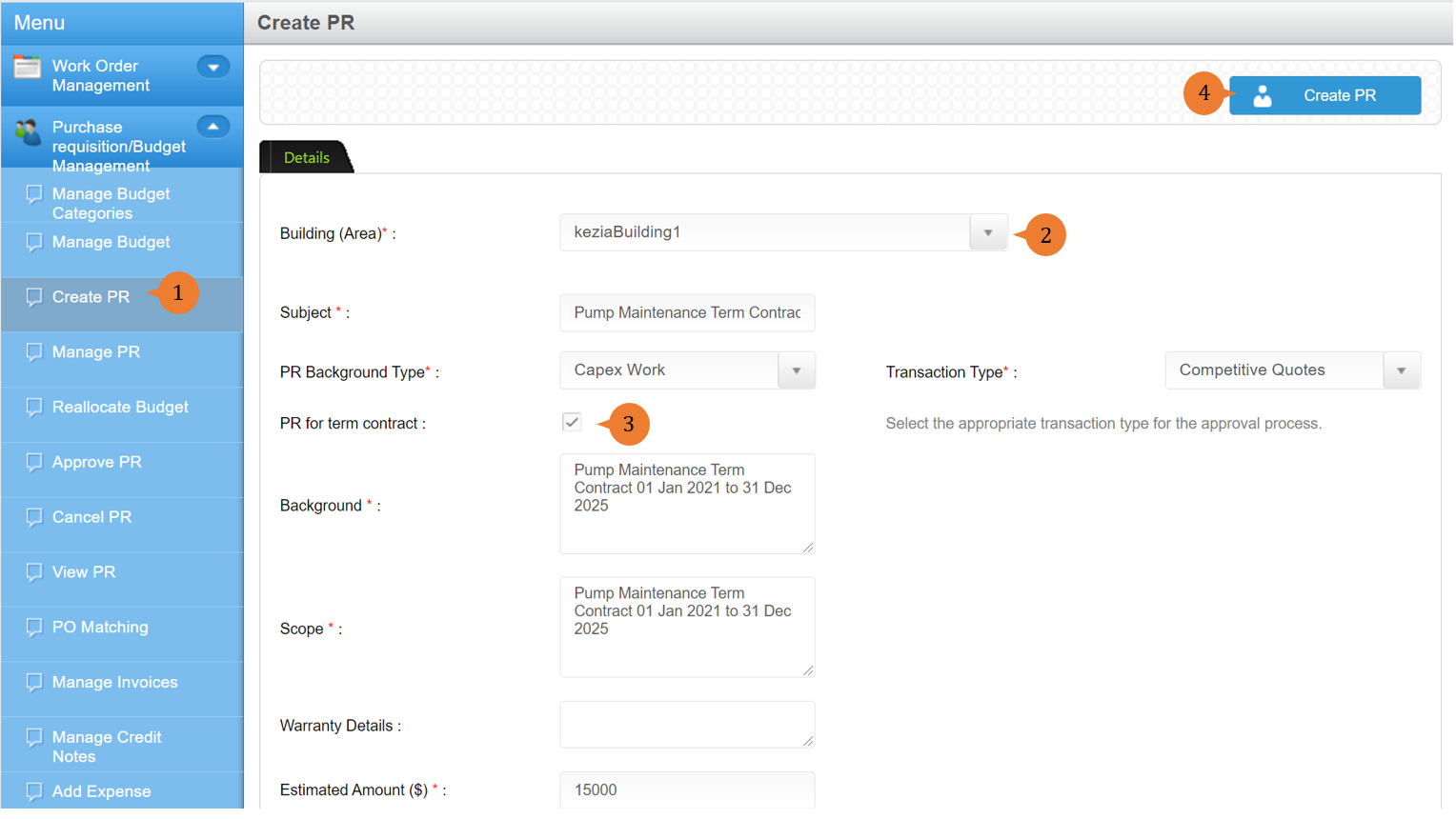
- Select Create PR under Purchase requisition/Budget Management from the Menu.
- Input all the * fields and select the relevant transaction types to this purchase requisition. Each transaction type will go through different PR approval processes defined in the system.
- Tick the PR for term contract to create a PR that is for the term contract.
- To create PR, click on the Create PR button.
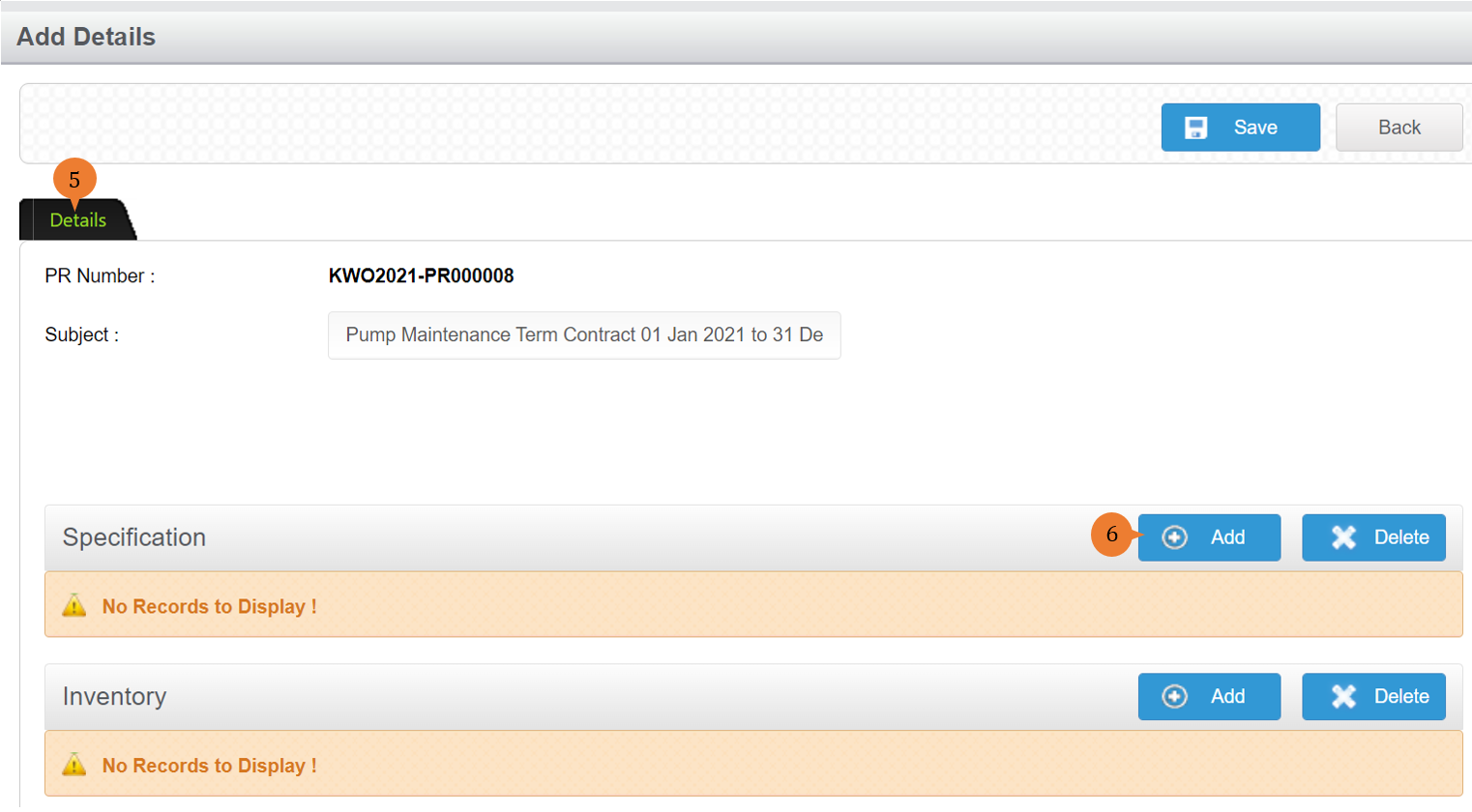
- On the details page, you can add the services/items that you wish to make a purchase for.
- The term contract PR example will be to add specification items, click on the Add button.
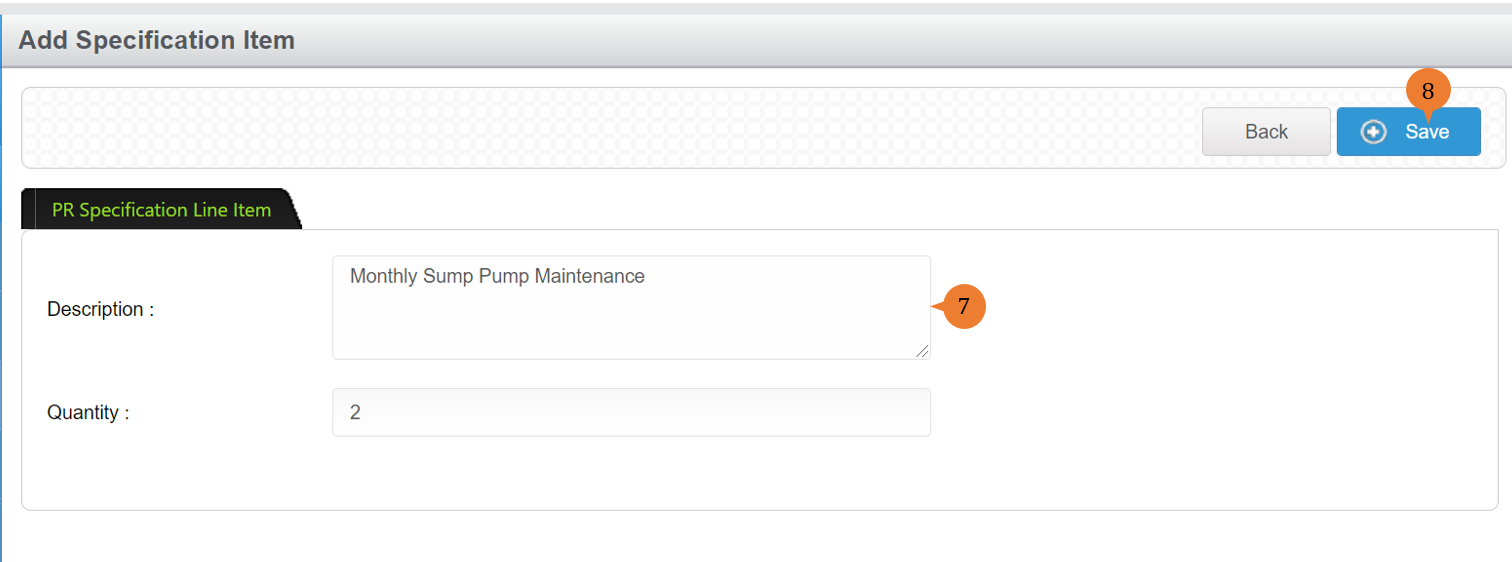
- Input the description and quantity.
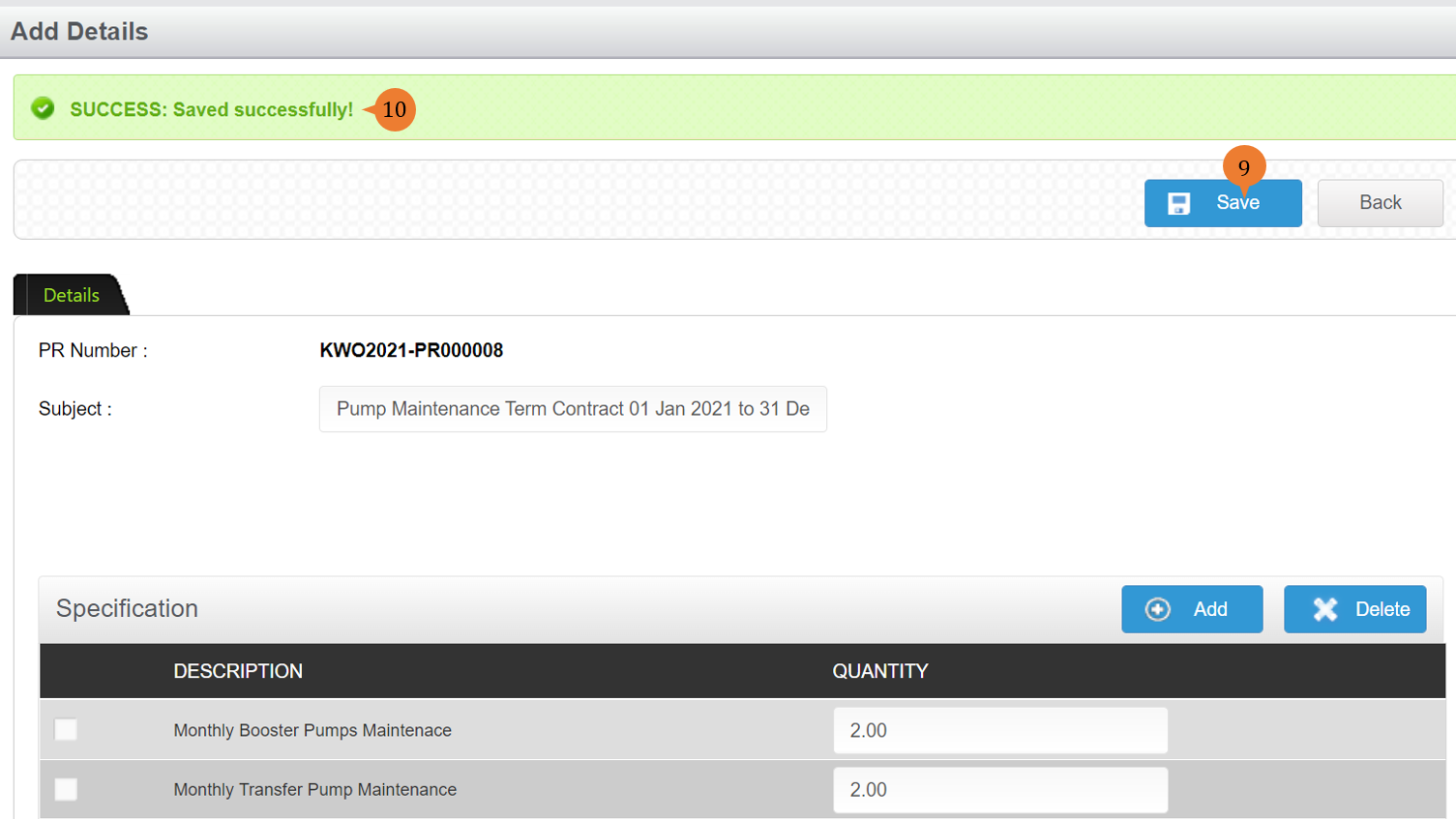
- To add the specification item, click on the Save button.
- To save the PR, click on the Save button.
- When the PR is successfully added, a success message will appear below the page title
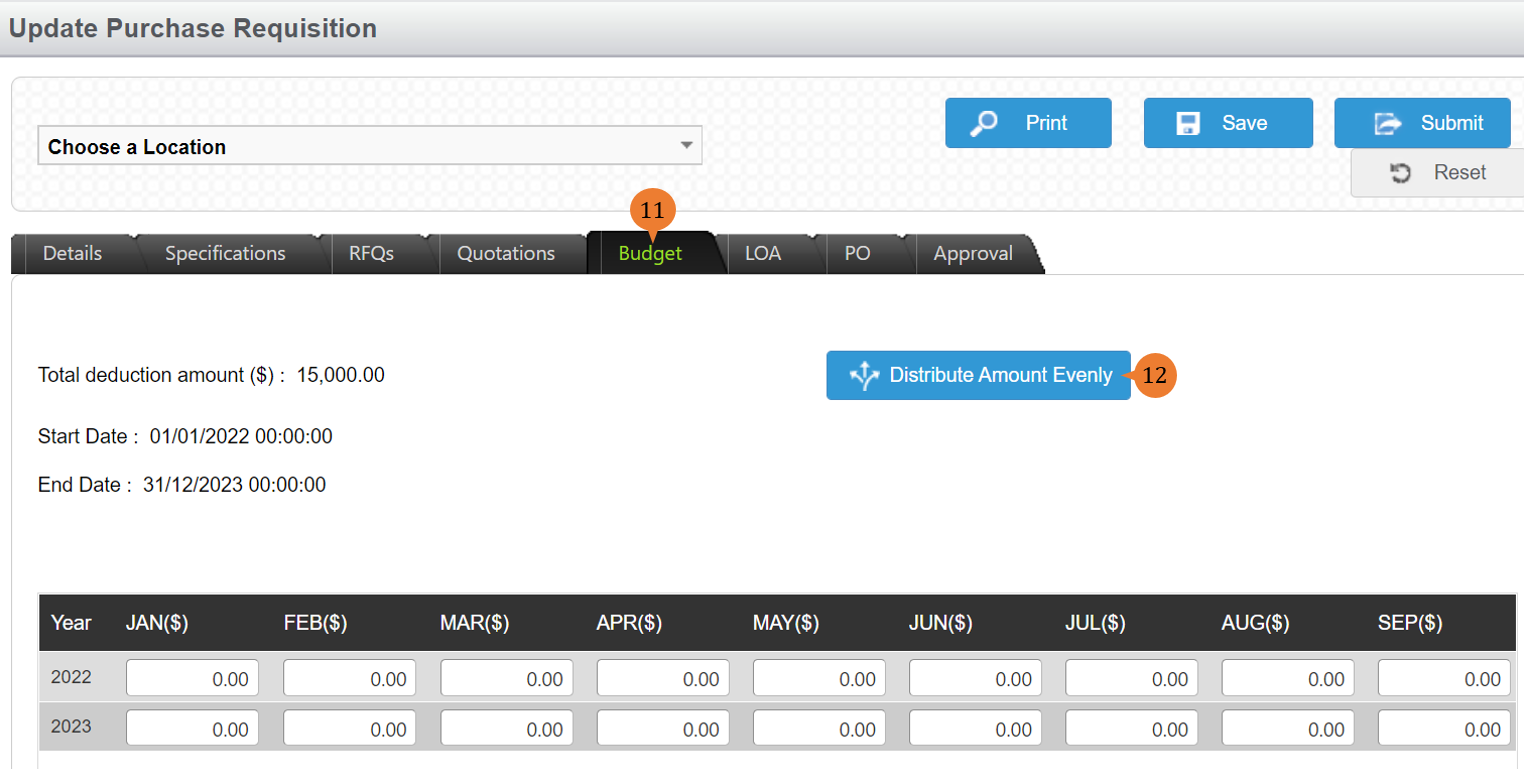
- To ensure that a quotation is selected in the Quotation tab then proceed to the Budget tab for the distribution of the amount.
- Click on the Distribute Amount for the system to distribute the contract amount by month based on the term period.
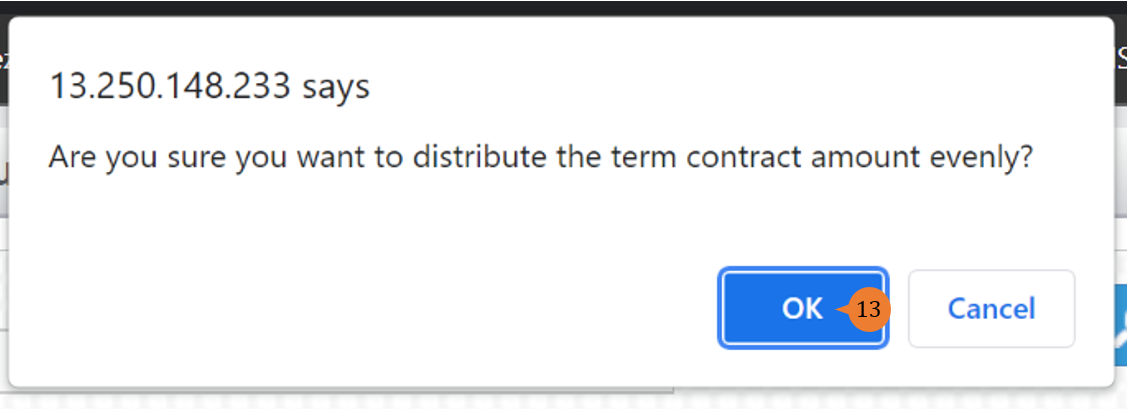
- A popup will appear to confirm that you would like the system to distribute the amount evenly, click OK to proceed.
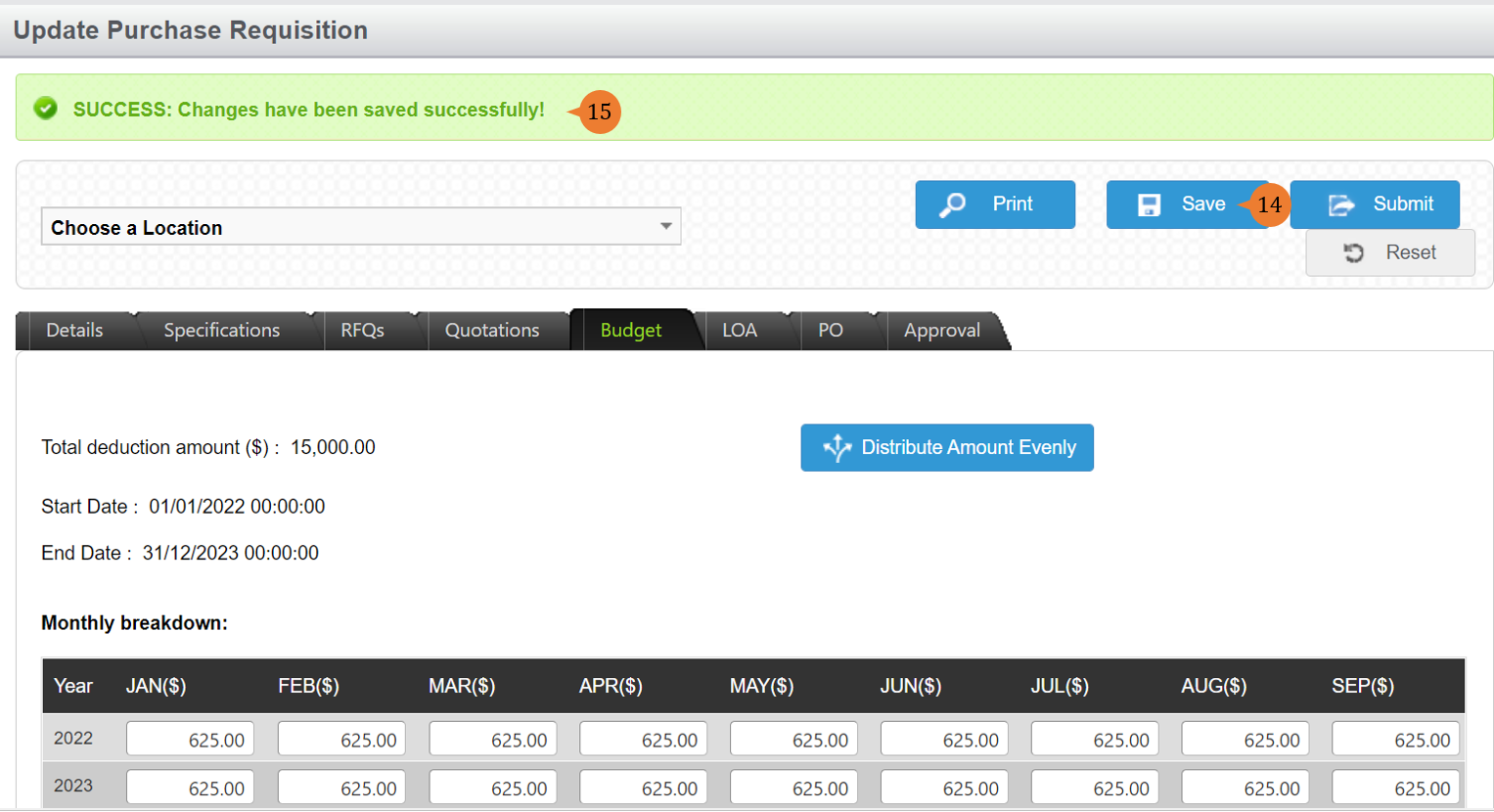
- To save the changes of the PR, click on the Save button.
- When the PR is successfully updated, a success message will appear below the page title
How to create PR that does not utilise the budget?
There will be instances that you will need to create PR that does not consume the budget allocated due to external sponsorships and so on.
To create PR that does not utilise the budget
- Select Create PR under Purchase requisition/Budget Management from the Menu.
- Input all the * fields and select the relevant transaction types to this purchase requisition. Each transaction type will go through different PR approval processes defined in the system.
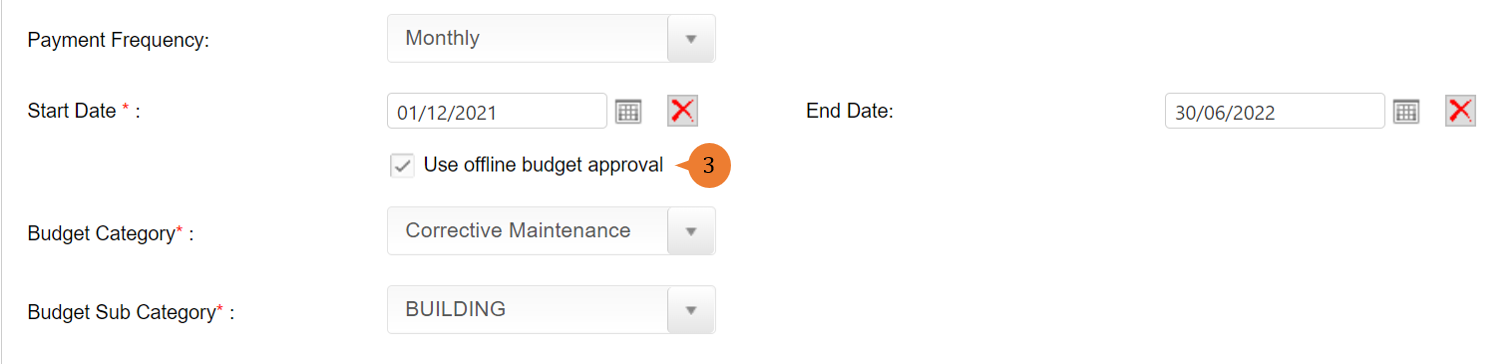
- Select the Use offline budget approval so that this PR will not deduct any allocated budget.
- To create PR, click on the Create PR button.
- You can proceed to add the specification/inventory and rates on the Detail tab.
- To save the PR, click on the Save button.
- When the PR is successfully added, a success message will appear below the page title
More on this topic
- For step-by-step guides to managing PR in the Purchase Requisition/Budget Management module, see How to manage PR?.
- For step-by-step guides to using Purchase Requisition/Budget Management module, see Purchase Requisition/Budget Management Module.