How to manage Rates Book?
How to manage Rates Book on the web browser?
Note: This is usually created by the procurement team. The Rates Book can be associated with the organization or building or even with a particular contract. These rates will be used in the cost section of the Work Orders.
To manage a new Rate Book
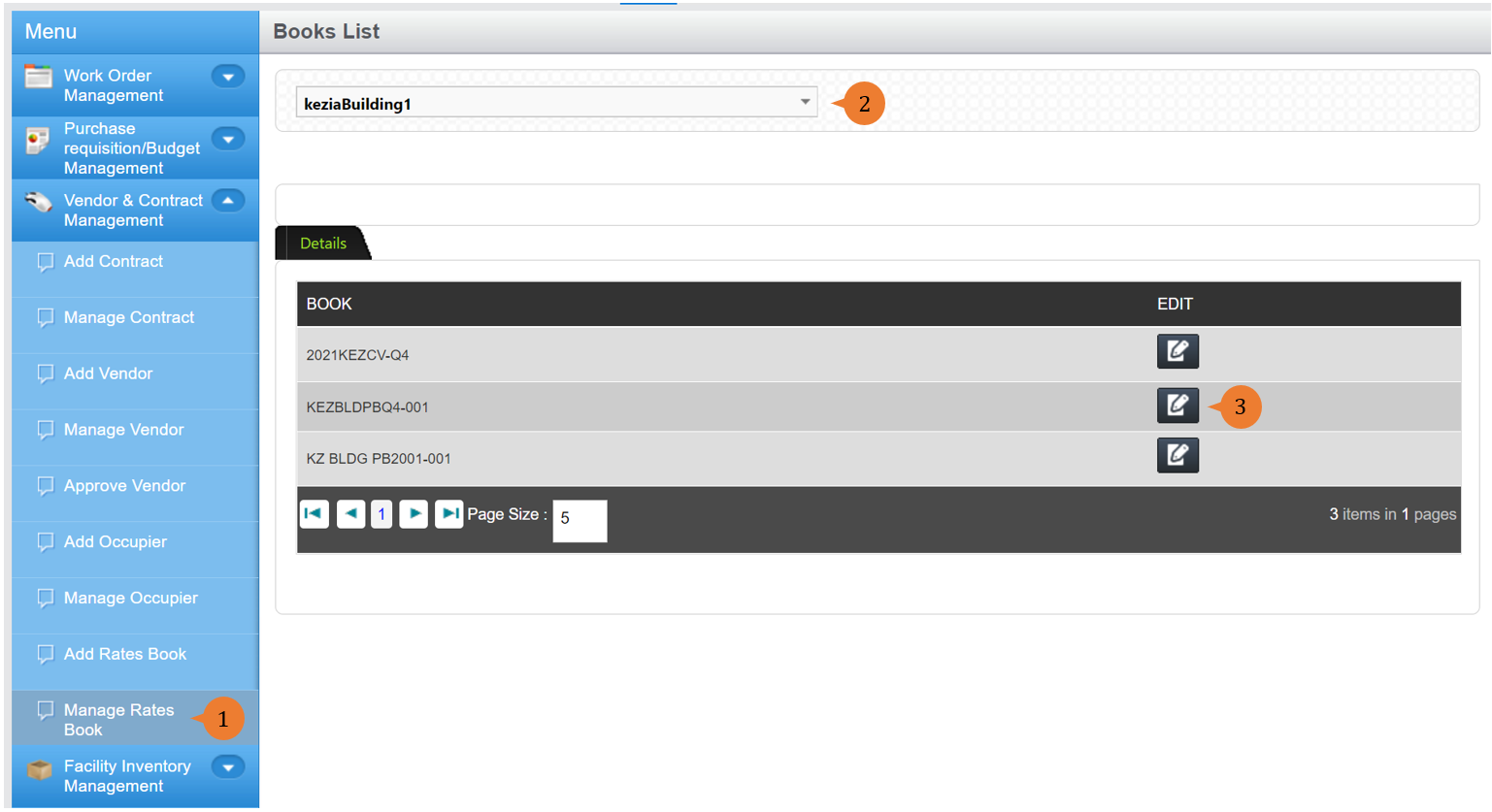
- Select Manage Rates Book under Vendor & Contract Management from the Menu.
- Select the organization or area for the list of Rates Book associated to be listed out.
- To edit the Rates Book, select the EDIT icon
 .
.
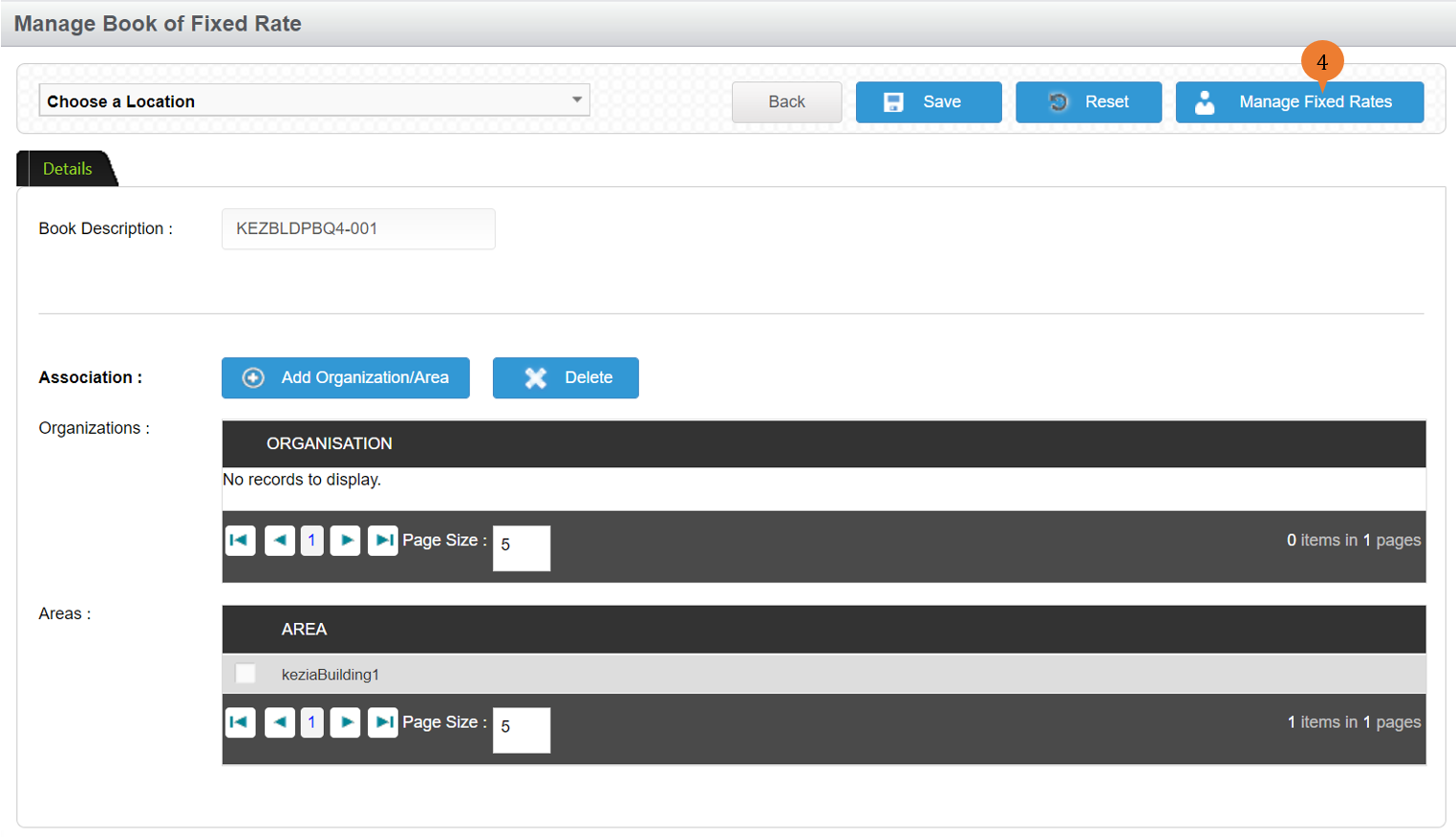
- To input fixed rate items into this rate book, click on Manage Fixed Rates.
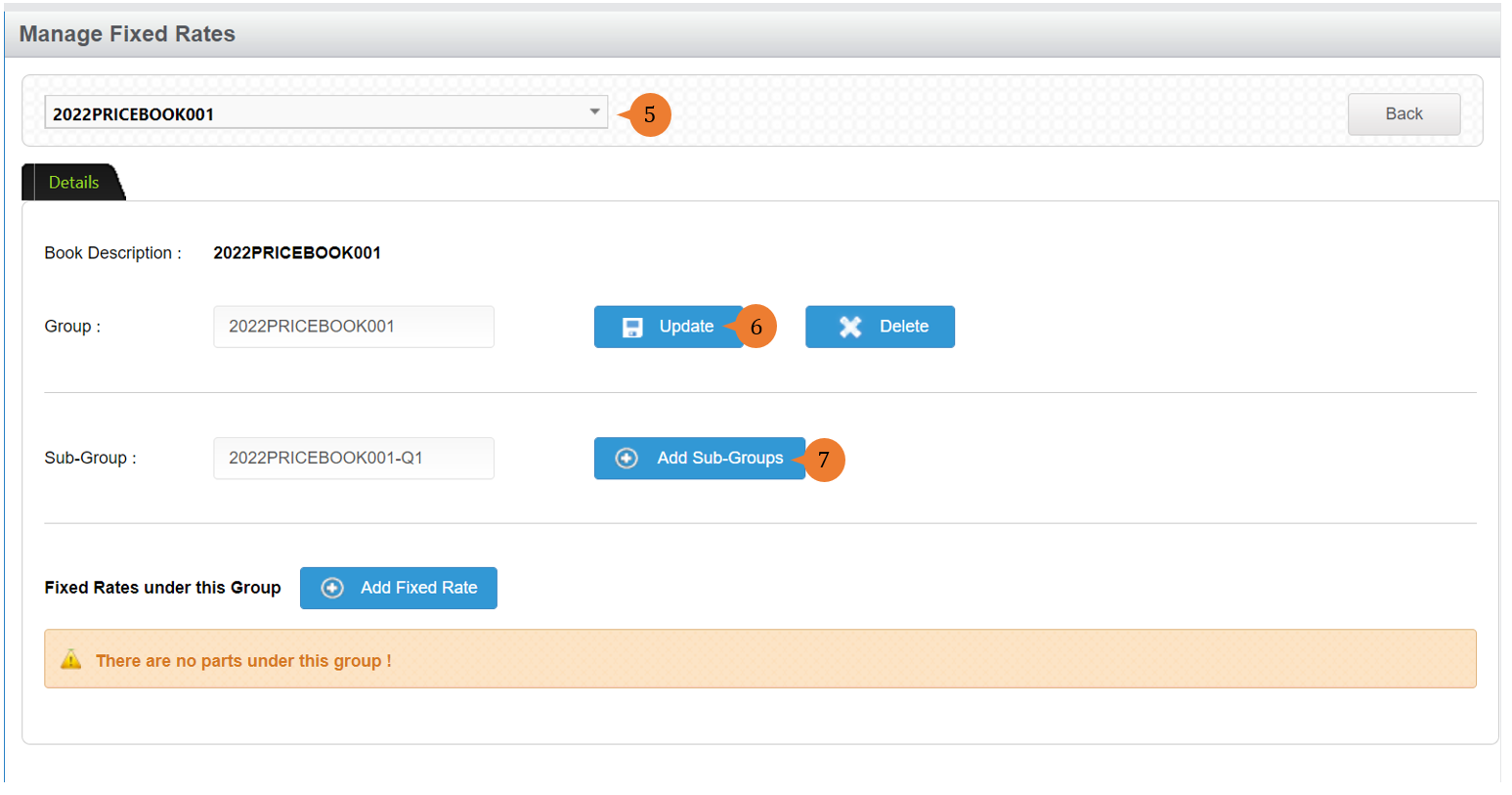
- Select the rate book group or sub-group that you wish to add Fixed Rates.
- To change the group name, input the amended name and click on the Update button.
- To add a sub-group, input the name and click on the Add Sub-Groups button.
- When the sub-group is successfully created, a success message will appear below the page title.

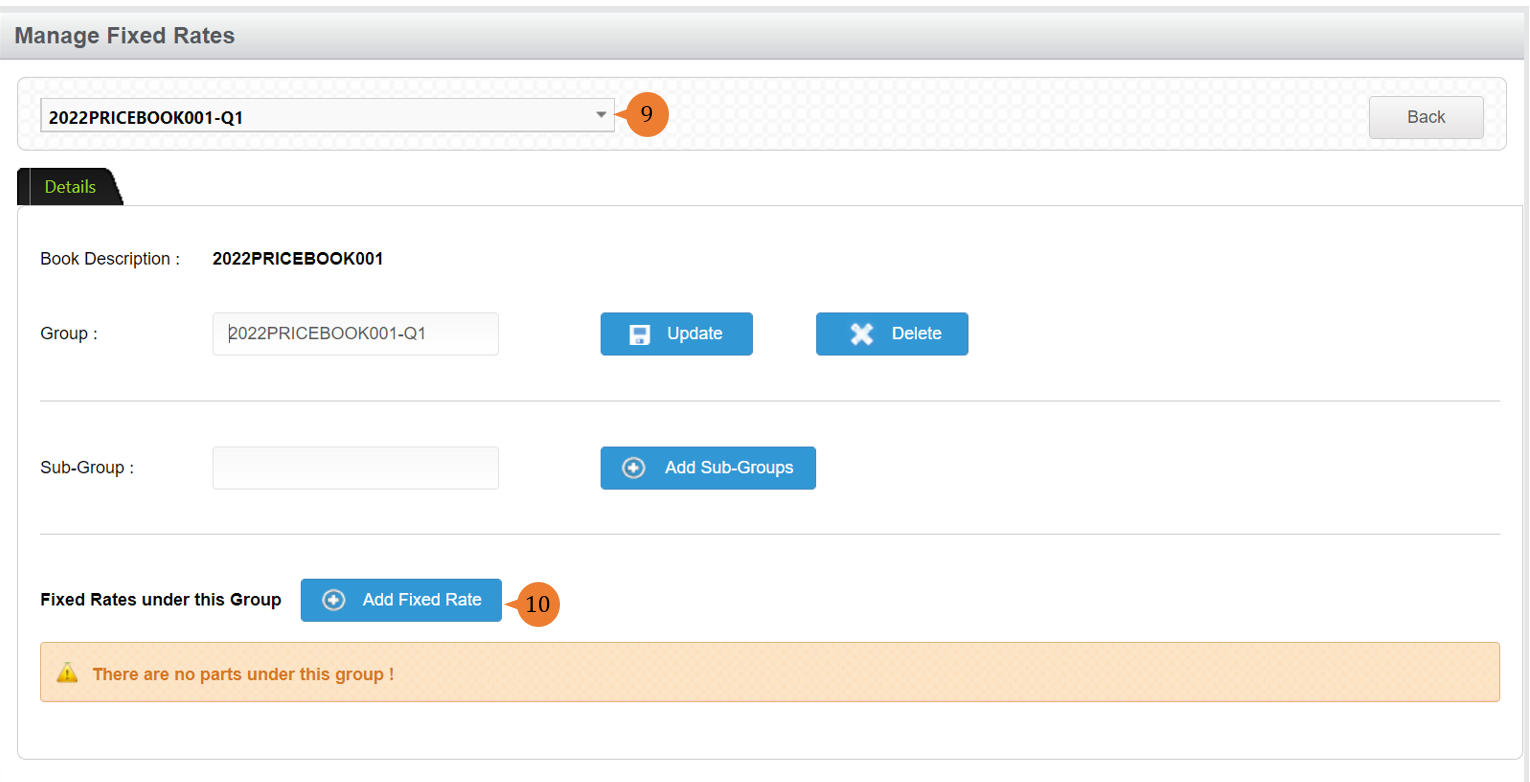
- Select the Group or Sub-Group to proceed with adding fixed rates. Please be careful of the selection prior to adding the fixed rate if not re-do is highly possible.
- To add the items, click on Add Fixed Rates button.
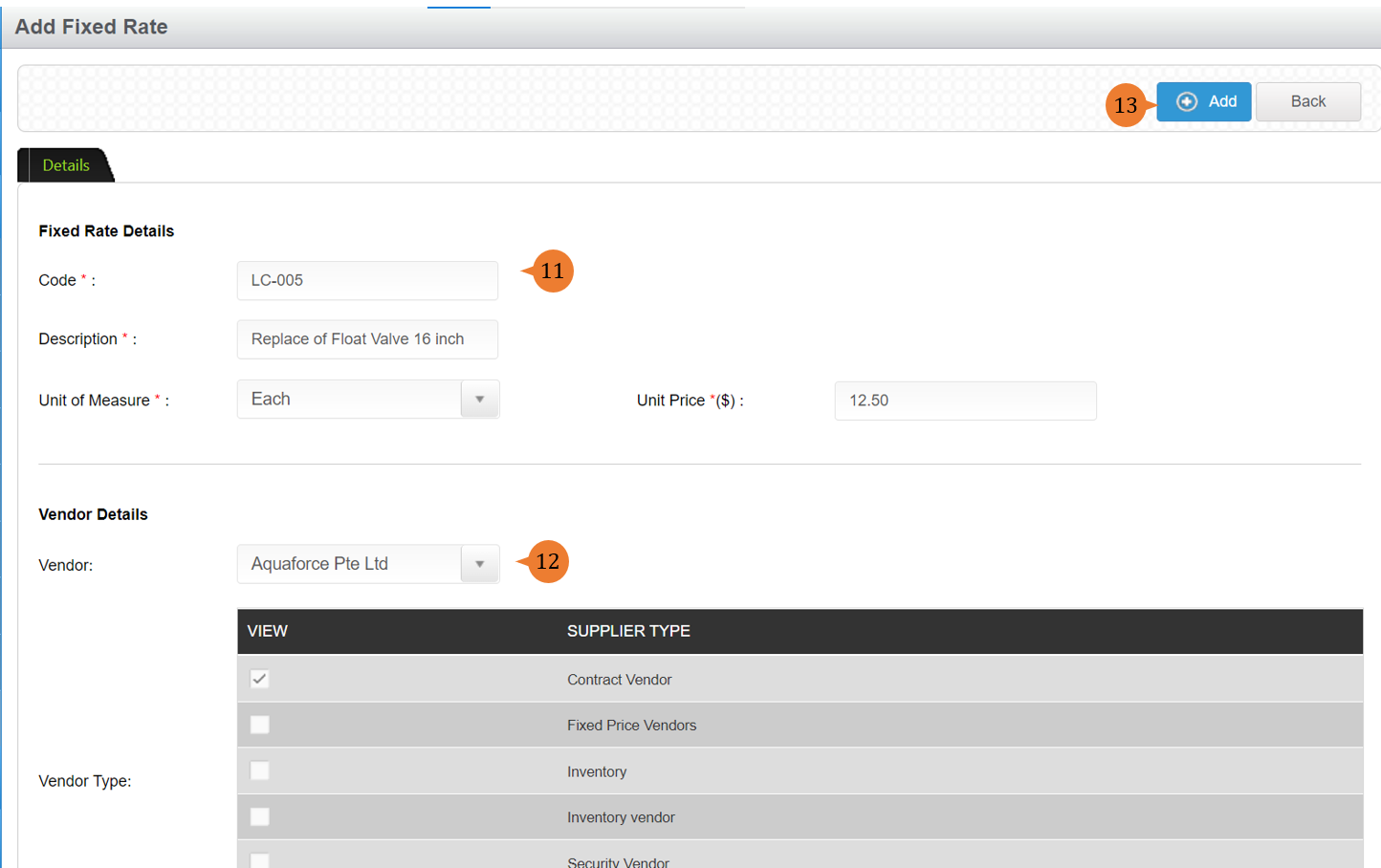
- In the Fixed Rate Details, input item code, description, unit of measure, and unit price.
- In the Vendor Details, select the vendor and vendor type should this item be performed by a particular vendor due to the contract. (Optional)
- To add the item into the rate book, click on Add.
- Once the item is being added to the rate book, a successful message will appear under the header.

More on this topic 
- For a step-by-step guide to creating a contract, see How to create contract?.
- For step-by-step guides to using Vendor & Contract Management module, see Vendor & Contract Management Module.