Generating PO Matching Report
How to generate PO Matching report?
PO Matching Report will show the list of expenses recorded for the chosen building and search criteria. It will contain information such as the Purchase Requisition (PR) No., Purchase Order(PO)/Letter Of Award(LOA) No., month PO accounted, budget category, budget sub-category and etc.
Note: Only Approved PR will be reflected in this report.
To generate PO Matching Report
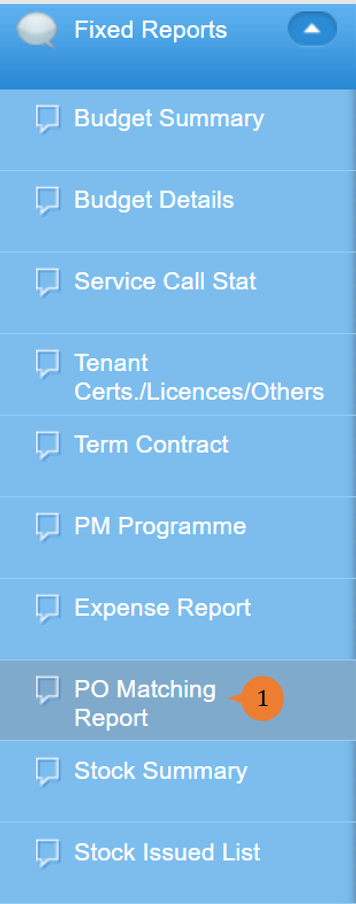
- Select PO Matching Report under Fixed Report from the Menu.
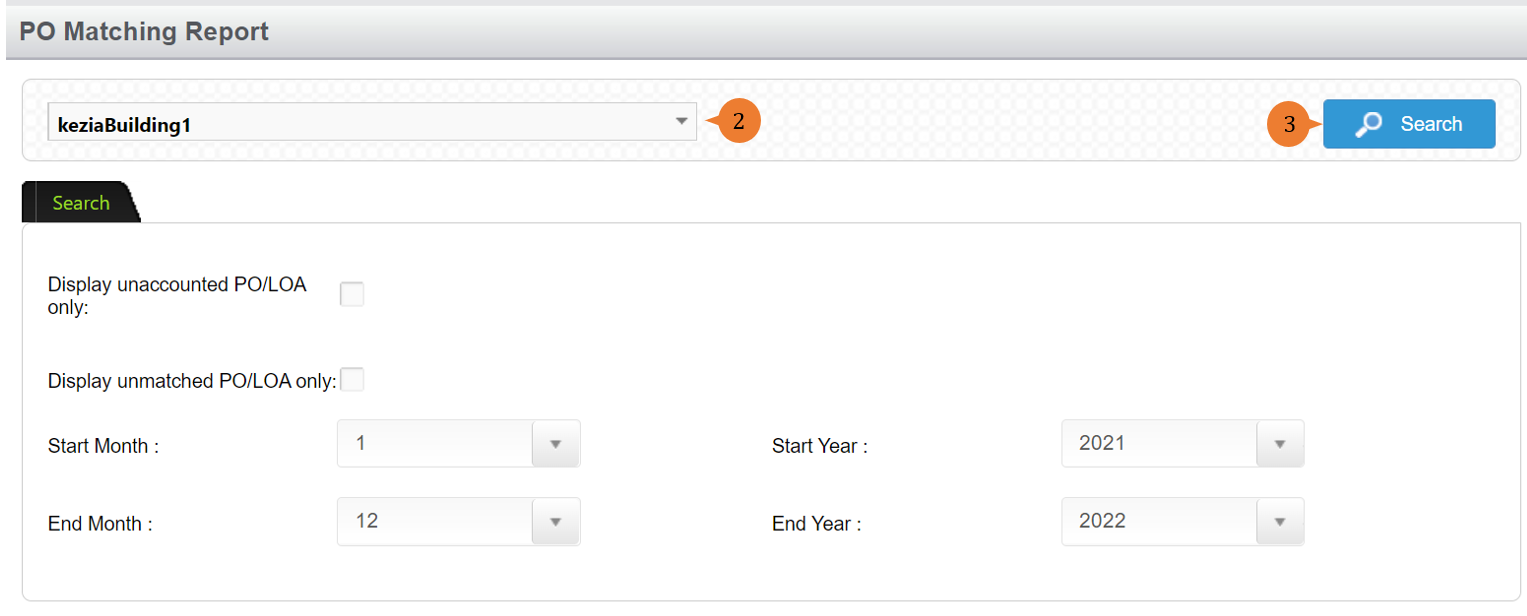
- Select the location and search filter.
- Click on the Search button.
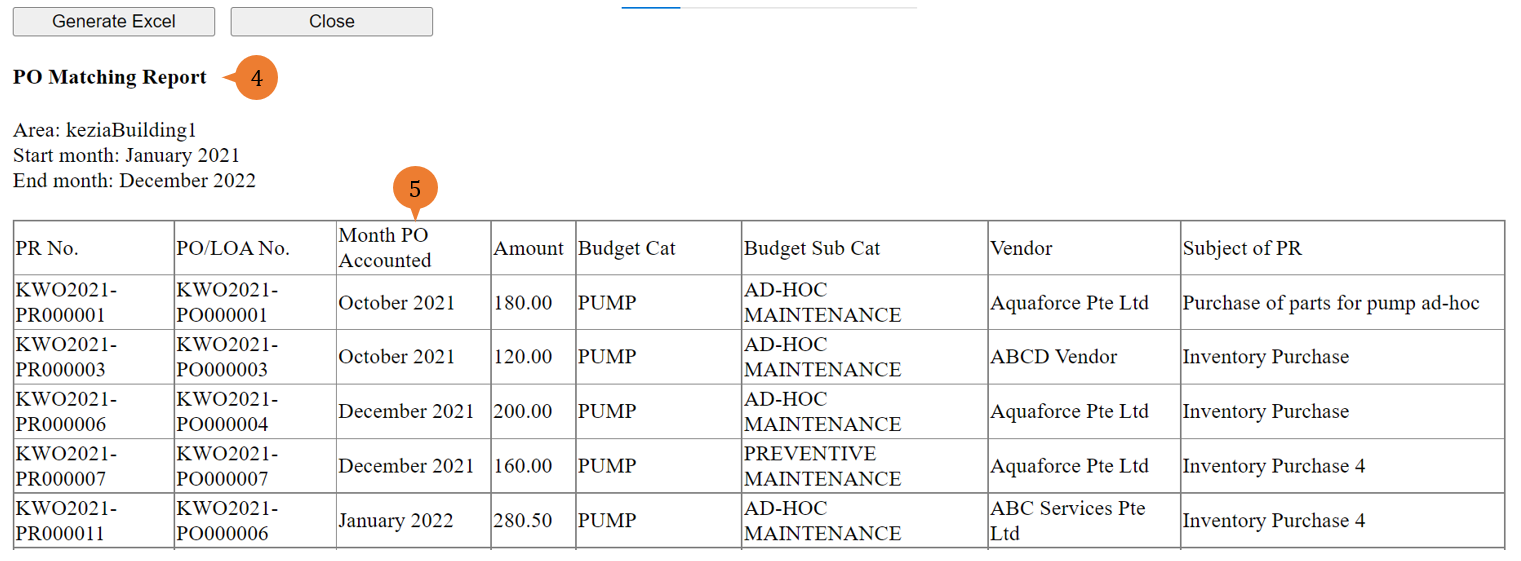
- A new tab will appear that contains the PO Matching Report based on the search criteria.
- The report will entail the following:
- PR No. – The Purchase Requisition Number.
- PO/LOA No. – The Purchase Order or Letter of Award Number for this purchase requisition
- Month PO Accounted – The month that this PO is accounted for in the financial statement.
- Budget Cat – The budget category that the amount will be deducted.
- Budget Sub Cat – The budget sub-category that the amount will be deducted.
- Vendor – The selected vendor to provide these services/products/both.
- Subject of PR – The title of the PR usually contains what this PR is for.
More on this topic 
- For step-by-step guides to using the Fixed Reports module, see Fixed Reports Module.