How to do stocktake?
How to do Stocktake?
Stocktake is usually done on a half-yearly basis to account for all the inventory items. It is usually created by the Procurement department.
To perform a stock take
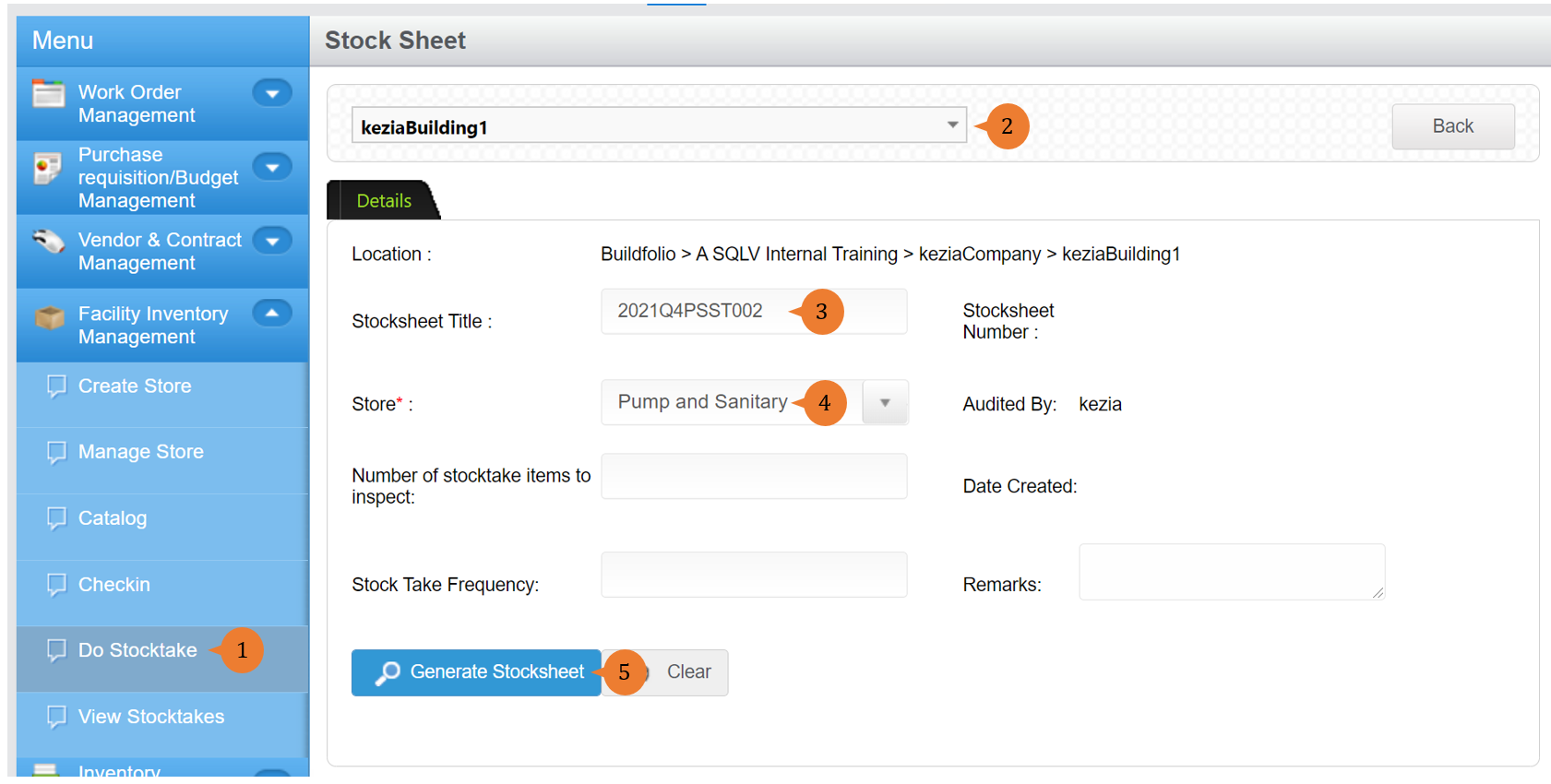
- Select Do Stocktake under Facility Inventory Management from the Menu.
- Select the location in Choose a location that you wish to perform stocktake.
- Input the Stocksheet title.
- Select the Store that you wish to perform stocktake.
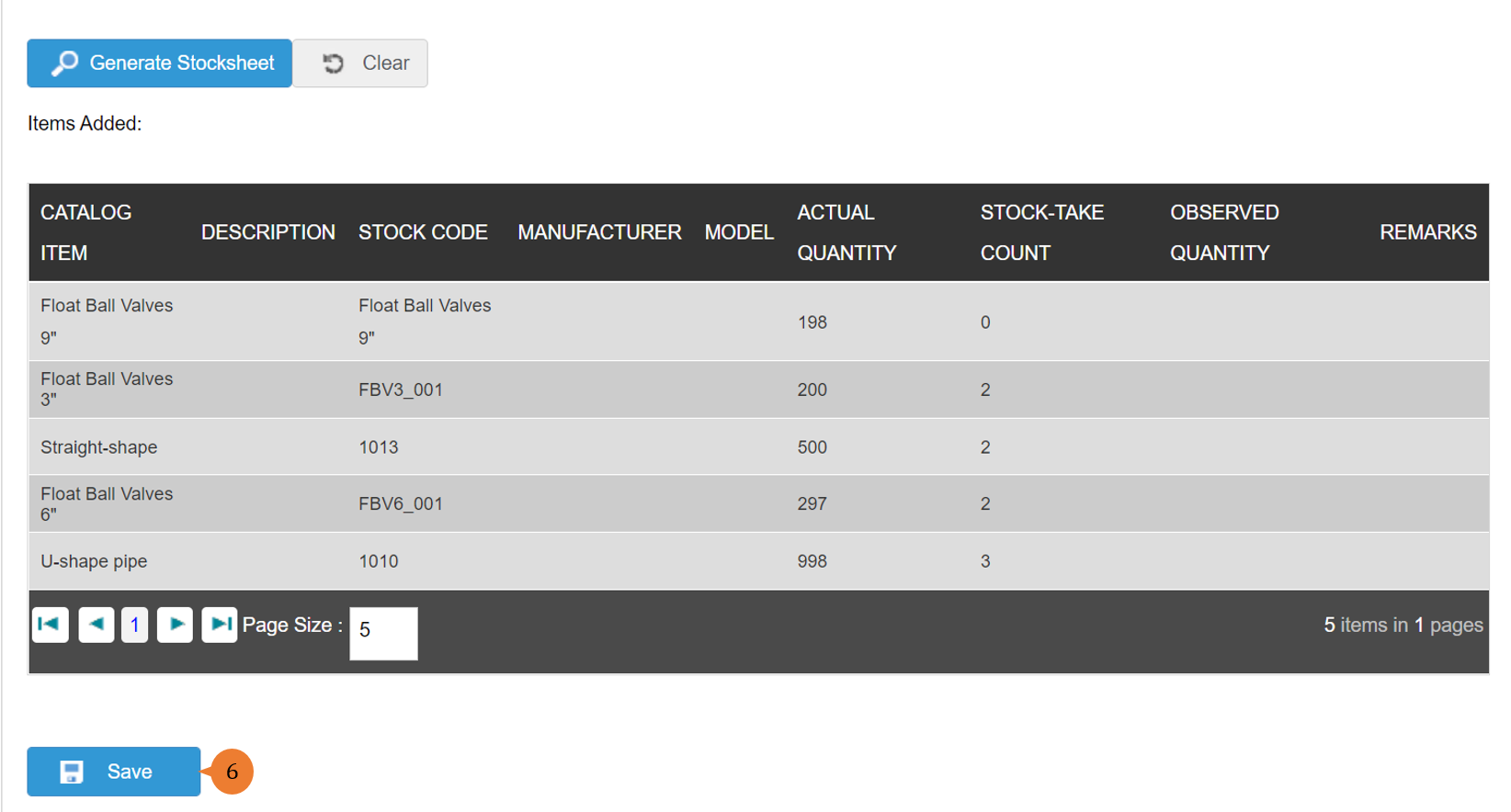
- Click on Generate Stocksheet button to show the list of items in the store with quantity.
- To proceed with stocktake, click the Save button.
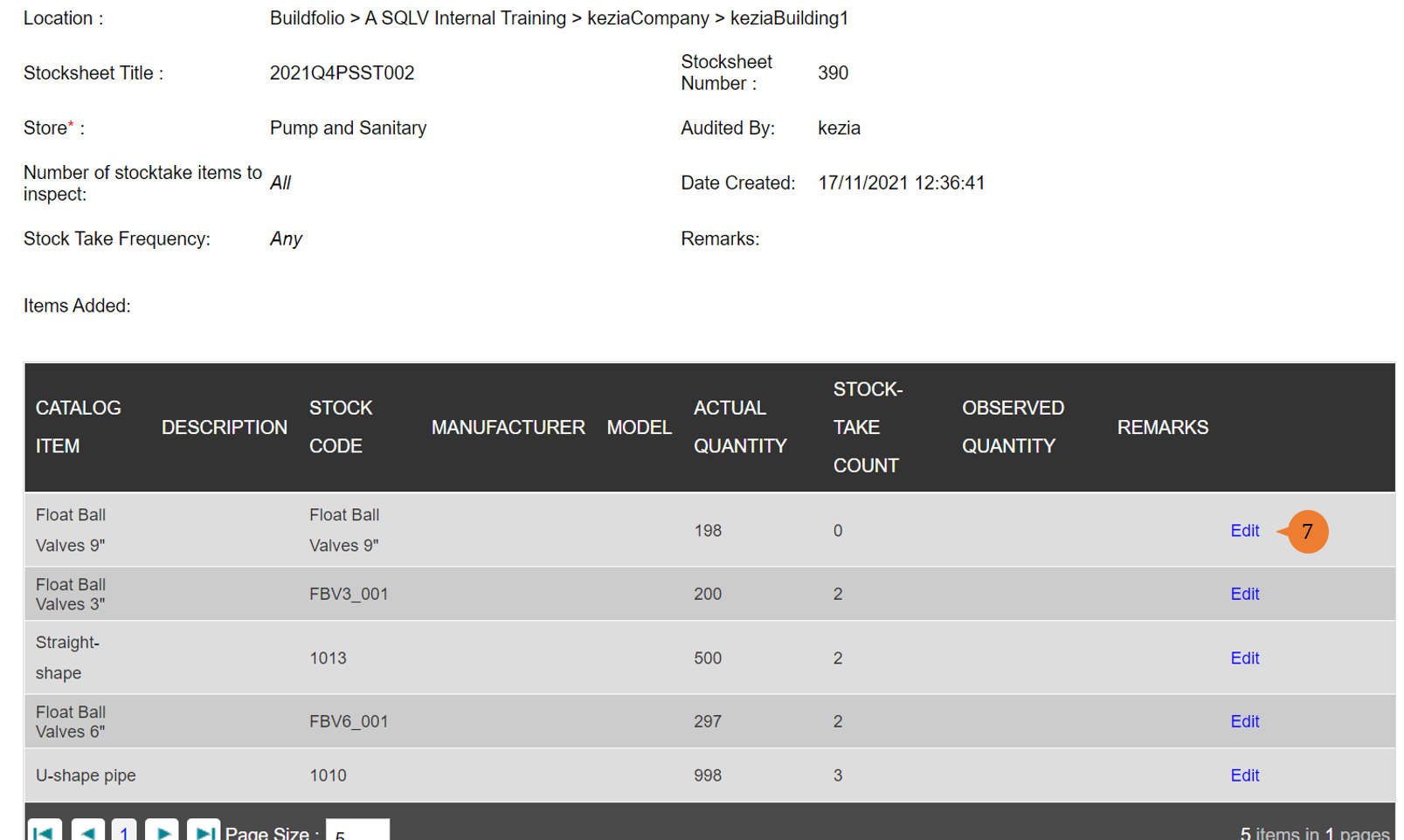
- To add the observed quantity, click on Edit.
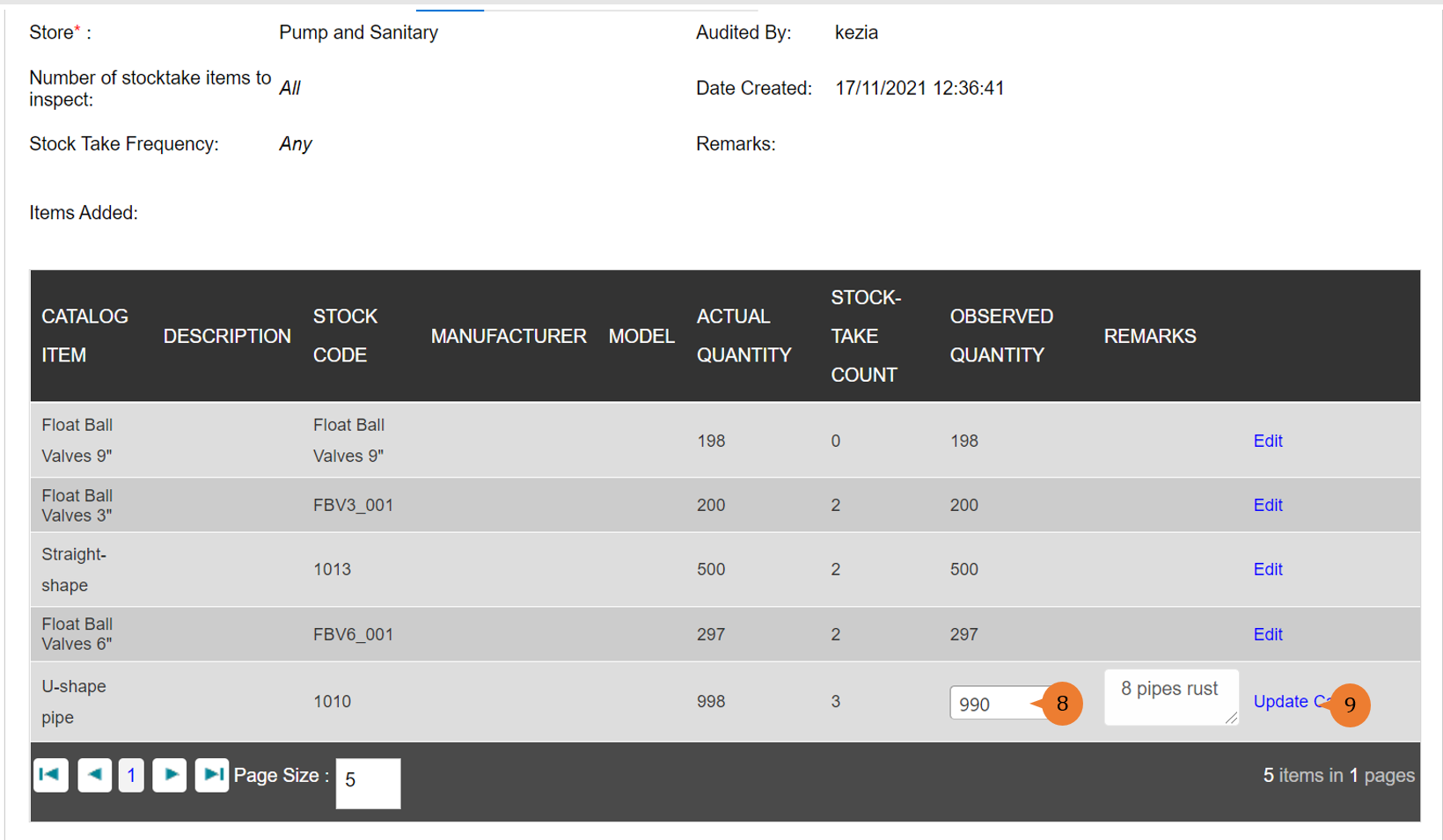
- Input the observed quantity into the observed quantity field and remark if necessary.
- Click the Update button.
- Repeat for all the items for steps 8 and 9. Once completed, click on Finalise Stocksheet button.
- Once the stocktake is successfully created, a success message will appear below the page title.

More on this topic 
- For a step-by-step guide to view stocktake, see How to view stocktake?.
- For a step-by-step guide to condemn inventory items, see How to condemn inventory items?.
- For step-by-step guides to using the Facility Inventory Management module, see Facility Inventory Management Module.