How to create Vendor?
Jump to
How to create a Vendor with an approval process in place? 
Depending on the company’s policy, vendor creation can either go through an approval process or not. Vendor creation is usually done by the Procurement team.
For a company that has an approval process in place for vendor creation, to create a new Vendor
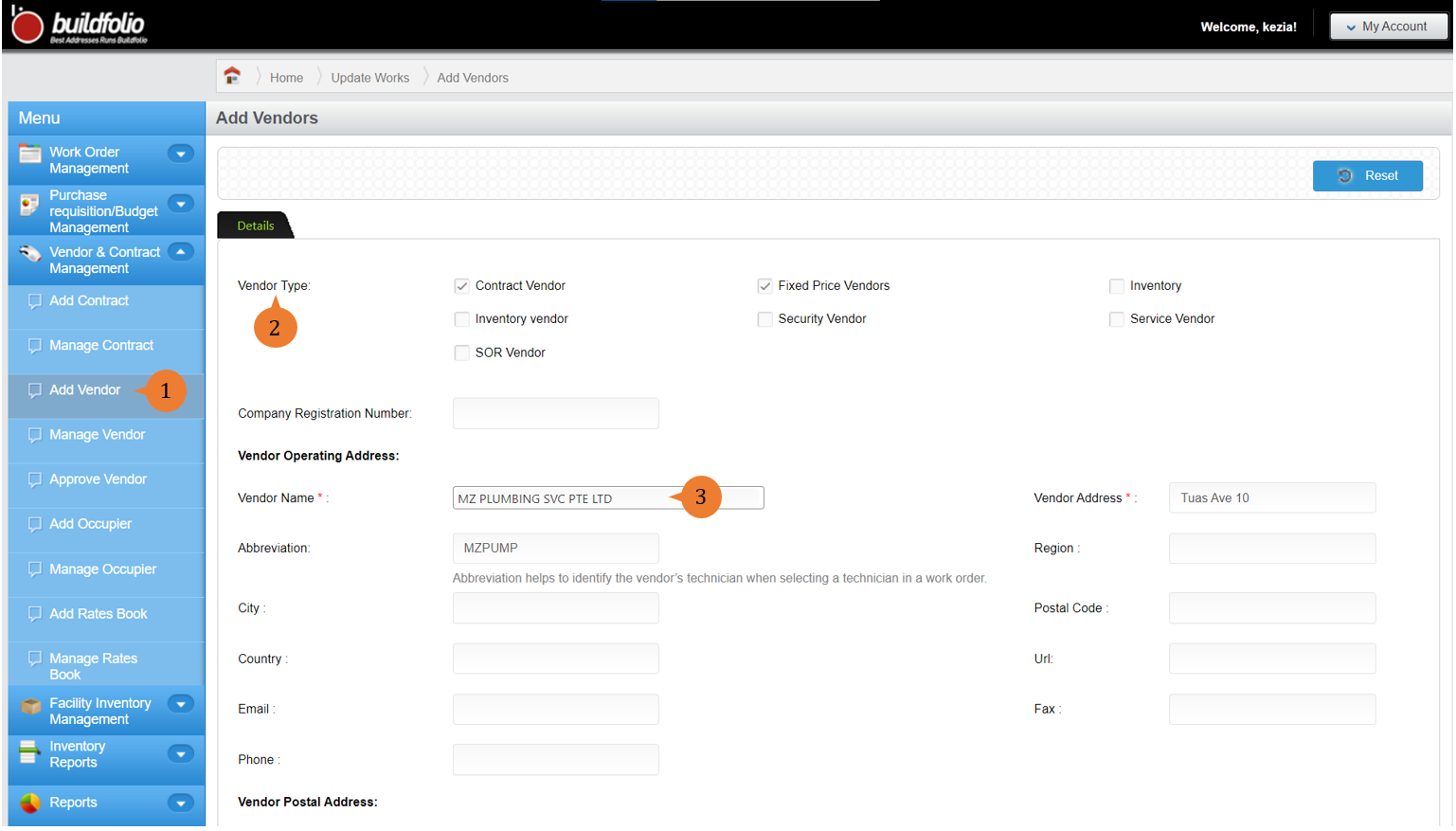
- Select Add Vendor under Vendor & Contract Management from the Menu.
- In the Details tab, select the appropriate vendor type applicable for the vendor.
- In the Details tab, fill in the compulsory fields marked with * and vendor type.
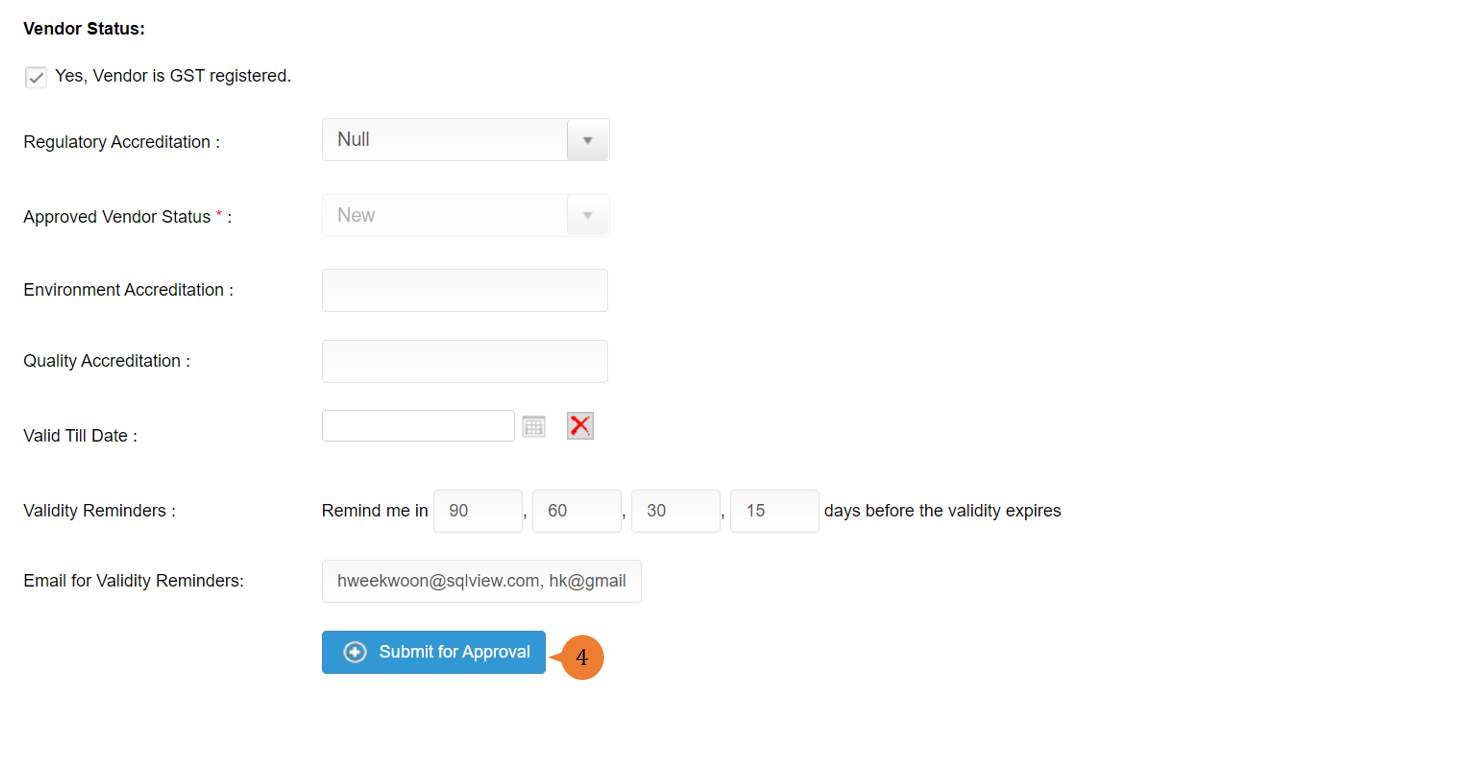
- To submit your Vendor for approval, click Submit for Approval.
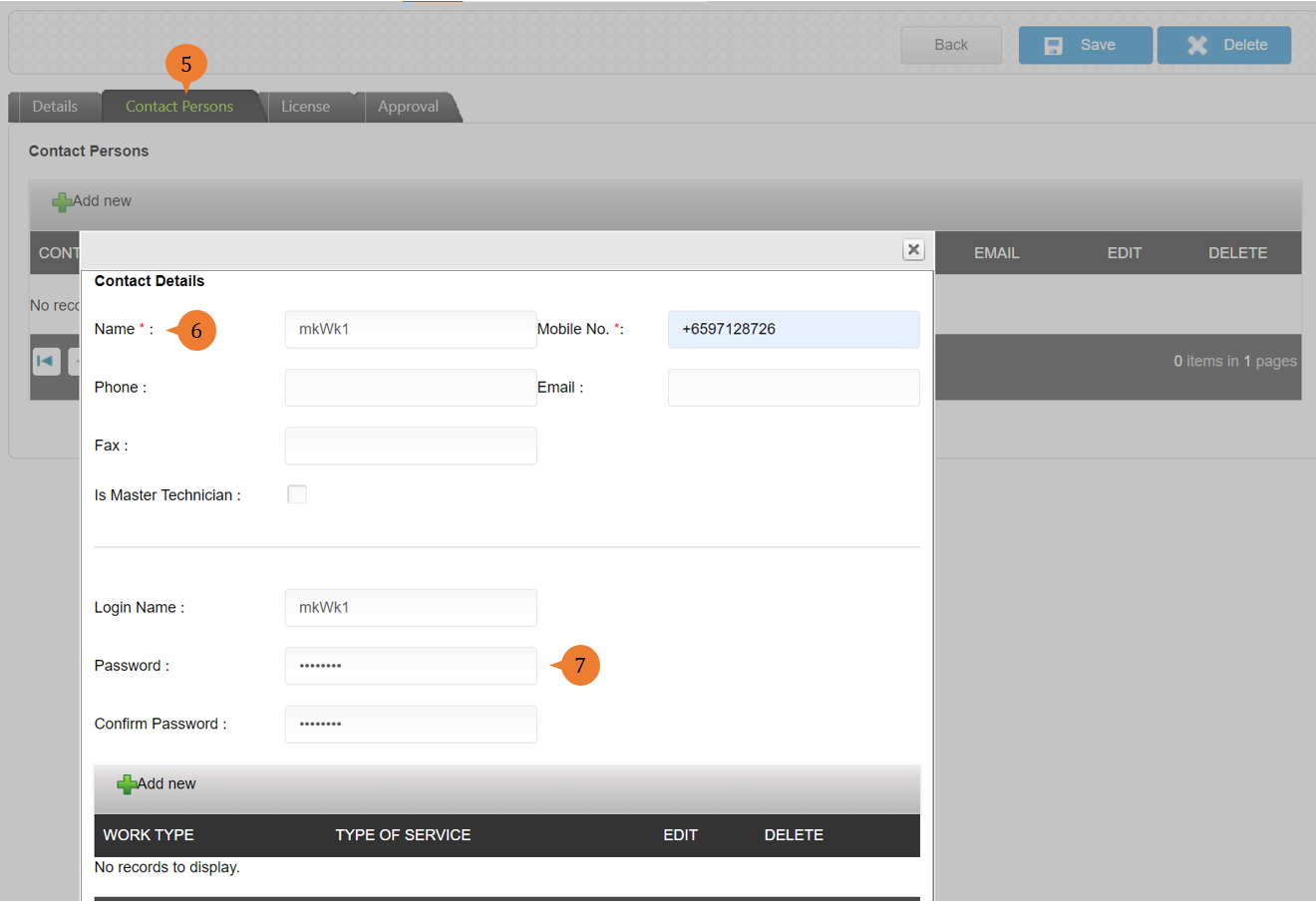
- To add personnel to the vendor, click on the Contact Person tab.
- Click Add New to create the vendor’s contact person by filling in the compulsory fields marked with *.
- If you will like to give system access to the person who assumes the role of Technician, do fill in Login Name and Password. He/she will only be able to access if the vendor is approved and with a valid contract tied to the vendor.
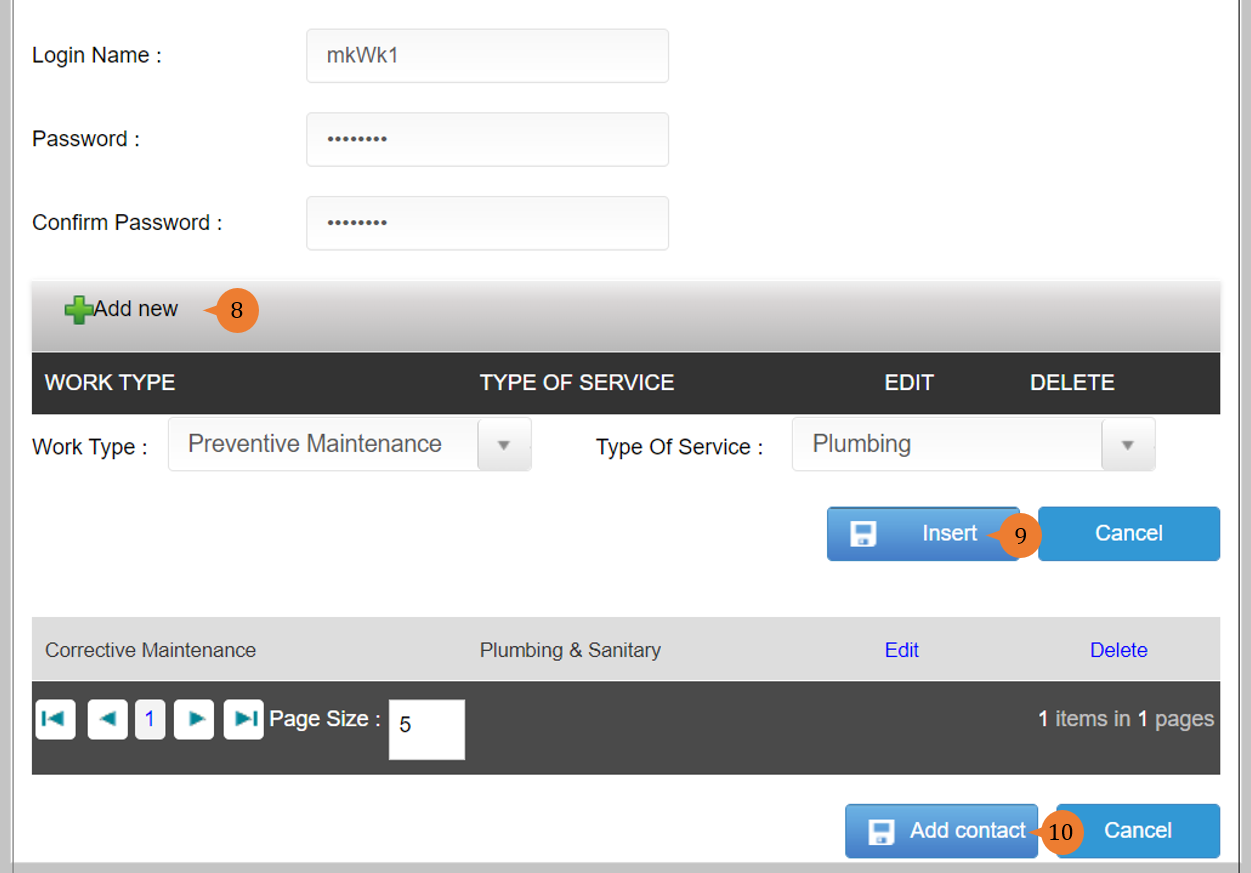
- To add the Work Type and Type of Service for this person, click Add New for the work type and type of service selection to appear.
- To associate the relevant work type and type of service to this person by clicking the Insert button.
- Upon completion of the work type and type of service association, click on Add contact button to add him/her to the vendor.
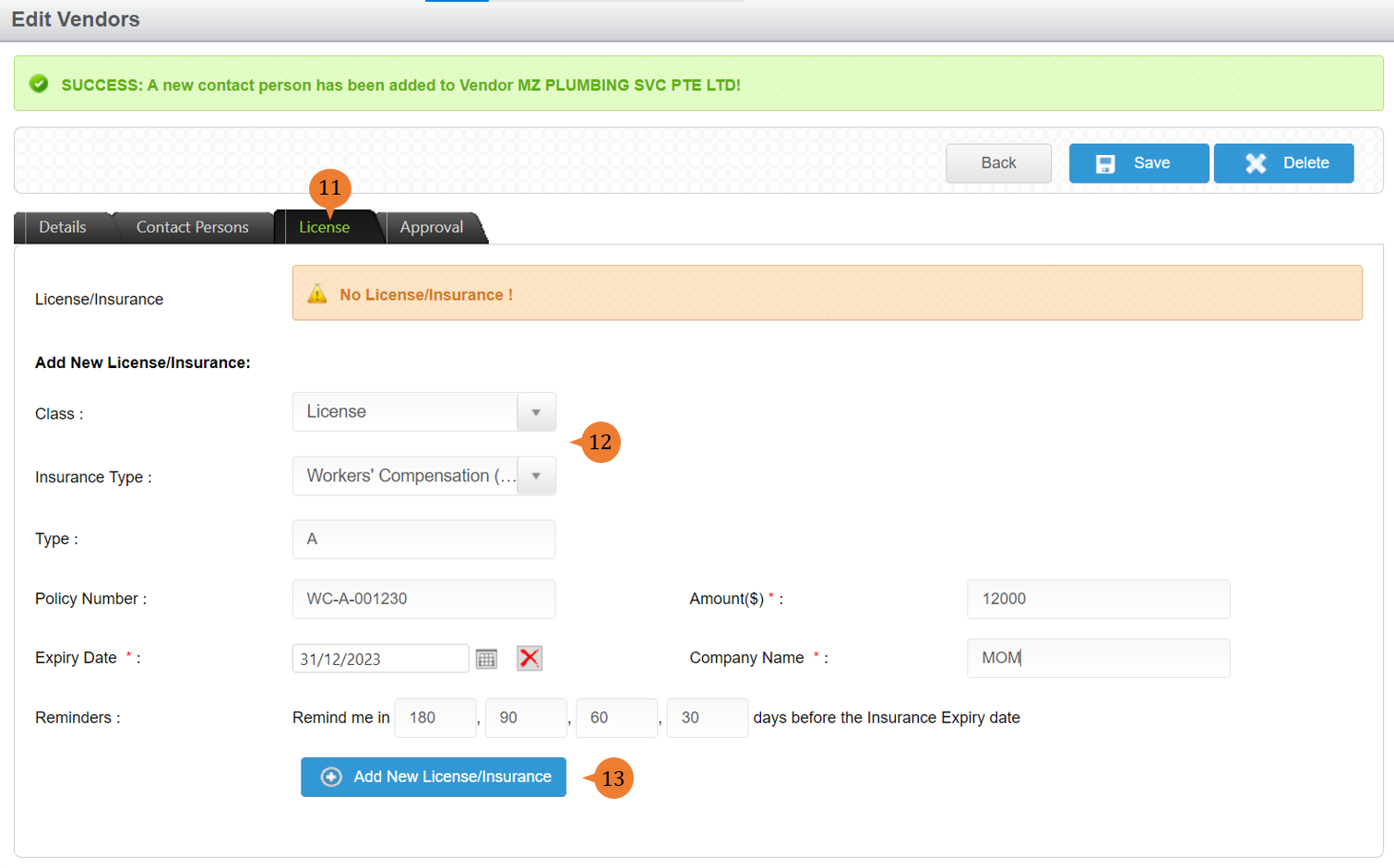
- To add licenses/insurance to the vendor, click on the License tab.
- In the License tab, select the class, type, policy number, and fill in the compulsory fields marked with *.
- To save the License/Insurance input, Click on Add New License/Insurance button.
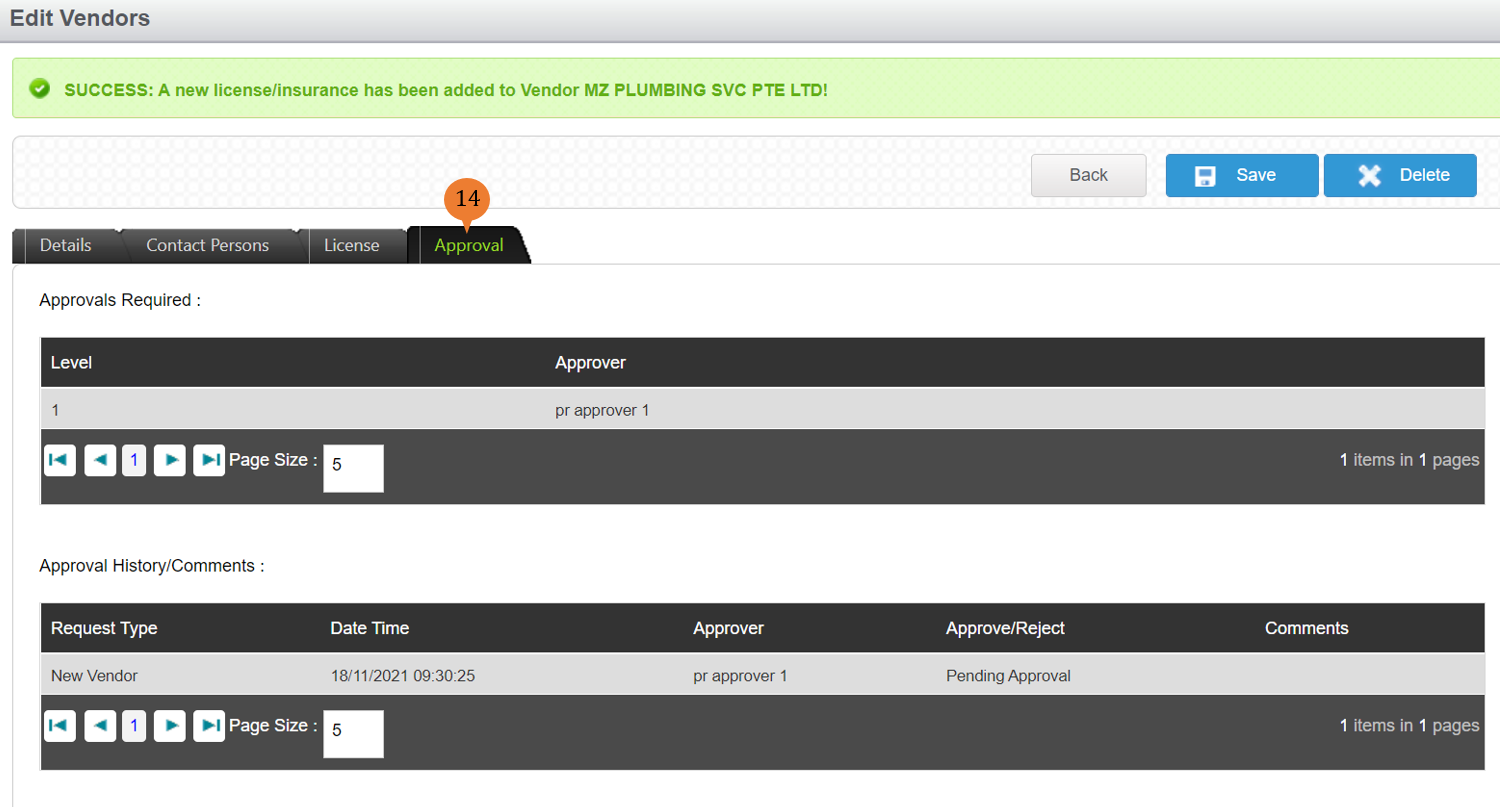
- In the Approval tab, able to view who is the approver and also the approval history/comment section.
How to create a Vendor without an approval process in place?
Depending on the company’s policy, vendor creation can either go through an approval process or not. Vendor creation is usually done by the Procurement team.
For a company that do not have an approval process in place for vendor creation, to create a new Vendor
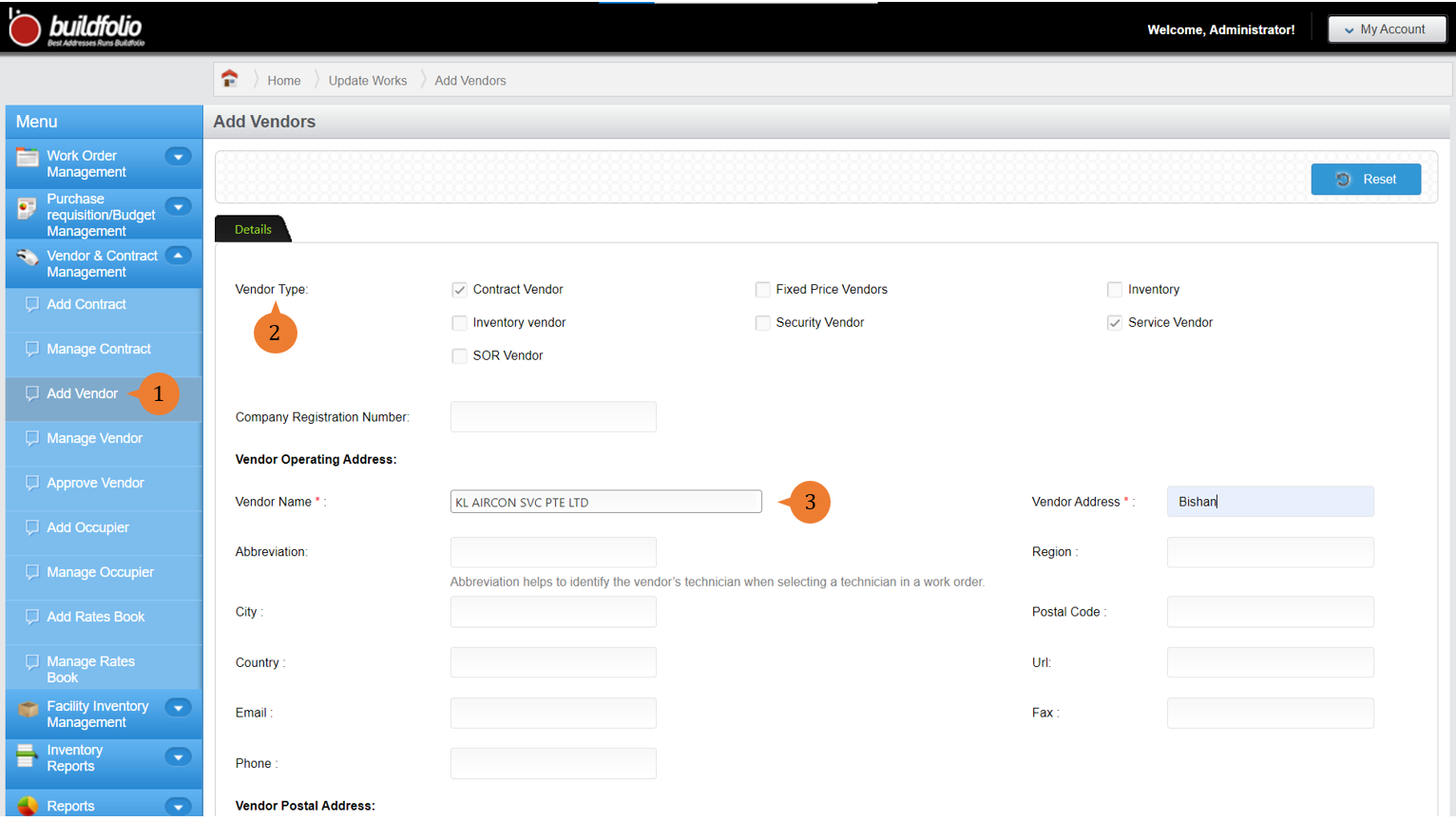
- Select Add Vendor under Vendor & Contract Management from the Menu.
- In the Details tab, select the appropriate vendor type applicable for the vendor.
- In the Details tab, fill in the compulsory fields marked with * and vendor type and other necessary information.
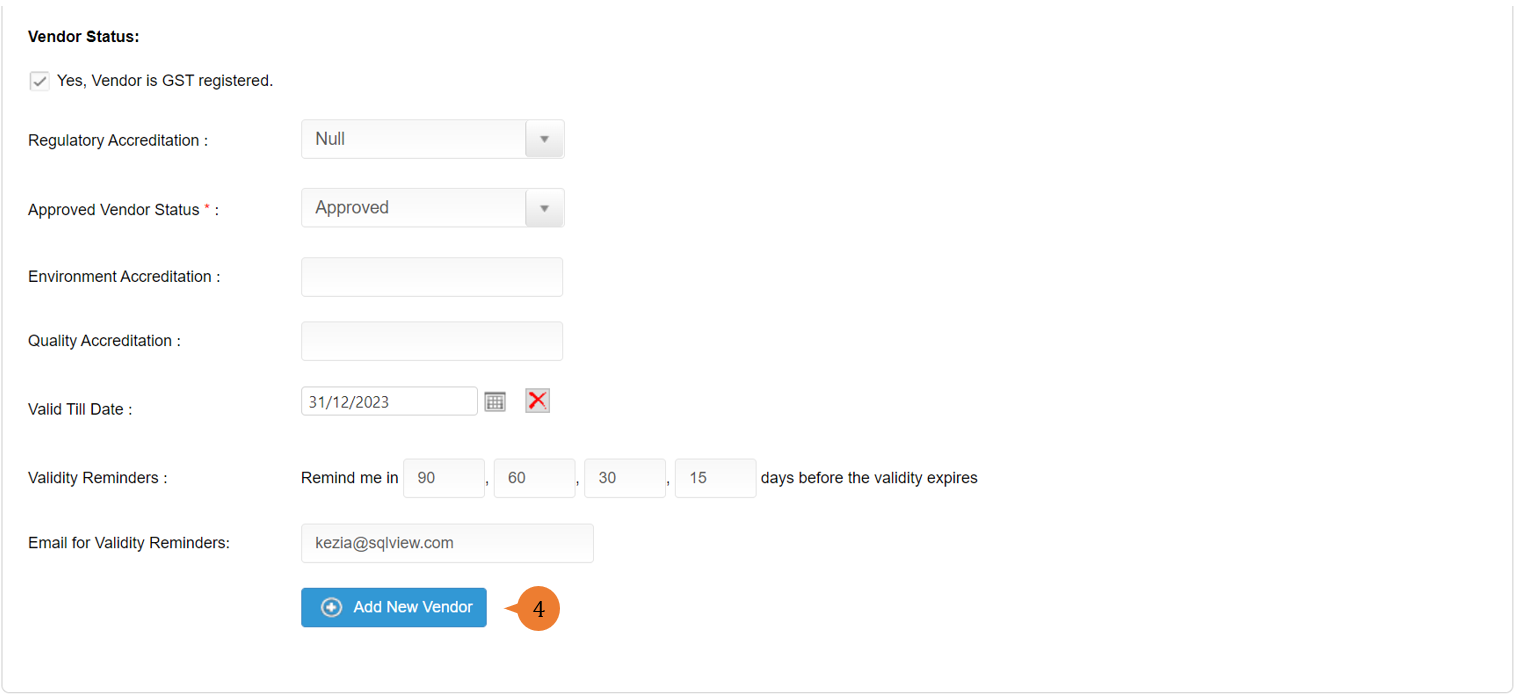
- To create the vendor, click on the Add New Vendor.
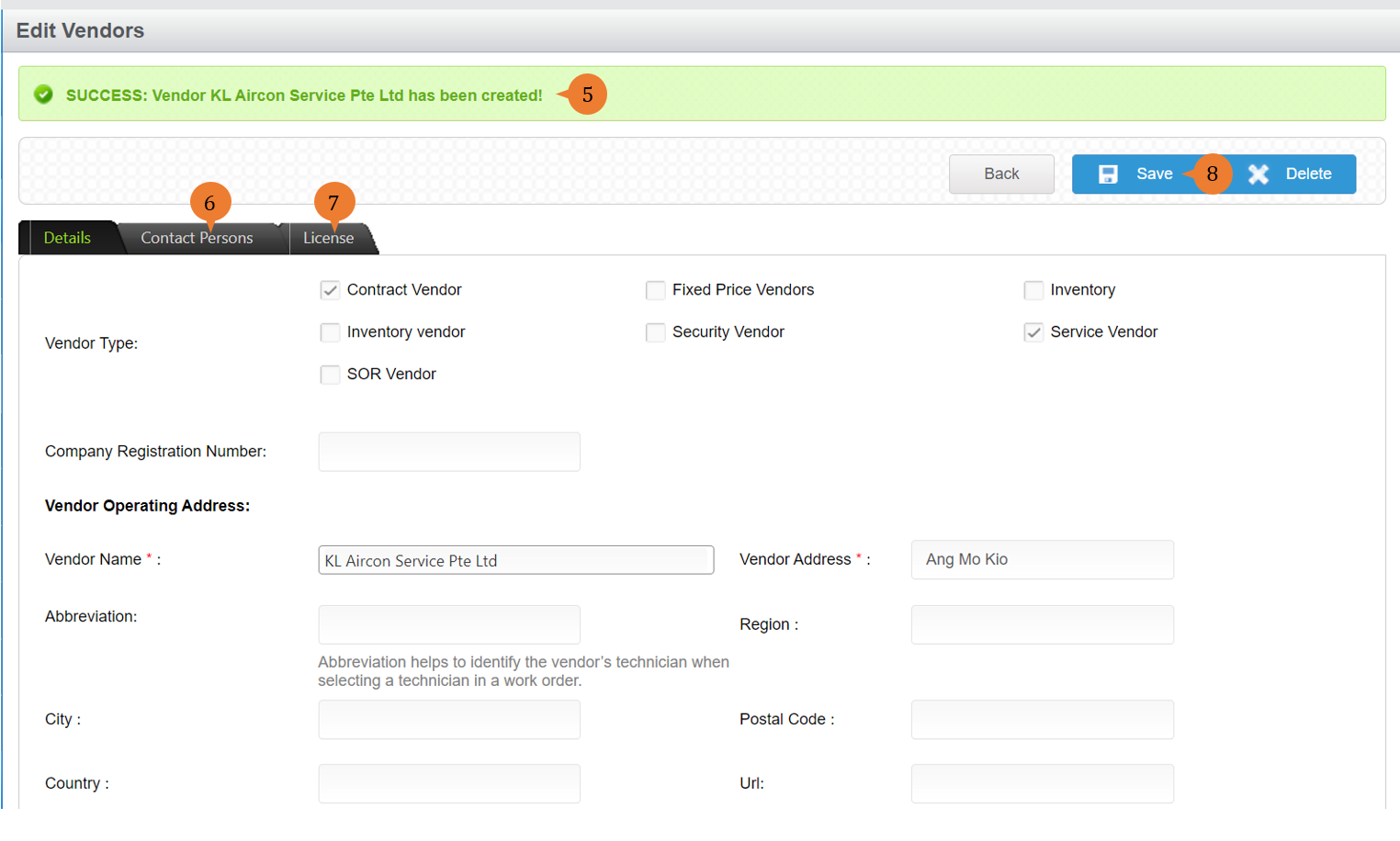
- When the vendor is successfully created, a success message will appear below the page title.
- To add personnel to the vendor, click on the Contact Person tab.
- To add licenses/insurance to the vendor, click on the License tab.
- Once done, click on the Save button.
More on this topic
- For a step-by-step guide to editing a Vendor, see How to manage a Vendor on the web browser?.
- For a step-by-step guide to approving a Vendor, see How to approve a Vendor on the web browser?.
- For step-by-step guides to using Vendor & Contract Management module, see Vendor & Contract Management Module.