Generating Inventory Usage Report
How to generate an inventory usage report?
Inventory Usage Report will list out all the inventory information that is being check-out. This report is useful for both the procurement department and the facility manager to know the stock unitilisation.
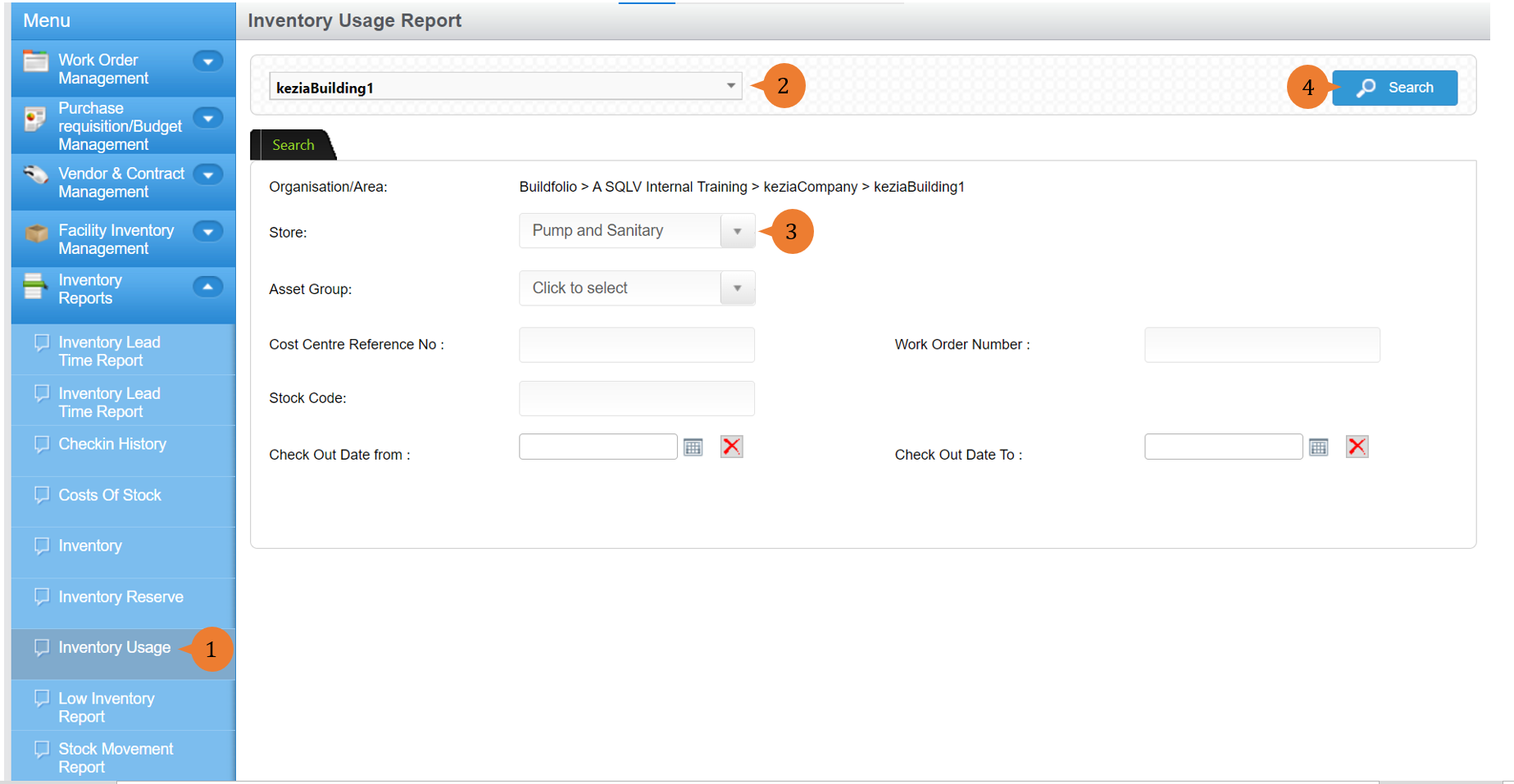
To generate an inventory usage report
- Select Inventory Usage under Inventory Reports from the Menu.
- Select the location that you wish to search the check-in history report for.
- Select the Store.
- Click on the Search button.
- A new tab will appear that contains the inventory usage report based on the store selected.
- The report will entail the following:
- Area – The location of the store that the inventory items are being check-out.
- Store – The store that holds the inventory items that will be used for the work order.
- Cost Centre Ref No – The location involved for the inventory used to be charged and is the location of the work order.
- Work Order No – The Work Order Number that registers that the inventory items will be utilised for the work to be carried out if it is raised.
- Stock Code – The inventory stock code number that is being check-out.
- Catalog Item – The inventory stock name that is being check-out
- Description – The inventory item description that is being check-out.
- Check Out Date – The date and time that the inventory items are being check-out.
- Unit Price – The unit price of the inventory item that is being check-out.
- Quantity – The actual quantity of the inventory item that is being check-out.
- Total – The total price of the inventory items being check-out. It will be derived from Unit Price x Quantity.

More on this topic 
- For step-by-step guides to using the Inventory Reports module, see Inventory Reports Module.