How to check-in and check-out of Inventory?
Jump to
How to check-in and check-out of Inventory?
The inventory check-in update is usually managed by the Procurement department. The check-out of inventory can be done by the operation department through work order and/or procurement department for disposing of perishable goods.
How to check-in Inventory?
To check-in inventory into the store
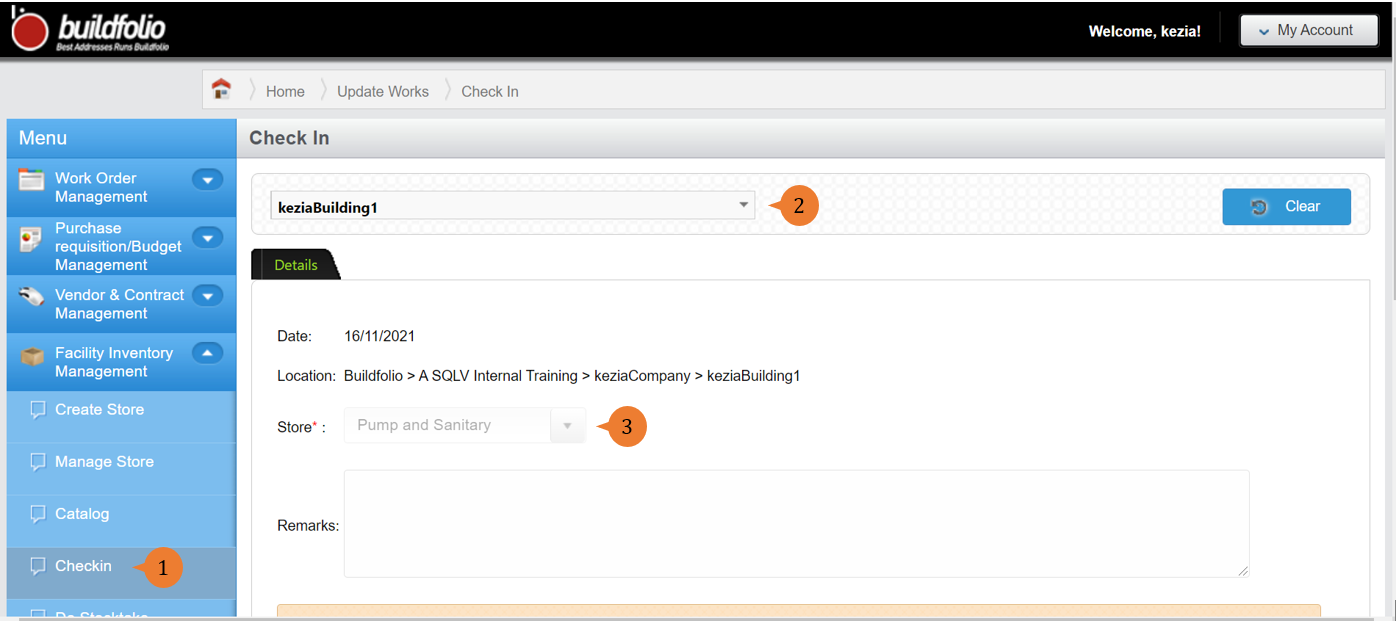
- Select Checkin under Facility Inventory Management from the Menu.
- Select the location in Choose a location that you wish to check-in the items.
- Select a Store that you wish to check in the item to.
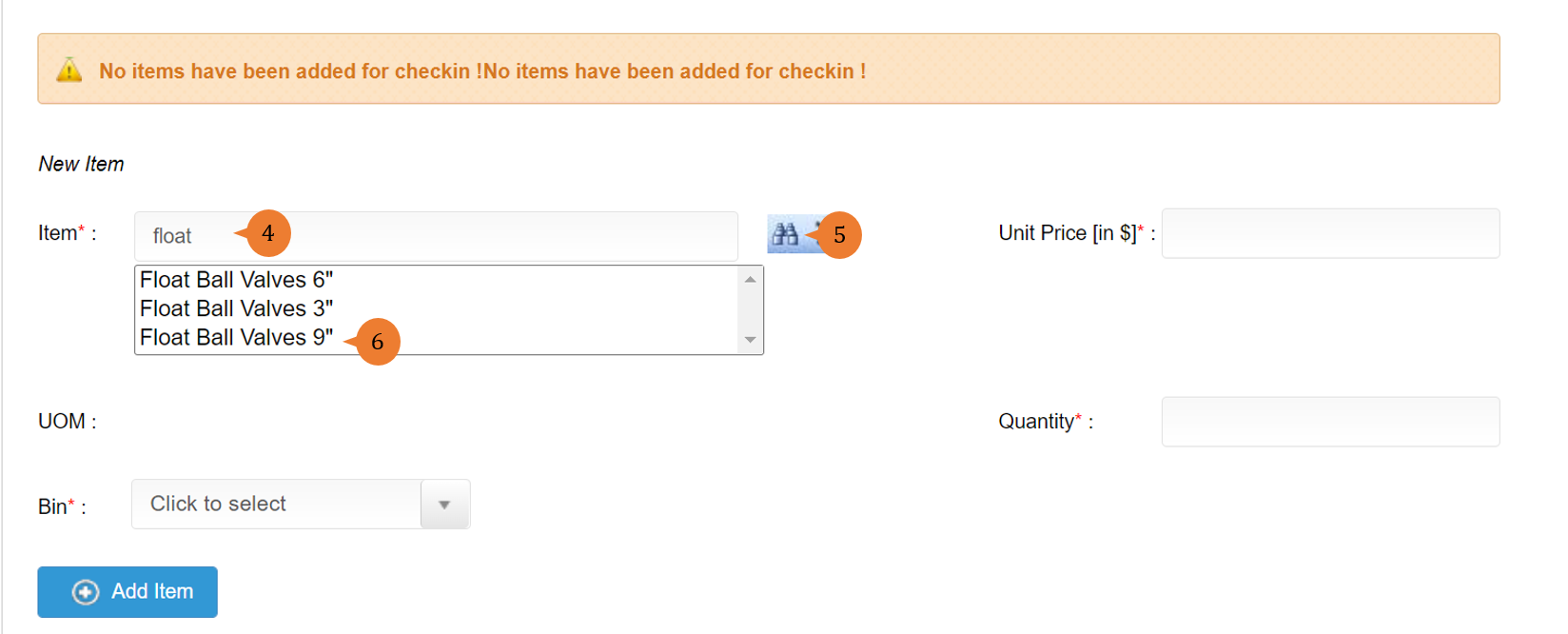
- To search the item you wish to check in, input the keyword in the Item field to shorten the list.
- Click on the Search icon for the list of items to appear.
- Select the item that you wish to check-in.
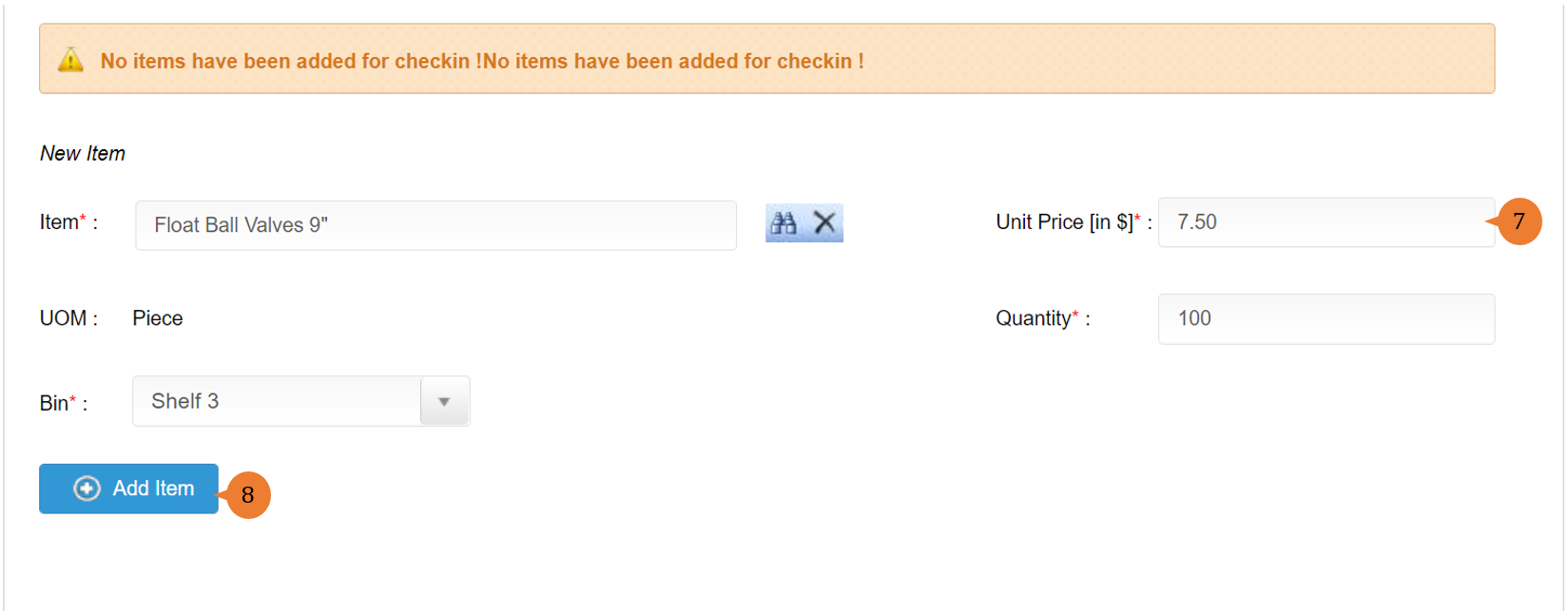
- Fill in the compulsory fields marked with *.
- To add the item for this check-in, click on the Add Item button. If you have more items to add to this store, repeat step 1 to 7 again.
- Upon completion with the items to be check-in, click on the Check In button.
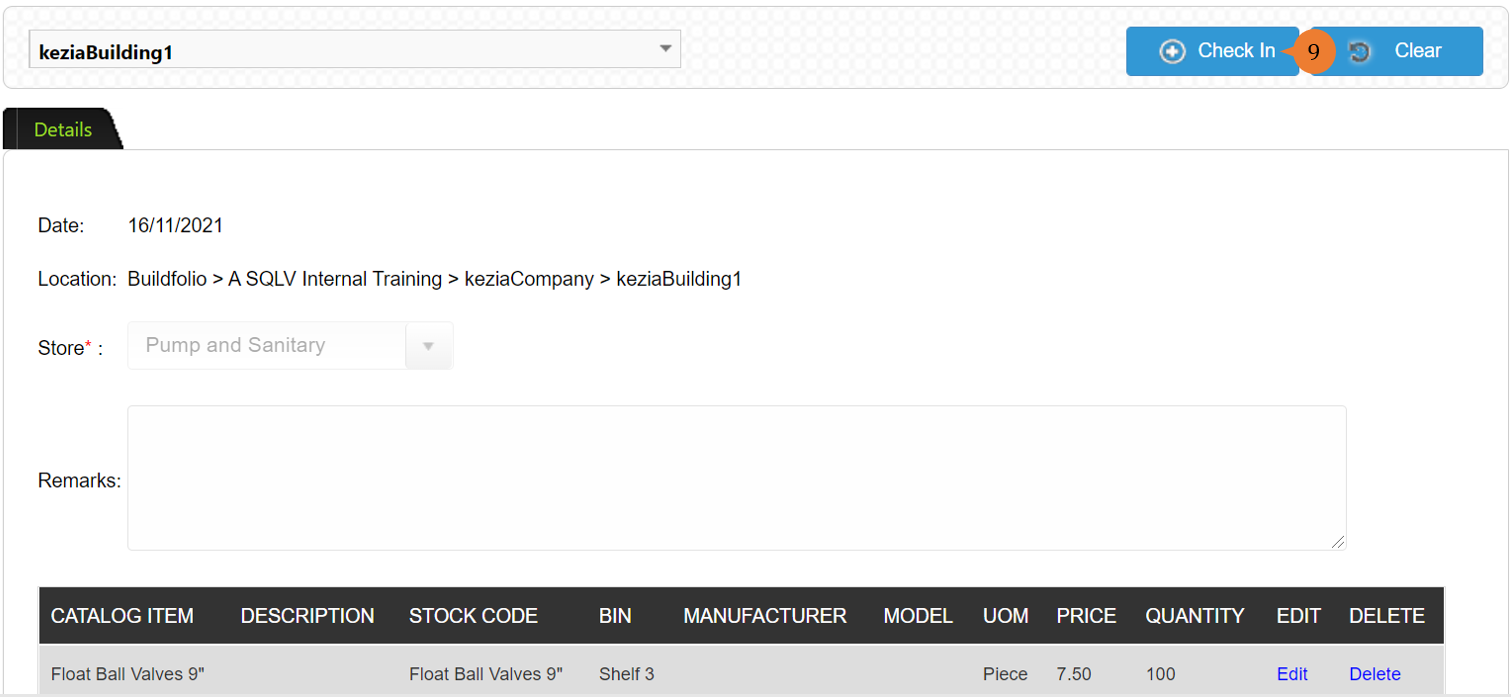
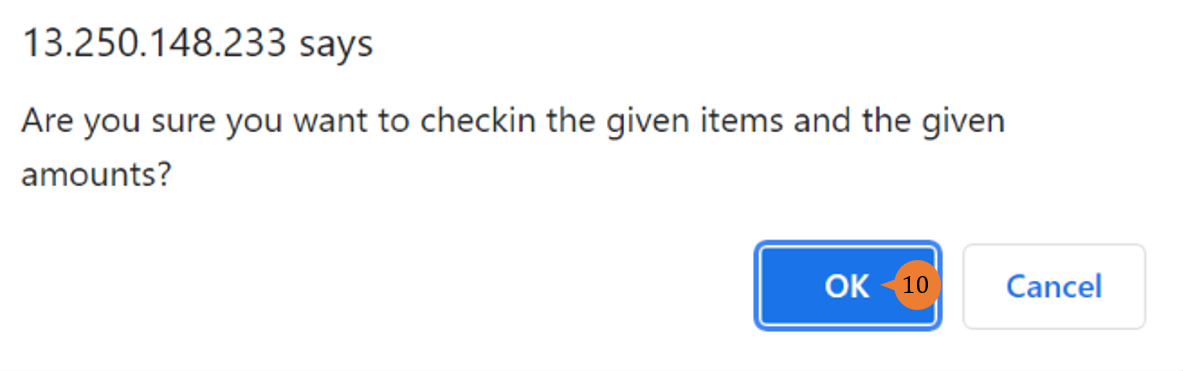
- A pop-up will appear for you to confirm the check-in of items as this move is irreversible. Click OK to proceed.
- Once the bin is successfully created, a success message will appear below the page title.

How to check-out Inventory?
The usual way to check-out inventory will be through Work Order by technicians where they do need to use it for to carry out work done.
To check-out the inventory through Work Order,
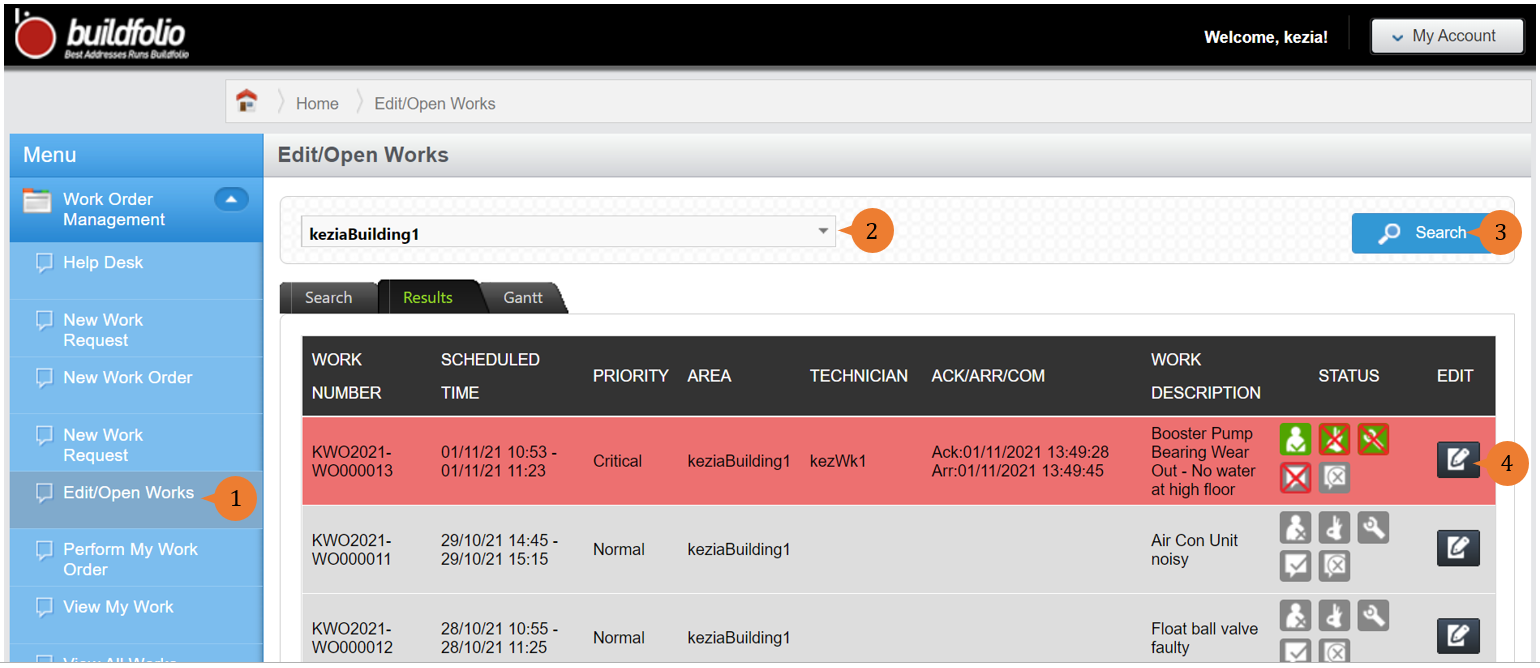
- Select Edit/Open Works under the Work Order Management module from the menu.
- Select the Location of concern from the location tree.
- Click on Search.
- To edit the Work Order, select the EDIT icon
 .
.
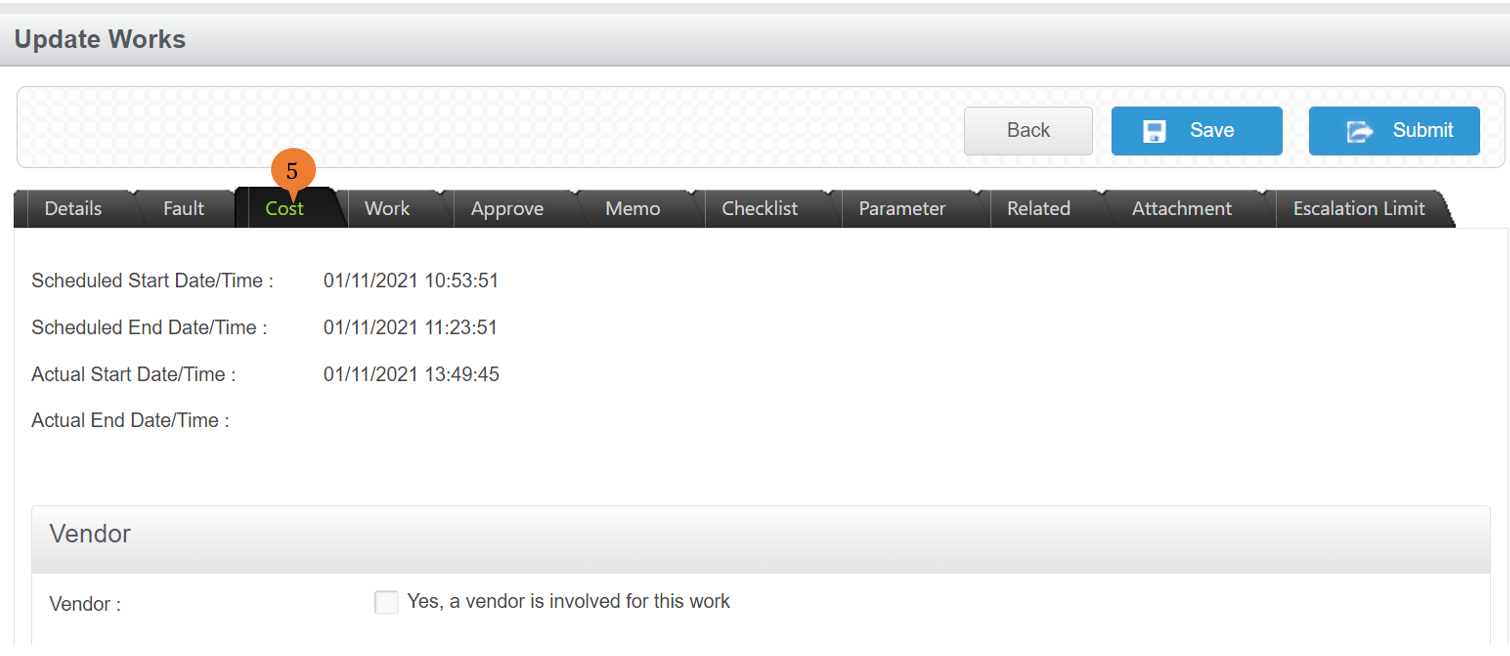
- To check out items, go to Cost tab.
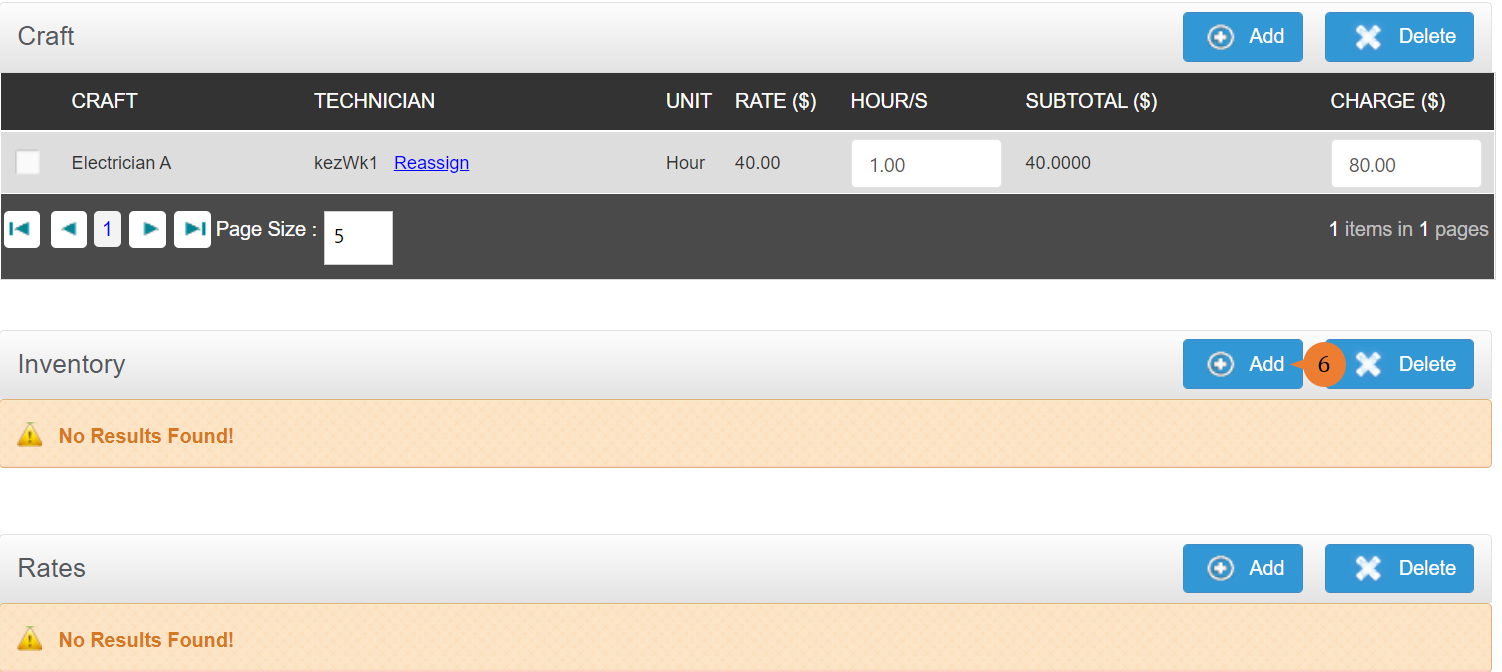
- Click on Add button under the Inventory category.
- Select the type of items to limit the search result then click on Search.
- Click on the magnifying glass to choose the item to be added for the Work Order.
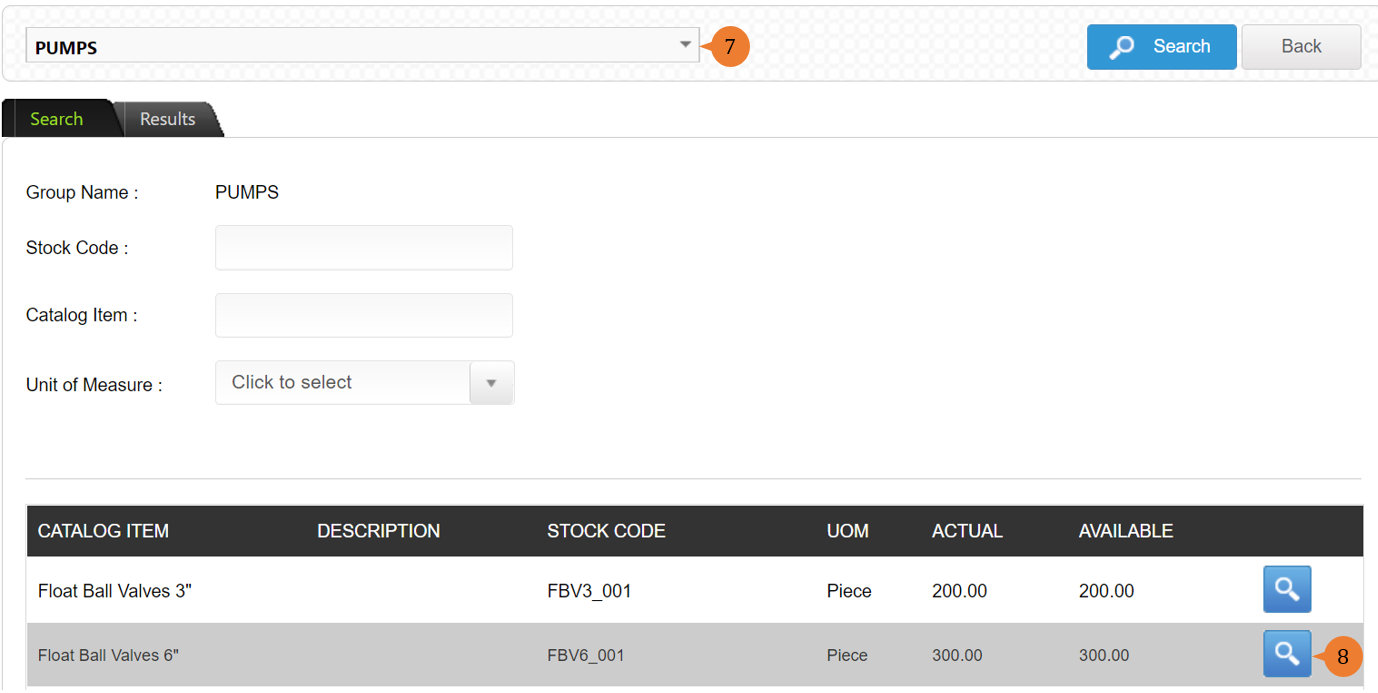
- To include the item chosen to Work Order, input the Quantity to Use and click on Add.
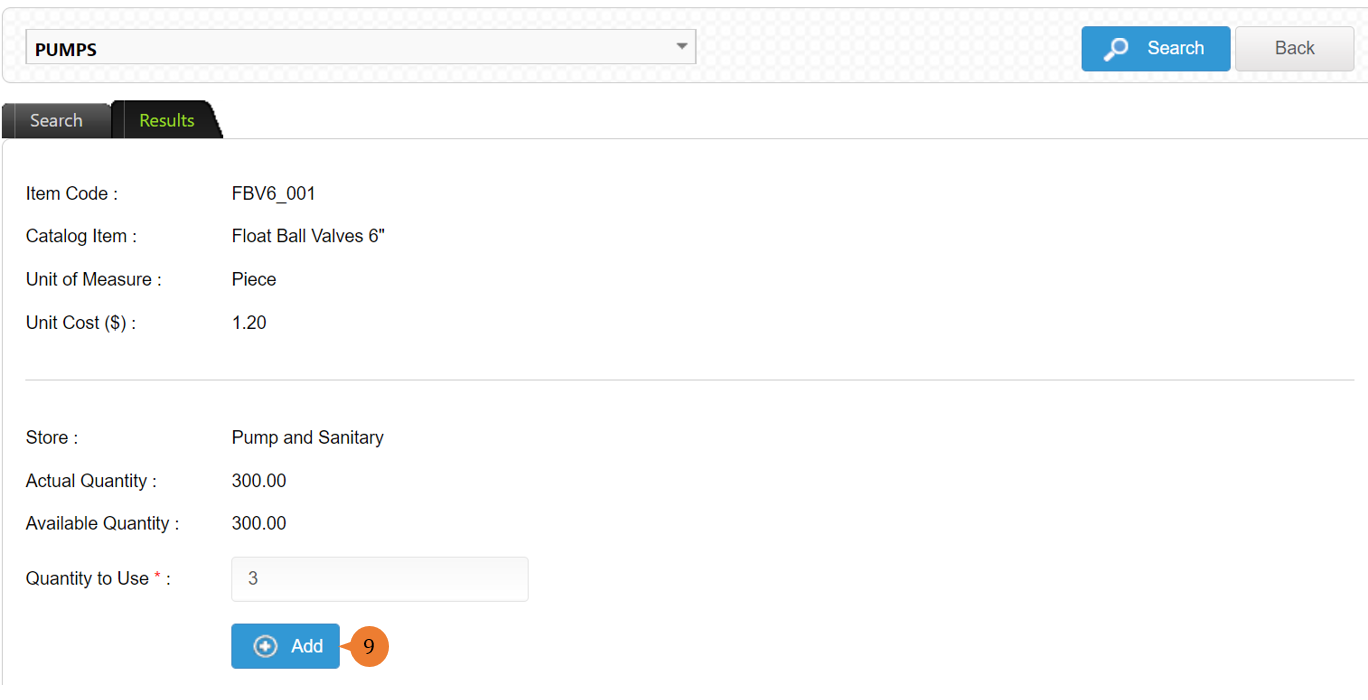
- Update all the information regarding the work order and to save the edits that you have made, select Save. Once saved, the stock quantity will be reserved for this work order. It will be check-out once this work order is updated to status closed by the work supervisor or work manager.
- When the edit of Work Order is successful, a success message will appear below the page title.

More on this topic
- For a step-by-step guide to condemn inventory items, see How to condemn inventory items?.
- For step-by-step guides to using the Facility Inventory Management module, see Facility Inventory Management Module.