How to Add User?
Jump to
How to add User? 
To add User
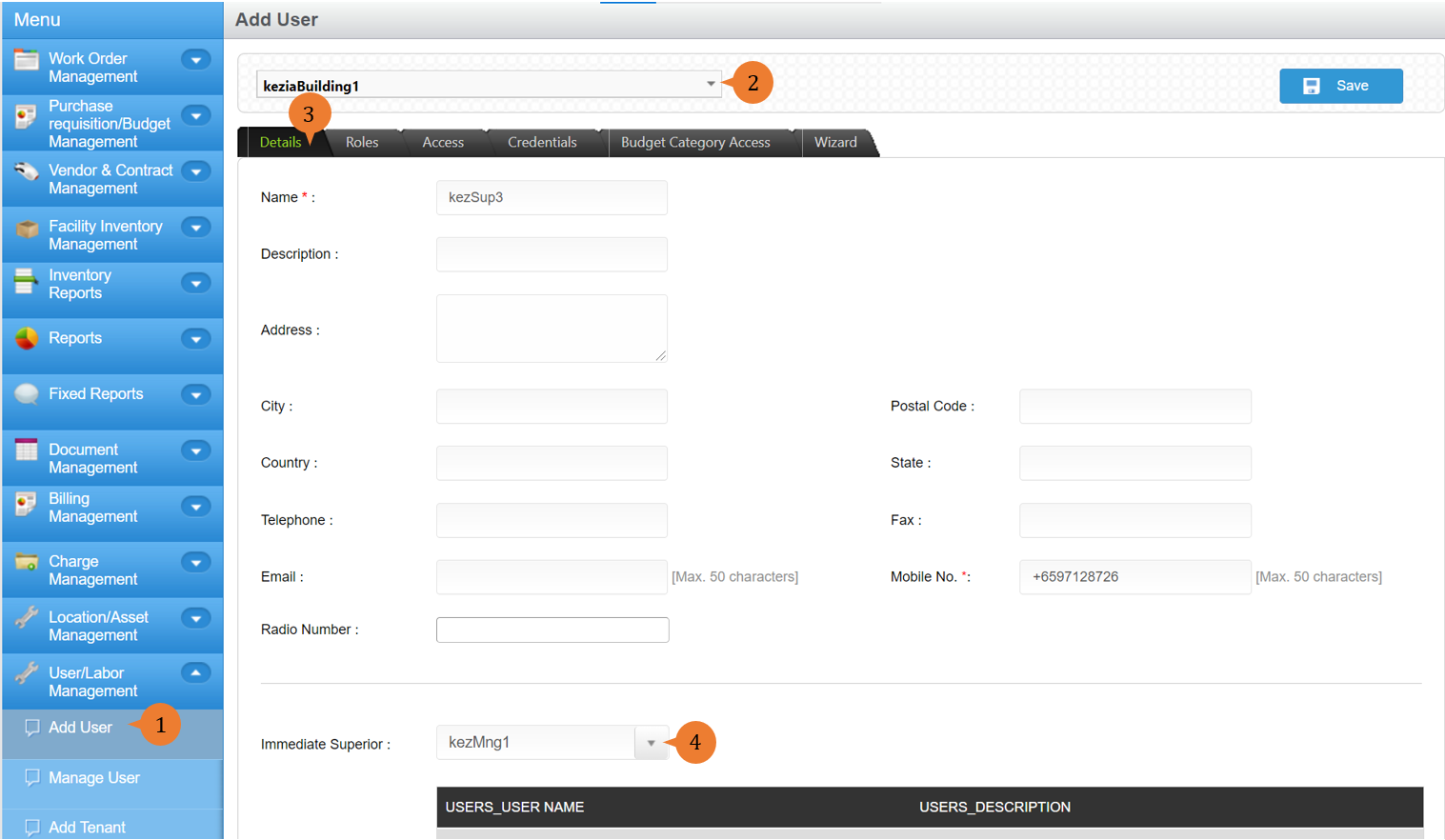
- Select Add User under User/Labour Management from the Menu.
- Select the location.
- In the Details tab, Input all the * fields.
- Select the Immediate Superior if necessary.
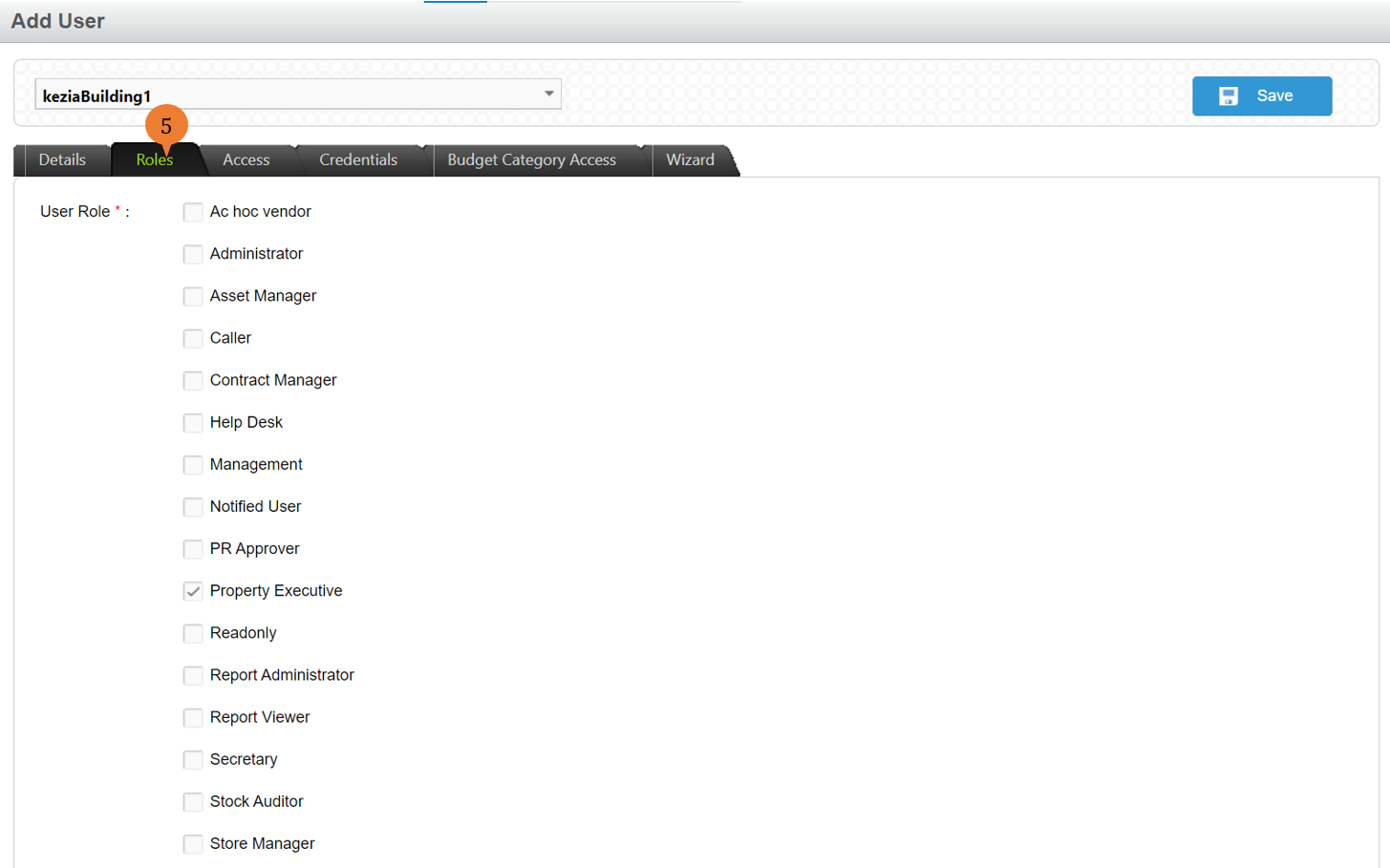
- In the Roles tab, associate the role/s to the user by ticking on it.
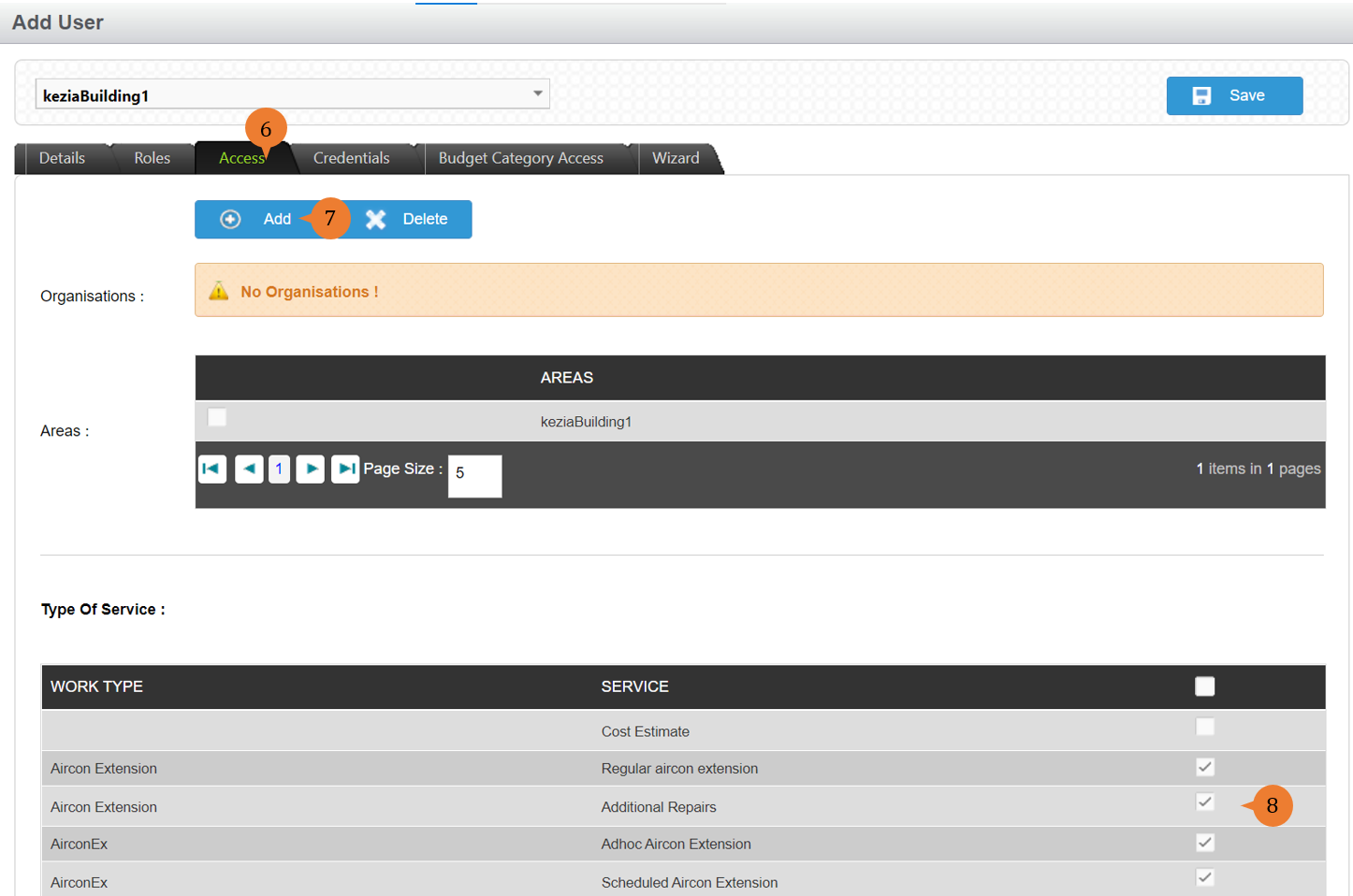
- Click on the Access tab.
- To grant access to the user for a certain organisation or location, choose the location and click the Add button.
- Select by ticking on the type of service that this user will be involved in.
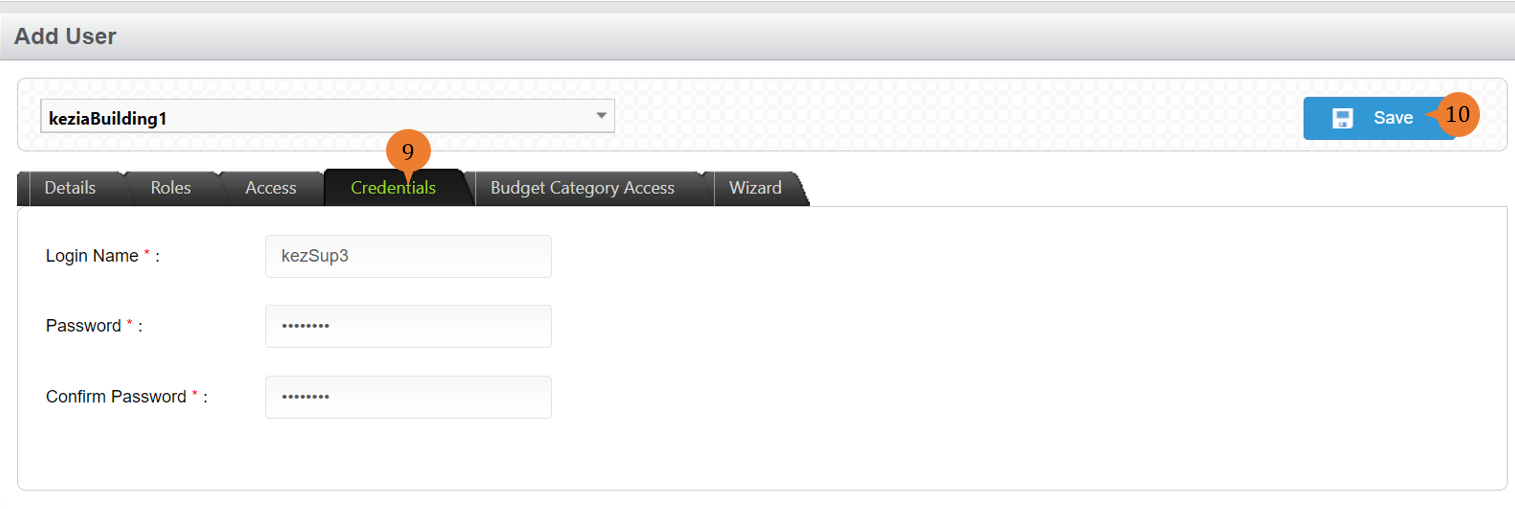
- On the Credentials page, input the Login Name and Password for this user to be able to access the system.
- To create the user, click on the Save button.
- When the user is successfully added, a success message will appear below the page title

More on this topic
- For step-by-step guides to managing user, see How to Manage User?.
- For step-by-step guides to using the User/Labour Management module, see User/Labour Management Module.