How to manage PR?
How to manage PR? 
Purchase Requisition will be managed by anyone who is given the right when they would like to make any purchase of items/services. It usually requires going through an approval process that can be configured. The procurement manager will be the one overseeing the purchase process.
To edit PR
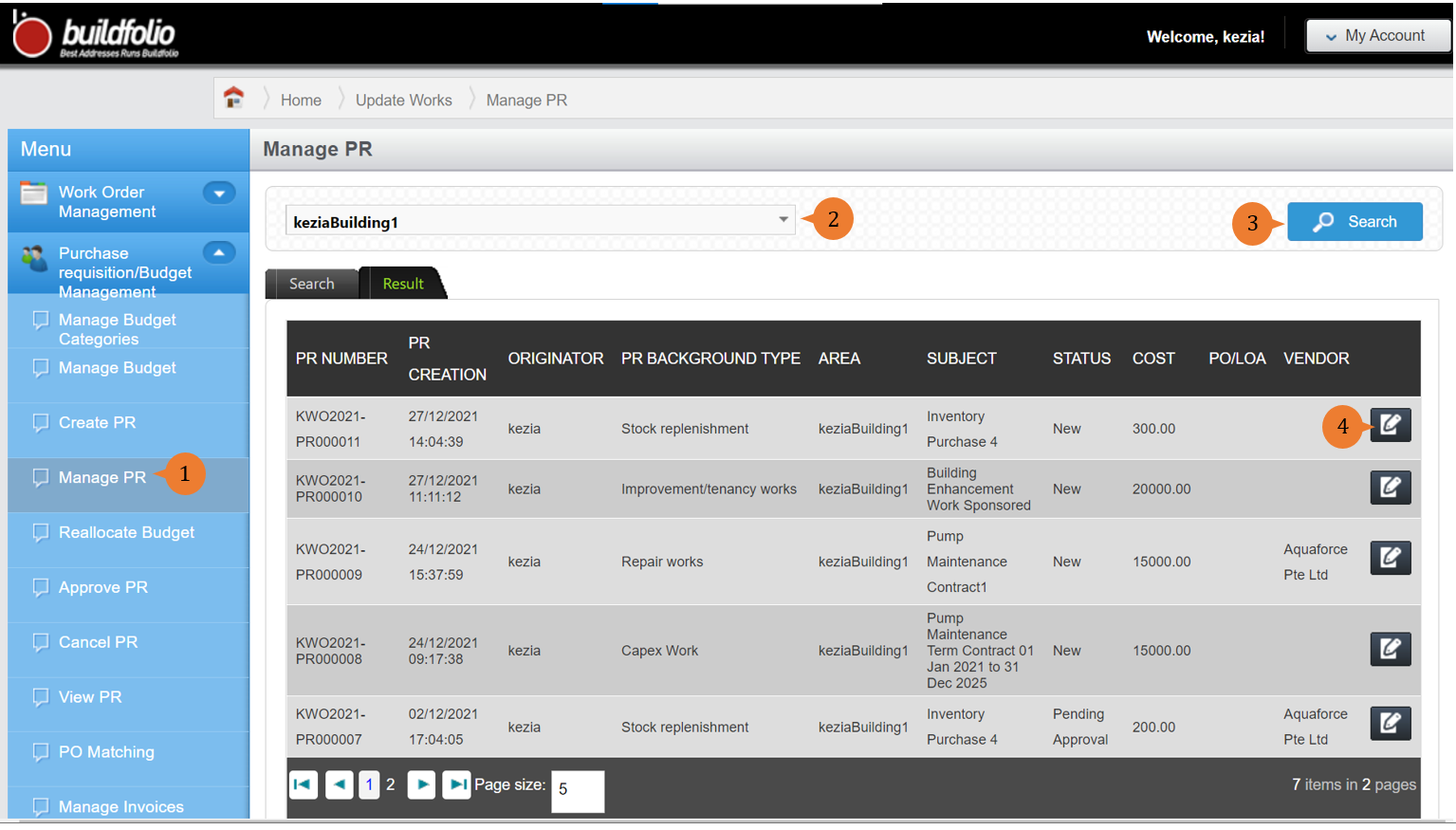
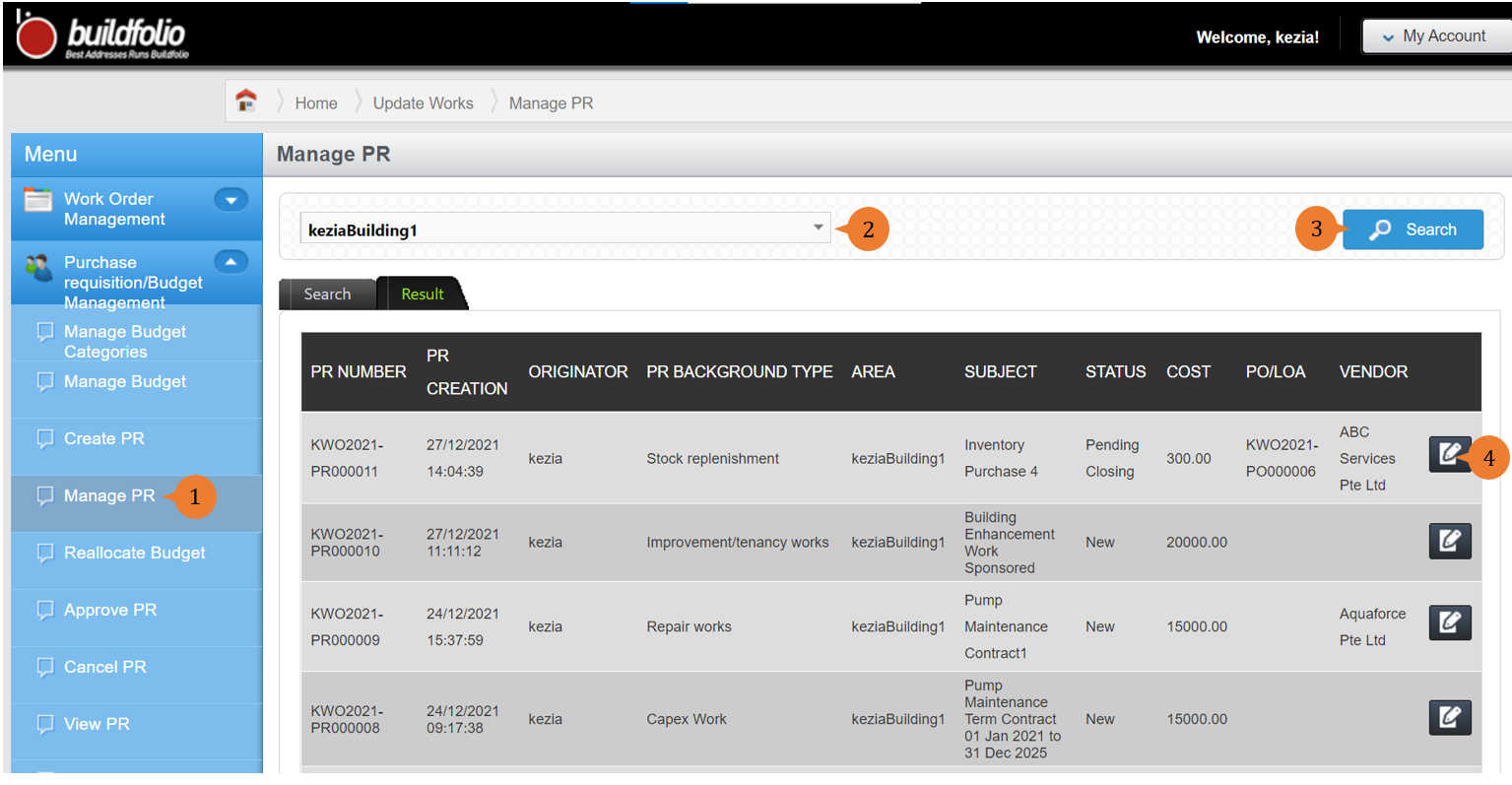
- Select Manage PR under Purchase requisition/Budget Management from the Menu.
- Select the location.
- Click on the Search button for the list of PR to be listed out in the table.
- To edit PR, select the EDIT icon
 .
.
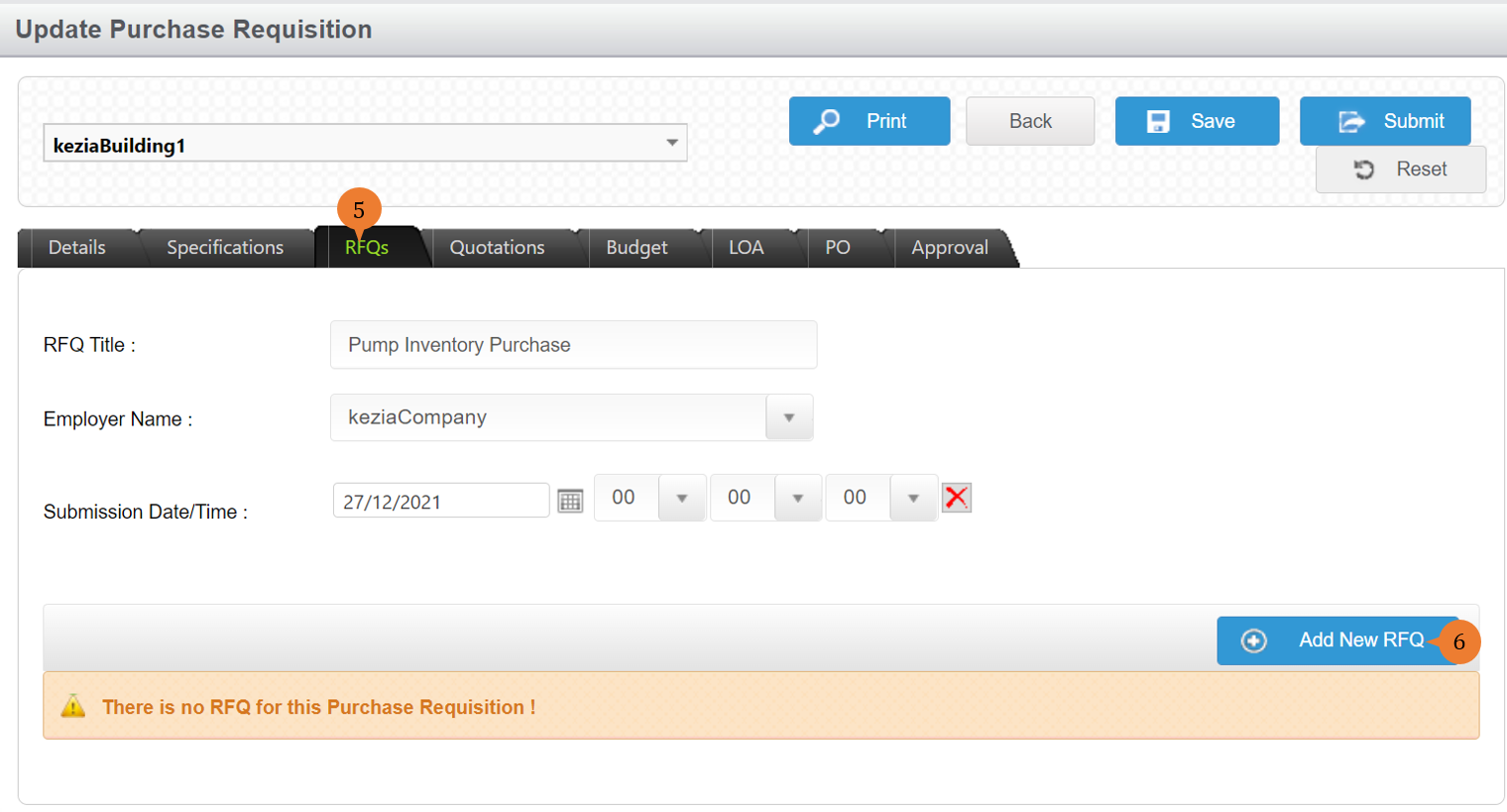
- Depending on the company’s procurement policy, it might need to go through the Request For Quotations (RFQs) process. Go to the RFQs tab.
- Click on the Add New RFQ button.
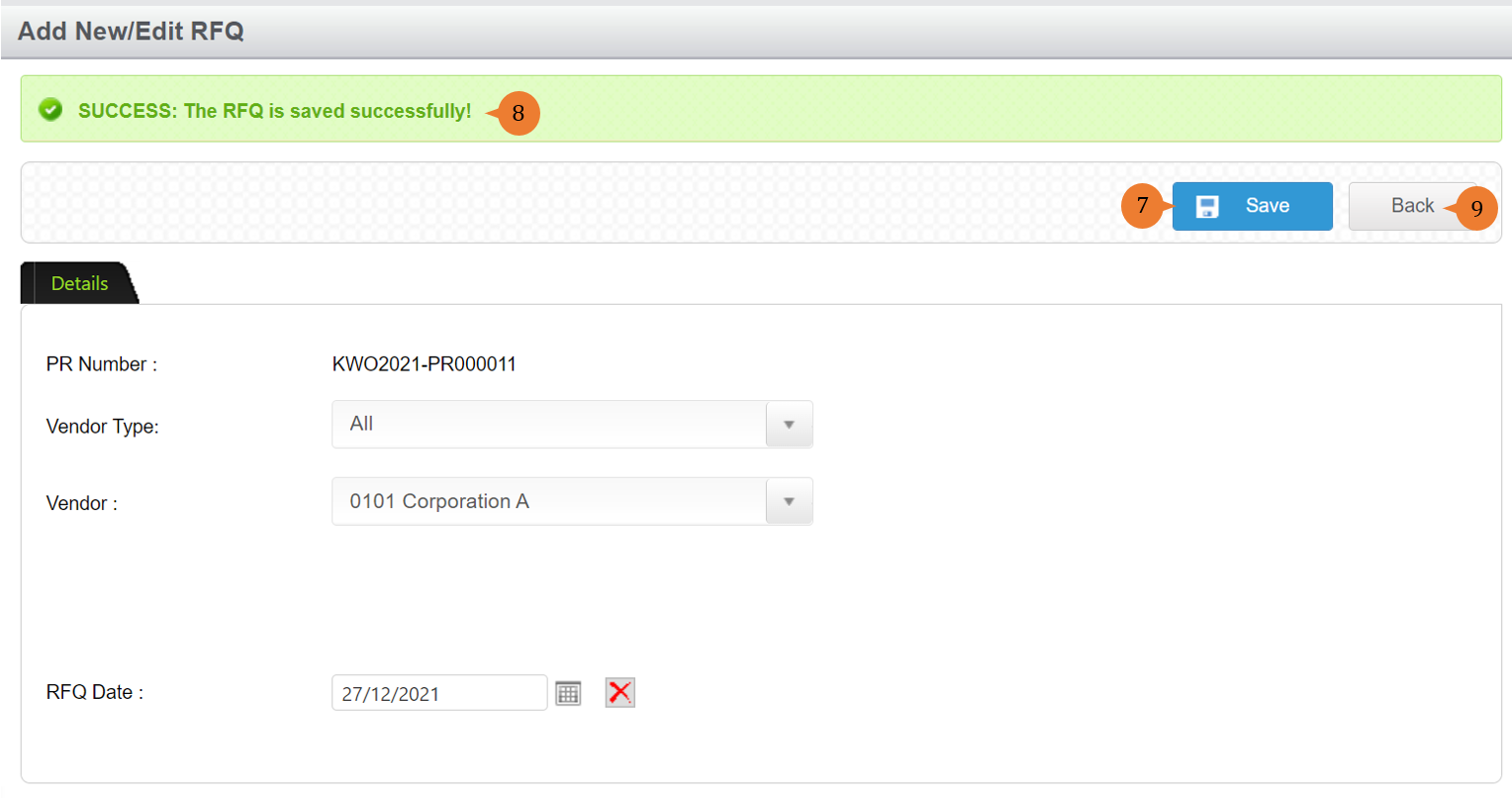
- Input the Vendor Name and RFQ date details and click on the Save button.
- When the RFQ is saved successfully, the success message will appear under the header.
- Click on the Back button to return to the RFQ tab.
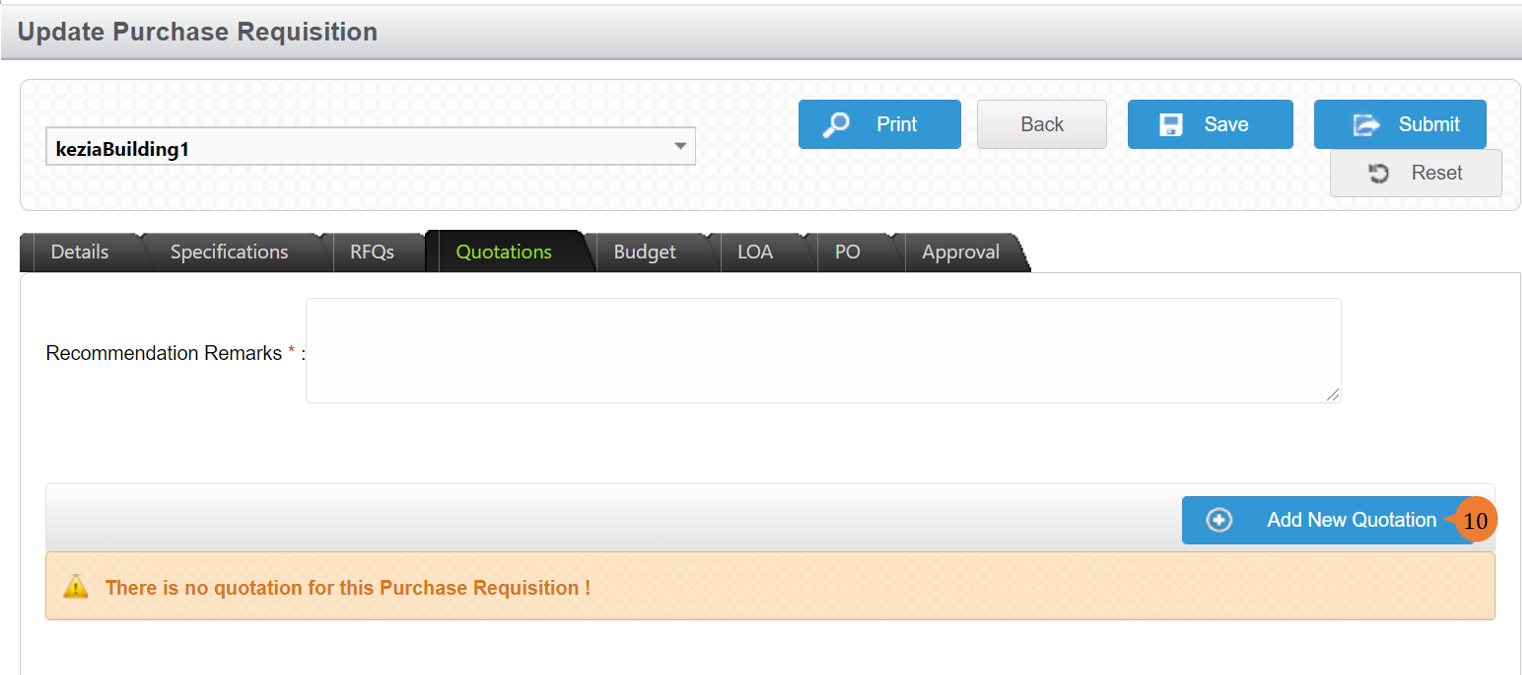
- In the Quotation tab, add a new quotation by supplier/vendor. Click on the Add New Quotation button.
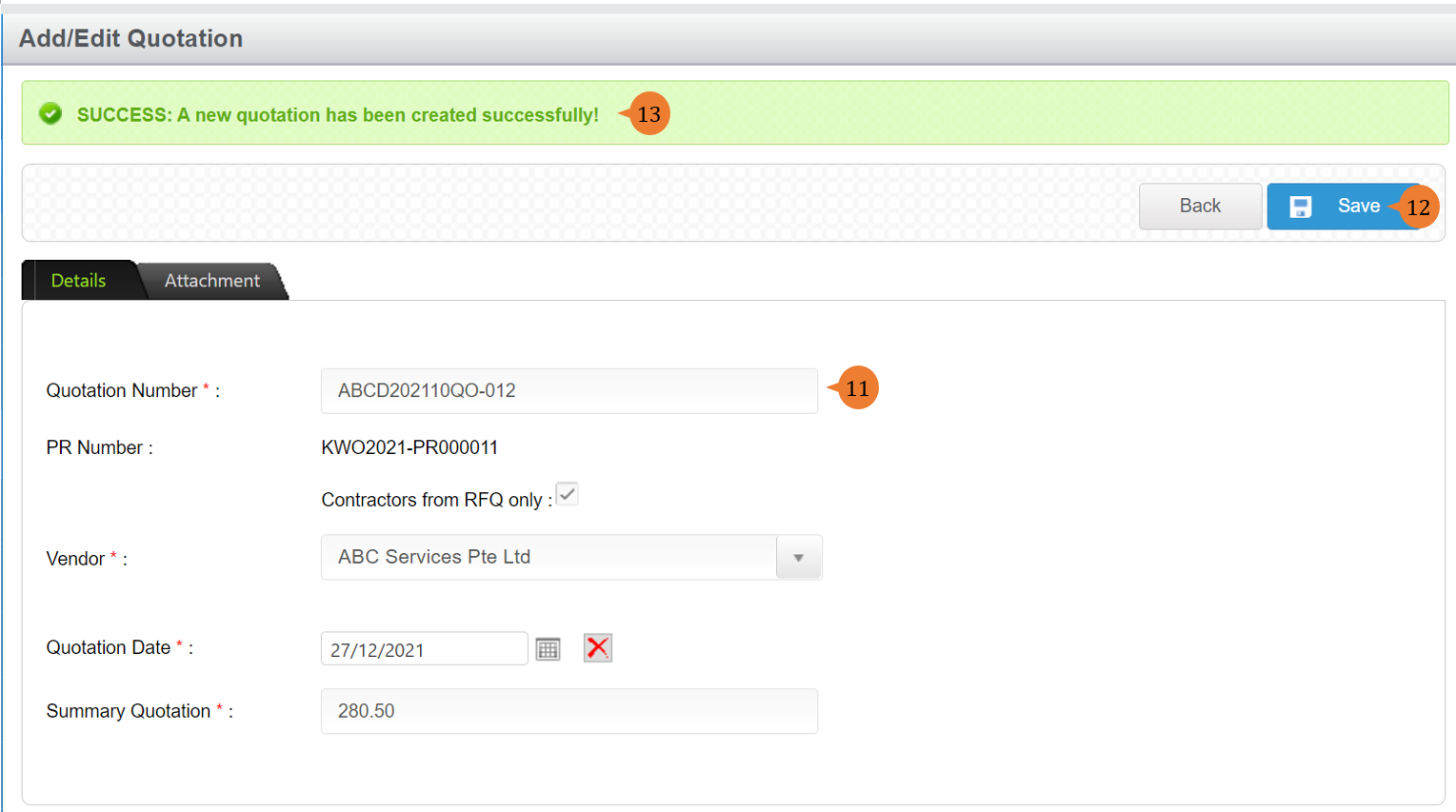
- Input the * fields of the quotation. If this particular PR do not require RFQ, please untick the Contractors from RFQ only field so that it allows you to choose any vendor in the system.
- To add the quotation entry, click on the Save button.
- Once the quotation is added, the success message will appear under the header.
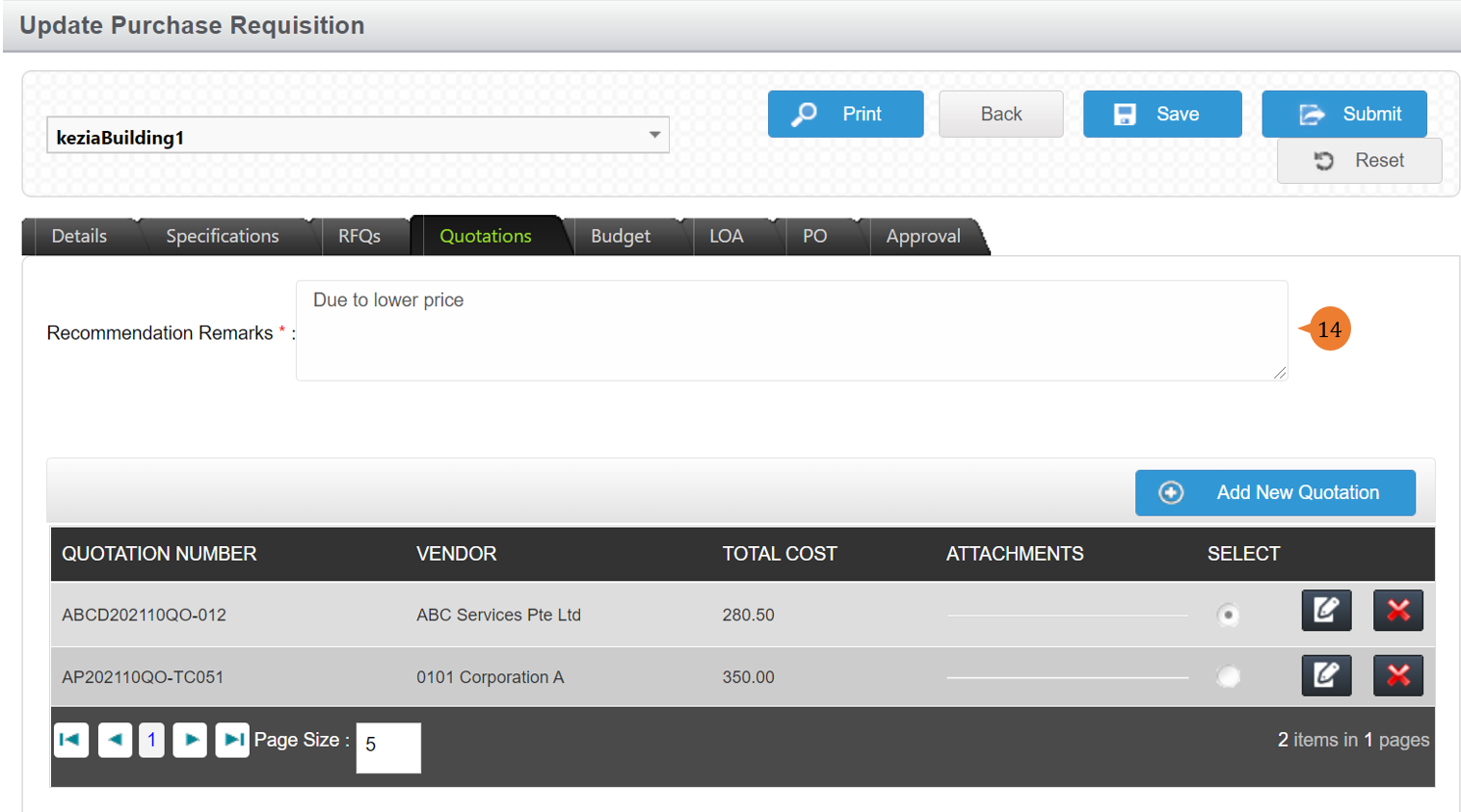
- You can select the quotation and input the recommendation remarks to facilitate the approval decision by the approving party.
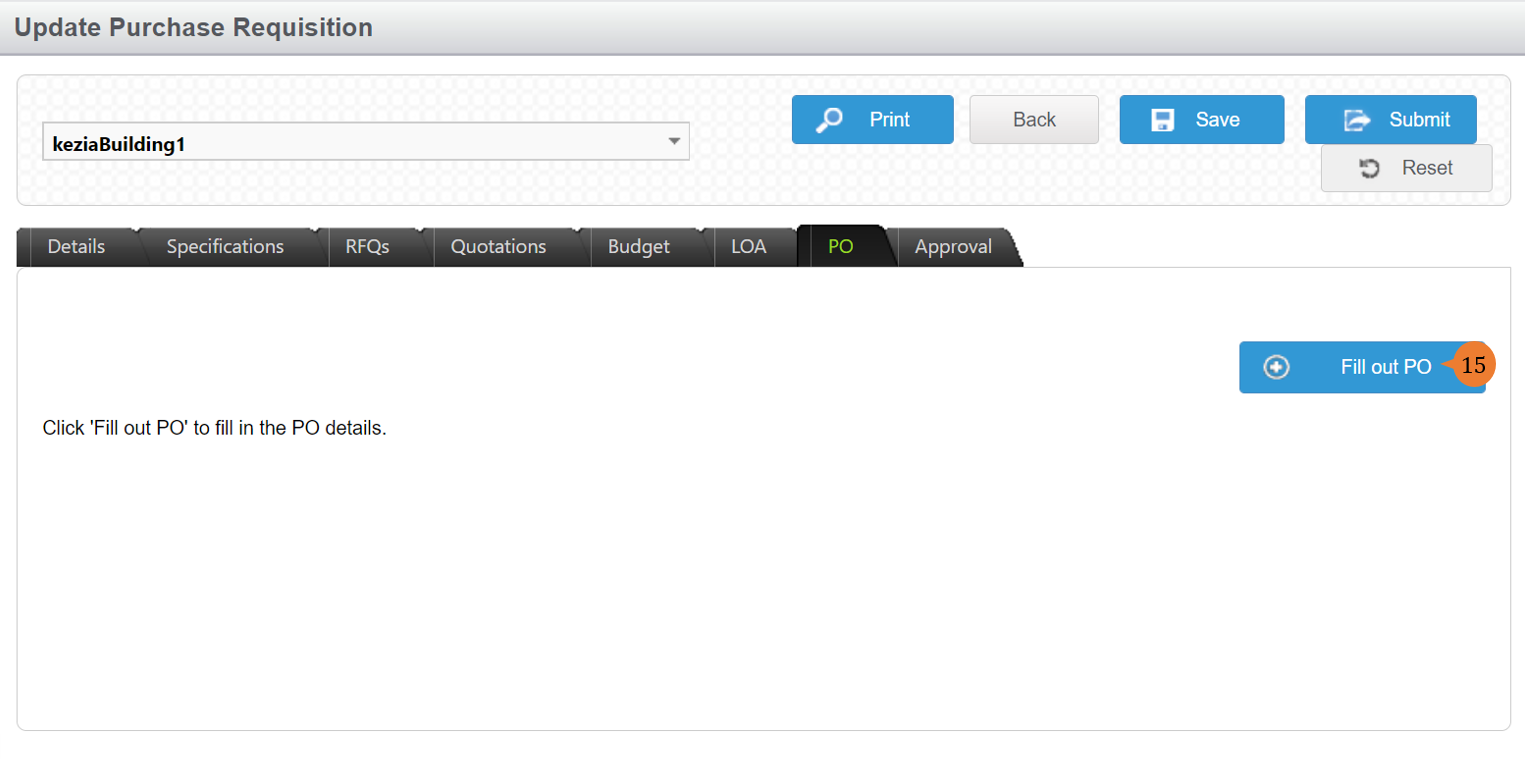
- Once the quotation is selected, go to the PO tab, click on the Fill out PO button.
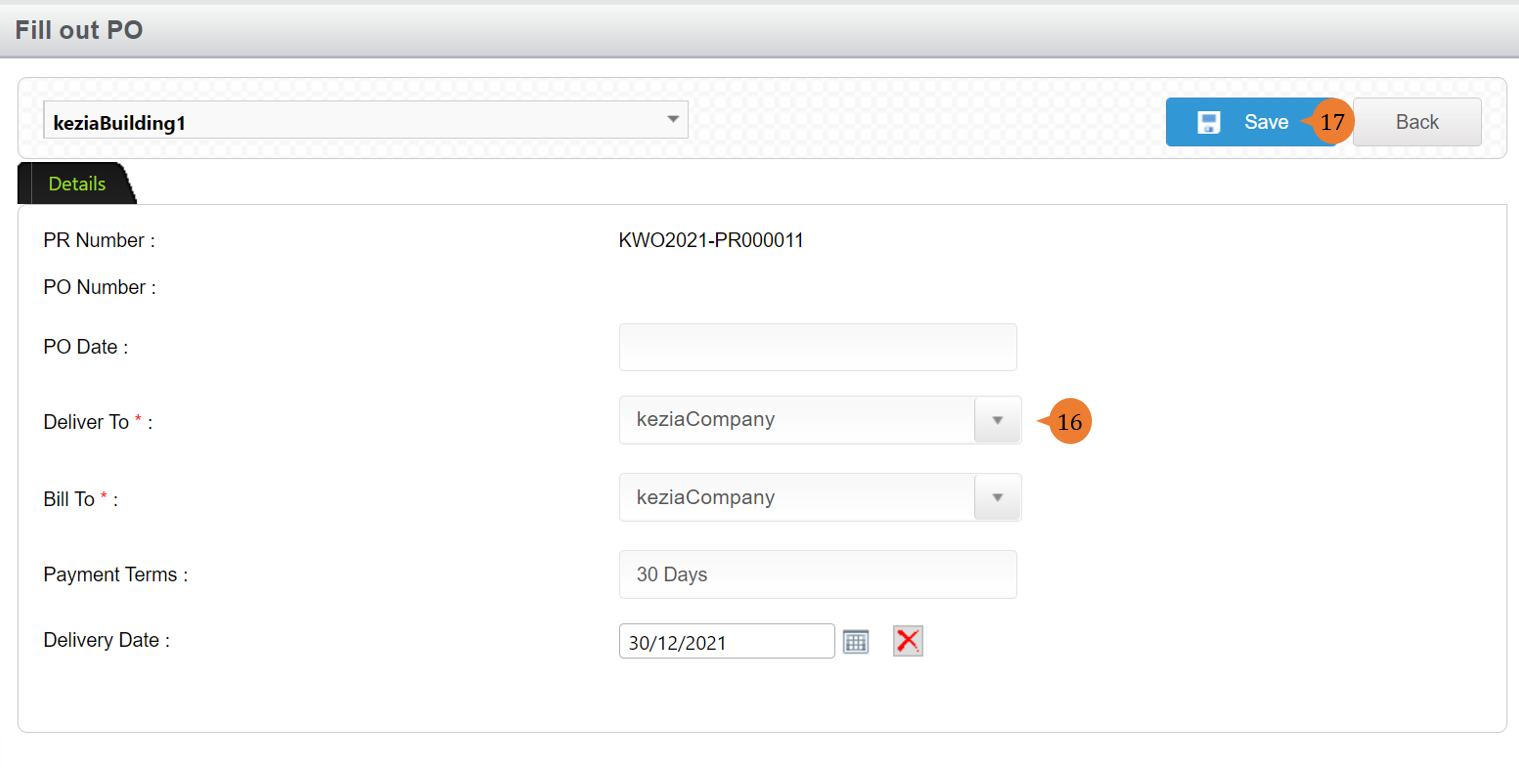
- Fill in the * fields.
- To add the PO, click on the Save button.
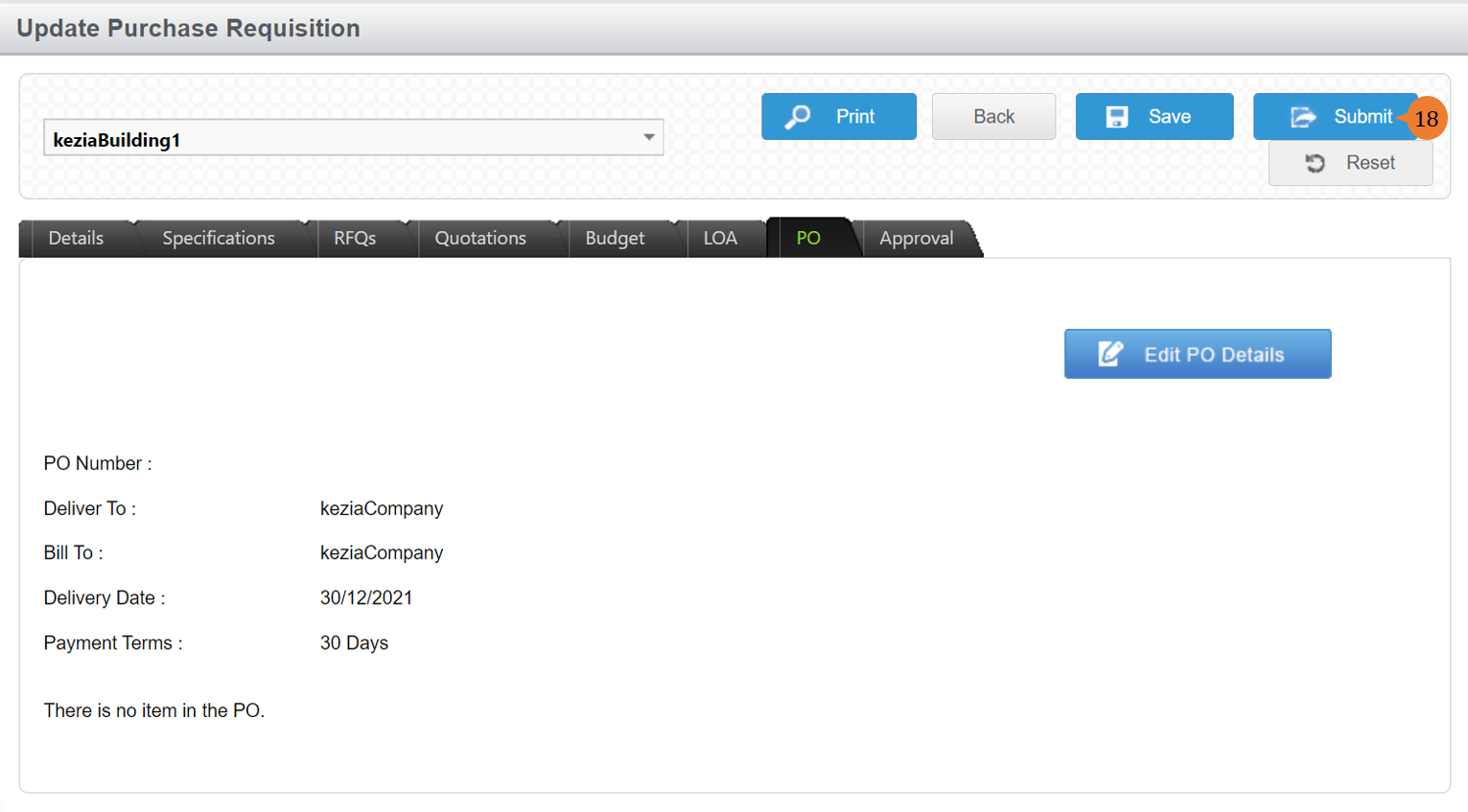
- Once the LOA/PO is entered, to submit for approval, click on the Submit button.
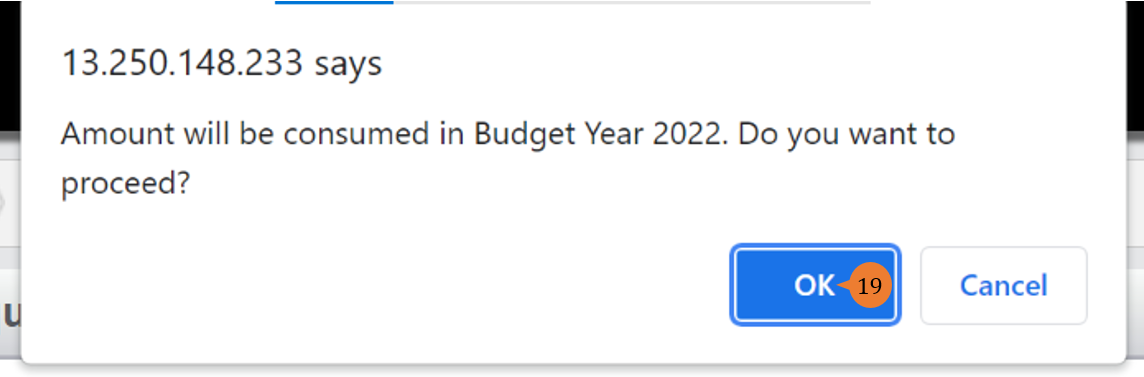
- A budget utilisation confirmation will pop up. To proceed, click on OK.
- When the PR is successfully submitted, a success message will appear below the page title

How to perform stock check-in for inventory PR?
When the Inventory PR is approved and upon receiving the goods, the user may perform check-in of the inventory.
To perform the stock check-in for inventory PR
- Select Manage PR under Purchase requisition/Budget Management from the Menu.
- Select the location.
- Click on the Search button for the list of PR to be listed out in the table.
- To edit PR, select the EDIT icon.
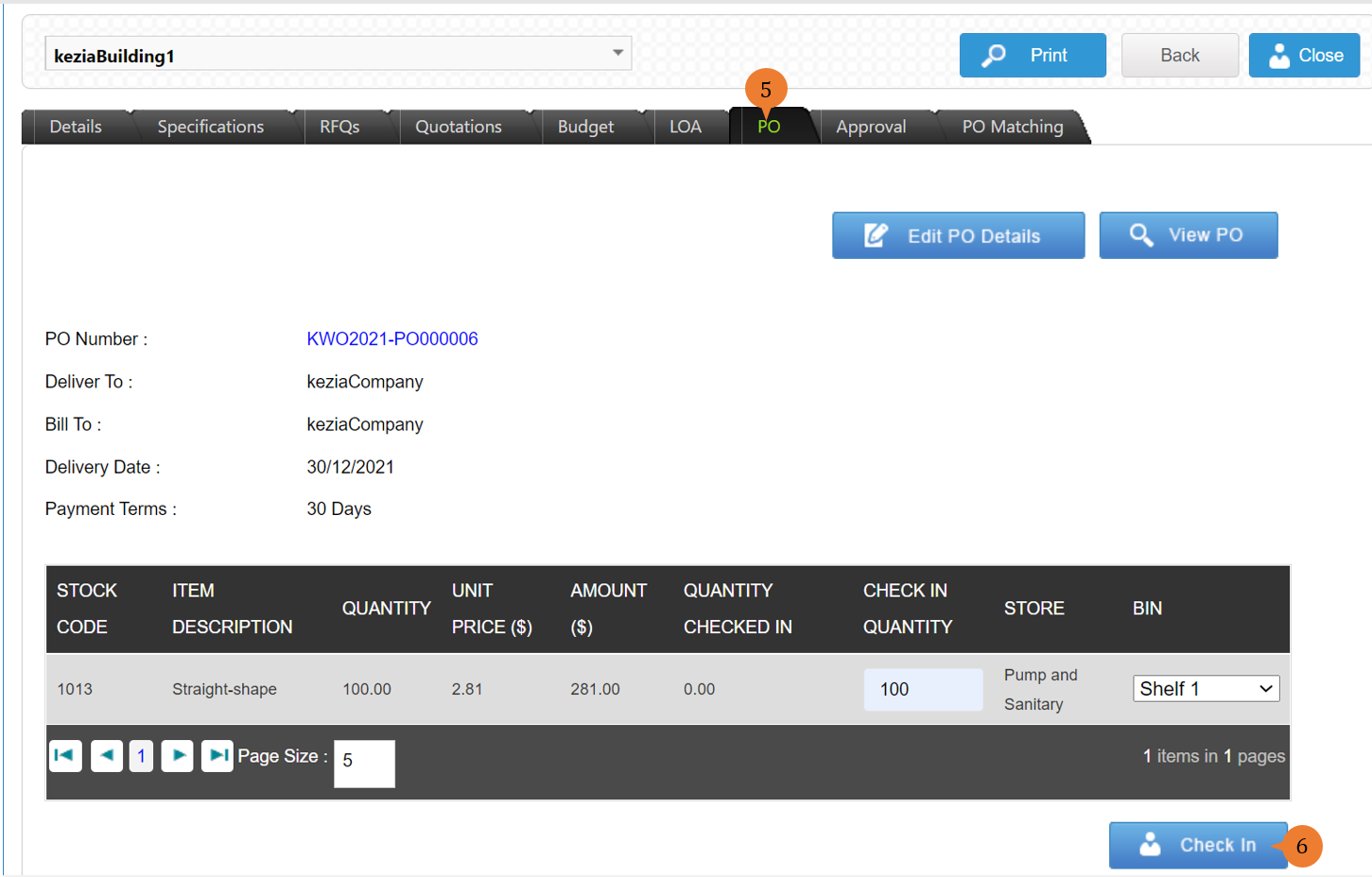
- To check in the inventory, go to the PO tab.
- Input the quantity and select the bin to check-in. Click on the Check In button.
- A message will pop up to confirm the inventory check-in, click OK to proceed.
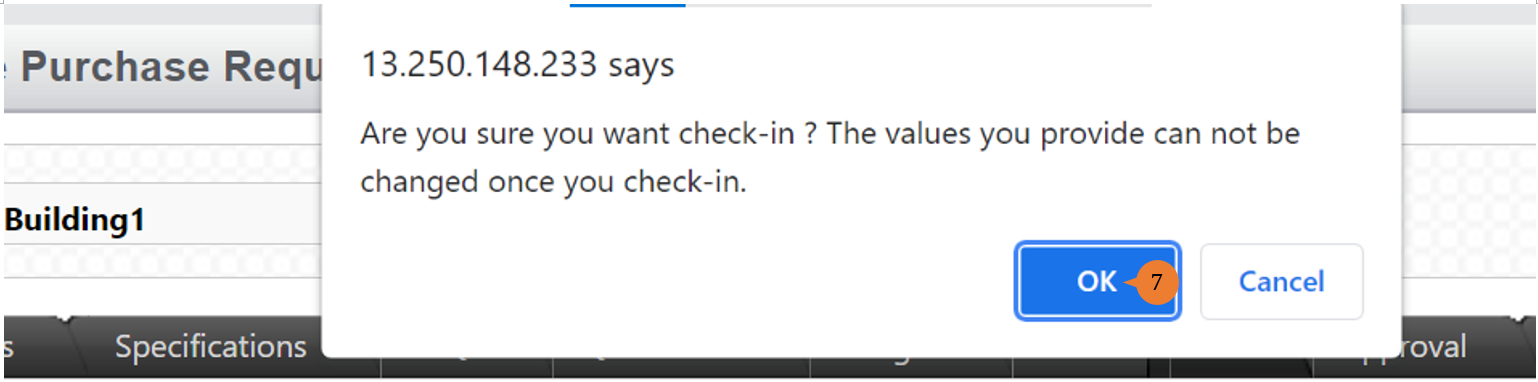
- When the inventory is check-in successfully, the success message will appear under the header.

More on this topic
- For step-by-step guides to viewing PR in the Purchase Requisition/Budget Management module, see How to view PR?.
- For step-by-step guides to approving PR in the Purchase Requisition/Budget Management module, see How to approve PR?.
- For step-by-step guides to cancelling PR in the Purchase Requisition/Budget Management module, see How to cancel PR?.
- For step-by-step guides to using Purchase Requisition/Budget Management module, see Purchase Requisition/Budget Management Module.