How to condemn inventory items?
Jump to
How to condemn inventory items?
This is usually managed/ approved by the Procurement department. It happens when the inventory items are beyond any usage where they need to be written-off so that it can also ensure that the stocktake will tally.
How to condemn inventory items?
To condemn inventory items in the store
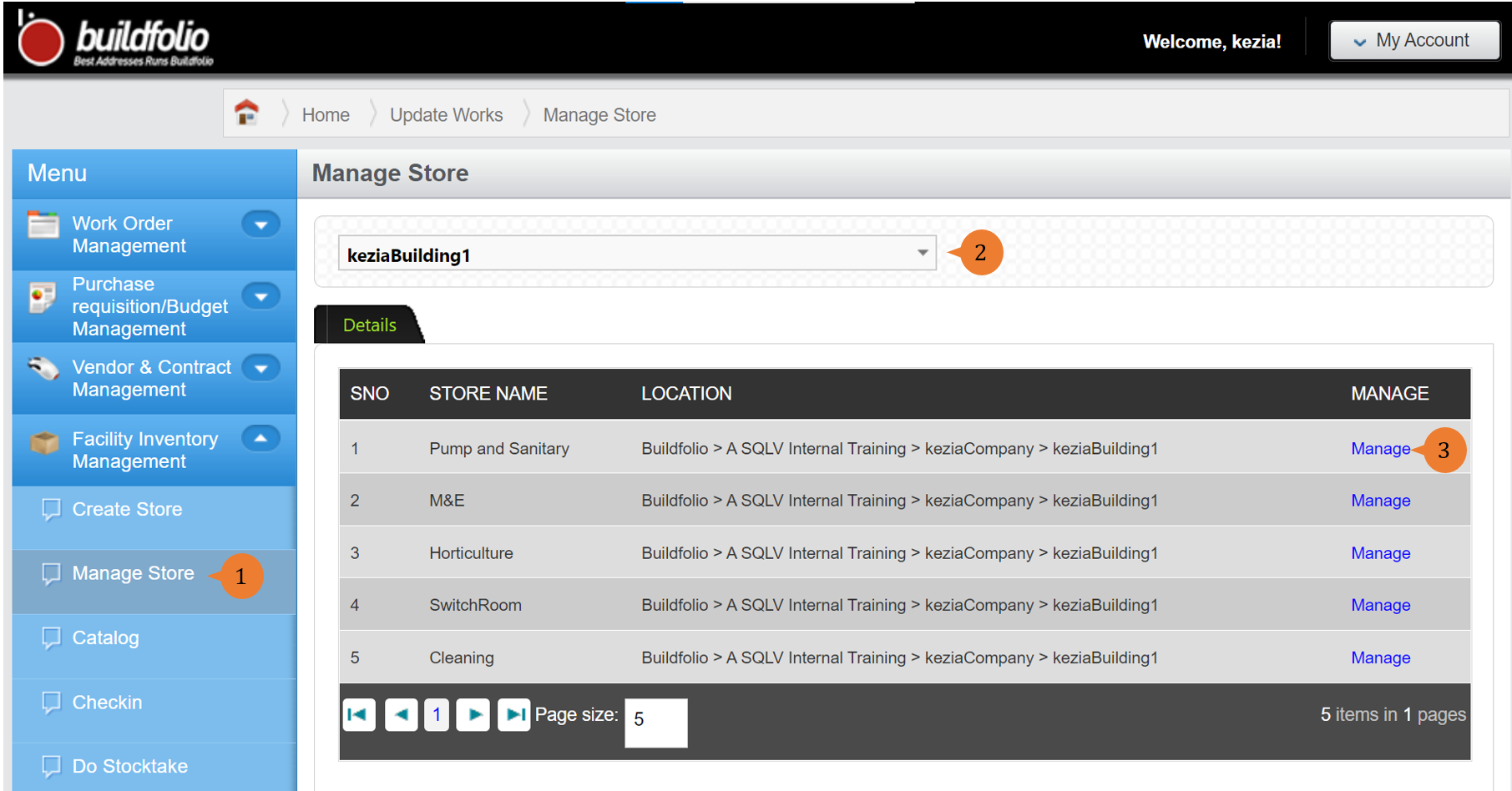
- Select Manage Store under Facility Inventory Management from the Menu.
- Select the location in Choose a location that you wish to manage the store.
- To create the Bin for the Store, click on Manage beside the store.
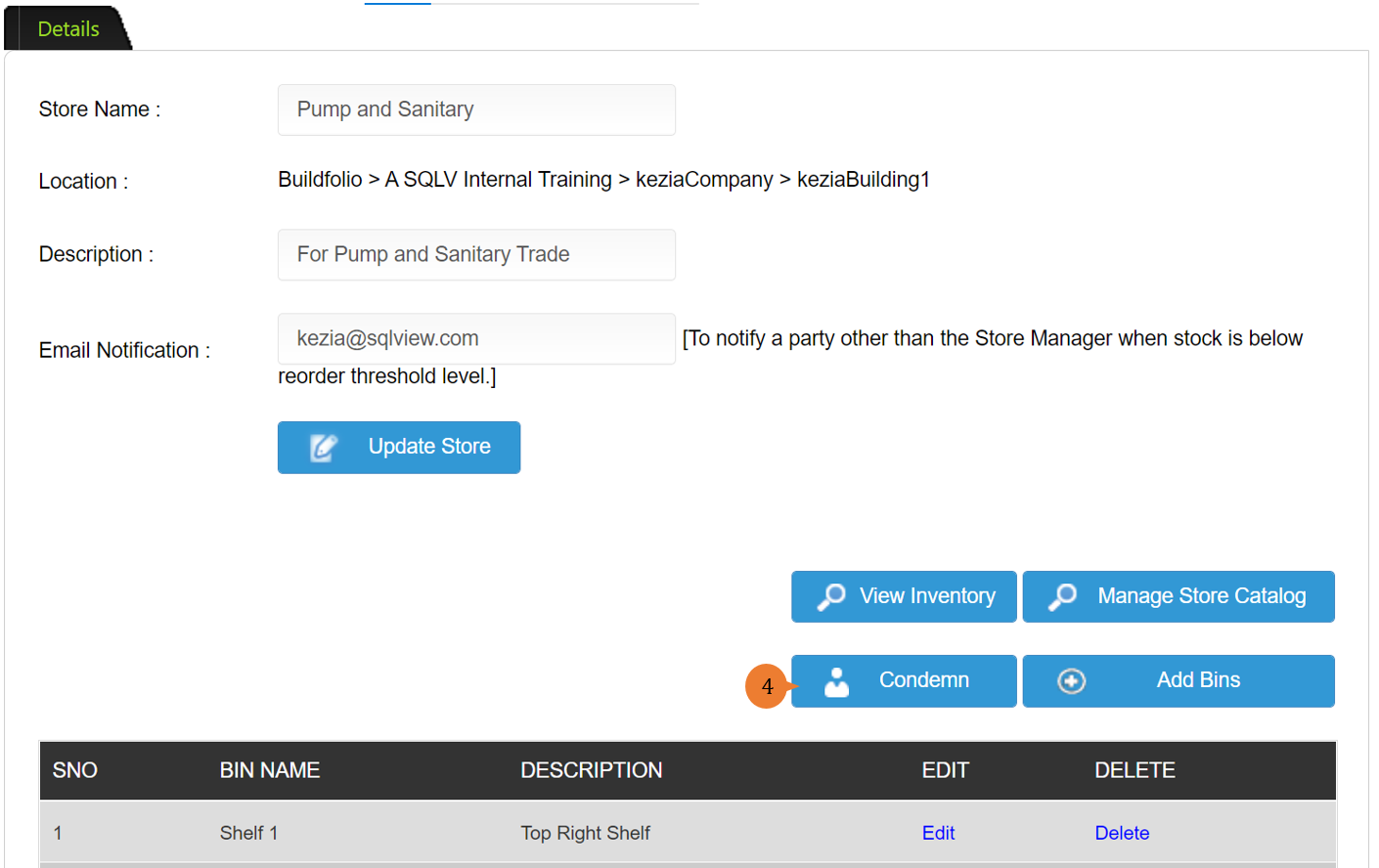
- To condemn items, click on Condemn.
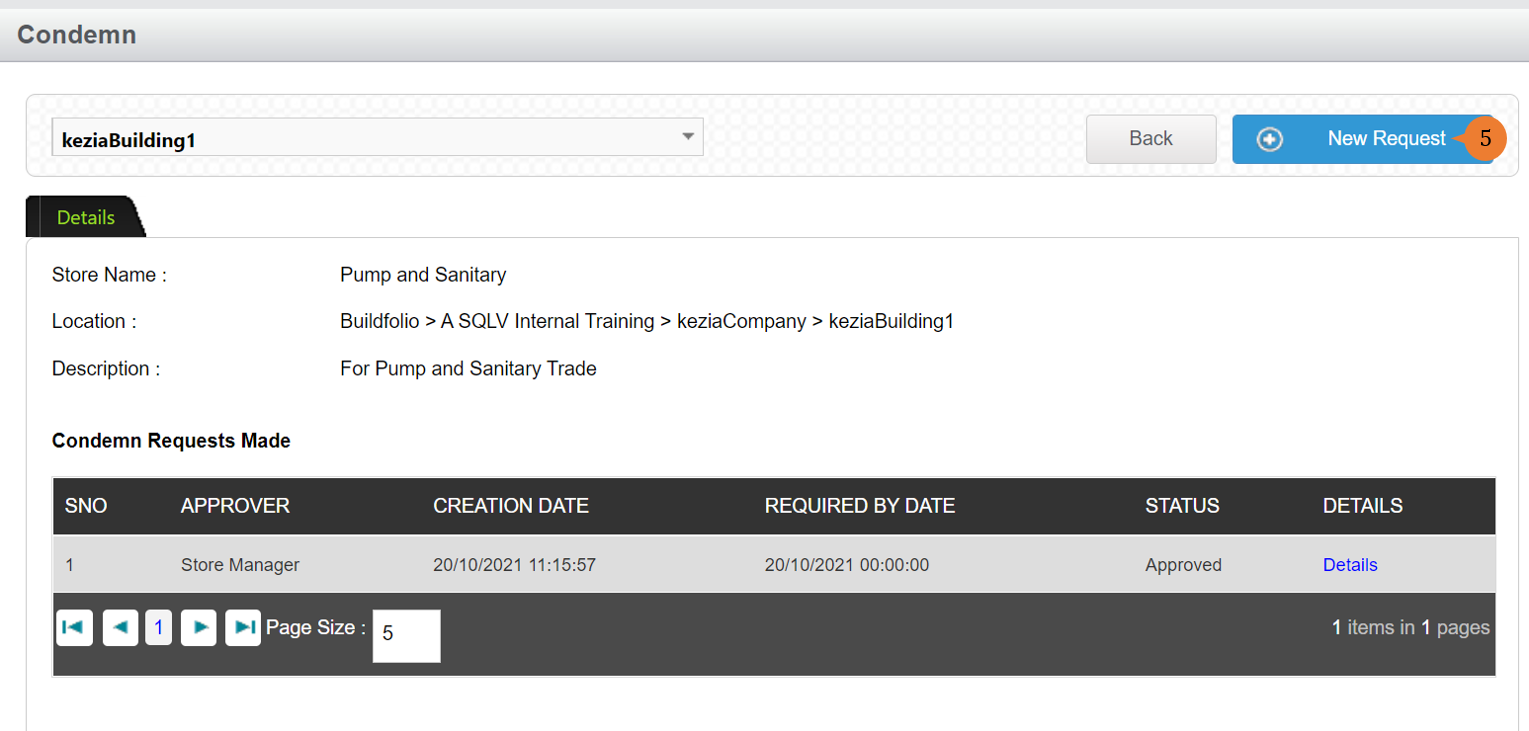
- To condemn another inventory item, click on the New Request button.
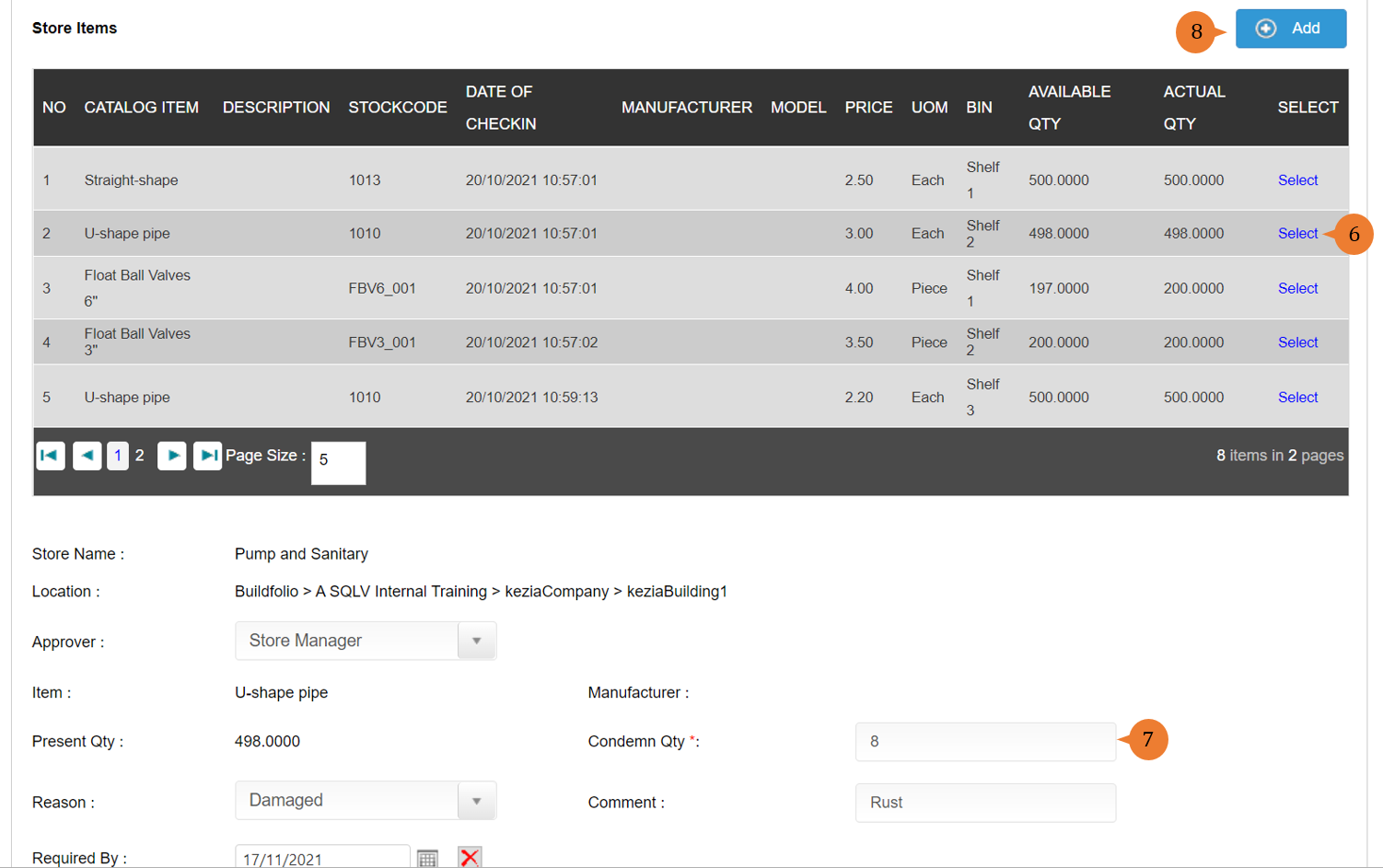
- Click on the Select of the catalog item that you wish to condemn.
- Fill in the compulsory fields marked with *.
- Click on the Add button to add the item to be condemned.
- Once completed the item list to be condemned, click on Submit button to the store manager for approval or whoever have the access rights.

- Once the condemn list of items is submitted successfully, a success message will appear below the page title.

How to approve condemn inventory items request?
Note: Usually performed by procurement department. This must be performed by someone with store manager access rights.
To approve condemn inventory items request
- Select Manage Store under Facility Inventory Management from the Menu.
- Select the location in Choose a location that you wish to manage the store.
- To create the Bin for the Store, click on Manage beside the store.
- To view the request to condemn items, click on Condemn.
- It will show the list of condemn requests received, click on Details to view the details.
- To approve the request, click on the Approve button.
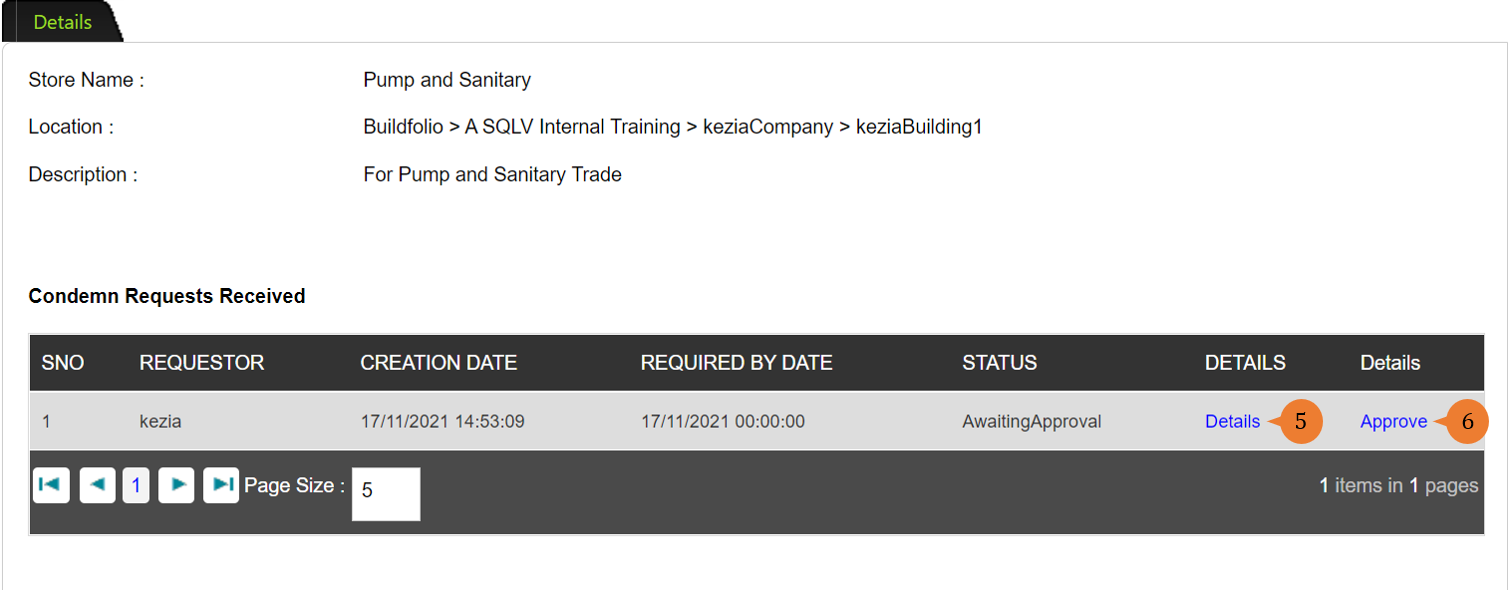
- To approve, click on Approve button for the condemn inventory item request.
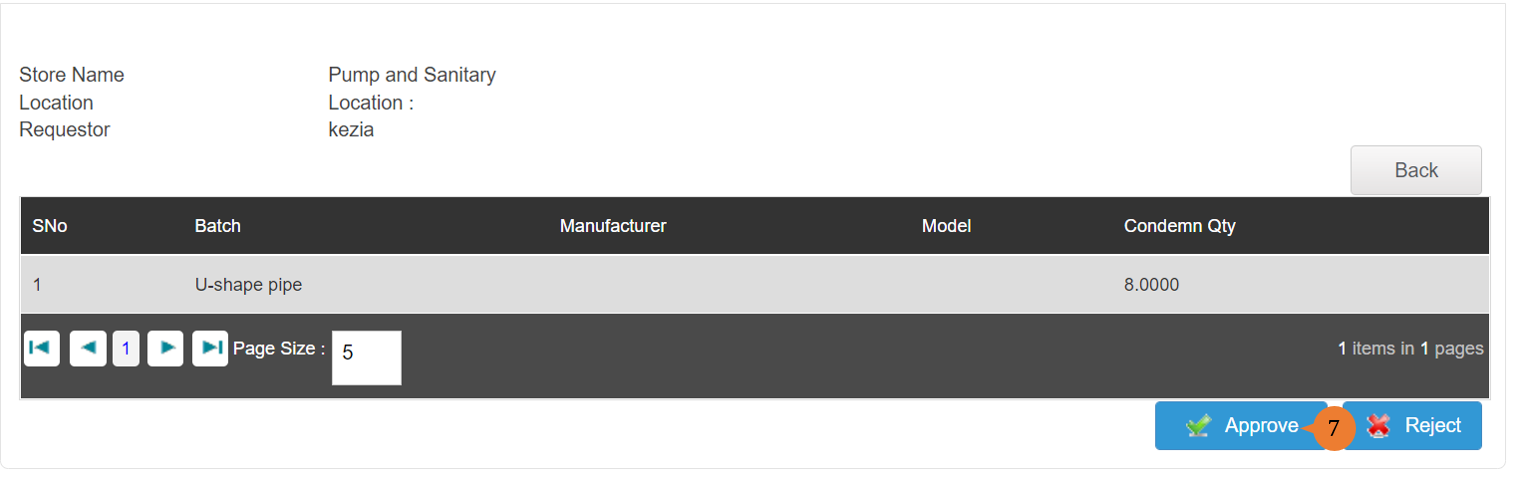
- A success message will appear.

More on this topic
- For step-by-step guides to using the Facility Inventory Management module, see Facility Inventory Management Module.