How to re(assign) a technician to a Work Order on BUILDFOLIO II mobile app
Jump to
How to assign a technician to a Work Order on BUILDFOLIO II mobile app?
To assign a technician on BUILDFOLIO II
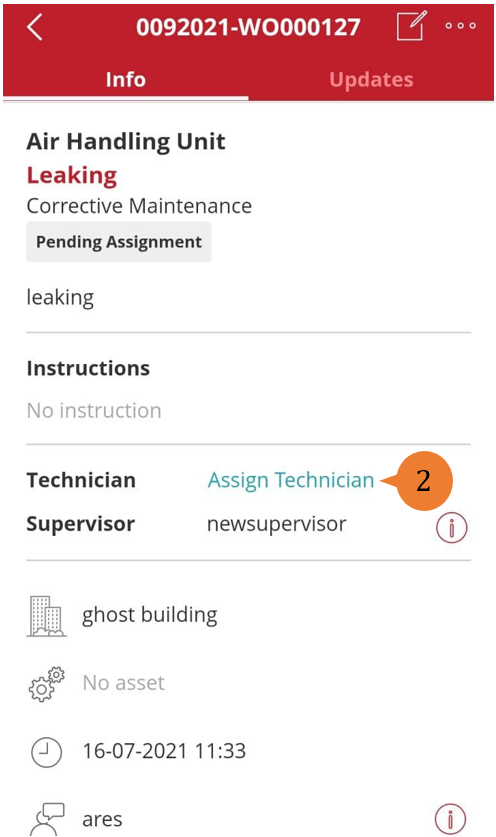
- Select the Work Order you wish to assign a technician to.
- Select Assign Technician.
-
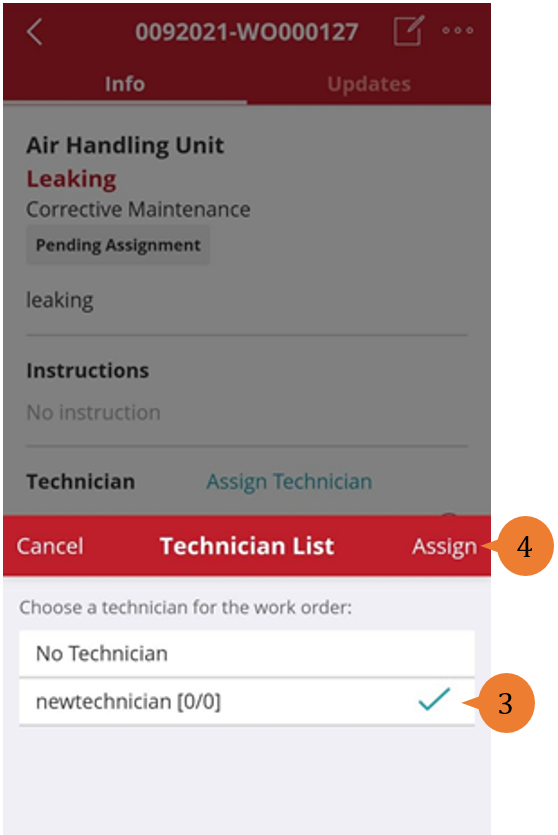
- Select the Technician you wish to assign the Work Order to.
- To confirm the assignment, select Assign.
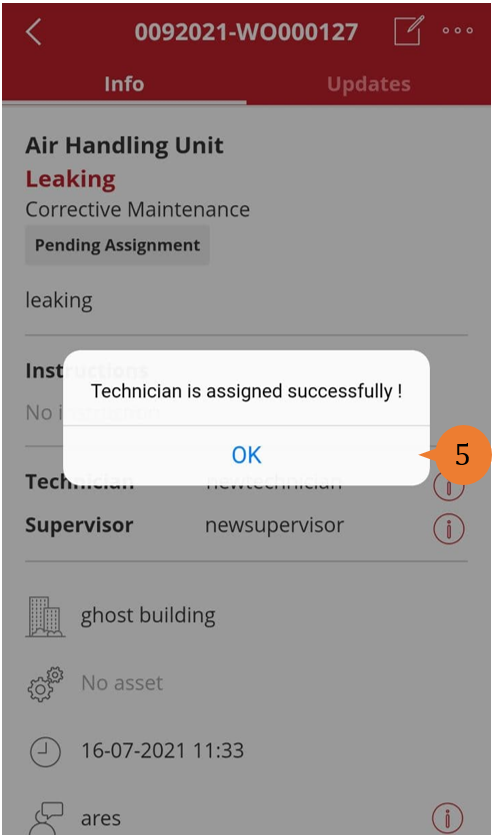
- When successfully assigned, a success message will appear. To close the success message, select OK.
How to re-assign a technician to a Work Order on BUILDFOLIO II mobile app?
To reassign a technician on BUILDFOLIO II
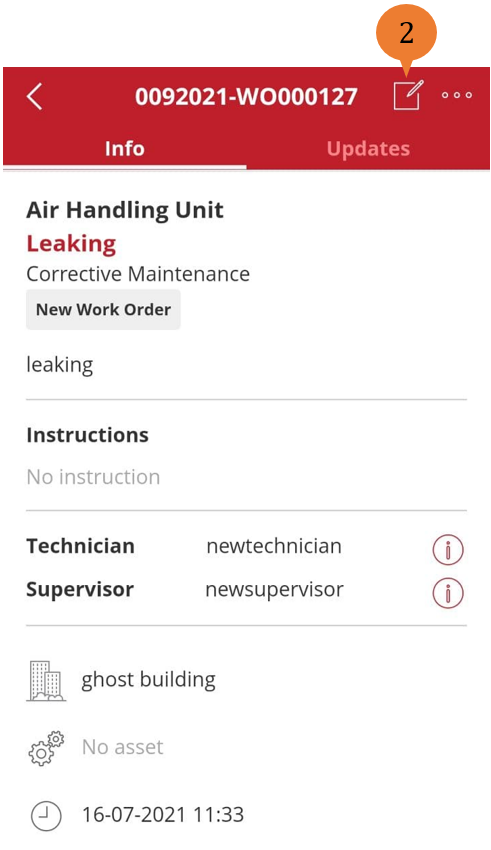
- Select the relevant Work Order.
- Select the Edit icon.
- Under the Info tab, select the dropdown menu under Technician.
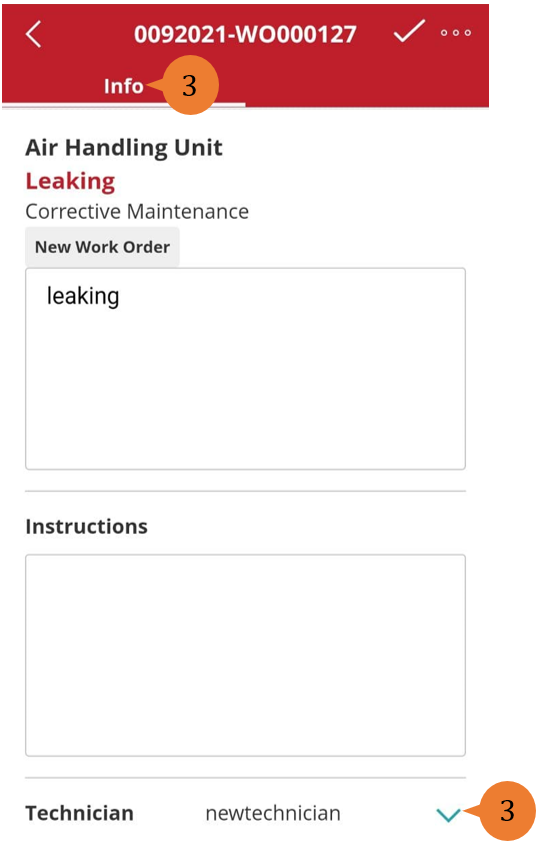
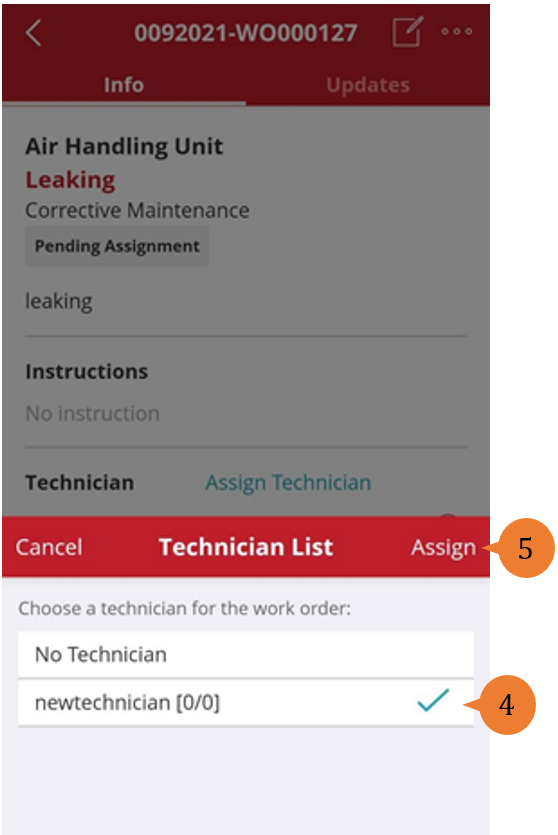
- Select the new Technician that the Work Order will be re-assigned to.
- To confirm the re-assignment, select Assign.
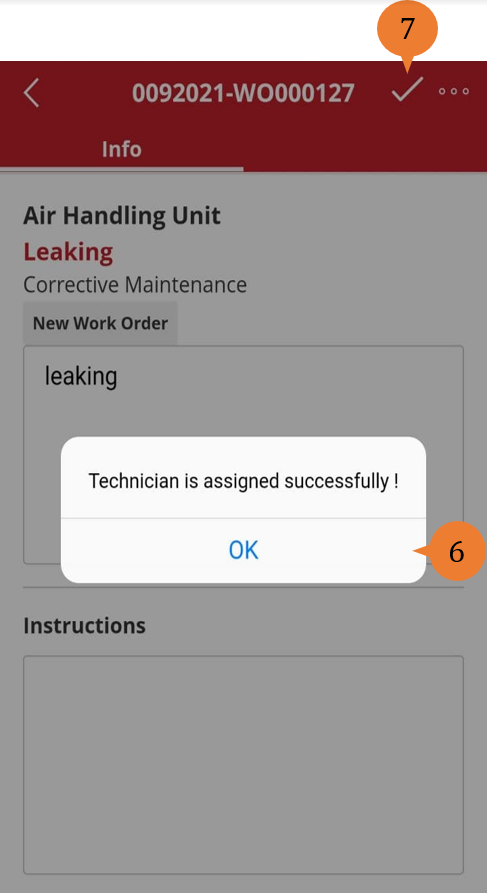
- When the new technician is successfully assigned to the Work Order, a success message will appear. To close the success message, select OK.
- To save the change in Technician, select the Editing icon.
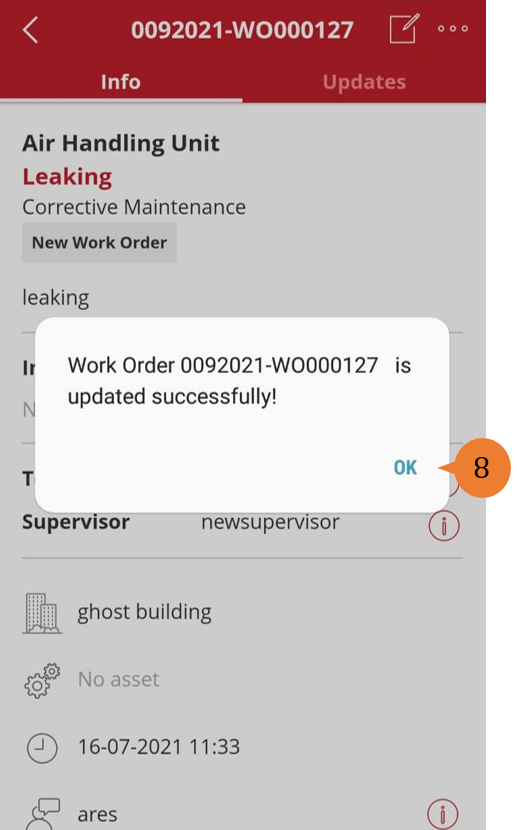
- When the changes are saved, a success message will appear. To close the sucess message, select OK.
More on this topic
- For a step-by-step guide to assigning or reassigning a technician to a Work Order on web browser, see How to (re)assign a technician to a Work Order.
- For a step-by-step guide to updating a Work Order on BUILDFOLIO II mobile app, see How to update a Work Order on BUILDFOLIO II mobile app?
- For a step-by-step guide to using BUILDFOLIO II mobile app, see BUILDFOLIO II mobile app.