Generating Expense Report
How to generate an expense report?
Expenses Report will show the list of expenses recorded for the chosen building and search criteria. It will contain information such as the expenses is for and deduct from which budget category, sub-category and so on.
To generate Expense Report
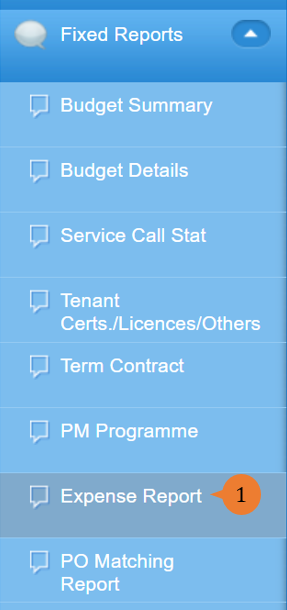
- Select Expense Report under Fixed Report from the Menu.
- Select the location and search filter.
- Click on the Search button.
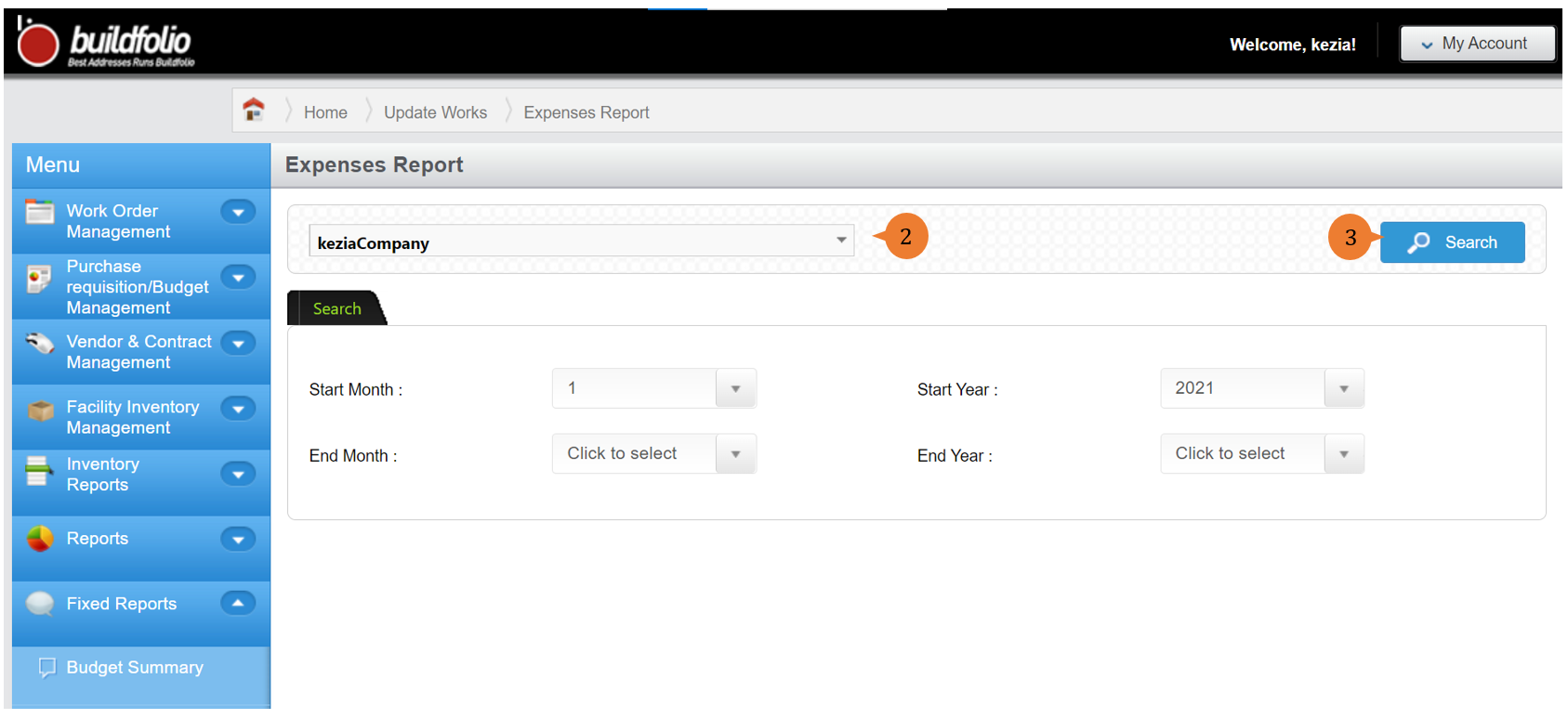
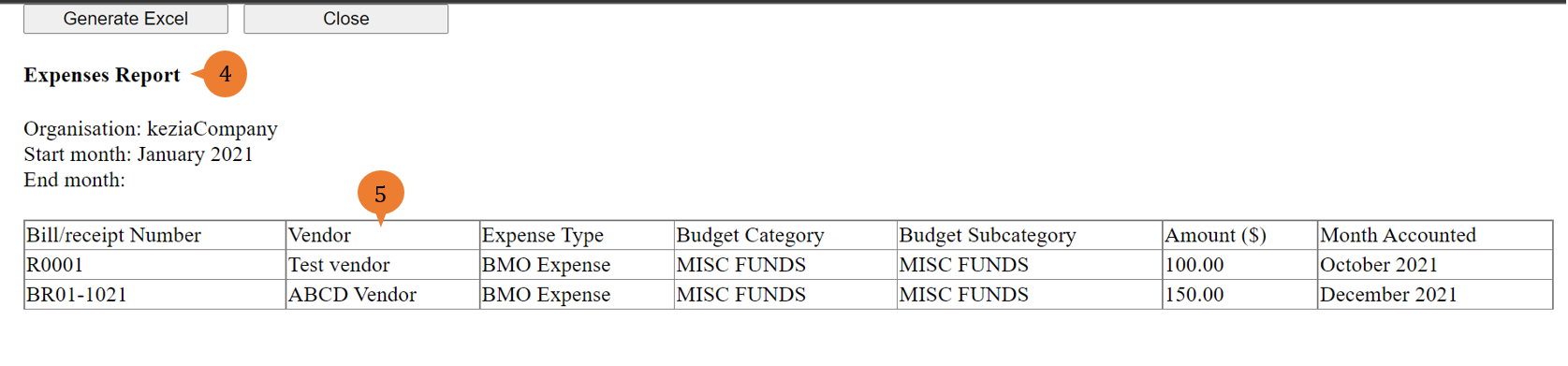
- A new tab will appear that contains the Expenses Report based on the search criteria.
- The report will entail the following:
- Bill/receipt Number – The bill/receipt number for this expense.
- Vendor – The vendor that provides the product/service for this expense claim.
- Expense Type – The description of this expense claim.
- Budget Category – This expenses claim will be deducted from this chosen budget category.
- Budget Subcategory – This expenses claim will be deducted from this chosen budget subcategory.
- Amount ($) – This is the amount of the expenses claim.
- Month Accounted – This is the month that the expenses claim will be accounted for in the financial statements.
More on this topic 
- For step-by-step guides to using the Fixed Reports module, see Fixed Reports Module.