How to cancel PR?
Jump to
How to cancel PR? 
Users will like to cancel PR when they deem that the purchase is not required. The system does have a built-in mechanism to disallow PR to be cancelled and will not appear in the Cancel PR list:
- PR is closed
- Invoice(s) is added
- Credit note(s) is added
- Inventory item(s) has been checked in via the PR
- When the PR status is ‘New’, the PR can be cancelled without going through the approval process.
To cancel PR
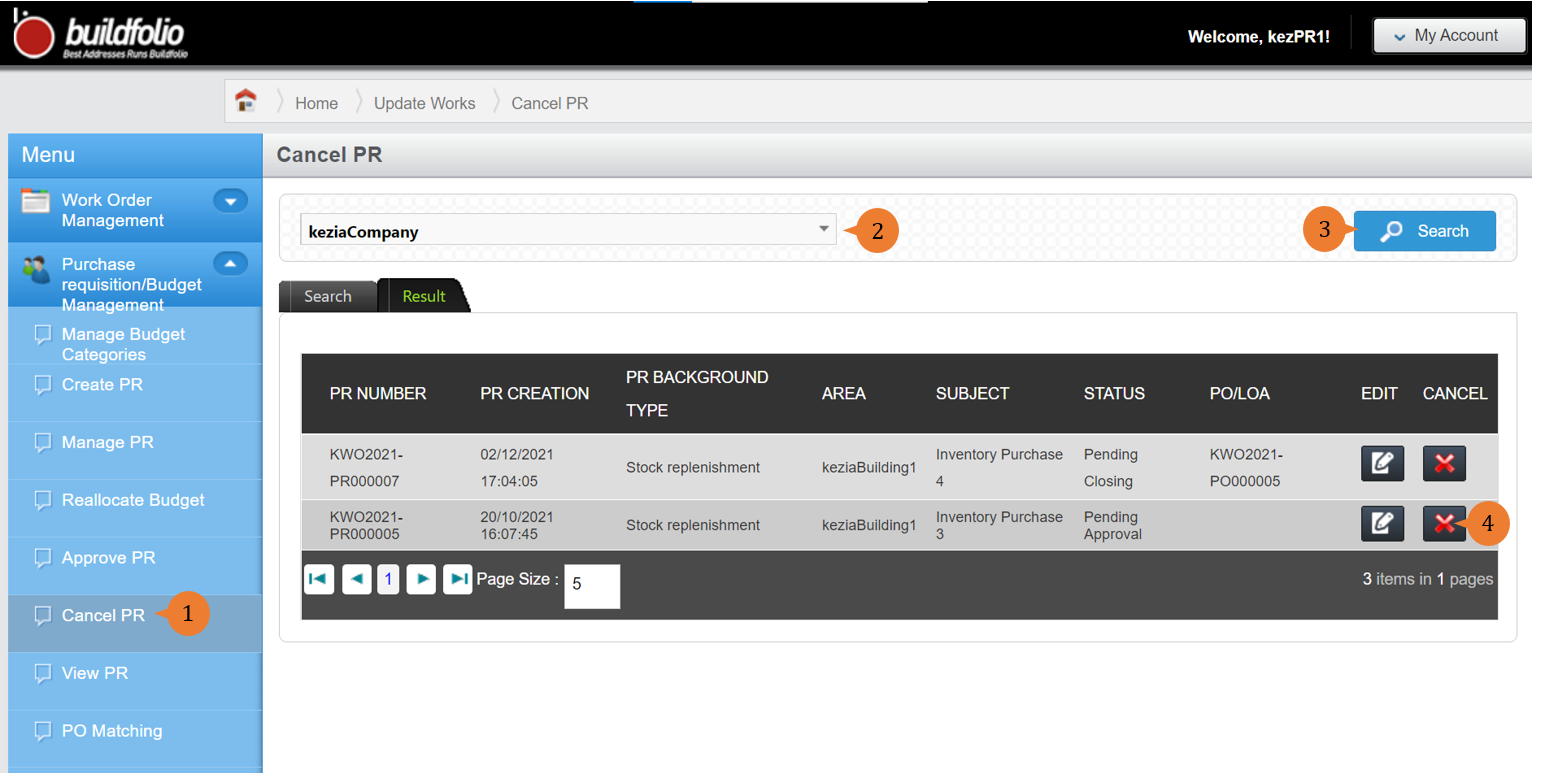
- Select Cancel PR under Purchase requisition/Budget Management from the Menu.
- Select the location.
- Click on the Search button for the list of PR to be listed out in the table.
- To cancel PR, select the Cancel icon.
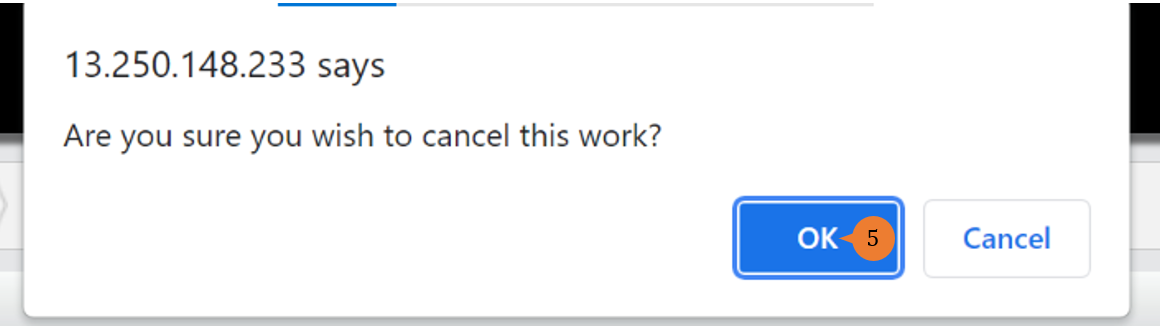
- A confirmation message will pop up. To proceed, click on the OK.
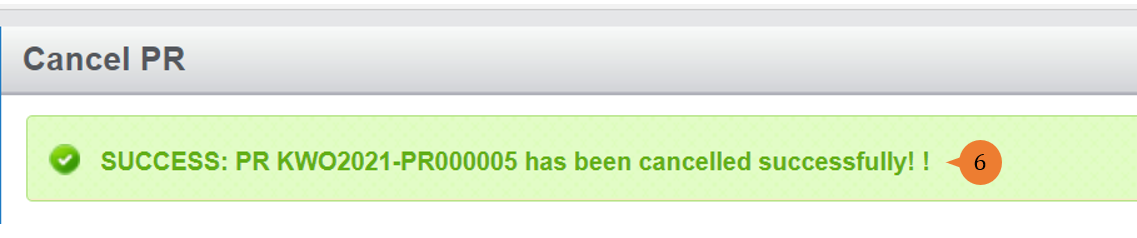
- When the PR is successfully cancelled, a success message will appear below the page title
More on this topic
- For step-by-step guides to using Purchase Requisition/Budget Management module, see Purchase Requisition/Budget Management Module.