Generating Low Inventory Report
How to generate low inventory report?
Low Inventory Report will list out all the inventory items that the stock on hand is lower than the threshold set. This report is useful for both the procurement department and the facility manager to perform the re-order of stock.
To generate low inventory report
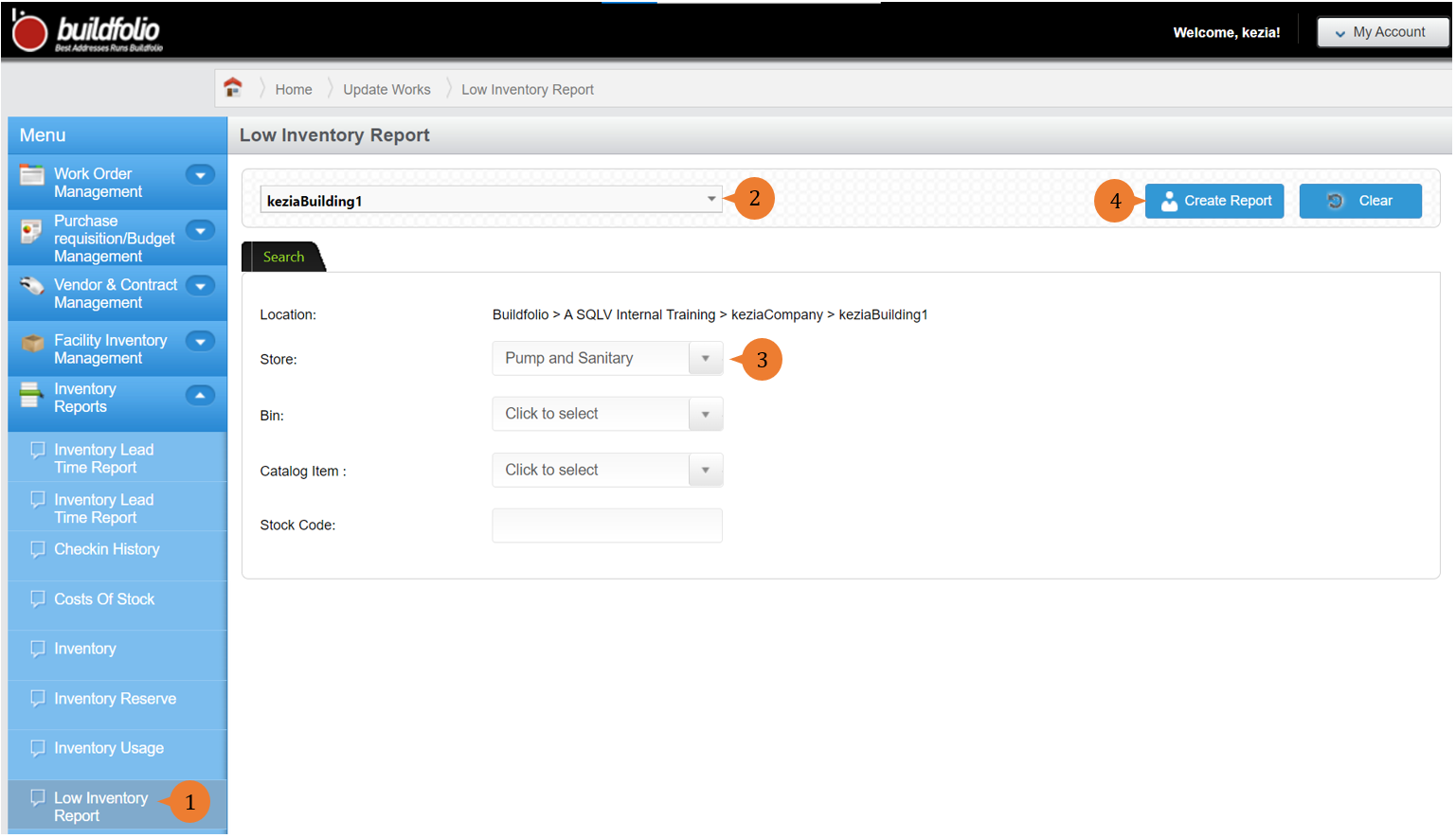
- Select Low Inventory Report under Inventory Reports from the Menu.
- Select the location that you wish to search the check-in history report for.
- Select the Store.
- Click on the Search button.
- A new tab will appear that contains the low inventory report based on the store selected.
- The report will entail the following:
- Catalog Item – The inventory stock name that is low in stock.
- Description – The inventory item description is low in stock.
- Stock Code – The inventory stock code number that is low in stock.
- Manufacturer – The manufacturer of the inventory item that is low in stock.
- Model – The model of the inventory item that is low in stock.
- Store – The store that holds the inventory item that is low in stock.
- Unit of Measurement – The unit of measurement for the item that is low in stock (eg. piece, pack, etc).
- Balance – The current stock-on-hand quantity of the inventory item.
- Threshold – The indicated quantity for the inventory item to be maintained in the warehouse.
- Costing – The costing method for the inventory item that is low in stock.

More on this topic 
- For step-by-step guides to using the Inventory Reports module, see Inventory Reports Module.