How to manage Vendor?
Jump to
How to manage Vendor on the web browser? 
Note: The vendor is usually managed by the procurement department.
To edit a Vendor
- Select Manage Vendor under Vendor & Contract Management from the Menu.
- Input any search criteria of your choice, click the Search button.
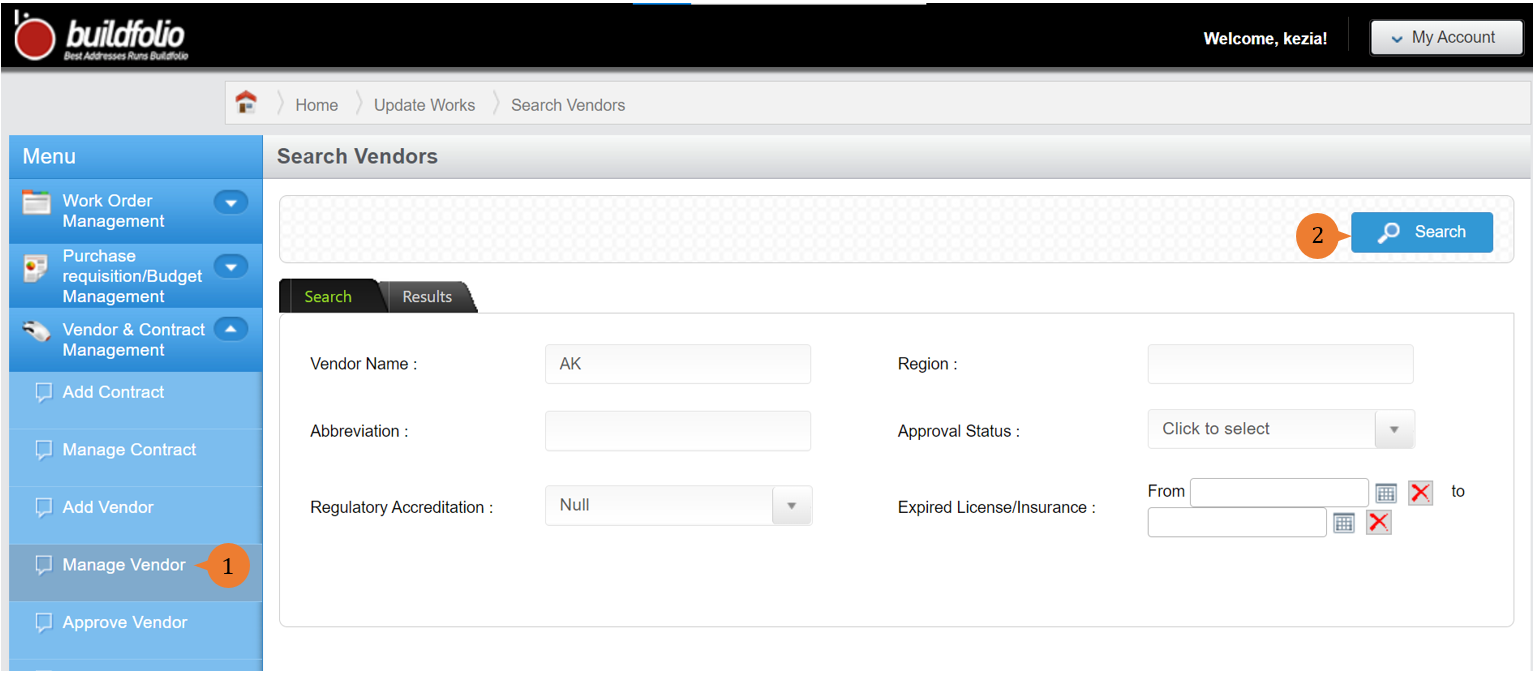
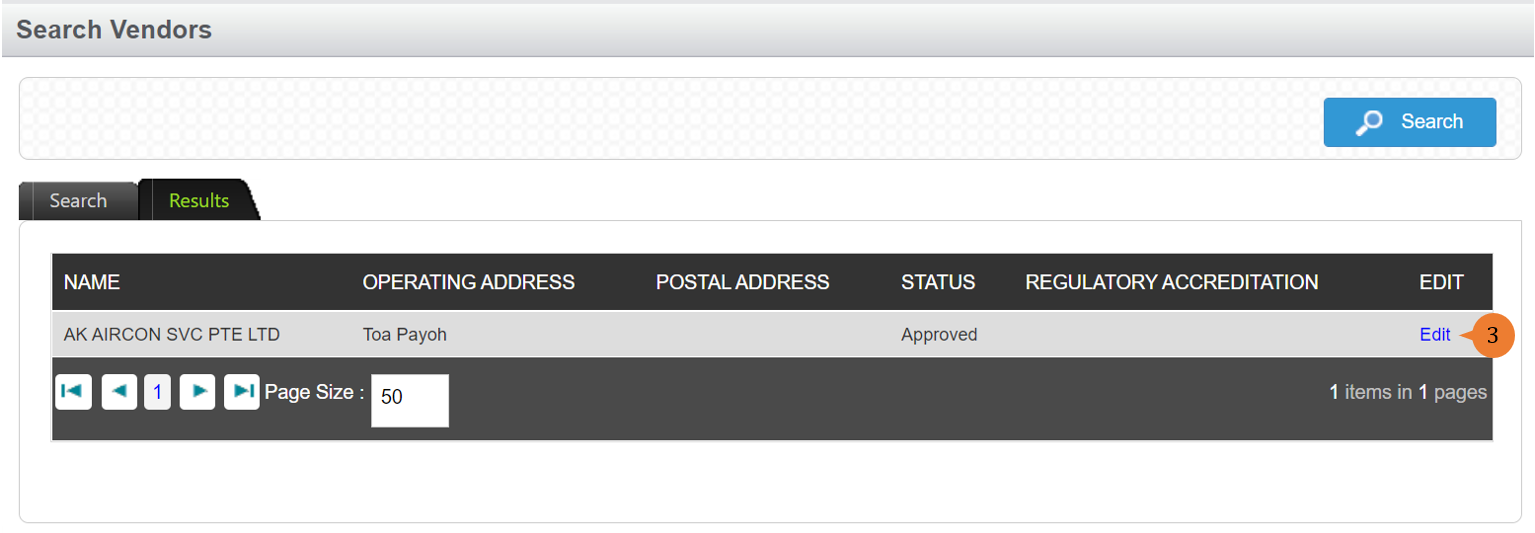
- Select the respective vendor by clicking on Edit.
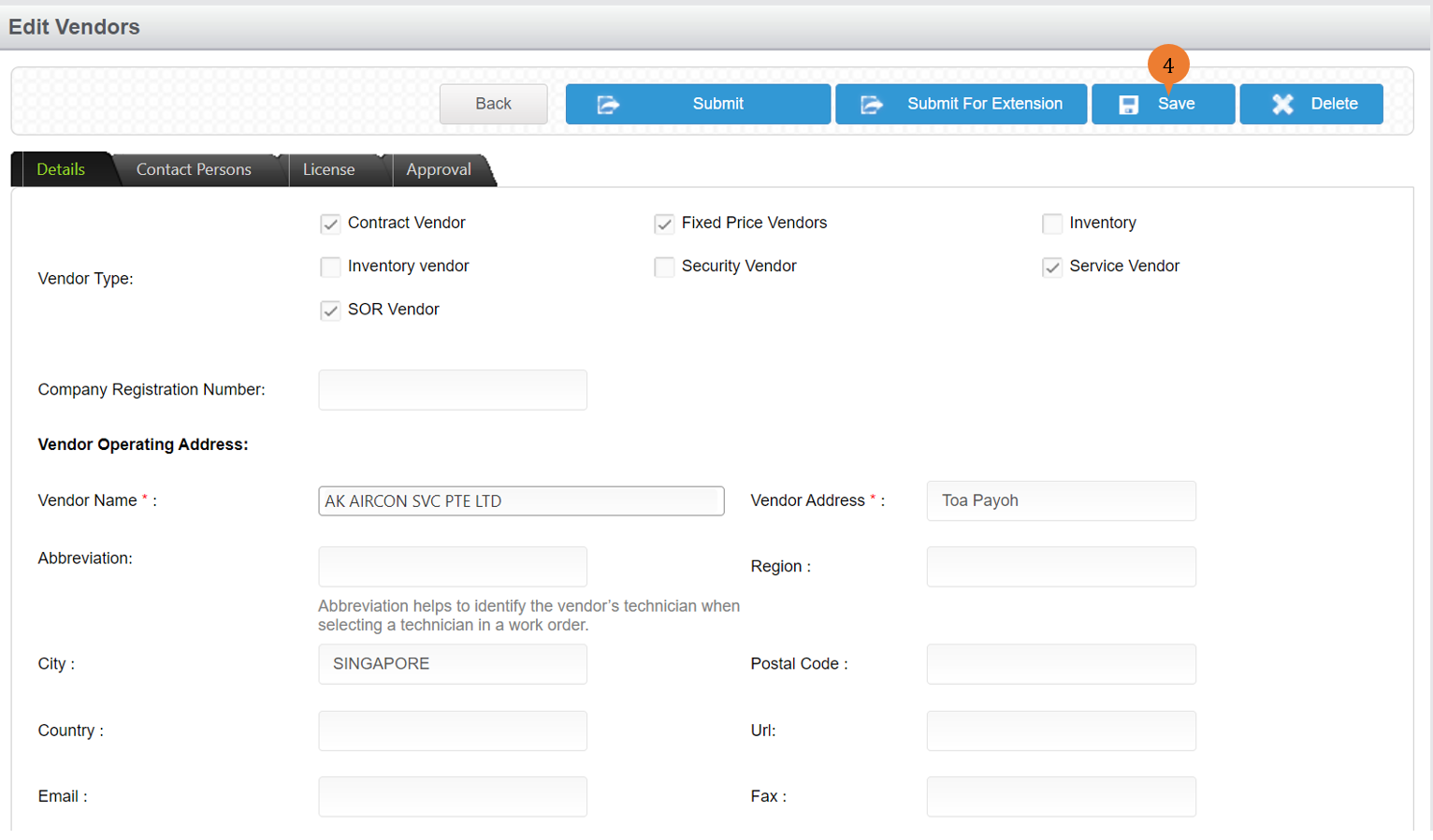
- To edit any information of this vendor, navigate to the respective tabs such as Details, Contact Persons, and License to input the changes then click on the Save button.
Once the Vendor is successfully edited, a success message will appear below the page title.

How to extend the Vendor’s validity?
Note: For a company that does not adopt the vendor approval process, the extension of the Vendor’s validity will be changing the expiry date and save.
For those companies that adopt the vendor approval process to extend the vendor’s validity,
- Select Manage Vendor under Vendor & Contract Management from the Menu.
- Input any search criteria of your choice, click the Search button.
- Select the respective vendor by clicking on Edit.
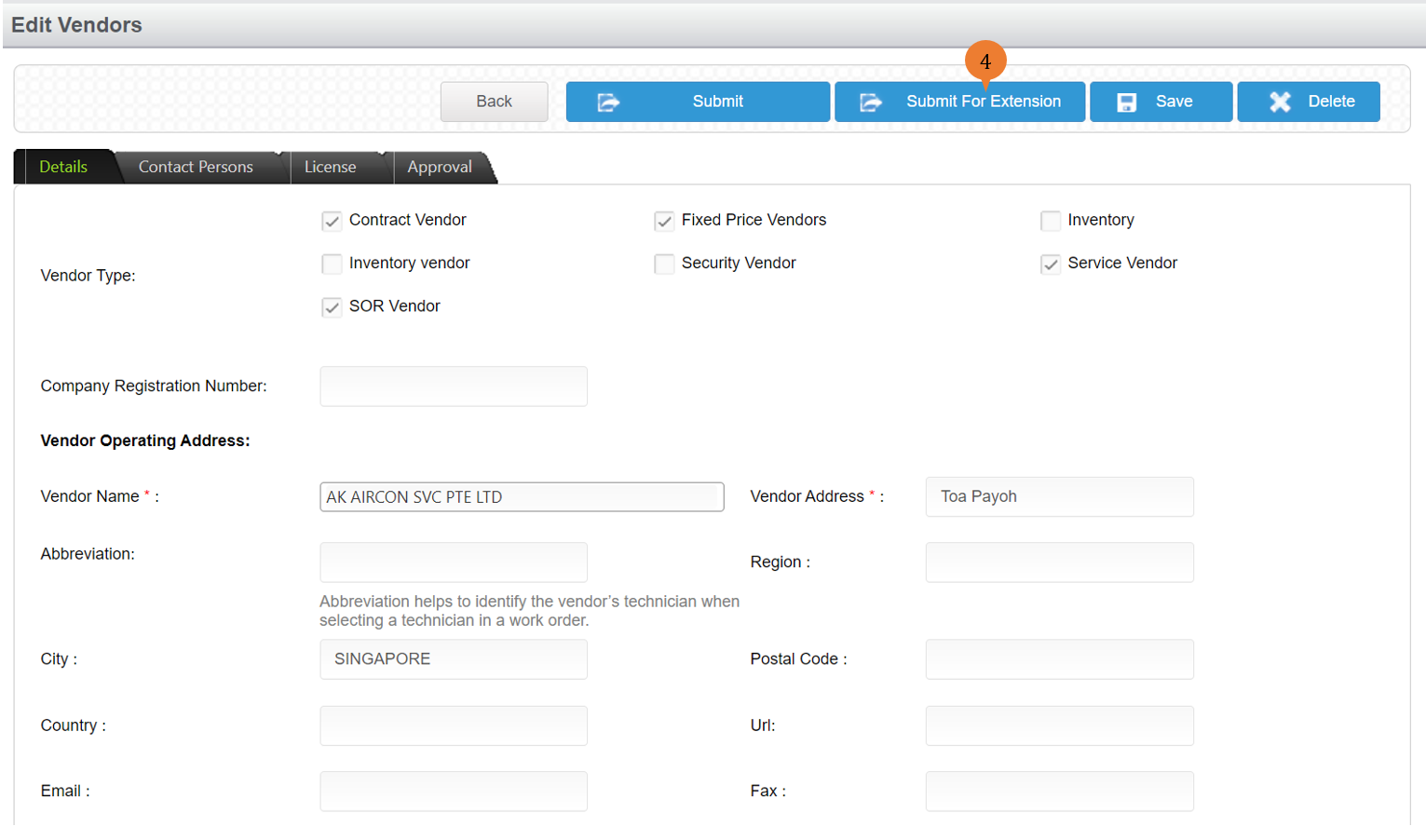
- To extend the validity of the vendor, click on Submit for Extension button.
- To confirm the vendor’s validity extension, a pop-up will appear before the routing takes place, click on the OK button to proceed.
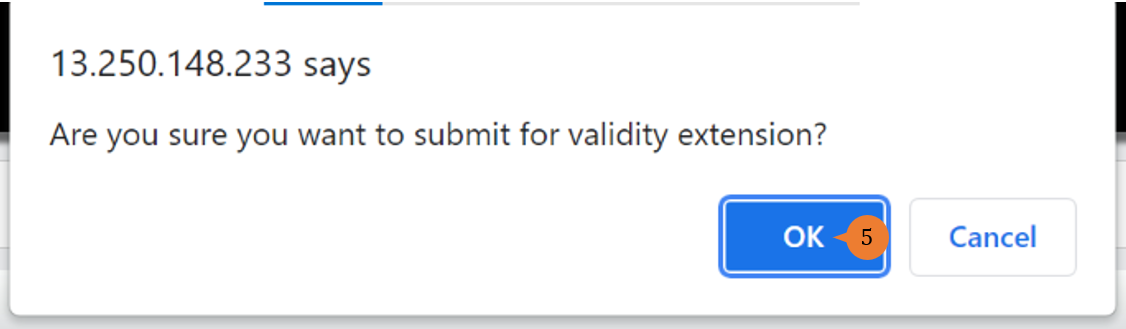
- Once the submit for extension is being routed to the approving party, a success message will appear below the page title.

Once the vendor’s validity extension is being reviewed by the approval party, you will receive an email notification. The validity extension will be based on the Vendor Validity Extension Months in the setup.
More on this topic
-
- For a step-by-step guide to editing a Vendor, see How to manage a Vendor on the web browser?.
- For a step-by-step guide to approving a Vendor, see How to approve a Vendor on the web browser?.
- For step-by-step guides to using Vendor & Contract Management module, see Vendor & Contract Management Module.