Generating Inventory Reserve Report
How to generate an inventory reserve report?
Inventory Reserve Report will list out all the inventory information that is being used in Work Order that is not updated to close status. This report is useful for both the procurement department and the facility manager to know that the real-time inventory usage.
To generate an inventory reserve report
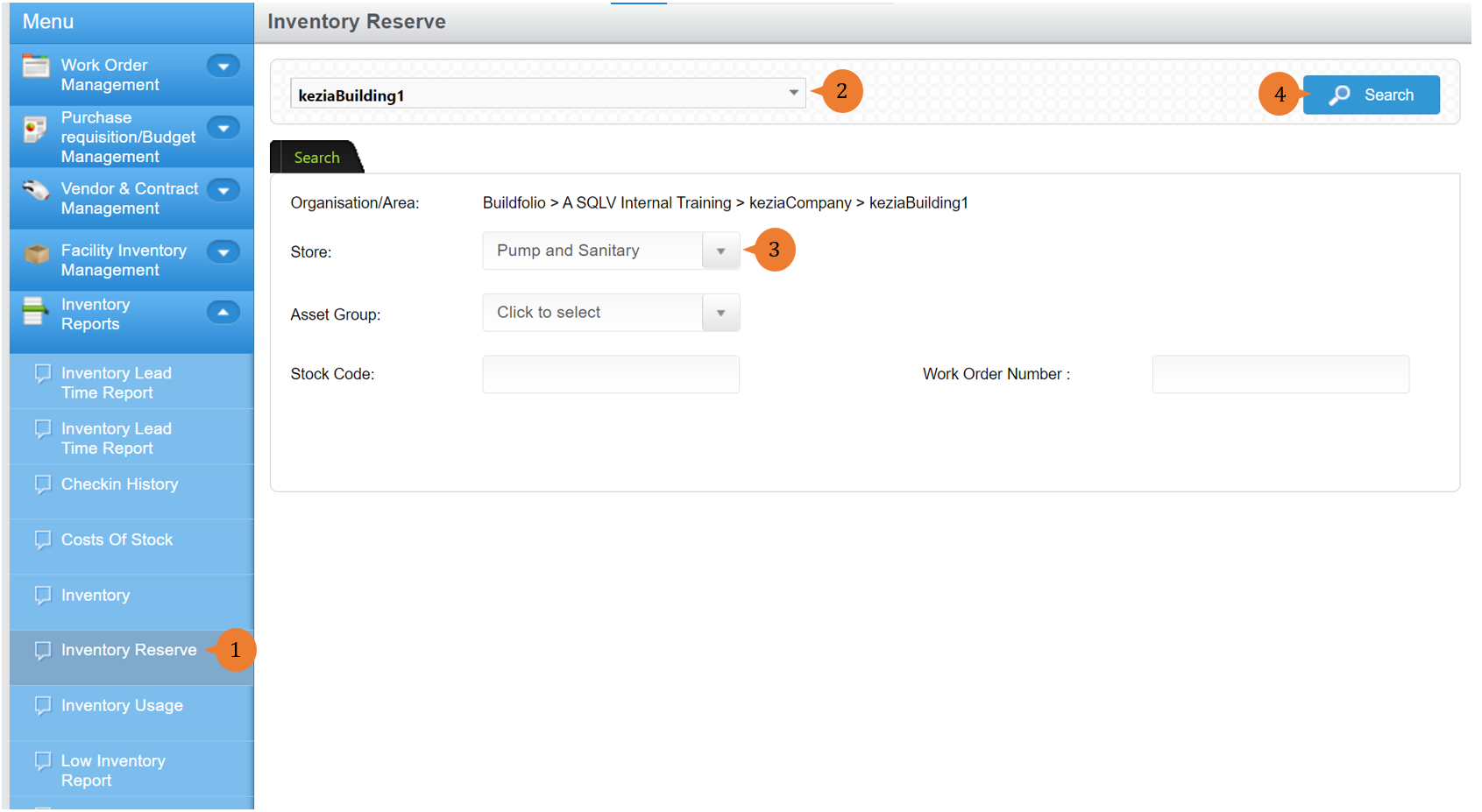
- Select Inventory Reserve under Inventory Reports from the Menu.
- Select the location that you wish to search the check-in history report for.
- Select the Store.
- Click on the Search button.
- A new tab will appear that contains the inventory reserve report based on the store selected.
- The report will entail the following:
- Area – The location involved in the Work Order that will require the use of the inventory items.
- Store – The store that holds the inventory items that will be used for the work order.
- Work Order No – The Work Order Number that registers that the inventory items will be utilised for the work to be carried out.
- Work Order Status – The status of the particular work order number.
- Stock Code – The inventory stock code number that will be used in the work order.
- Catalog Item – The inventory stock name that will be used in the work order.
- Description – The inventory item description that will be used in the work order.
- Unit Price – The unit price of the inventory item that will be used in the work order.
- Actual Quantity – The actual quantity of the inventory item that will be used in the work order.

More on this topic 
- For step-by-step guides to using the Inventory Reports module, see Inventory Reports Module.