Generating Stock Summary Report
How to generate Stock Summary report?
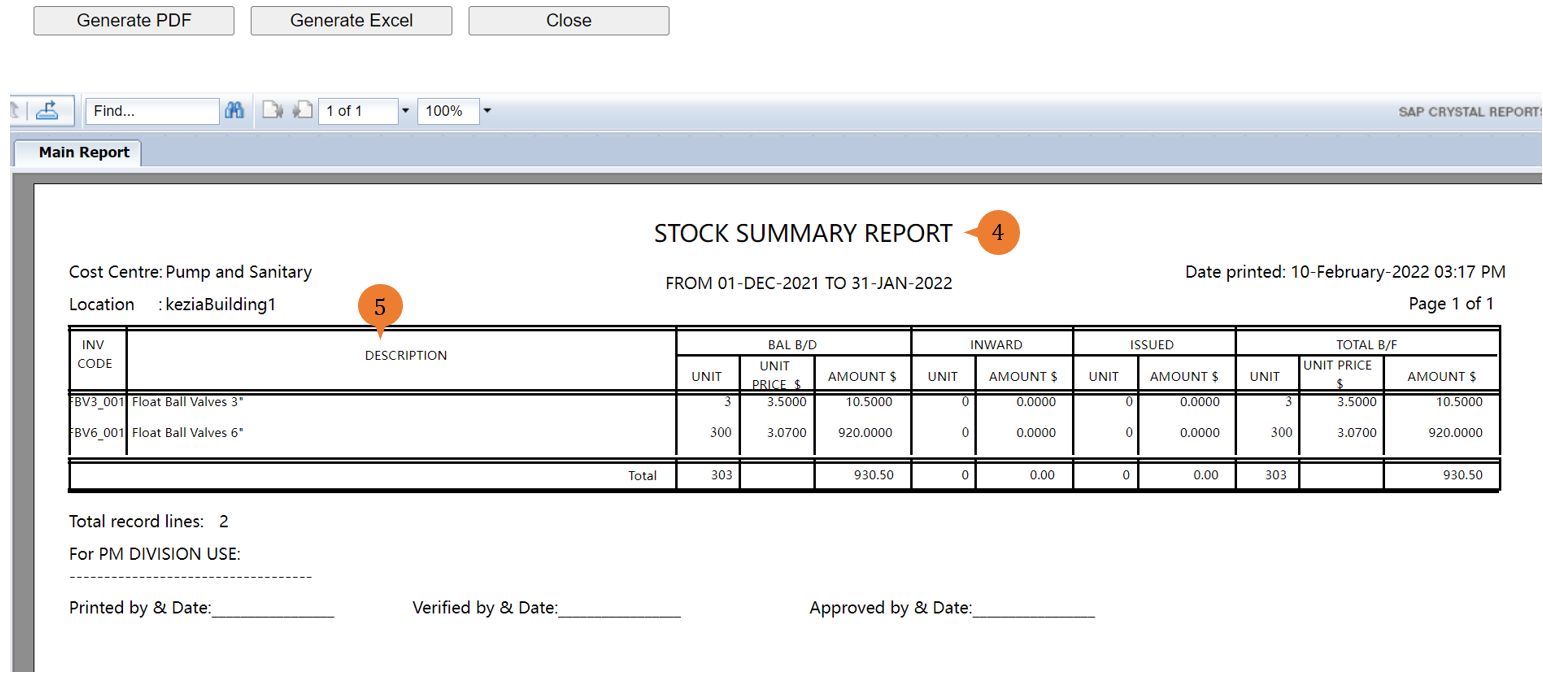
Stock Summary Report will show the list of inventory in the chosen store based on the search criteria. It will list out the inventory code, description, balance b/d (unit, unit price, amount), inward (unit, amount), issued (unit, amount) and total b/f (unit, unit price, amount).
To generate Stock Summary Report
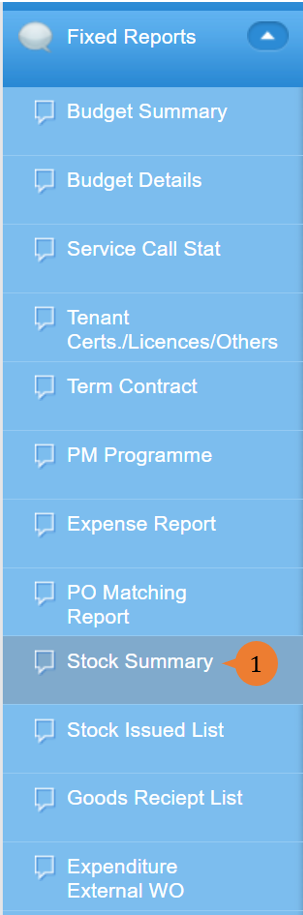
- Select Stock Summary under Fixed Report from the Menu.
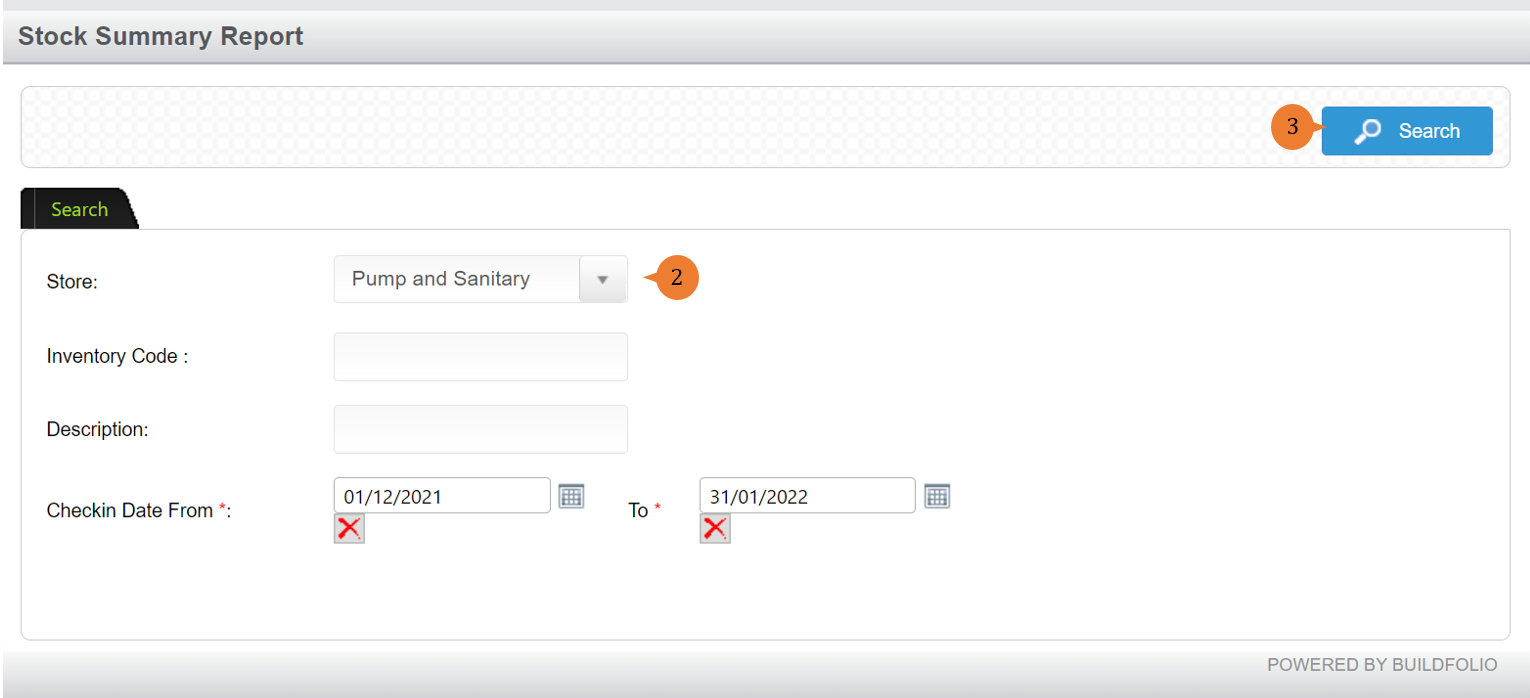
- Select the store, check-in Date period and other search criteria.
- Click on the Search button.
-
- A new tab will appear that contains the Stock Summary Report based on the search criteria.
- The report will entail the following:
- INV CODE – The inventory code number.
- DESCRIPTION – The name of the inventory.
- BAL B/D – The balance bought/down or also known as opening balance.
- UNIT – The total quantity of inventory purchase.
- UNIT PRICE $ – The cost price for each quantity of inventory.
- AMOUNT $ – The total amount of the inventory purchase.
- INWARD – To check-in inventory into the store.
- UNIT – The total quantity of inventory purchase.
- AMOUNT $ – The total amount of the inventory.
- ISSUED – To check out the inventory from the store.
- UNIT – The total quantity of inventory purchase.
- AMOUNT $ – The total amount of the inventory.
- TOTAL B/F – The balance bought/forward or also known as closing balance.
- UNIT – The total quantity of inventory left in the store.
- UNIT PRICE $ – The price for each inventory is based on the stock price calculation method.
- AMOUNT $ – The total amount for the inventory left.
More on this topic

- For step-by-step guides to using the Fixed Reports module, see Fixed Reports Module.