How to View and Filter Work Orders on BUILDFOLIO II mobile app?
Jump to
- How to view Work Orders on BUILDFOLIO II mobile app?
- How to Filter Work Orders on BUILDFOLIO II mobile app?
- How to Filter Work Orders by SLA on BUILDFOLIO II mobile app?
- How to Search for Work Orders on BUILDFOLIO II mobile app?
- How to Sort Work Orders on BUILDFOLIO II mobile app?
- How to change Ascending/Descending order on BUILDFOLIO II mobile app?
How to view Work Orders on BUILDFOLIO II?
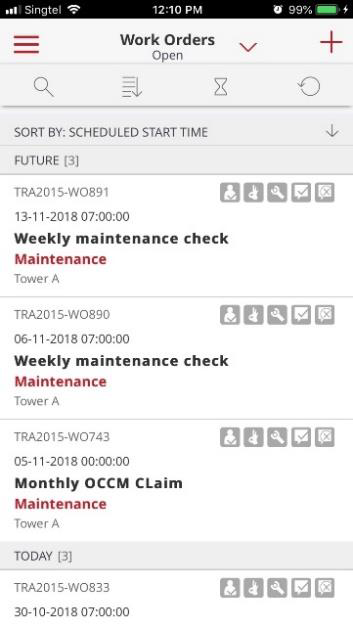
The default page of the BUILDFOLIO II app displays a list of open work orders.
Open Work Orders are Work Orders with the following statuses:
- Pending assignment
- New scheduled work
- New work order
- Work in progress
- Pending vendor
- Pending material
- Pending others
- KIV
How to change the Default view?
By default, open Work Orders are listed chronologically and grouped into Future, Today and Past.
 </p$
</p$
To view Future, Today, or Past Work Orders
- Tap on the group title to expand or contract the list of Work Orders.

They are also sorted by Scheduled Start Time in descending order.
To change the listing order
- Toggle the Ascending/Descending arrow
 .
.

Beyond the default view, you may also use the Filter, Filter SLA, Search, or Sort by function to view only the open Work Orders of concern to you.
How to Filter Work Orders on BUILDFOLIO II mobile app?
To Filter Work Orders on BUILDFOLIO II mobile app
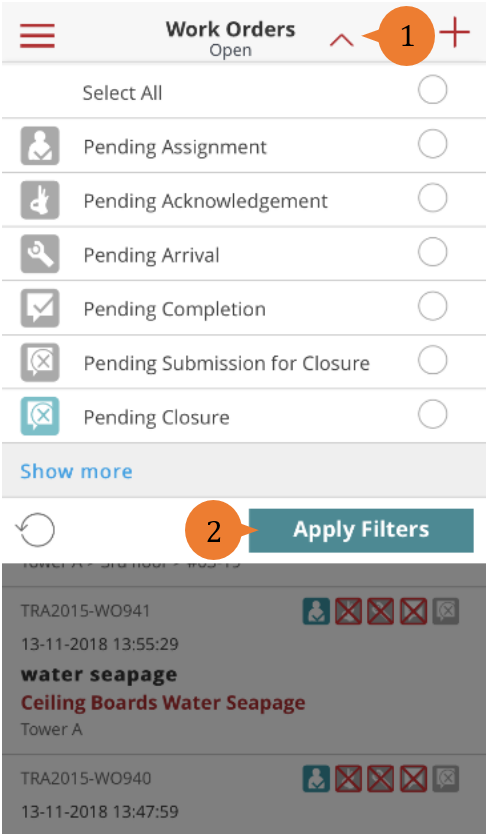
- Select the Filter Icon. It will expand to show a list of filters.
- To see more filter options, select Show more.
- To apply the filters, select the relevant Filters and select Apply Filters.
- To reset to default, select the Reset icon
 .
.
- To reset to default, select the Reset icon
How to Filter Work Orders by SLA on BUILDFOLIO II mobile app?
To Filter Work Orders by SLA on BUILDFOLIO II mobile app
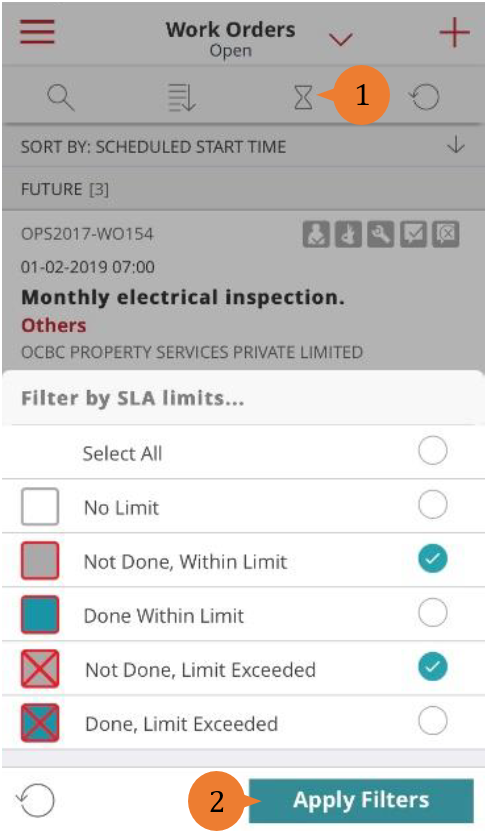
- Select the SLA Filter icon.
- To apply the filters, select the relevant Filters and select Apply Filters.
- When the filter(s) are applied, the Filter By SLA icon will turn red
 .
. - To reset to default, select the Reset icon.
- When the filter(s) are applied, the Filter By SLA icon will turn red
How to Search for Work Orders on BUILDFOLIO II mobile app?
The Search function allows a user to search data that the user has access to from the database.
This is different from the Filter, Filter by SLA, and Sort By functions, which work on data from the maximum (100 by default) Work Orders displayed on the mobile app.
Default view
The default Search screen displays the possible Search criterions.
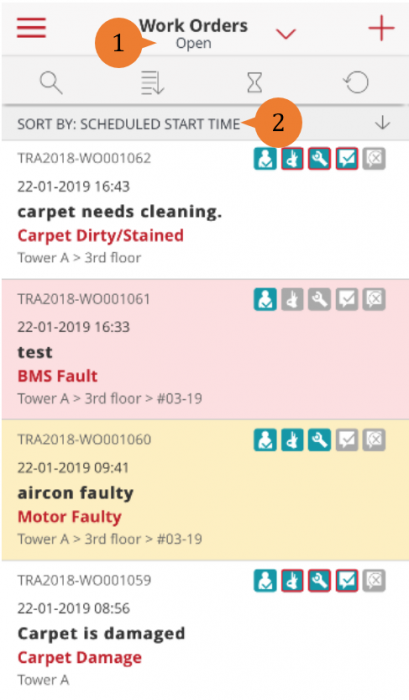
- Work Order Status(1): By default, system displays those Open Work Orders what fall in the Scheduled Start Date range(2). The Work Order Statuses selected and applied will be indicated under the Work Orders heading on the Work Order list. When more than 1 status is selected and applied, the Number of Work Status criterion applied will be indicated instead.
- Scheduled Start Date(2): Scheduled Start Date range is pre-configured on the Web App under Settings > Manage Config.
How to Search for Work Orders?
To Search for Work Orders
- Select the Search icon.
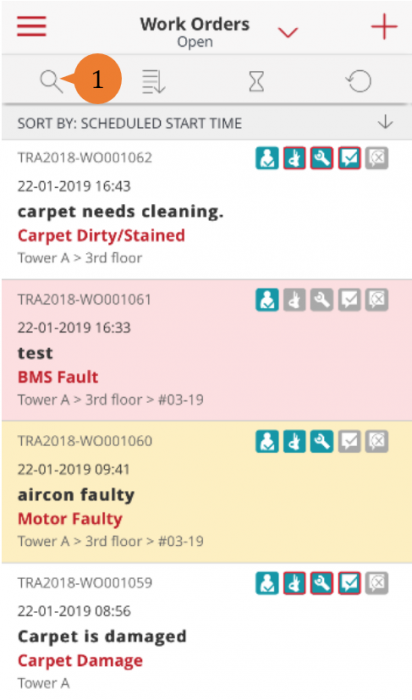
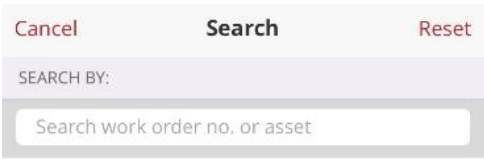
- Select the desired Search Criterion.
- Search By Technician is not available for the Technician role.
- To perform the search, select Search.
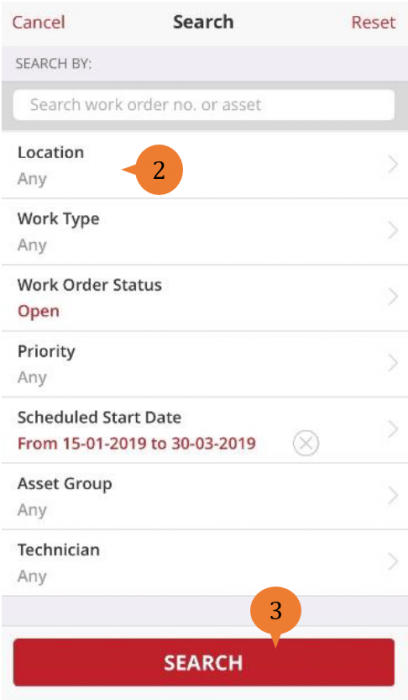
When one or more search criterion other than the default values are applied, the Search icon will turn red  . This is to remind the user that what the user sees are not based on the default values.
How to Reset or Cancel the Search criterion?
To reset the Search criterion
- Select Reset. This will annul the selections and return to the default Search settings.
To Cancel the Search
- Select Cancel. This will abort the search operation and return to the Work Order List.
How to Sort Work Orders on BUILDFOLIO II mobile app?
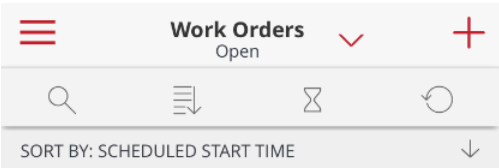
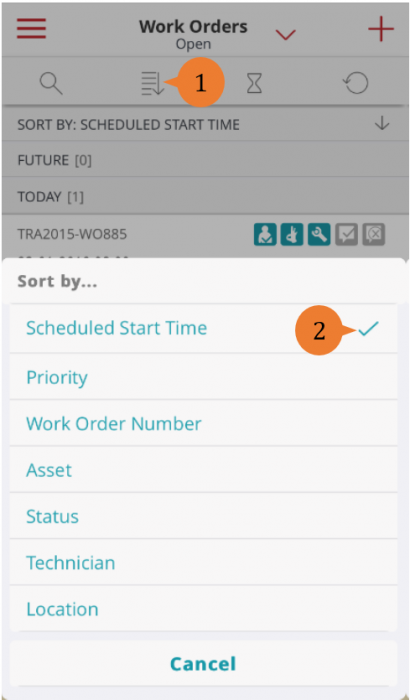
Users can sort the Work Orders by various criteria. By default, the Work Orders are sorted by SCHEDULED START TIME in descending order. The criterion for sorting currently being applied is indicated below the Sort By icon.
To Sort Work Orders on BUILDFOLIO II mobile app
- Select the Sort By icon. This will display a list of sorting criteria
- To Sort the Work Orders, select the desired Criterion.
How to change Ascending/Descending order on BUILDFOLIO II mobile app?
By default, information are displayed in descending order.
To change the order on BUILDFOLIO II mobile app
- Select the Ascending/Descending arrow .
More on this topic
- For a step-by-step guide to viewing all Work Orders (including cancelled and closed ones) on web browser, see How to view all Work Orders (including cancelled and closed ones).
- For a step-by-step guide to updating your Work Order, see How to update a Work Order on BUILDFOLIO II mobile app?
- For a step-by-step guide to using BUILDFOLIO II mobile app, see BUILDFOLIO II mobile app.