Generating Budget Details Report
How to generate a budget detail report?
Budget Detail Report will show the budgeted amount and actual usage amount for each category and its sub-categories based on the chosen building, year and month.
To generate a budget detail report
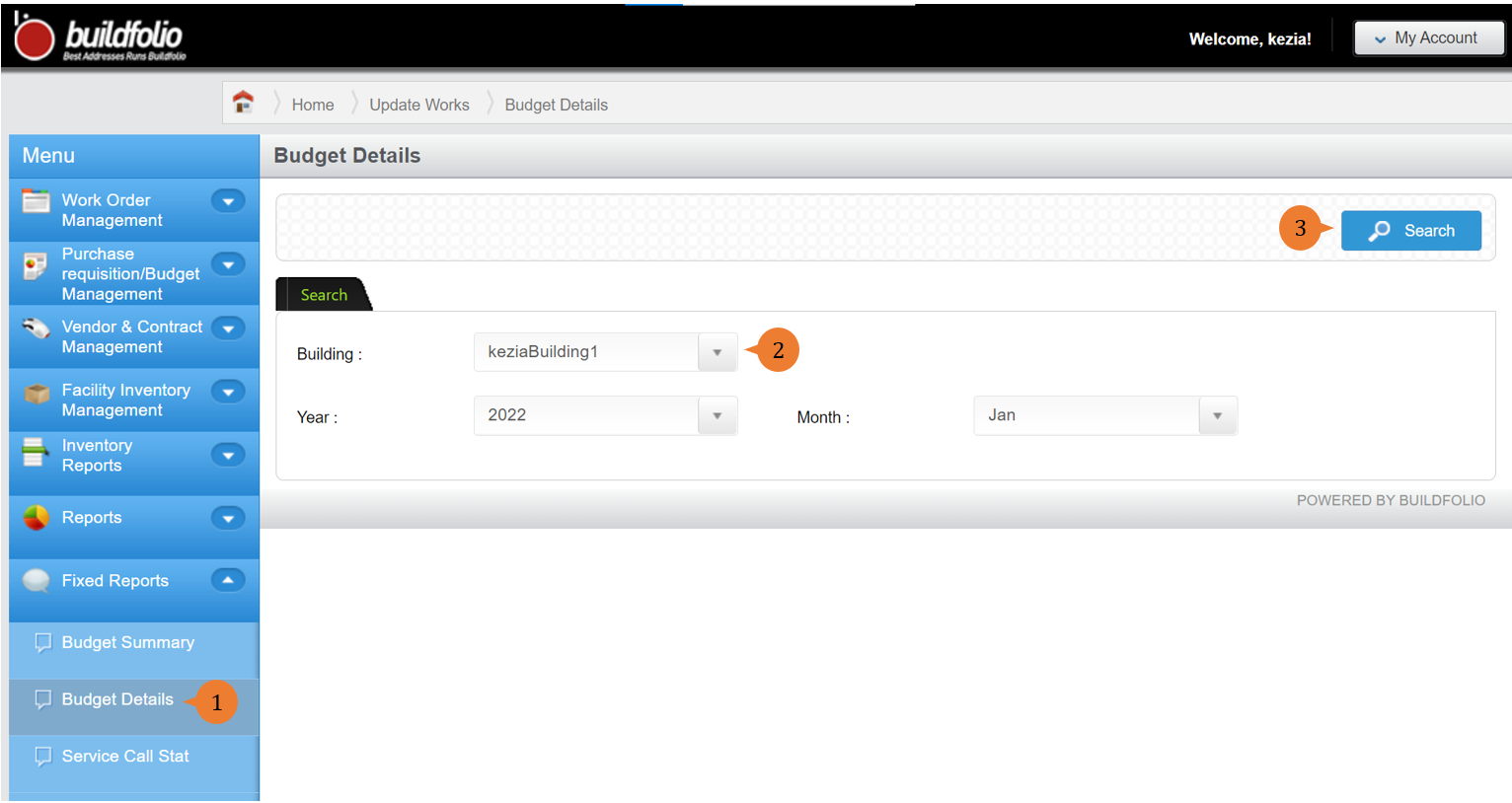
- Select Budget Detail under Fixed Report from the Menu.
- Input the search criteria that you preferred such as building, year and month.
- Click on the Search button.
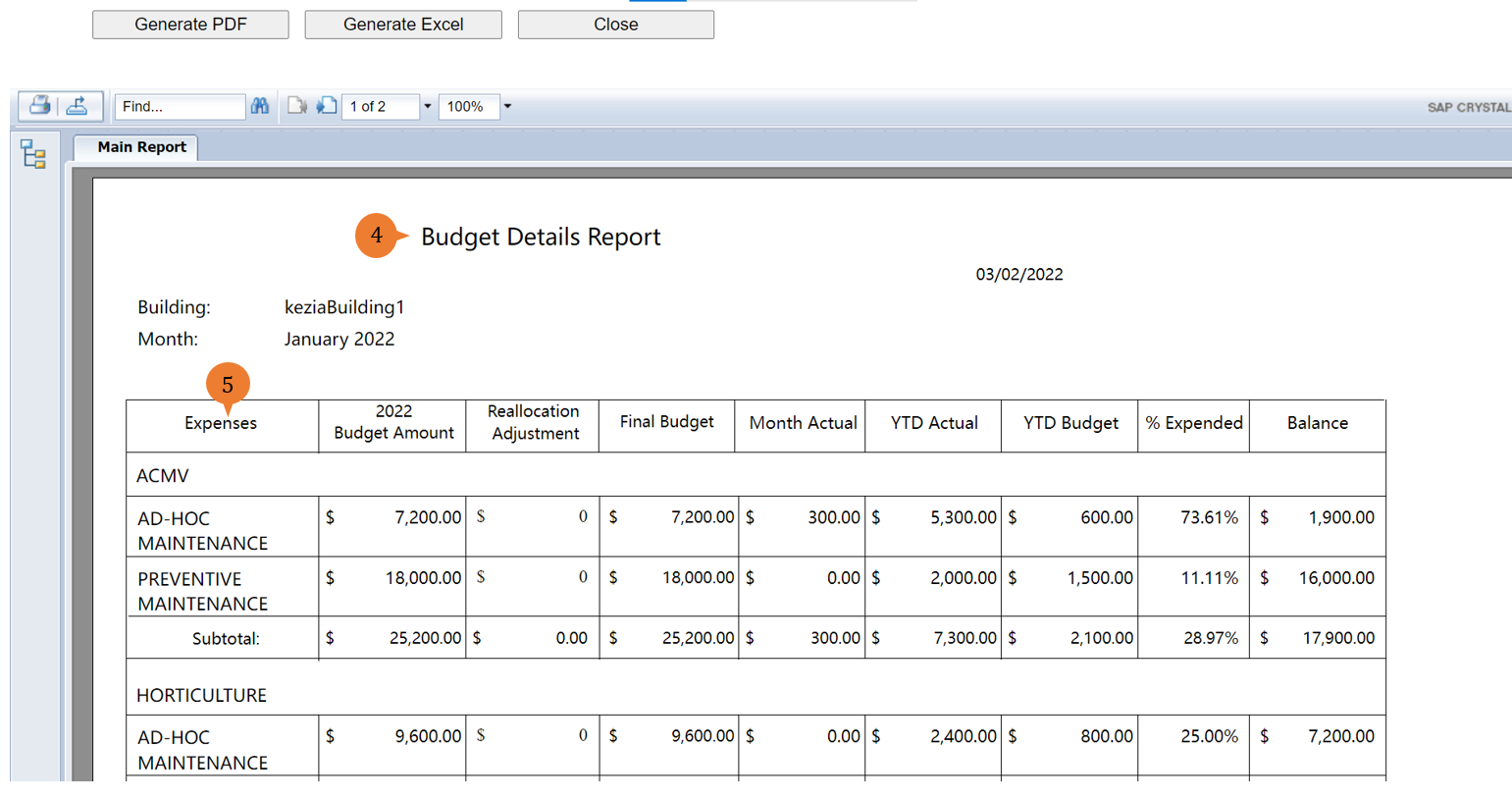
- A new tab will appear that contains the budget detail report based on the search criteria.
- The report will entail the following:
- Expenses – This will show the various budget categories based on the search criteria.
- 2022 Budget Amount – This will show the entire year budget amount for each of the budget categories.
- Reallocation Adjustment – This will show the reallocation of the budget amount to this budget category/sub-category if any.
- Final Budget – This will show the final budget with the consideration of the reallocation adjustment.
- Month Actual – This will show the amount used for these budget categories/sub-categories in the chosen month.
- YTD Actual – This will show the accumulative amount used for these budget categories/sub-categories from the beginning of the year to date.
- YTD Budget – This will show the accumulative amount budget for these budget categories/sub-categories from the beginning of the year to date.
- % Expended – This will show the percentage of actual consumption against the budget amount.
- Balance – This will show the amount left for these budget categories. It will be using the 2022 Budget Amount to deduct YTD Actual.
More on this topic 
- For step-by-step guides to using the Fixed Reports module, see Fixed Reports Module.