Navigating BUILDFOLIO II mobile app
This guide is written for the second generation of the Buildfolio mobile app called BUILDFOLIO II
Jump to
What is BUILDFOLIO II? 
The key purpose of BUILDFOLIO II is to complement the Buildfolio web application and provide the facility management team with a mobile platform to access and update their assigned work orders on the go. Thus, both Corrective Maintenance and Preventive Maintenance Work Orders are included in the app.
The app also includes:
- Tenant Information Module, displaying basic information about a selected location such as the contact information (telephone number, fax number, and email addresses), Tenant Group, Tenant ID, as well as the Work Orders under that location.
- Document Management Module, a centralised platform for document sharing that is highly secure. All members of the facility management team can access materials such as SOPs and guides relevant to their job scopes whenever necessary. Users may even download these documents to view them offline on the app even if internet access is not available on-site.
The inclusion of these modules makes BUILDFOLIO II a comprehensive and handy tool for on-site work, boosting not only the achievement of SLAs through convenient and accurate time-tracking but also the quality of work done.
Download BUILDFOLIO II
To use Buildfolio on your mobile devices, download the BUILDFOLIO II mobile app.
For Android devices
To download BUILDFOLIO II
- Open Google Play Store on your device.
- Search for and install Buildfolio II.
To launch the app when installation is complete
- Tap open.
For Apple devices
To download BUILDFOLIO II
- Open Apple Store on your device.
- Search for and Download Buildfolio II.
To launch the app when download is complete
- Tap open.
Log in to BUILDFOLIO II
- To use BUILDFOLIO II, open the app by tapping on the Icon on your menu screen. You will see a flash screen followed by the login page.
- To log in, enter your Login Name, Password, assigned URL, and tap Login.
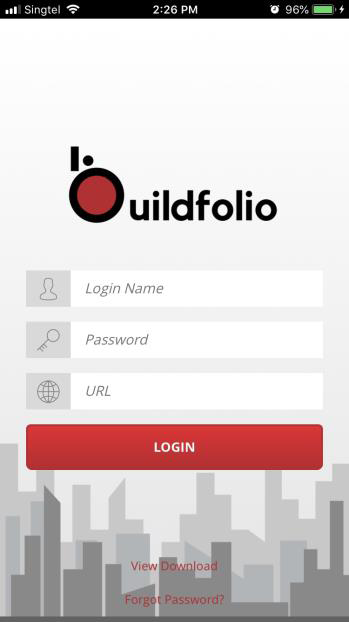
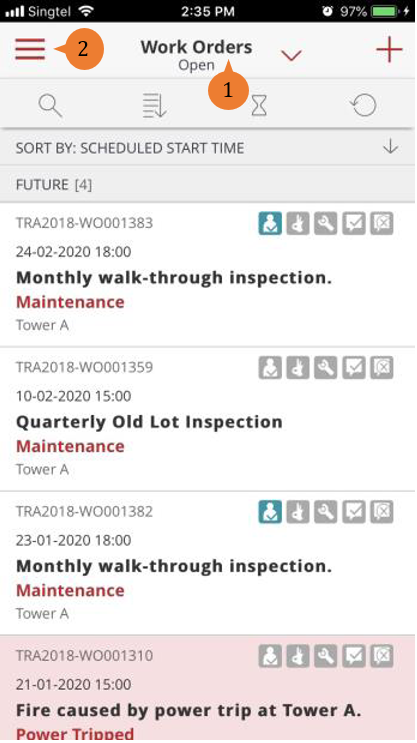
Upon successful login, you will see:
- Work Orders Open (1) page. This Work Orders list displays a list of open work orders that you have access to.
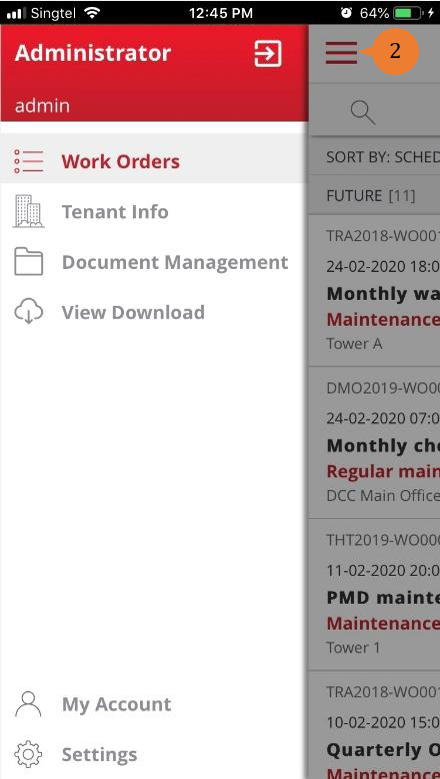
- To navigate from one module to another, use the Hamburger button (2).
Log out of BUILDFOLIO II
To log out
- Tap the Hamburger button
 > Logout
 .
.
Alternatively, if the Remember Login Credential toggle under Settings is switched OFF
- Swipe the app away to log out.
How to read each Work Order?
The information presented for each work order includes:
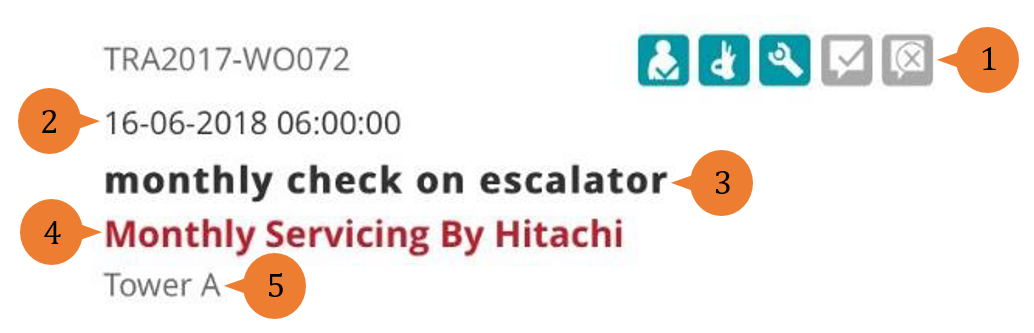
- Work Order Status (1)
- Scheduled Date and Time (2)
- Work Description (3)
- Problem Code (4)
- Location (5)
The background colour of the Work Order also denotes its priority levels:
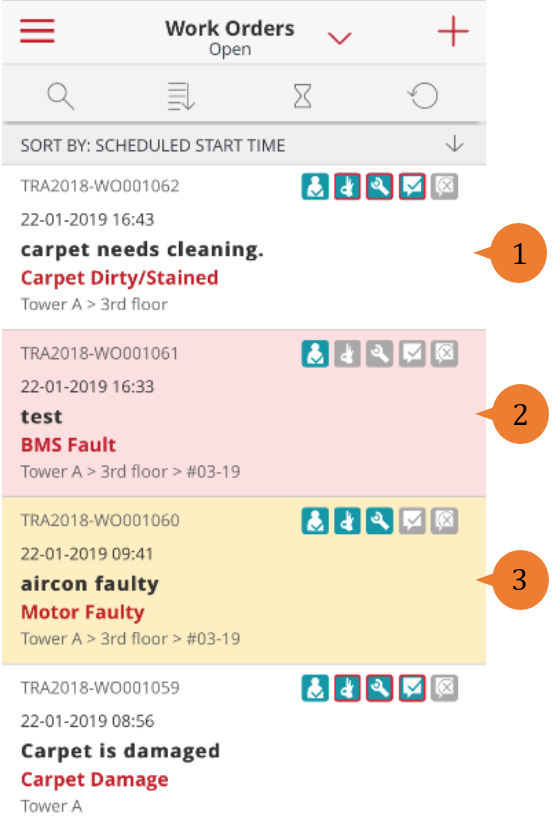
- Normal Priority (1)
- Critical Priority (2)
- Urgent Priority (3)
My Account
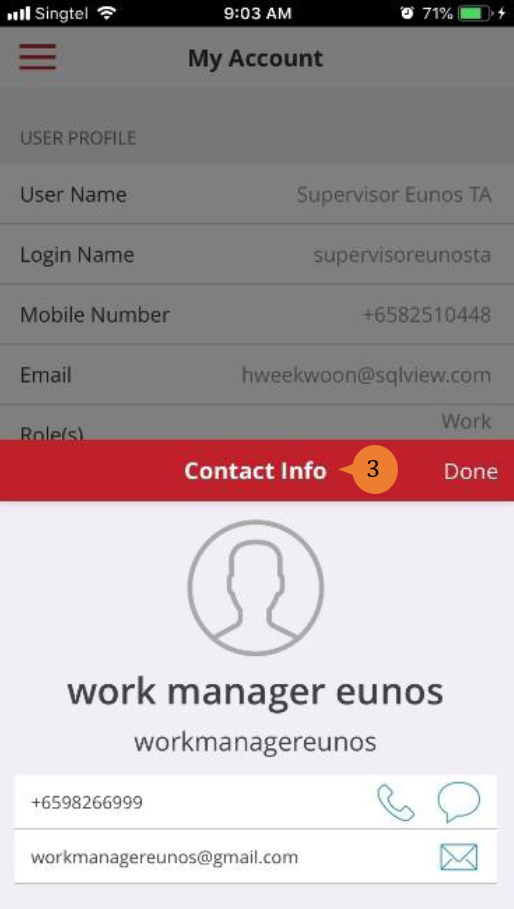
My Account displays the user profile (1), allow user to log out (2) and contact information of immediate superior (3).
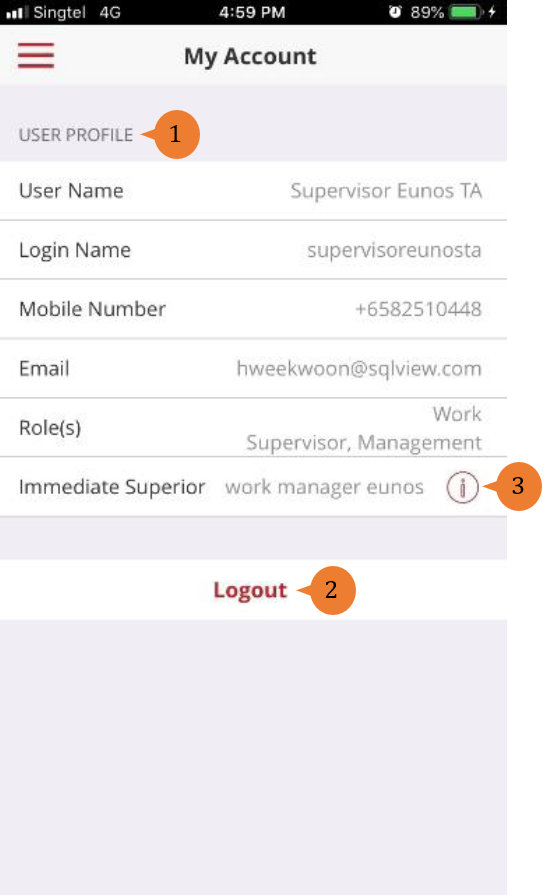
To access My Account
- Tap the Hamburger button > My Account
To view contact details of your immediate Superior
- Select Info
 .
.
Settings
Under Settings menu, user can find the version of the installed app, and configure the app to suit their preferences.
Remember Login Credentials
To remain logged in to Buildfolio
- Switch ON the Remember Login Credential toggle.
You will be required to log in again every time you log out of Buildfolio app. To remain logged in, simply close the app when you are done instead of logging out.
Number of Work Orders Shown
By default, the app displays a maximum of 100 work orders based on Scheduled Start Time in descending order. To change this figure
- Tap – to decrease it, or + to increase it.
Set Favourite Location
To set a Favourite Locations
- Tap Location > Location 1 > preferred location on location tree.
The app will automatically return you to Favourite Locations list when a location is selected. Repeat for Location 2 and Location 3, or until you have saved all your favourite locations.
User can set up to 3 locations for easy selection when creating a new work order.
Icons in BUILDFOLIO II
Hamburger button: It lists all the menus, namely Work Orders, Location Info, My Account, and Settings. To navigate from one module to another, use the Hamburger button.
Logout: To log out of the app. User need to enter Login Name and Password to log in again.
 Search: System will search the database for data that match the search criteria.
 Sort By: System will sort based on the work orders that are displayed on Work Orders List.
 Filter: System will filter based on the work orders that are displayed on the Work Orders List.
 SLA Filter: System filters work orders by SLA.
 Refresh: System will update and populate the latest data from database onto the Mobile App.
 Create New Work Order: Allow user to create a new work order.
 Ascending/Descending toggle: Toggle between ascending and descending order. By default, work orders are arranged in Descending order.
The following Icons are used within a work order.
 Edit: To edit a work order. Toggles between Edit and Editing.
 Editing: When a work order is in editing mode.
 More: Display options for Cancel Work Order and Service Request Form.
 Upload From Photo Gallery: To select and upload a picture from the Photo Gallery.
 Take Photo: To take a new picture using the camera function of the mobile phone.
 Delete Photo: This icon appears on the top right corner of an uploaded photo.
Info: This icon denotes information such as contact details of technician, supervisor, or caller.
 Download: To download documents in Document Management.
More on this topic
- For a step-by-step guide to navigating Buildfolio on your web browser, see Navigating Buildfolio on web browser.
- For an introduction to get started with Buildfolio, see Get Started
- For more step-by-step guides to using each module, see Buildfolio’s Knowledge Base