How to create a new Work Order?
Jump to
How to create a new Work Order on web browser?
To create a new Work Order
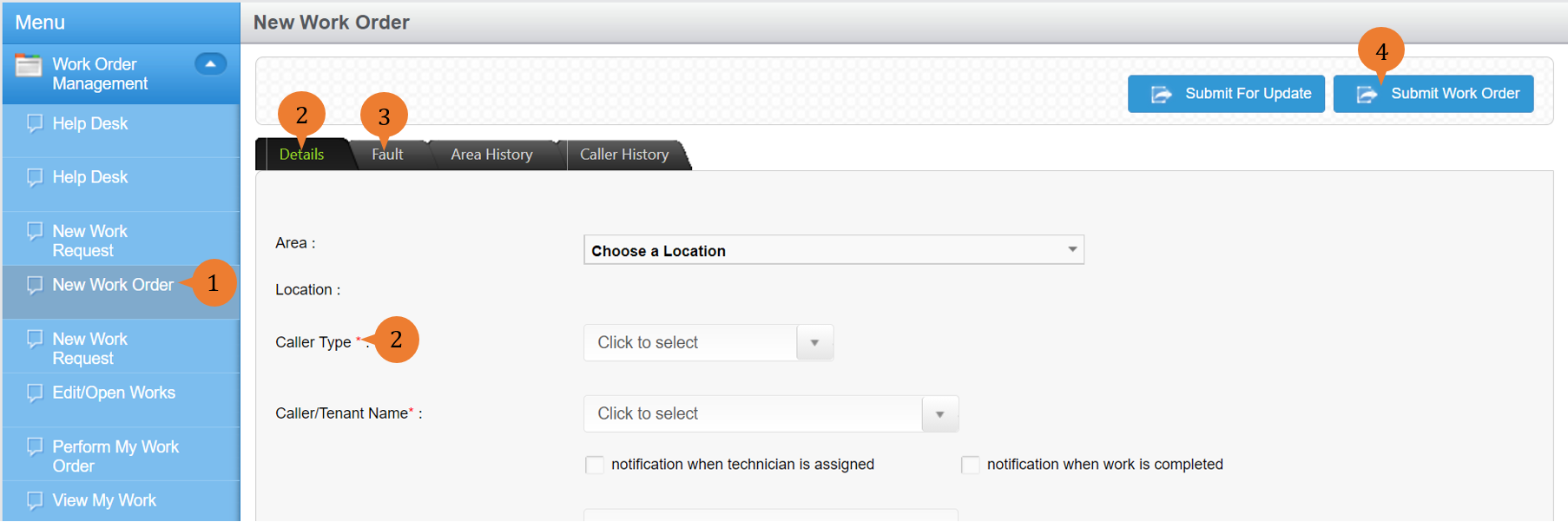
- Select New Work Order under Work Order Management from the Menu.
- In the Details tab, fill in the compulsory fields marked with *.
- In the Fault tab, fill in the compulsory fields marked with *.
- To submit your Work Order, select Submit Work Order
- To submit your Work Order in retrospect, meaning that the work is already done and the Work Order is submitted only for record keeping purposes, select Submit for Update.
- A dialogue box will appear to prompt you to confirm your submission. To submit work order, select OK.

When the Work Order is successfully submitted, a success message will appear below the page title. Take note of the Work Order number.

More on this topic 
- For a step-by-step guide to creating a new Work Order via Help Desk with Wizard Mode, see How to create a new Work Order via Help Desk with wizard mode.
- For a step-by-step guide to creating a new work order on BUILDFOLIO II mobile app, see How to create a new Work Order in BUILDFOLIO II mobile app.
- For step-by-step guides to editing, updating, cancelling, or assigning a technician to the Work Orders you have created, see Managing Work Orders.
- For more step-by-step guides to using Work Order Management module, see Work Order Management Module.