How to manage Budget?
Jump to
How to create Budget? 
Budget is usually created by the Facility Manager to allocate funds for all the budget categories for the financial year.
How to create a Budget from scratch?
If you are a new setup or first time using the budget module, to create Budget
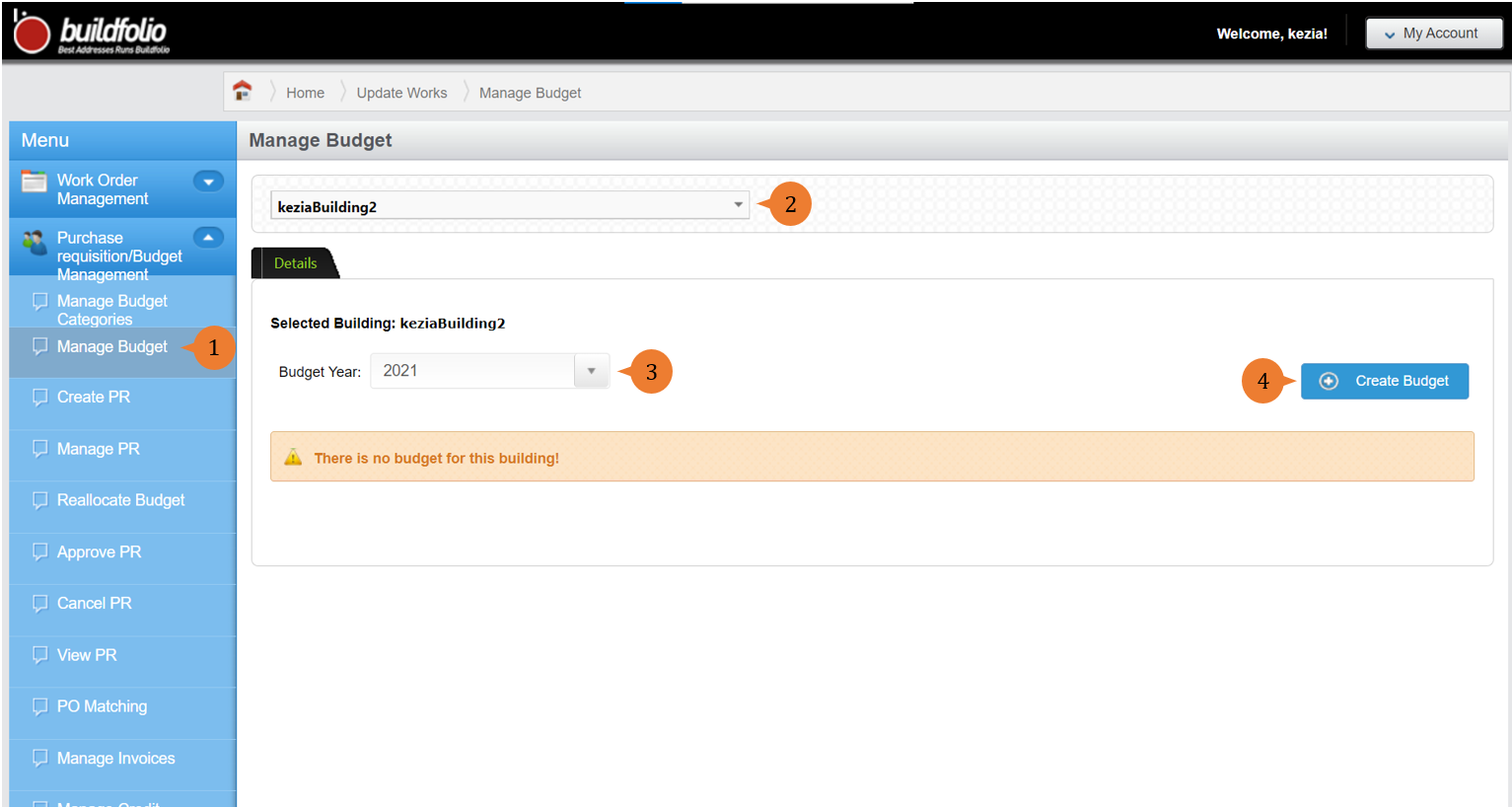
- Select Manage Budget under Purchase requisition/Budget Management from the Menu.
- Select the location that you wish to create a budget category for.
- Select the financial year.
- To create the budget, click Create Budget.
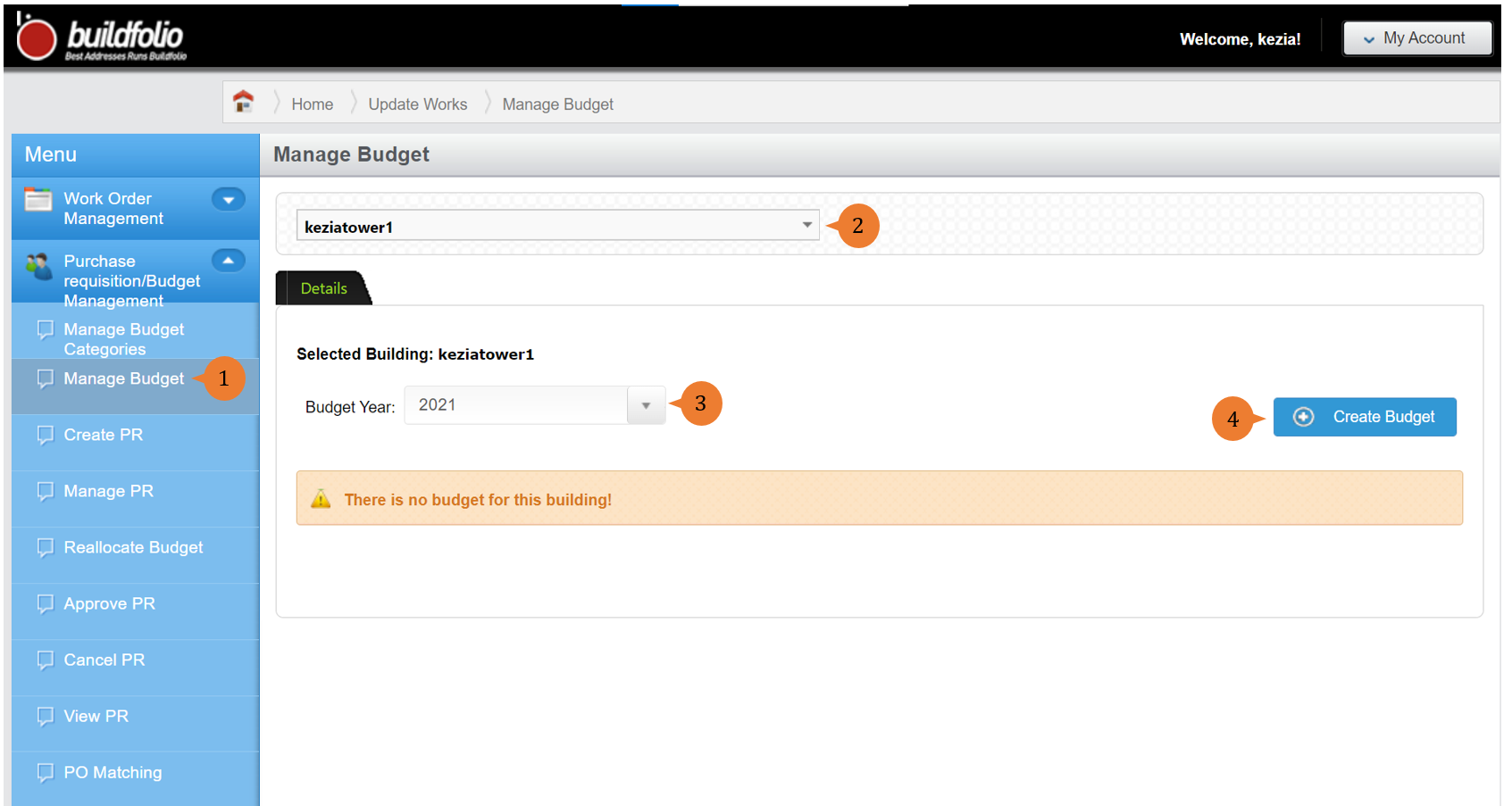
- It will show an empty list of budget categories and sub-categories as it has not been created for this chosen location.
- To create the budget category for this location, select Manage Budget Categories under Purchase requisition/Budget Management from the Menu. For adding budget categories steps, you may refer to How to add budget categories?.
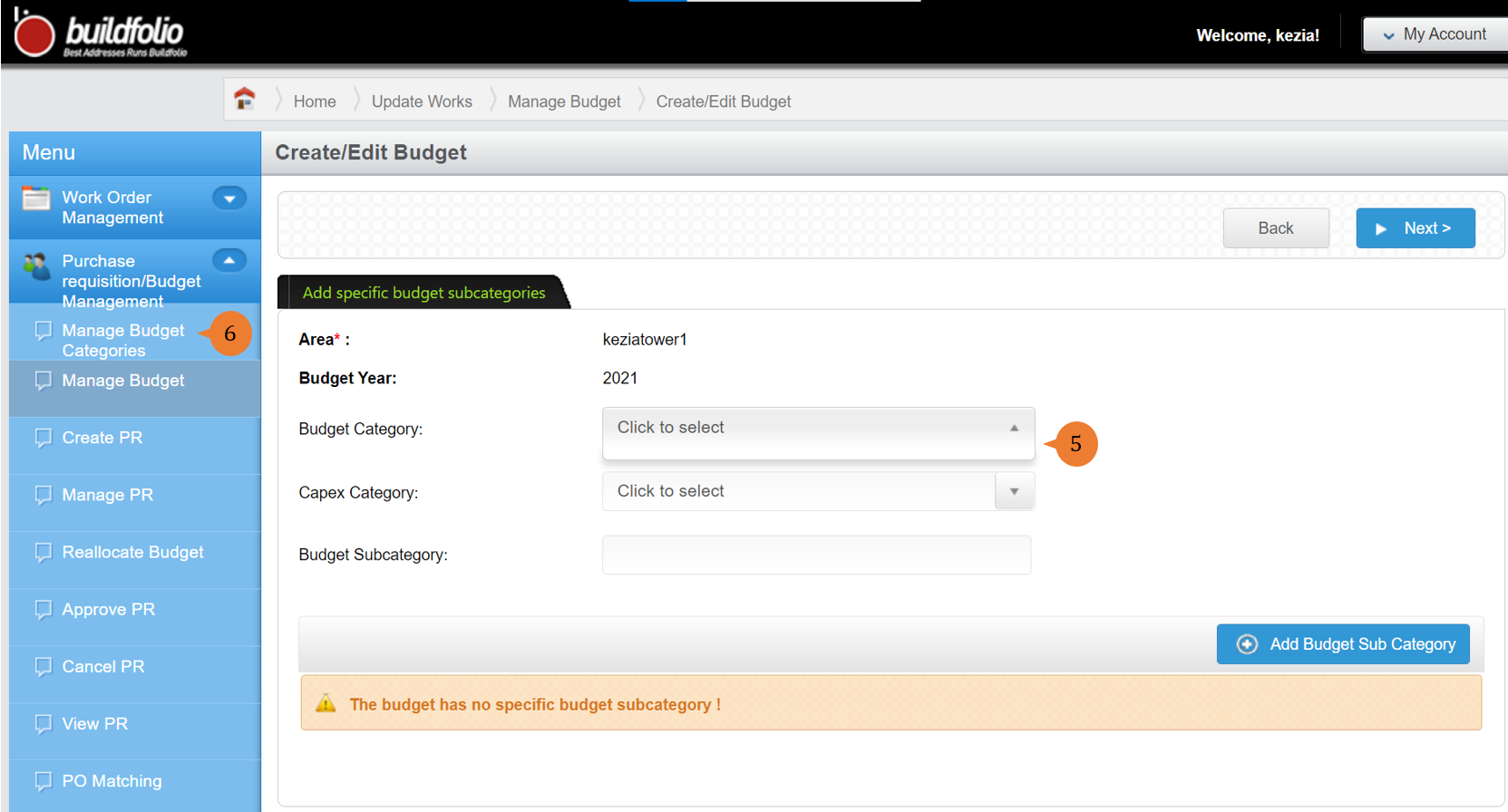
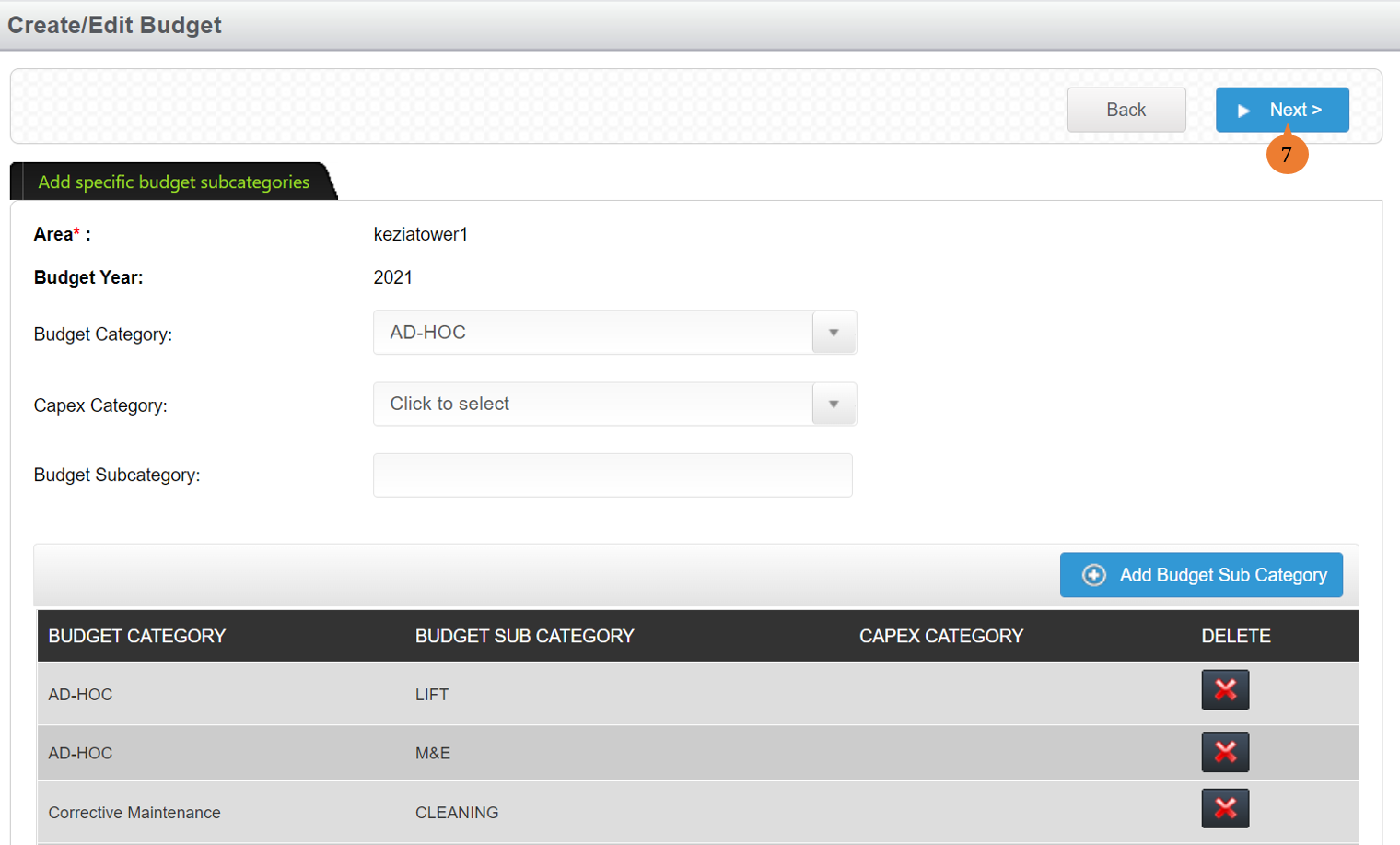
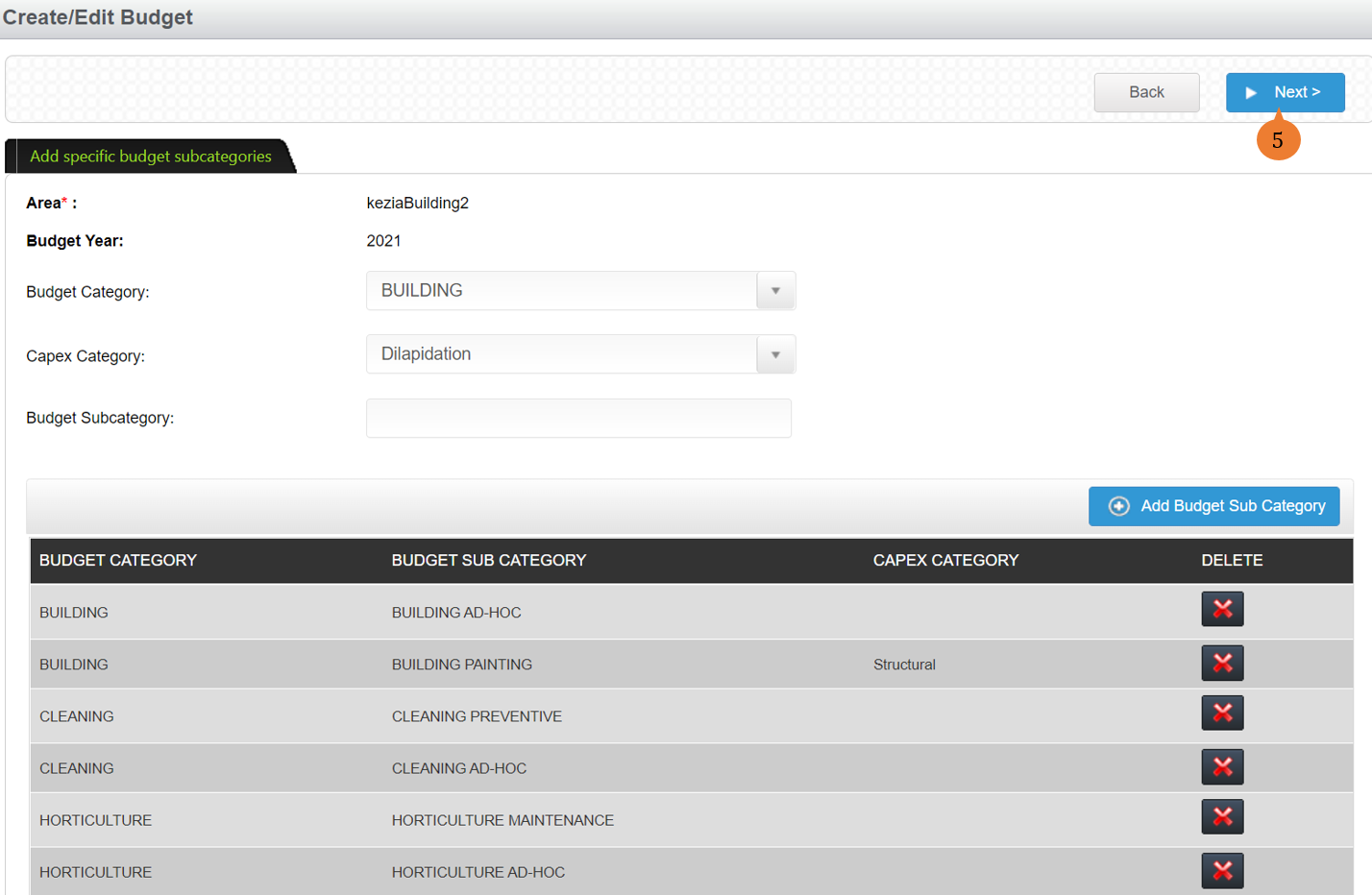
- Once the budget categories are added for the location, you will see the list of budget categories and sub-categories in a table form. To proceed, click on the Next button.
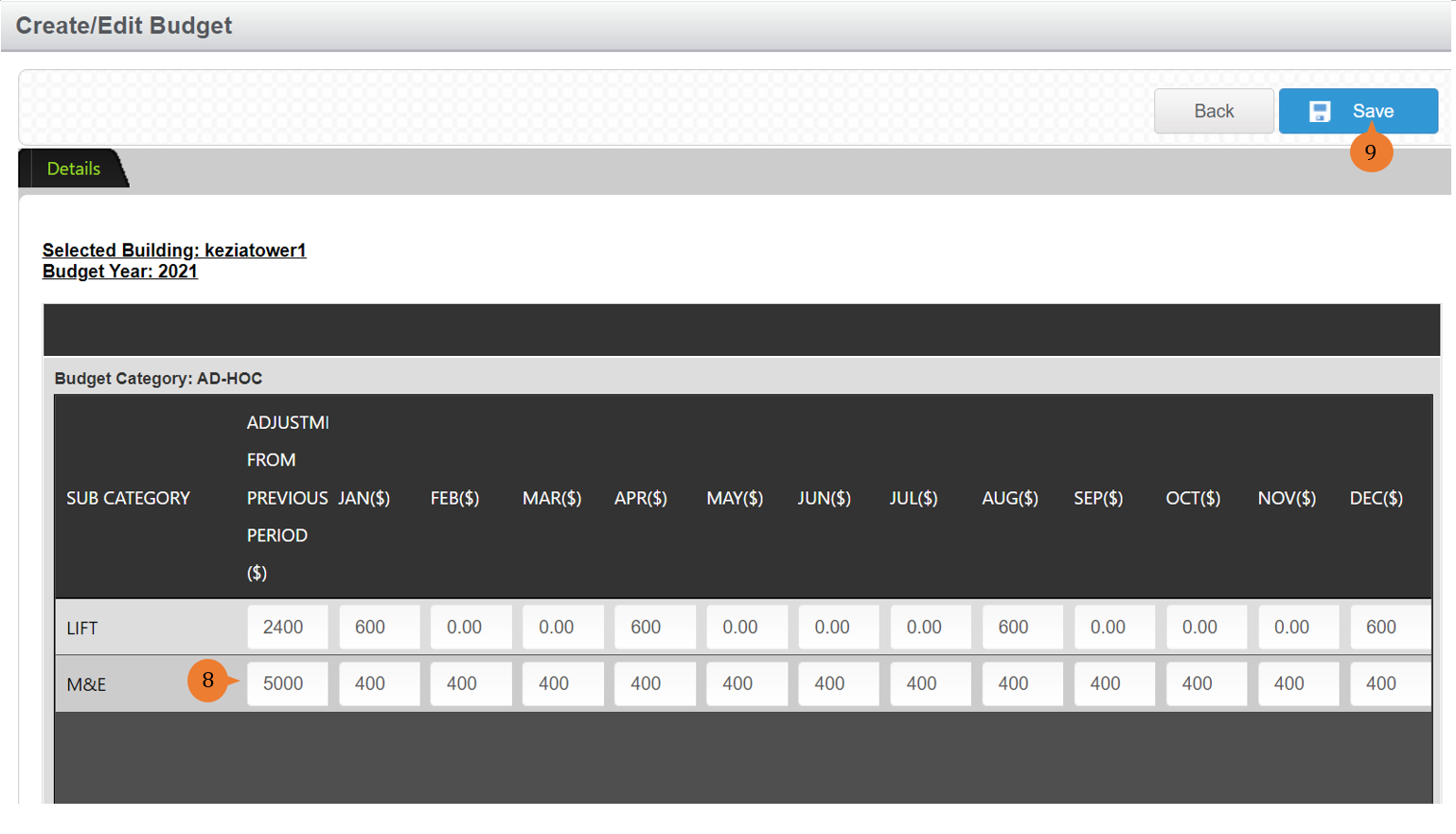
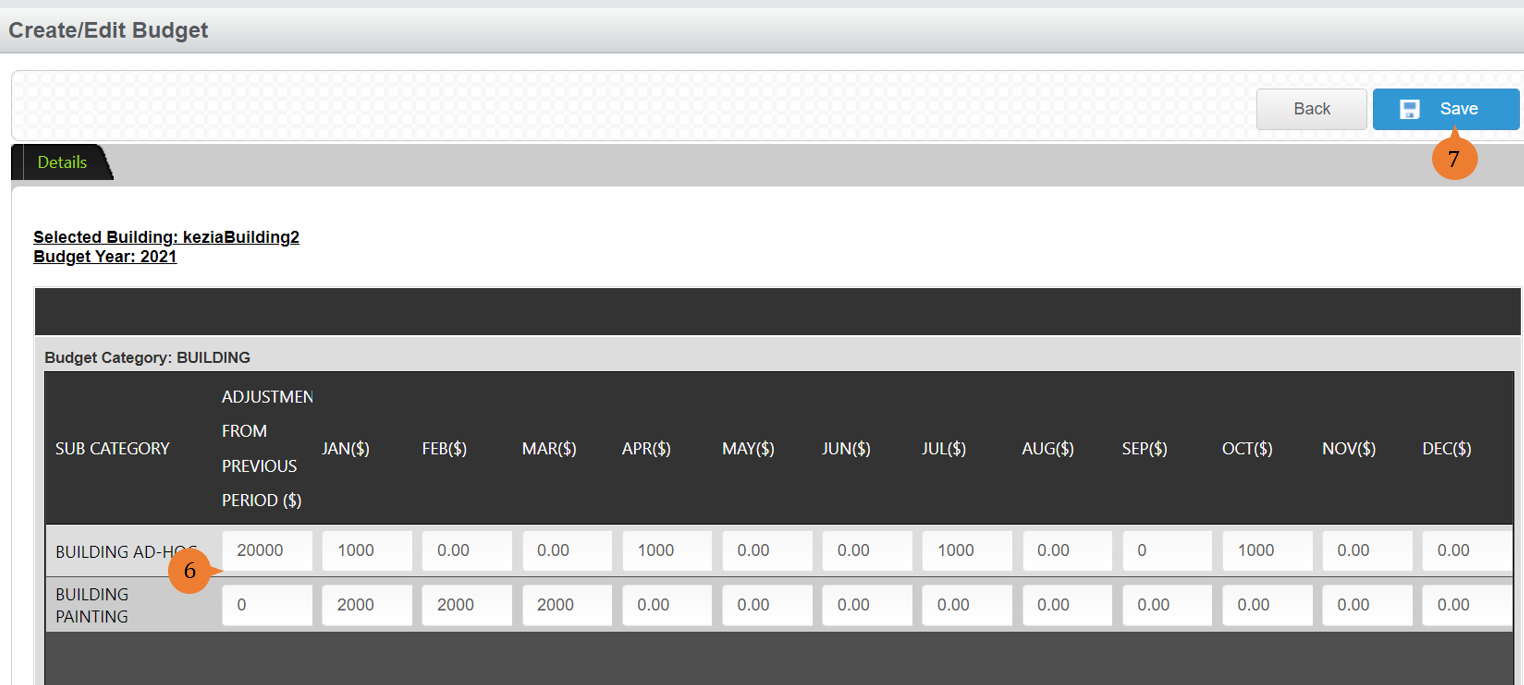
- Input the fund into each budget category and sub-categories for the whole financial year by month. Also, if there is any amount from the previous financial year, input it in Adjustment From Previous Period ($).
- Once complete with the input of the budget, click on the Save button.
- When the Budget is successfully created, a success message will appear below the page title

How to create a Budget for the new year?
To create a Budget for the new year,
- Select Manage Budget under Purchase requisition/Budget Management from the Menu.
- Select the location that you wish to create a budget category for.
- Select the financial year.
- To create the budget, click Create Budget.
- It will show the list of budget categories and sub-categories in a table form. To proceed, click on the Next button.
- Input the fund into each budget category and sub-categories for the whole financial year by month. Also, if there is any amount from the previous financial year, input it in Adjustment From Previous Period ($).
- Once complete with the input of the budget, click on the Save button.
- When the Budget is successfully created, a success message will appear below the page title

How to view Budget?
To view Budget
- Select Manage Budget under Purchase requisition/Budget Management from the Menu.
- Select the location.
- Click View Budget on the budget year that you wish to view.
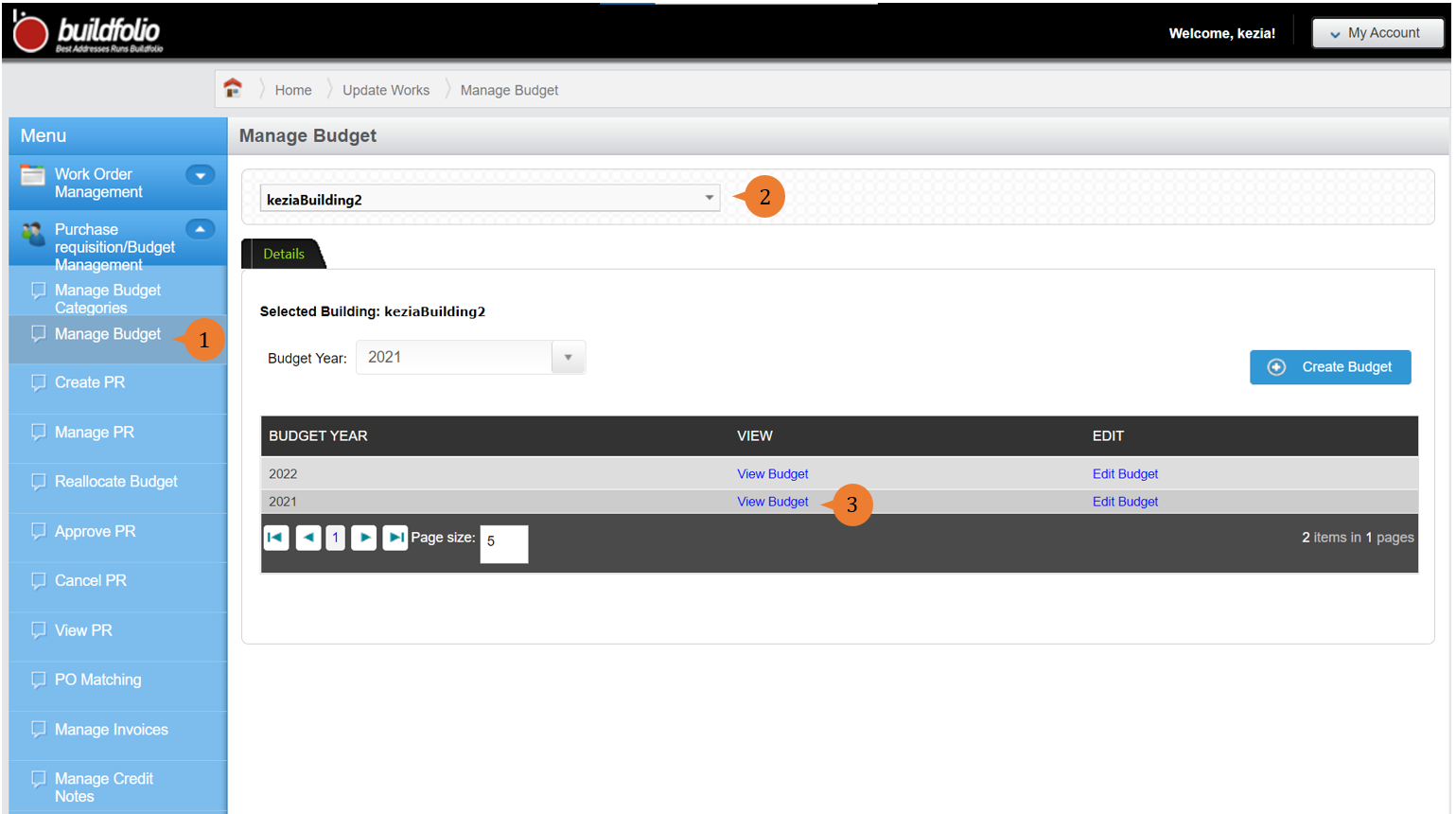
- It will show the budget for the year into four tabs: Annual Budget Summary, Original Monthly Budget, Final Monthly Budget, Reallocation Details. To print out all four tabs, click on the Create Report button and it will print exactly as shown on each tab.
- Annual Budget Summary: It provides an overview of the budget consumption and availability for each budget category and sub-categories at any point in time.
- Original Budget Summary: It presents the budget in the calendar month view that is created originally. If there is any amount adjustments to the budget or additional budget through the Edit Budget will supersede the original budget and reflect in this tab.
- Final Budget Summary: It presents the budget in the calendar month view that takes into consideration any budget reallocation made. Budget reallocation is where the budget moves from one category/sub-category to another in which the budget total amount will remain the same. If there is no reallocation at all, both the Original Monthly Budget and Final Monthly Budget will remain the same.
- Reallocation Details: It gives you the history of all reallocation transactions that happened in the budget year.
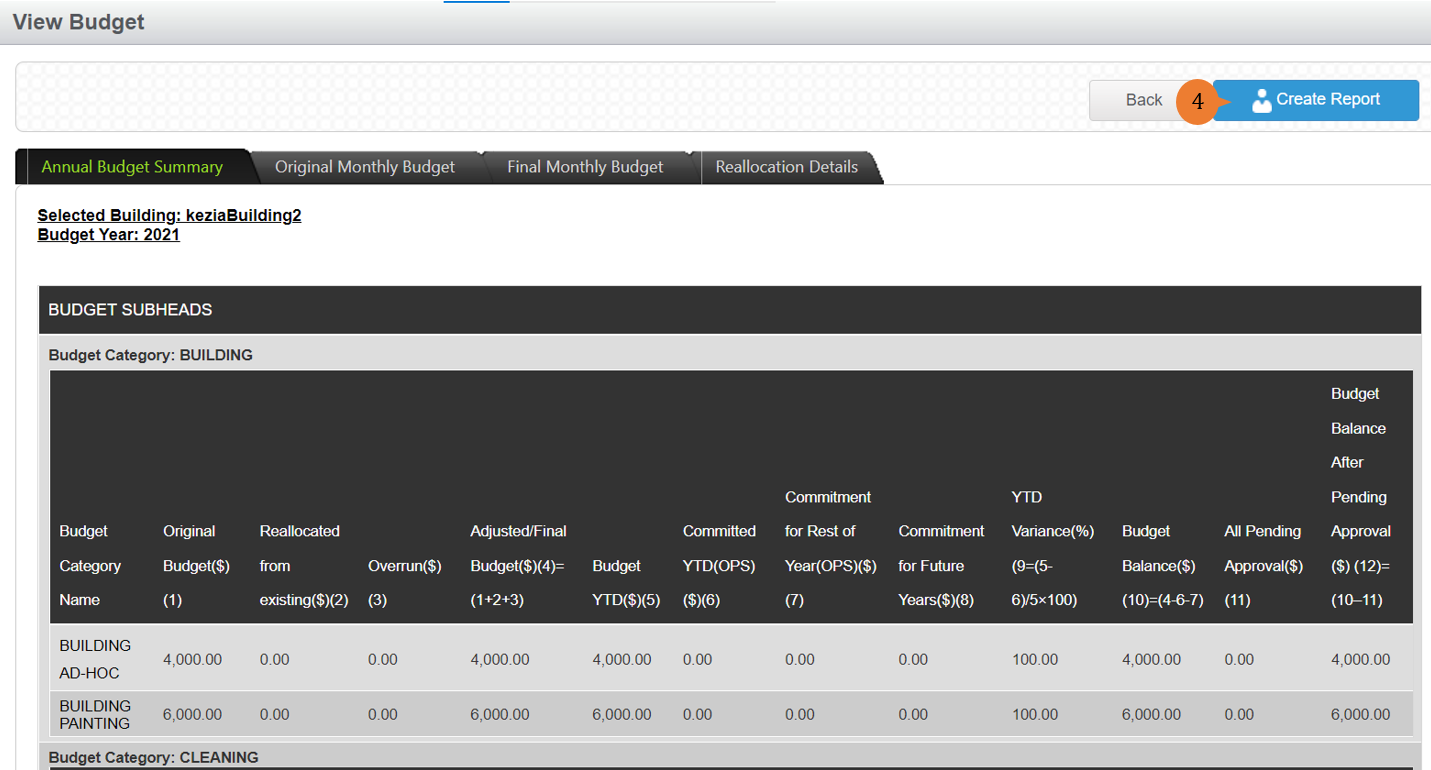 Explanatory Notes below to understand the rich information presented in the Annual Budget Summary (the default tab under View Budget):
(a) Budget Category Name: Refers to the budget sub-category. Each sub-category is a hyperlink that shows the purchase requisition (PR) transactions and expenses that have consumed the sub-category budget.
(b) Original Budget: The original allocated budget, which may include subsequent adjustments (i.e. addition or reduction of budget amount) to the budget.
(c) Reallocated from existing: Changes in the budget amount due to reallocation is reflected here.
(d) Overrun: An amount that has been committed beyond the available budget. This typically occurs in a future year’s budget in which contractual commitment has been made for current term contracts when the future year’s budget has yet to be allocated any budget sum.
(e) Adjusted/Final Budget: The sub-total of Original Budget, Reallocated from existing and Overrun.
(f) Budget YTD: Budget Year-To-Date is the accumulated monthly budget from the start of the budget year to the month before the current month.
(g) Committed YTD: Committed Year-To-Date is the accumulated amount committed from the start of the budget year to the month before the current month.
(h) Commitment for Rest of Year: The total amount committed from the current month to the rest of the budget year.
(i) Commitment for Future Years: The total amount in purchase requisitions for term contracts that will be incurred in the future years.
(j) YTD Variance (%): Year-To-Date Variance shows the budget availability in percentage from the start of the budget year to the previous month.
(k) Budget Balance: The annual budget amount is still available after deducting all committed amounts.
(l) All Pending Approval: The total sum of all purchase requisitions that are pending approval.
(m) Budget Balance After Pending Approval: The annual budget amount available after deducting all committed amounts and amounts of all purchase requisitions pending for approval.
How to edit Budget?
To edit Budget
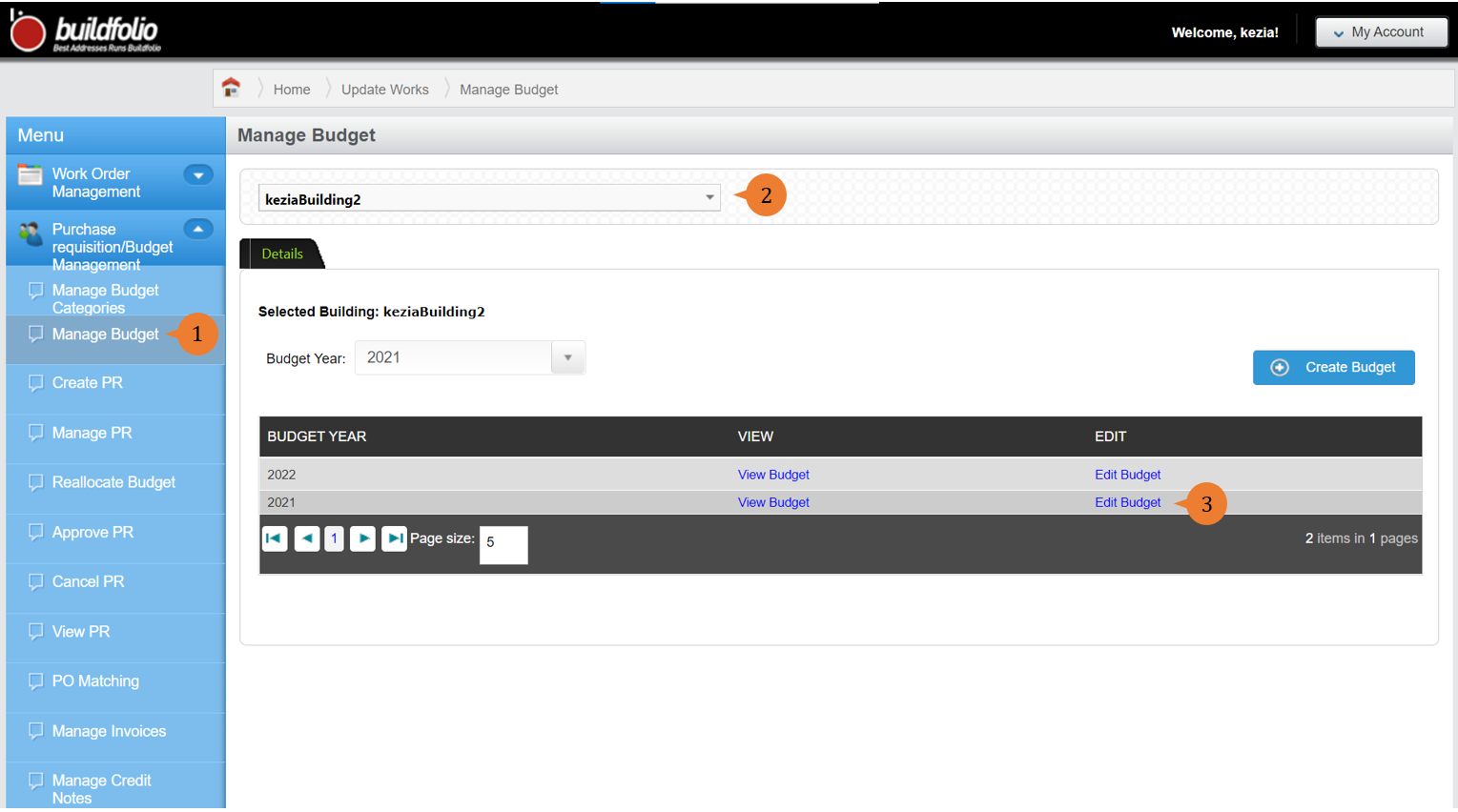
- Select Manage Budget under Purchase requisition/Budget Management from the Menu.
- Select the location.
- Click Edit Budget on the budget year that you wish to edit.
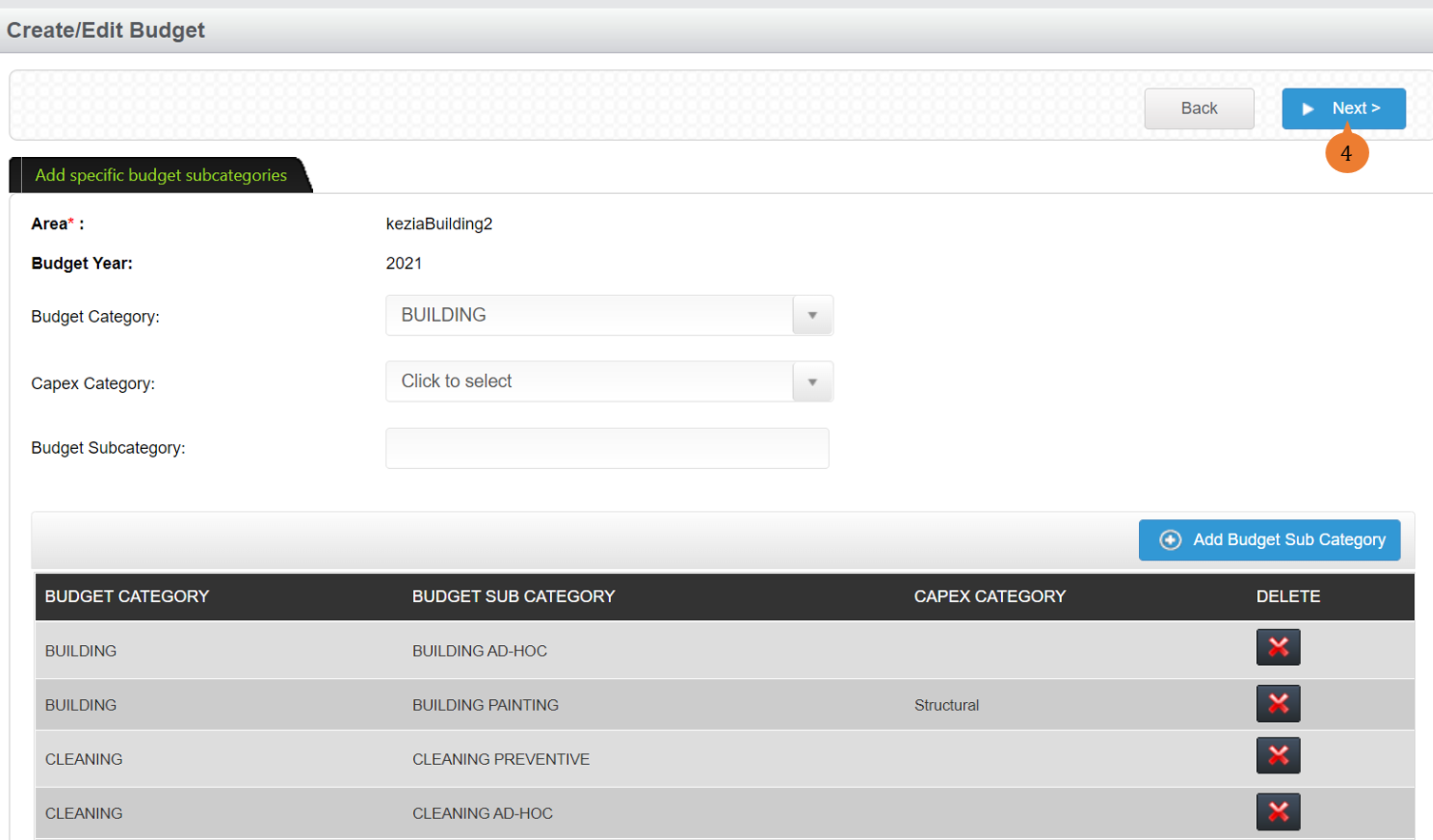
- It will show the list of budget categories and sub-categories in a table form. To proceed, click on the Next button.
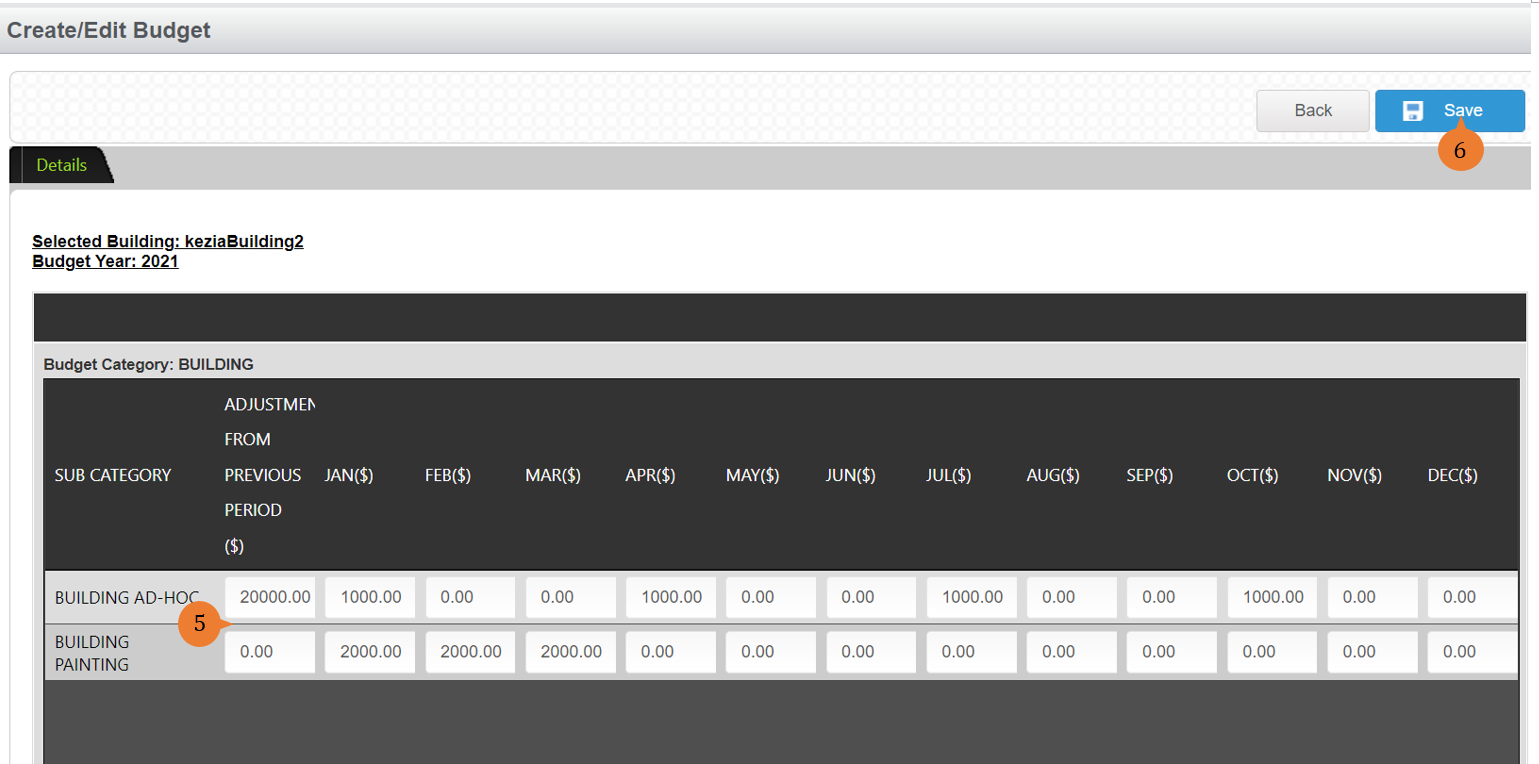
- Input the new figure on the budget category or sub-category that you wish to amend.
- Once done with the amendment, click on the Save button.
- When the Budget is successfully amended, a success message will appear below the page title

More on this topic
- For a step-by-step guide to re-allocate a budget, see How to reallocate budget?.
- For step-by-step guides to using Purchase Requisition/Budget Management module, see Purchase Requisition/Budget Management Module.