How to manage Budget Categories?
Jump to
How to add Budget Category? 
Budget Category is usually created by Facility Manager to perform budget forecast and track utilisation against budget.
To add Budget Category
- Select Manage Budget Categories under Purchase requisition/Budget Management from the Menu.
- Select the location that you wish to create a budget category for.
- Input the Budget Category that you wish to create in the Budget Category field.
- To create the budget category, click Add New Budget Category.
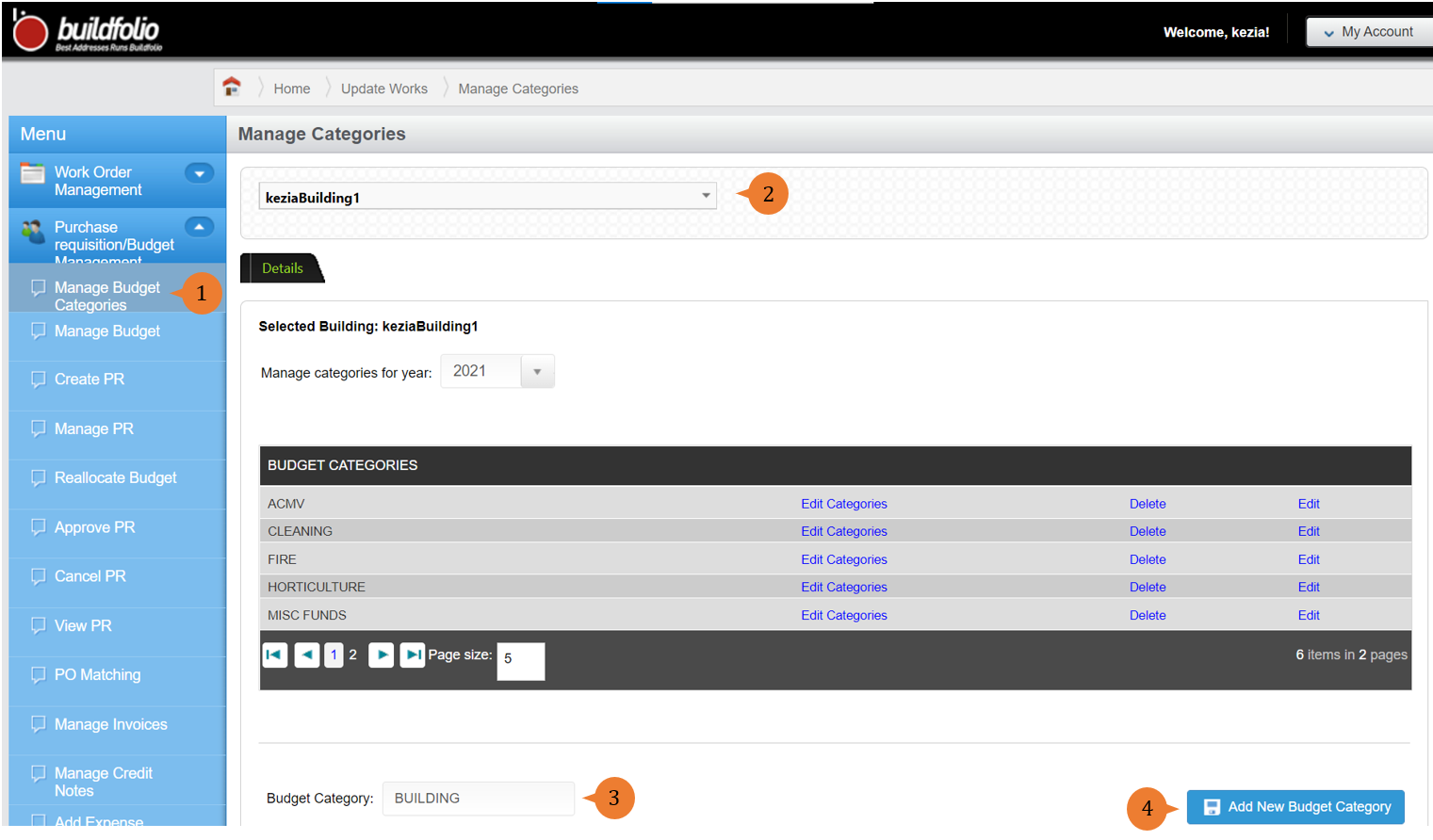
- When the Budget Category is successfully created, a success message will appear below the page title

How to edit Budget Category?
To edit Budget Category
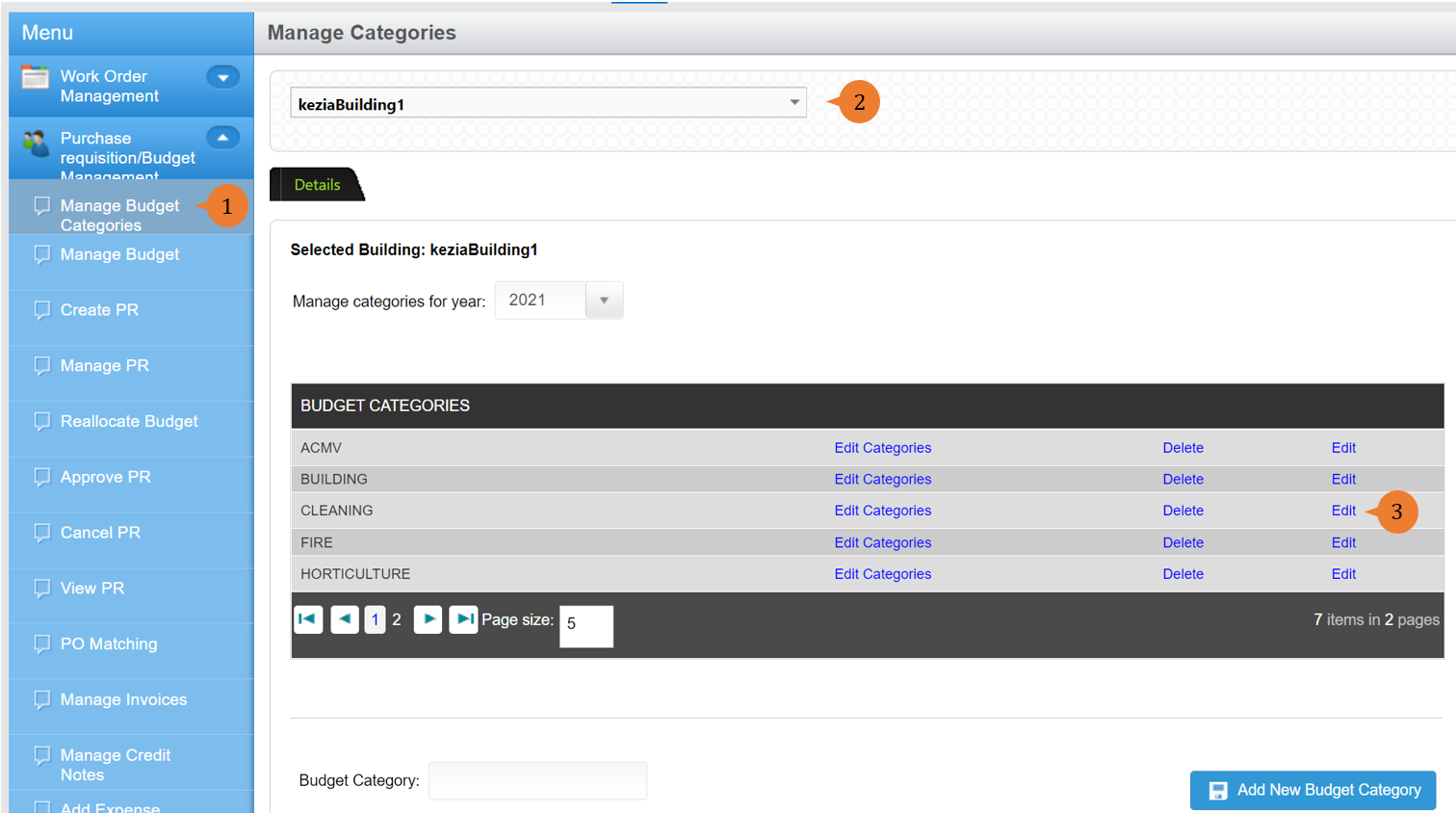
- Select Manage Budget Categories under Purchase requisition/Budget Management from the Menu.
- Select the location that you wish to create a budget category for.
- To edit the budget category, click Edit.
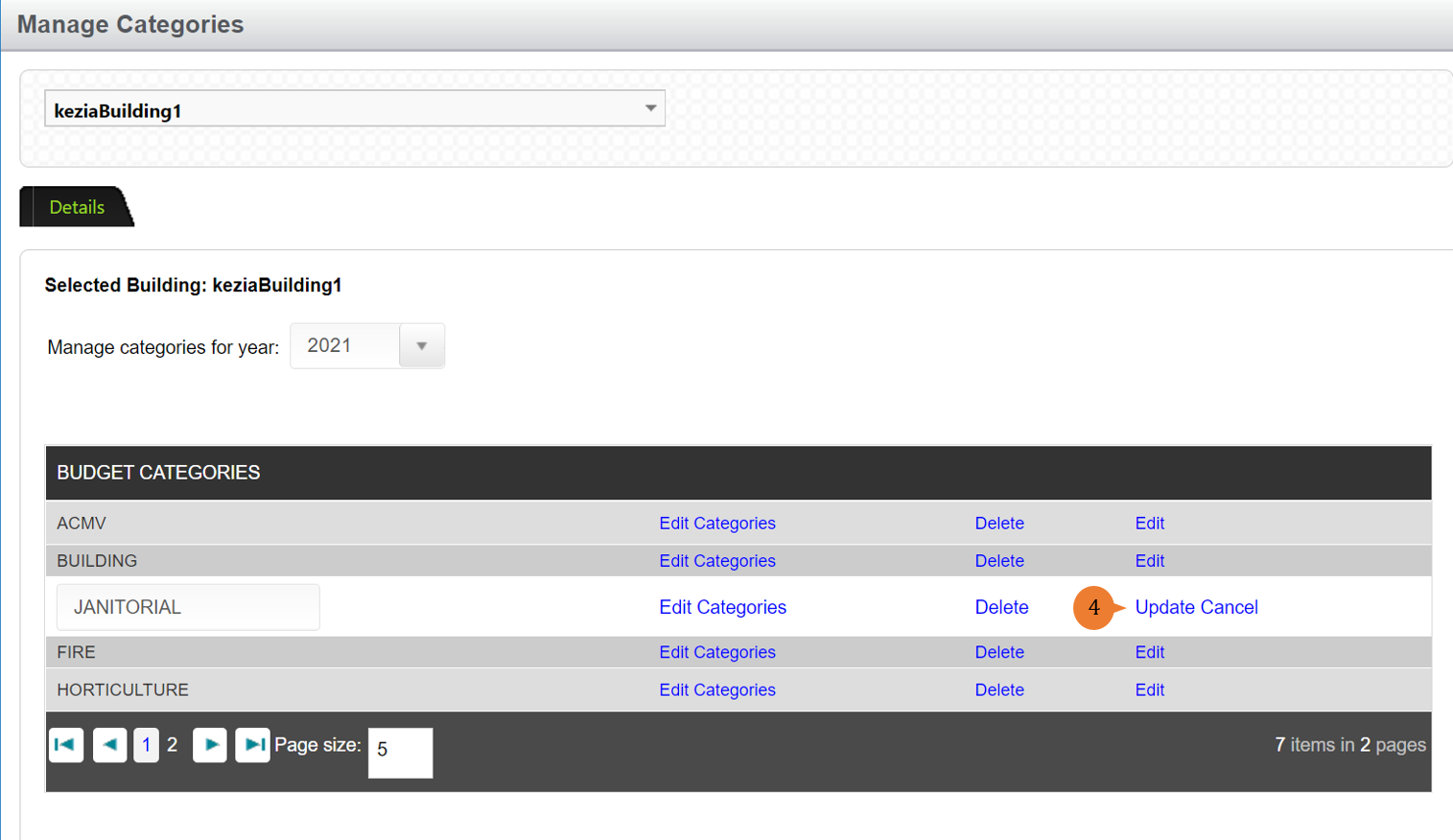
- Amend the Budget Category Name and click on Update.
- When the Budget Category is successfully amended, a success message will appear below the page title

How to add Budget Sub-Category?
Budget Sub-Category is usually created by the Facility Manager to perform a more accurate budget forecast and track utilisation against budget.
To add Budget Sub-Category
- Select Manage Budget Categories under Purchase requisition/Budget Management from the Menu.
- Select the location that you wish to create a budget category for.
- Click Edit Categories on the budget category that you wish to create a sub-category.
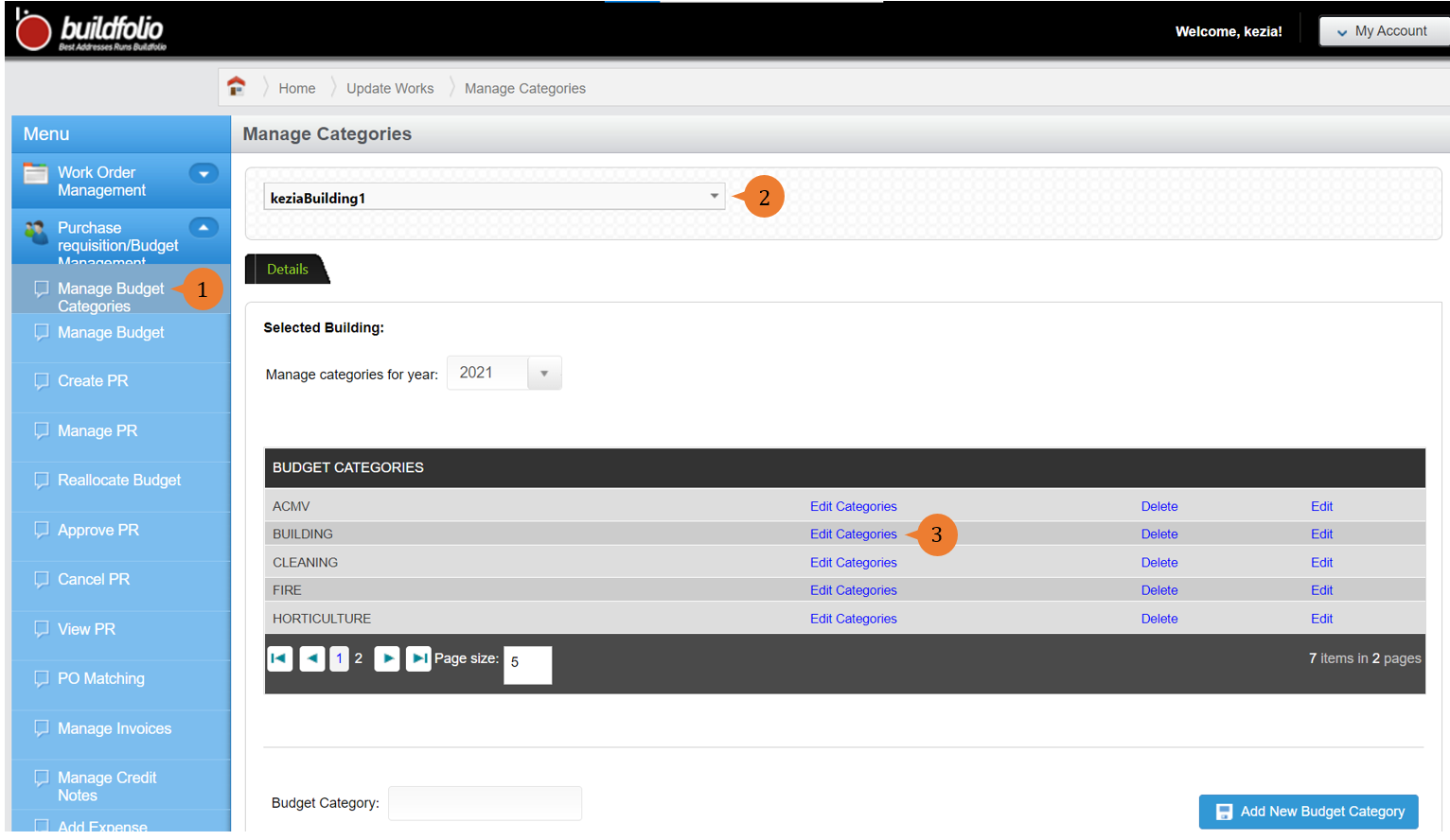
- Input the Budget Sub-Category name in the Budget Sub-Category field.
- Select the Capex Category if this budget category is CAPEX cost.
- To add the budget sub-category, click on Add button.
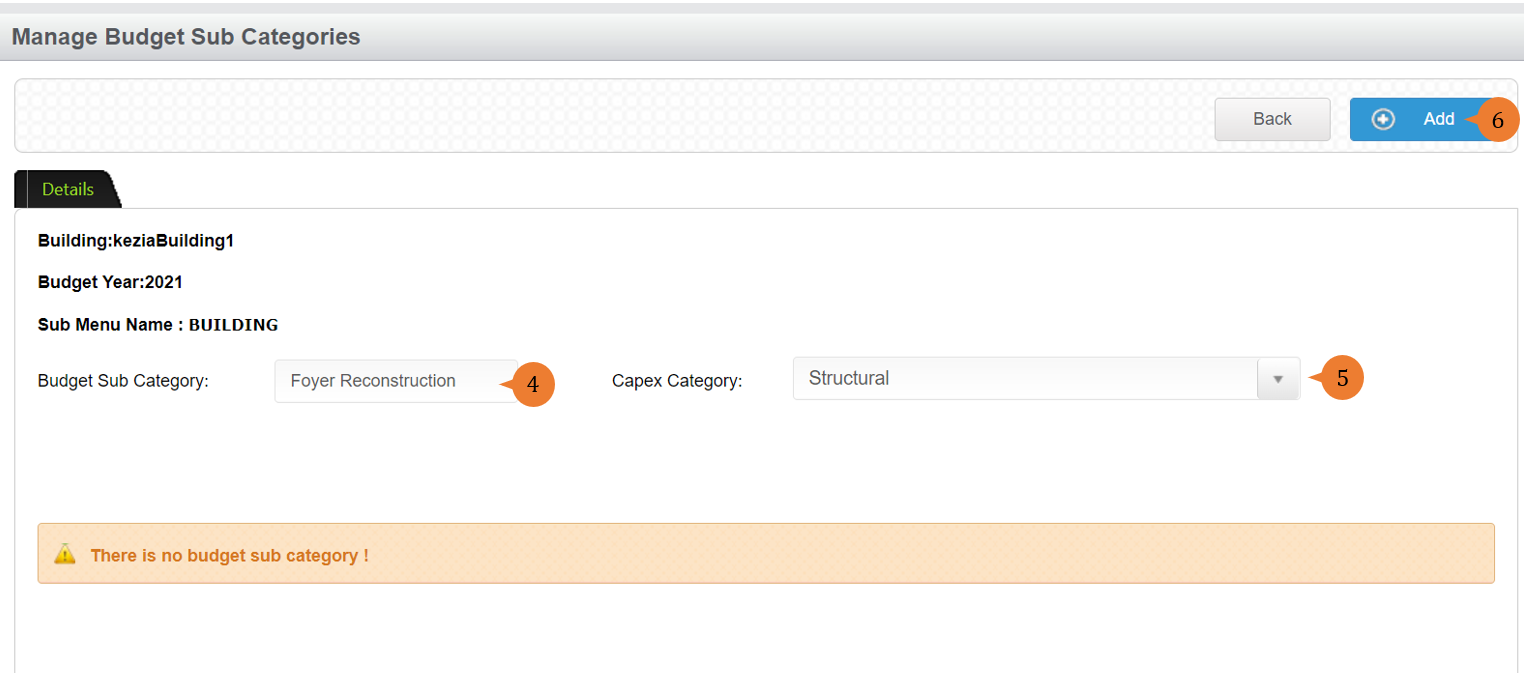
- When the Budget Sub-Category is successfully created, a success message will appear below the page title.

How to delete Budget Category?
Budget Category can be deleted by the Facility Manager if it is no longer required.
To delete Budget Category
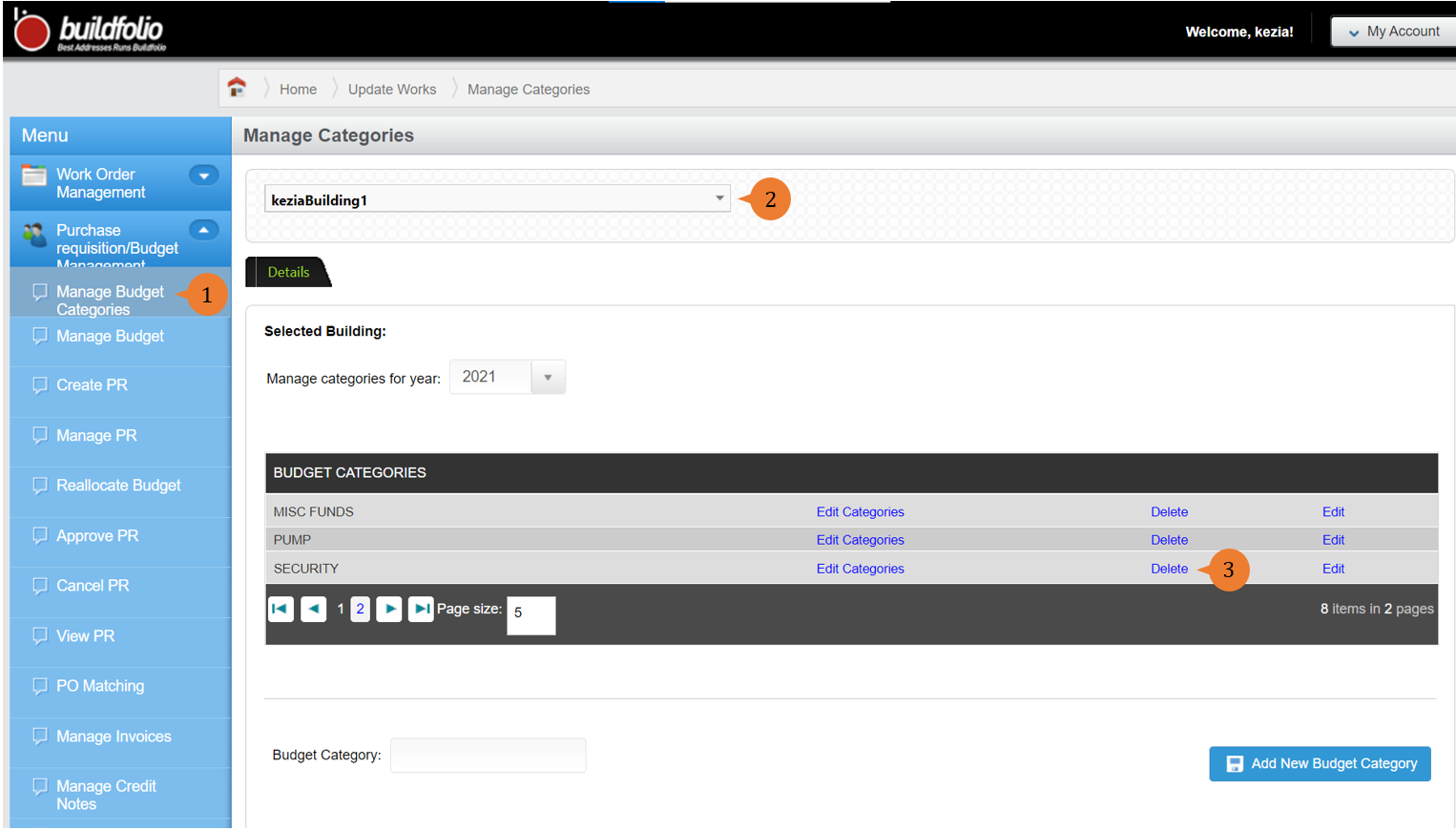
- Select Manage Budget Categories under Purchase requisition/Budget Management from the Menu.
- Select the location that you wish to create a budget category for.
- Click Delete on the budget category that you wish to create a sub-category.
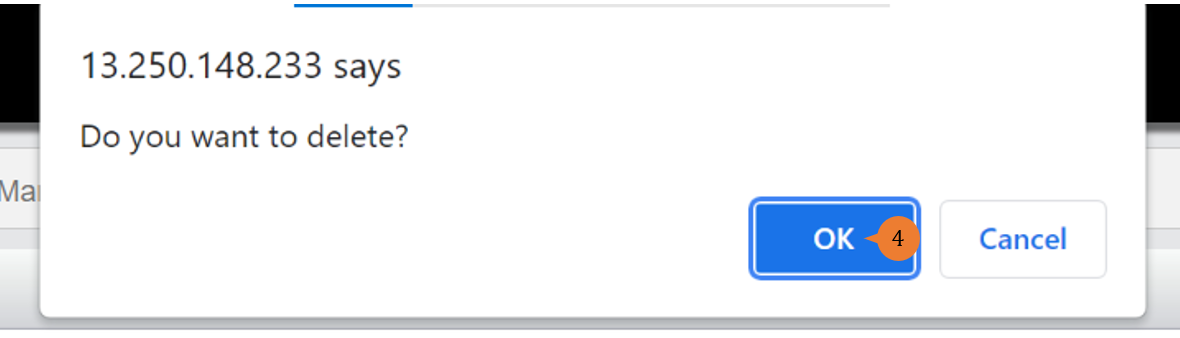
- A delete confirmation pop-up will appear. Should you want to proceed with the delete, click OK.
- When the Budget Category is successfully deleted, a success message will appear below the page title

How to delete Budget Sub-Category?
Budget Sub-Category can be deleted by the Facility Manager if it is no longer required.
To delete Budget Sub-Category
- Select Manage Budget Categories under Purchase requisition/Budget Management from the Menu.
- Select the location that you wish to create a budget category for.
- Click Edit Categories on the budget category that you wish to delete its sub-category.
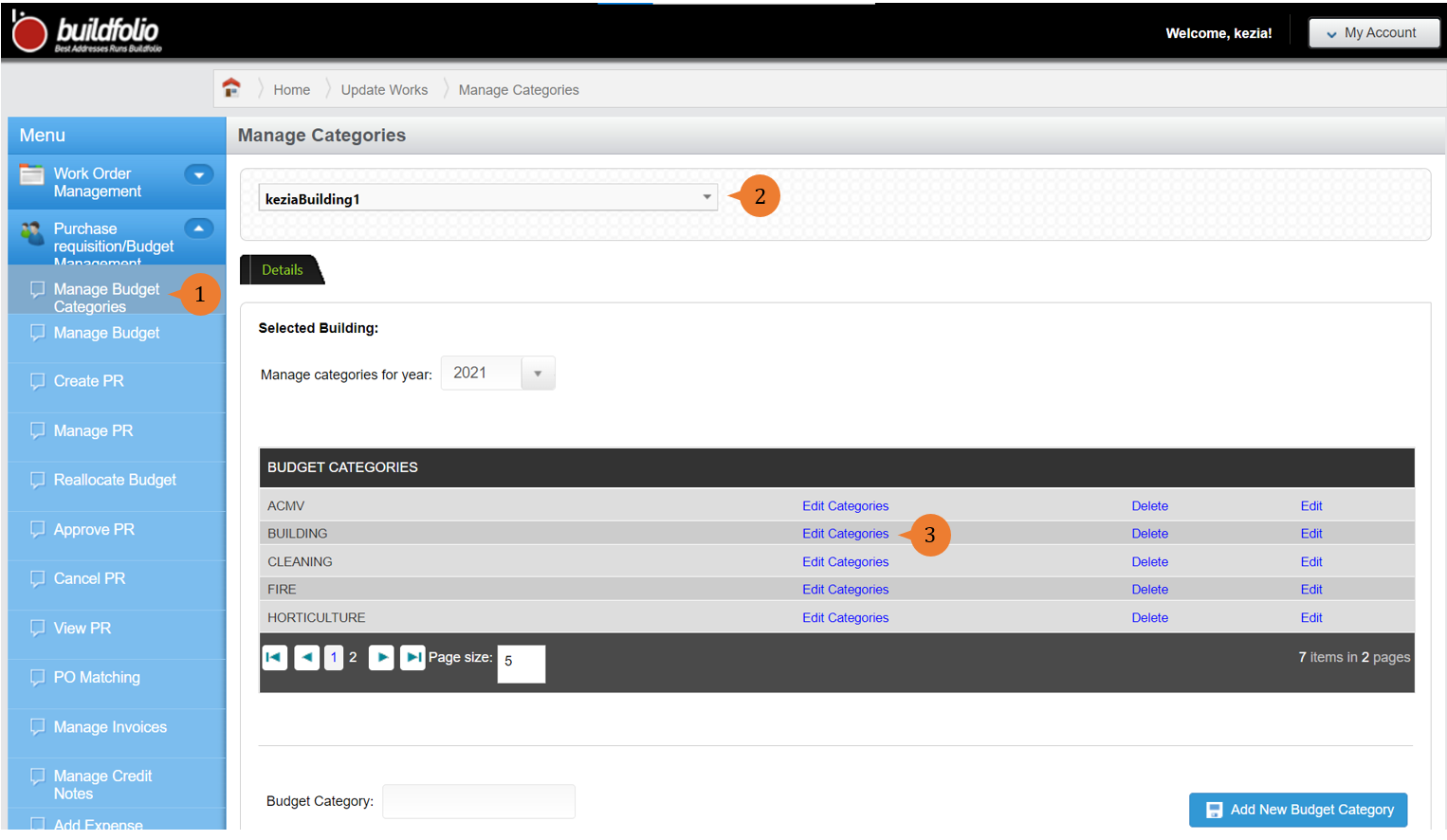
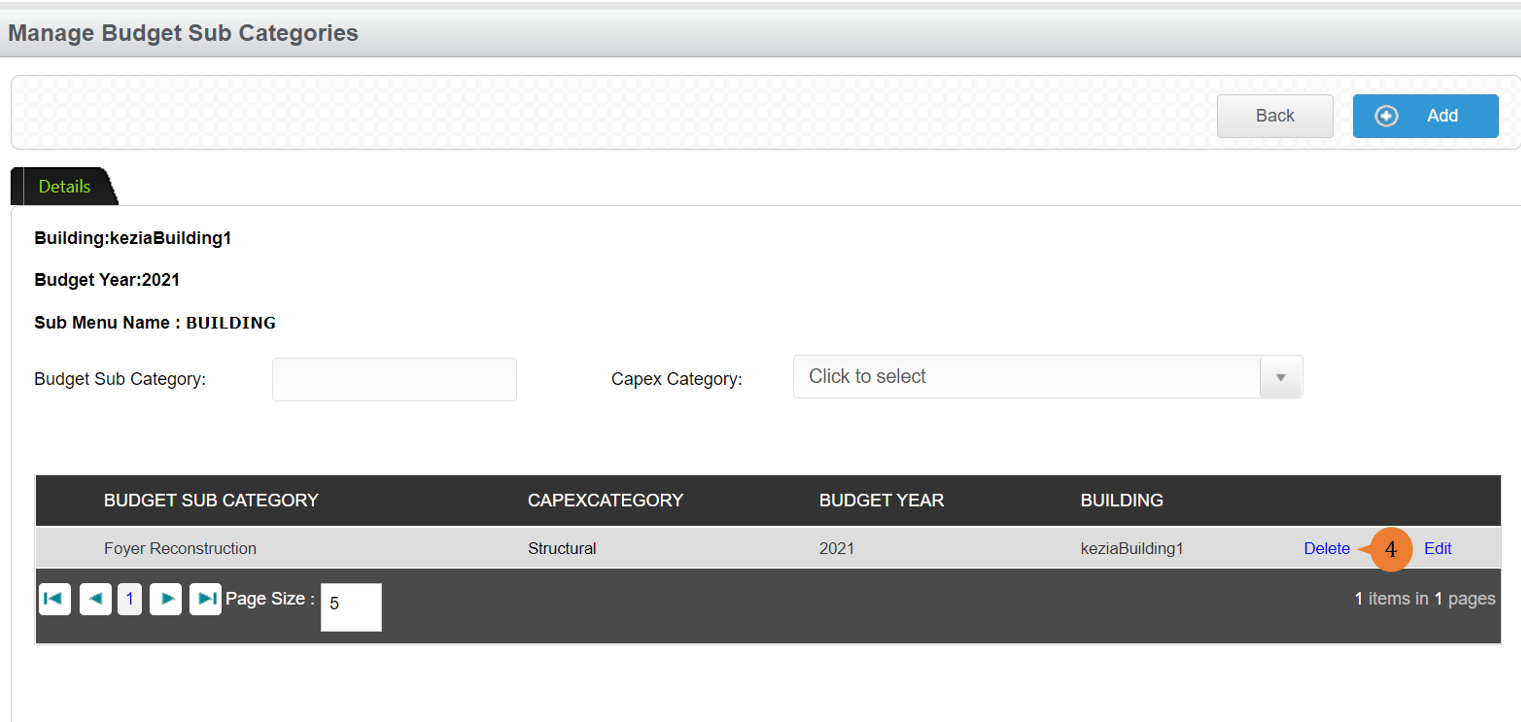
- To delete the sub-category, click on Delete.
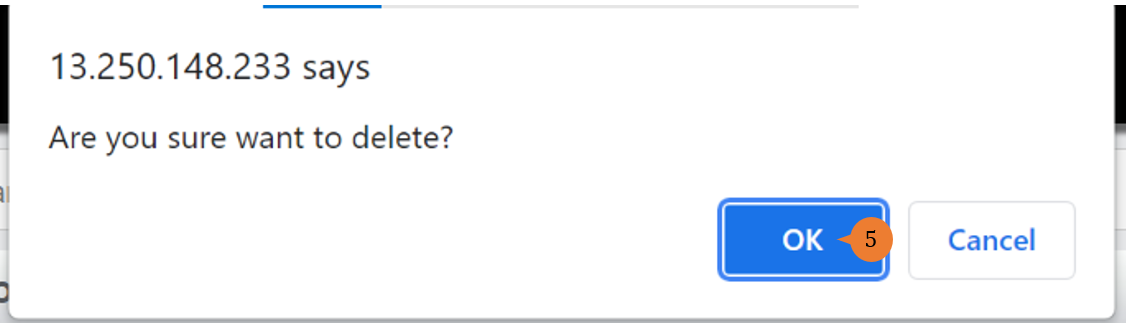
- A delete confirmation pop-up will appear. Should you want to proceed with the delete, click OK.
- When the Budget Sub-Category is successfully deleted, a success message will appear below the page title

More on this topic
- For a step-by-step guide to managing a budget, see How to manage budget?.
- For step-by-step guides to using Purchase Requisition/Budget Management module, see Purchase Requisition/Budget Management Module.