How to approve Vendor?
Jump to
How to approve a Vendor on the web browser? 
Note: Only the approval personnel will be allowed to approve the vendor. He/she must have the role of an Approver.
To approve a Vendor
- Select Approve Vendor under Vendor & Contract Management from the Menu.
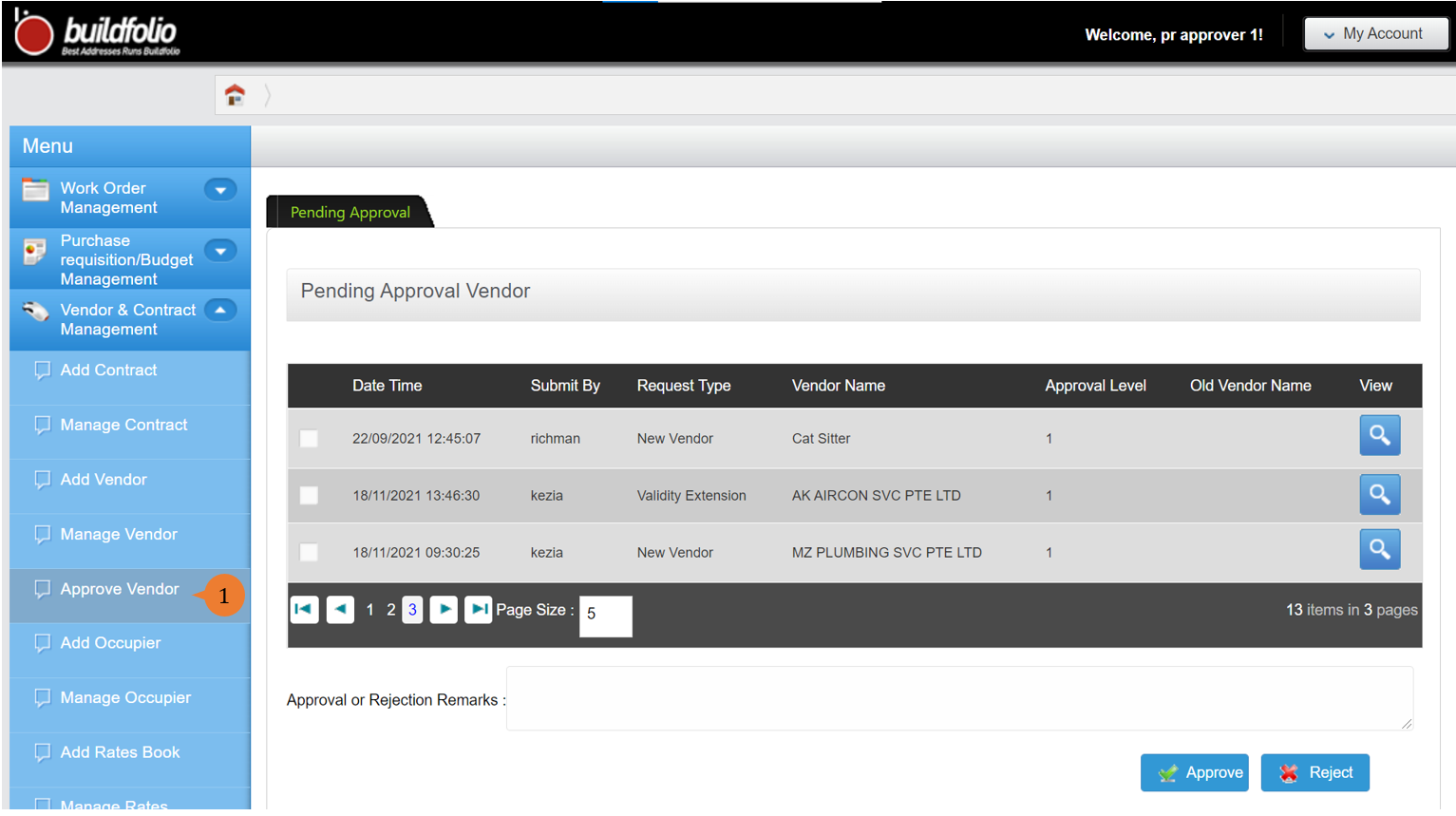
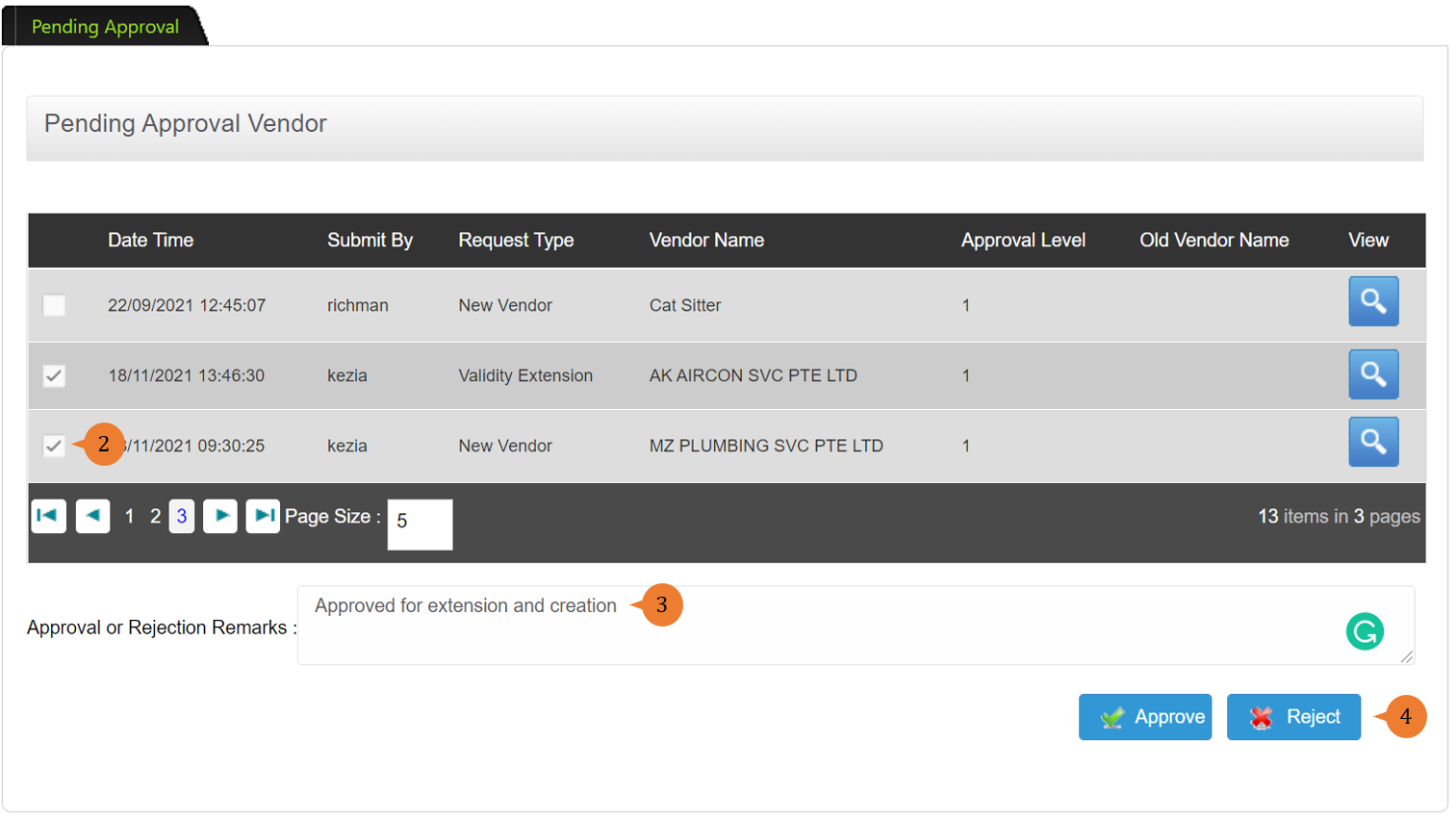
- Select the respective vendor that you wish to proceed with the approval process by ticking on its box. If you would like to approve/reject multiple vendors, tick on all the boxes of the respective vendors.
- Input the reason for the Approval or Rejection Remarks if any.
- Click on the Approve or Reject button to complete the approval process.
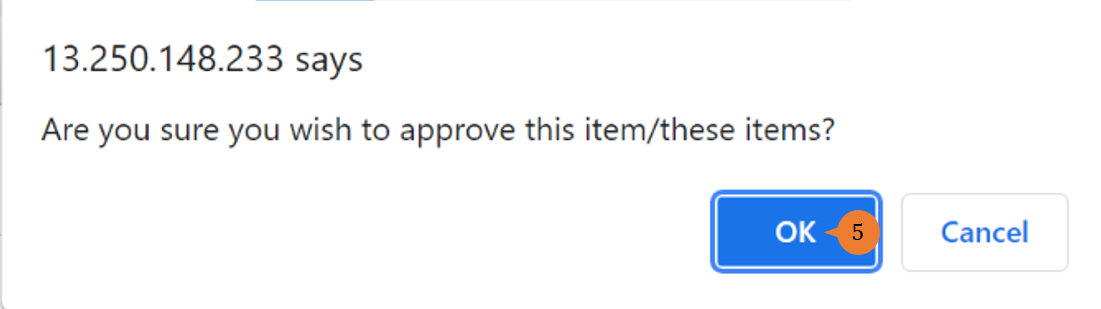
- A pop-up will appear to confirm your decision, click the OK button to proceed with the approval process.
- Once the Vendor is successfully approved or rejected, a success message will appear. It also will trigger an email to the applicant to notify them.

How to approve the extension of the Vendor’s validity?
Note: Only the approval personnel will be allowed to approve the vendor.
To approve the extension of the vendor’s validity,
- Select Approve Vendor under Vendor & Contract Management from the Menu.
- Select the respective vendor with request type as Validity Extension that you wish to proceed with the approval process by ticking on its box. If you would like to approve/reject multiple vendors, tick on all the boxes of the respective vendors.
- Input the reason for the Approval or Rejection Remarks if any.
- Click on the Approve or Reject button to complete the approval process.
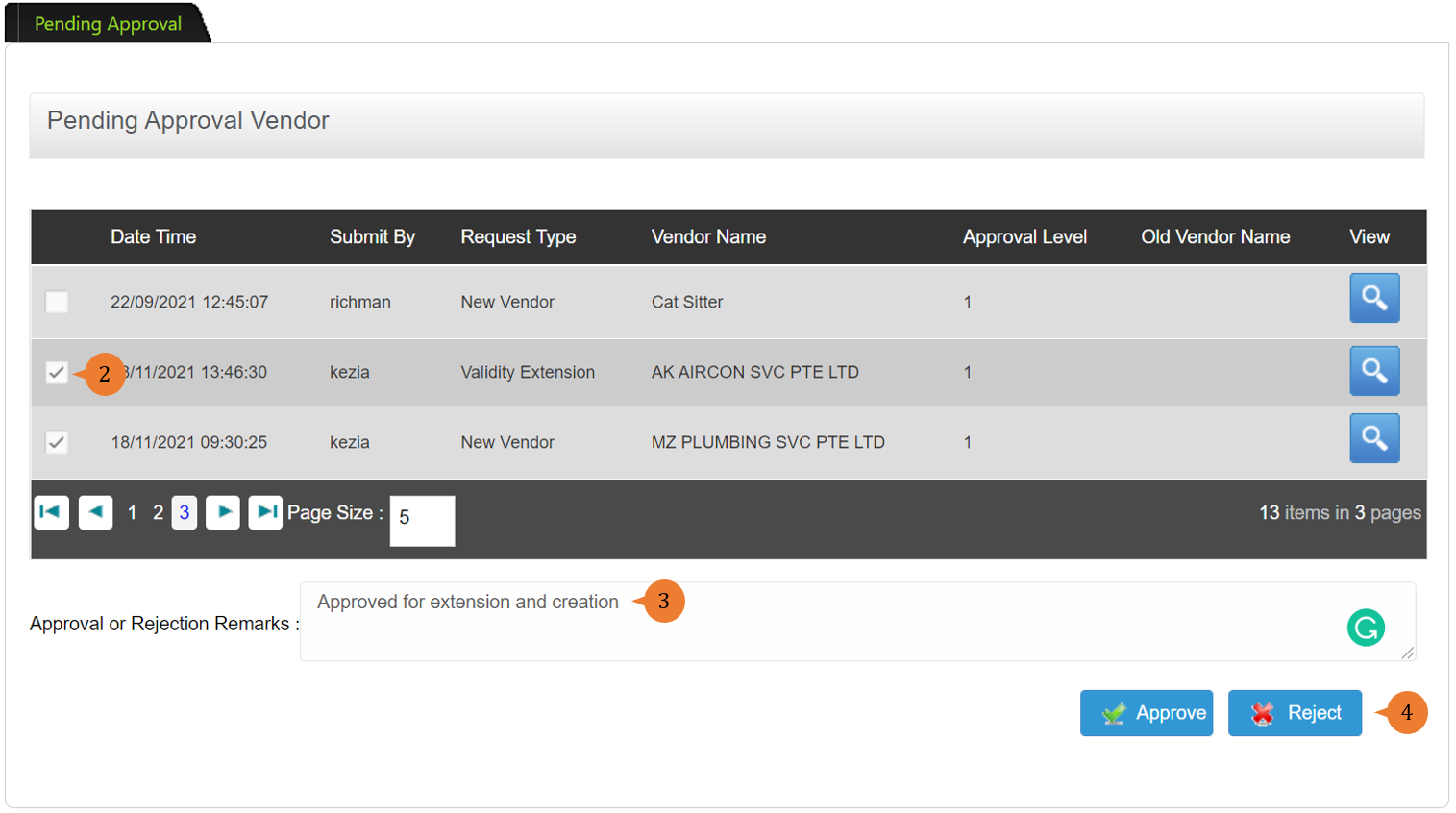
- A pop-up will appear to confirm your decision, click the OK button to proceed with the approval process.
- Once the Vendor is successfully approved or rejected, a success message will appear below the page title. It also will trigger an email to the applicant to notify them.
More on this topic
-
- For a step-by-step guide to editing a Vendor, see How to manage a Vendor on the web browser?.
- For a step-by-step guide to approving a Vendor, see How to approve a Vendor on the web browser?.
- For step-by-step guides to using Vendor & Contract Management module, see Vendor & Contract Management Module.