How to Close a Work Order?
Jump to
How to Close a Work Order on the web browser?
Note: This is usually performed by the Work Manager role after the Work Supervisor has submitted the work for closure. The supervisor will also be able to perform these tasks if he/she is given the authority to do so.
To Close a Work Order on web browser
- Select Close Works under Work Order Management module in the menu. A list of completed Work Orders will automatically be displayed.
- To Close a Work Order, select the checkbox of the Work Order and select Close Work.
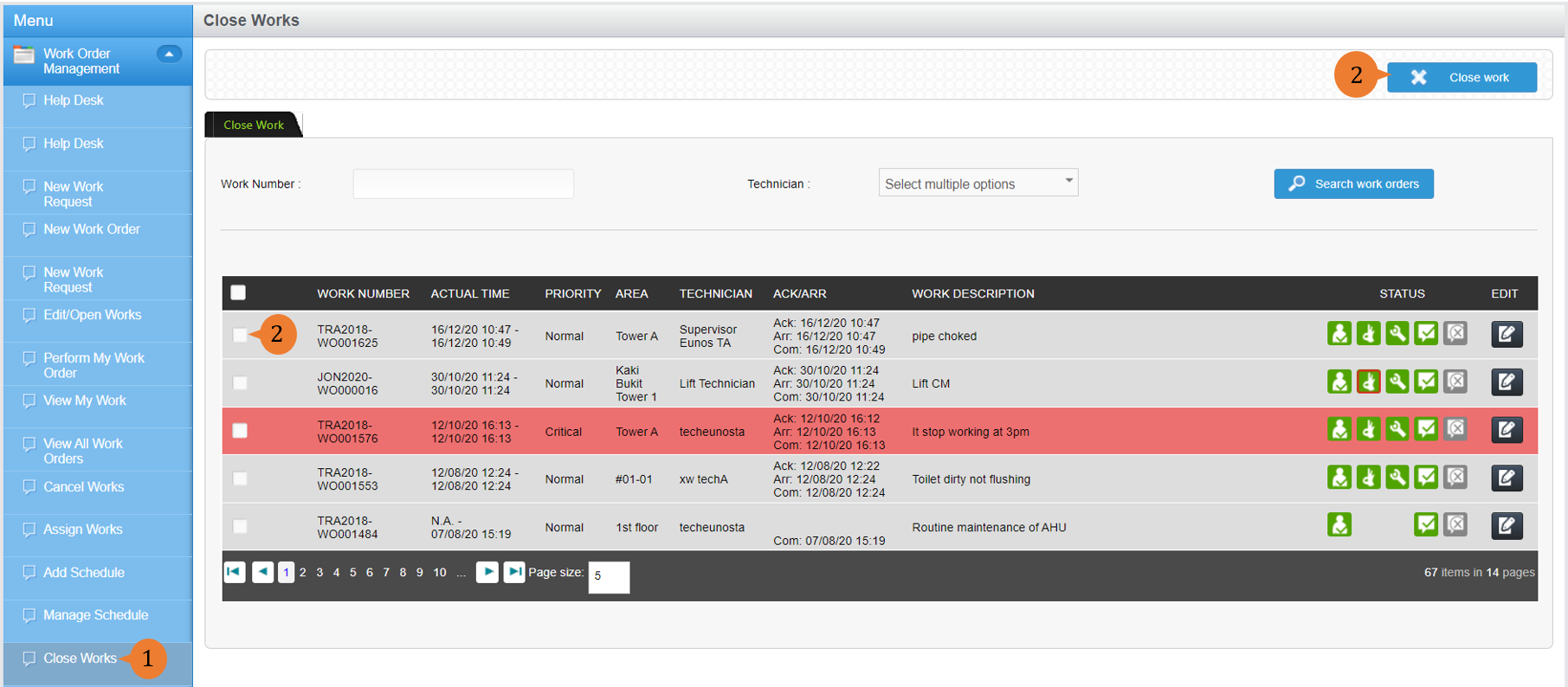
When the Work Order is closed, it will be removed from the list in Close Works. To view your closed Work Orders, you may do so in View All Work Orders under Work Order Management module in the menu.
For a step-by-step guide to viewing all Work Orders, see How to view all Work Orders (including cancelled and closed ones)?
How to update the details of a Work Order before closing it?
To update the details of the Work Order before closing it
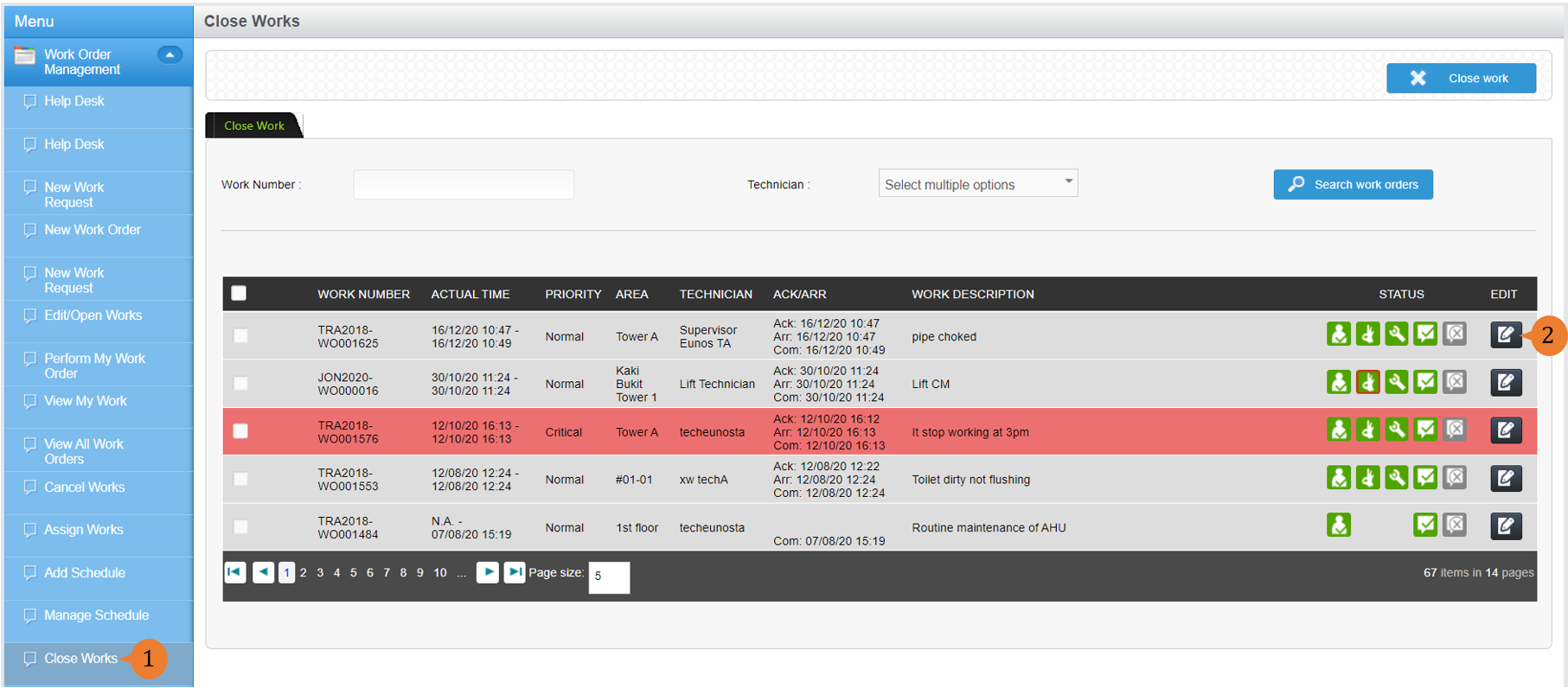
- Select Close Works under Work Order Management module in the menu. A list of completed Work Orders will automatically be displayed.
- To update details of the Work Order before closing it, select the EDIT icon
 .
.
- To save your edits, select Save.
- Once you are ready to Close the Work Order, select Close.
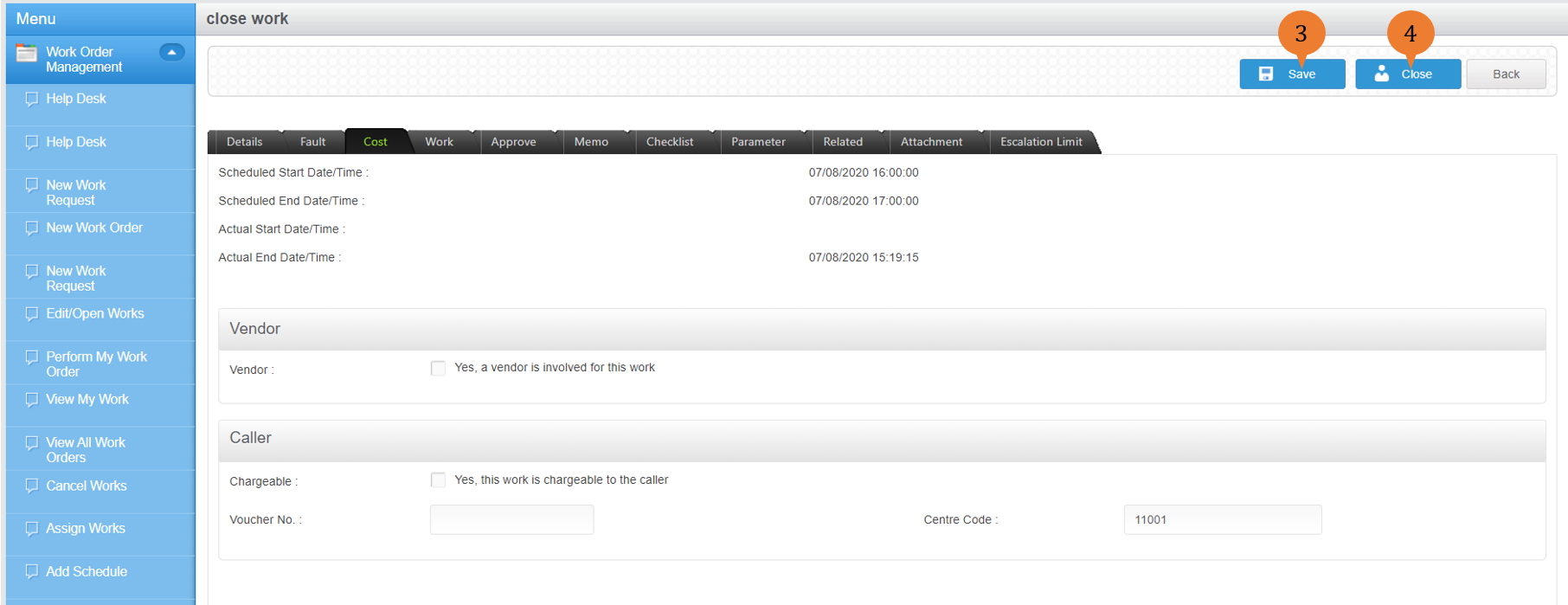
- A dialogue box will appear to prompt you to confirm you action. To Close the Work Order, select OK.

Once the Work Order is successfully closed, a success message will appear below the page title.

More on this topic
- For a step-by-step guide to closing a Work Order on BUILDFOLIO II mobile app, see How to Close a Work Order on BUILDFOLIO II mobile app?
- For a step-by-step guide to viewing all Work Orders, see How to view all Work Orders (including cancelled and closed ones)?
- For more step-by-step guides to using Work Order Management module, see Work Order Management Module.