Creating a New Group Role
The creation of group roles allows more flexibility in the managing the access rights within the organization chart. A group role is created similarly to the creation of a role. Instead of adding individual logins to the list of people having access rights to a particular cabinet, etc., Group roles allows a user administrator to give the access rights to a larger group of logins in a less tedious manner.
To create a new group role,
- Login as System/User Administrator
- Click on Module Switcher at the top bar and select KRIS Administrator module.
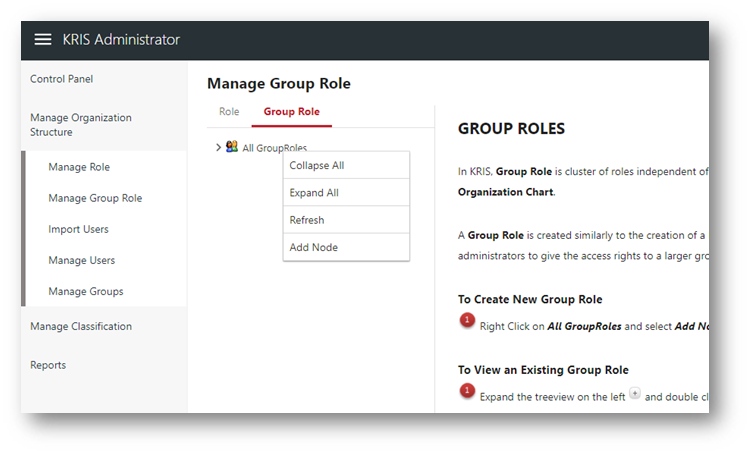
- Click on Manage Group Role link under Manage Organization Structure section.
- Right Click on All Group Role and select Add Node option.
- Enter the Group Role’s Details and select the Security Grading for this Group Role.
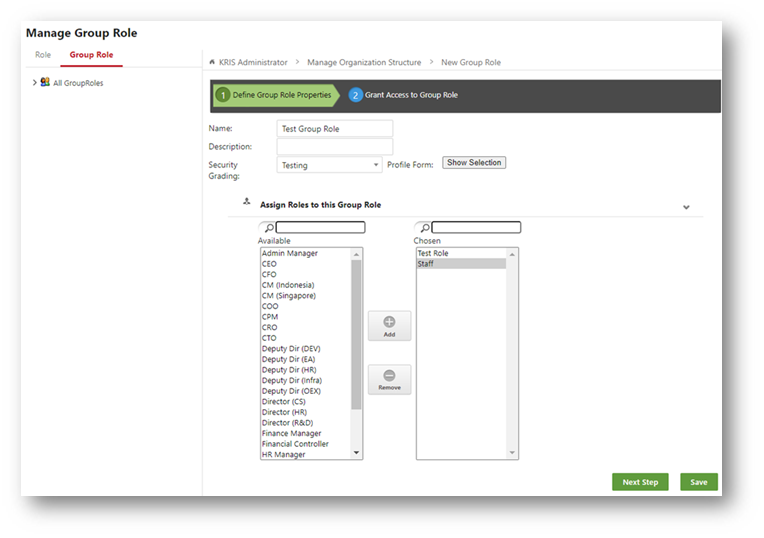
- Select the roles from the Available list and click on Add button
- The Available list will display the roles that match or have a higher security grading than the selected Security Grading in Step 5.
- Click on the Next Step button to grant Subject / Cabinet access (Optional) OR
- Click on Save button to create the group role.
- Click on OK button to close the Success Message window.